Pixel Watch Battery Draining Fast? Causes and Fixes

By Suraj Giri, Founder & Publisher. Reviewed by Suraj Giri on .
Published · 6 min read
How this page was made
- Sources. Checked against 5 official pages from Google, most recently on . See the sources.
- No device testing. We don't test fixes on physical devices, so nothing on this page is a hands-on result. A fact counts as verified only when it matches an official source page.
- AI use. As with every page on Gadget247News, AI tools helped research, outline, draft and edit this page, and re-read the official pages to flag facts that didn't match. The illustration at the top was generated with Runway and is labelled under the image.
- Human sign-off. Suraj Giri, Founder & Publisher, read this page and signed it off on . The site won't publish a page without that sign-off.
- Changes. The published and updated dates move only when the content changes, and every change gets a dated note. Spot an error or a fix that didn't work? Email info@gadget247news.com.
Read our AI use policy, editorial policy and corrections policy.
This guide is for a Google Pixel Watch that charges normally but runs out well before Google's rated battery life for your model, listed in the table below. A sudden drop points first to the settings and software checks here; a slow decline over a long time points to an aging battery, covered under Battery Health and Replacement. A watch that won't charge at all has its own guide, linked at the end. Every other fault starts at Pixel Watch Problems and Fixes.
Owners of an Apple Watch, Galaxy Watch, Fitbit, Garmin watch or Oura Ring can start at smartwatch battery dying fast, which covers each brand's battery settings. We matched each setting path and battery figure below to Google's Pixel Watch Help pages on September 27, 2026.
Why Your Pixel Watch Battery Drains Fast
Six things run a Pixel Watch battery down faster. The first five are features Google's battery page names:
- Always-on Display. It keeps the screen from going dark even when you're not using the watch.
- Tilt-to-wake and a long screen timeout. Tilt-to-wake lights the display each time you tilt the watch, and a slower timeout keeps the watch face awake longer.
- Mobile data on LTE models. Google says an LTE watch can lose charge too quickly when connected to the network.
- Long GPS workouts. Continuous GPS use gives 8 to 10 hours of battery life.
- Background activity and streamed music. Battery Saver limits background activity, and Google says streaming music can drain batteries faster.
- Software that isn't current. Google doesn't name updates as a drain cause, but it says keeping watch software and apps up to date can help resolve pairing issues and app errors.
How to Fix a Pixel Watch That Drains Fast
These follow the battery tips on Google's Pixel Watch help page; a restart or reset comes last.
Fix 1: Turn On Battery Saver
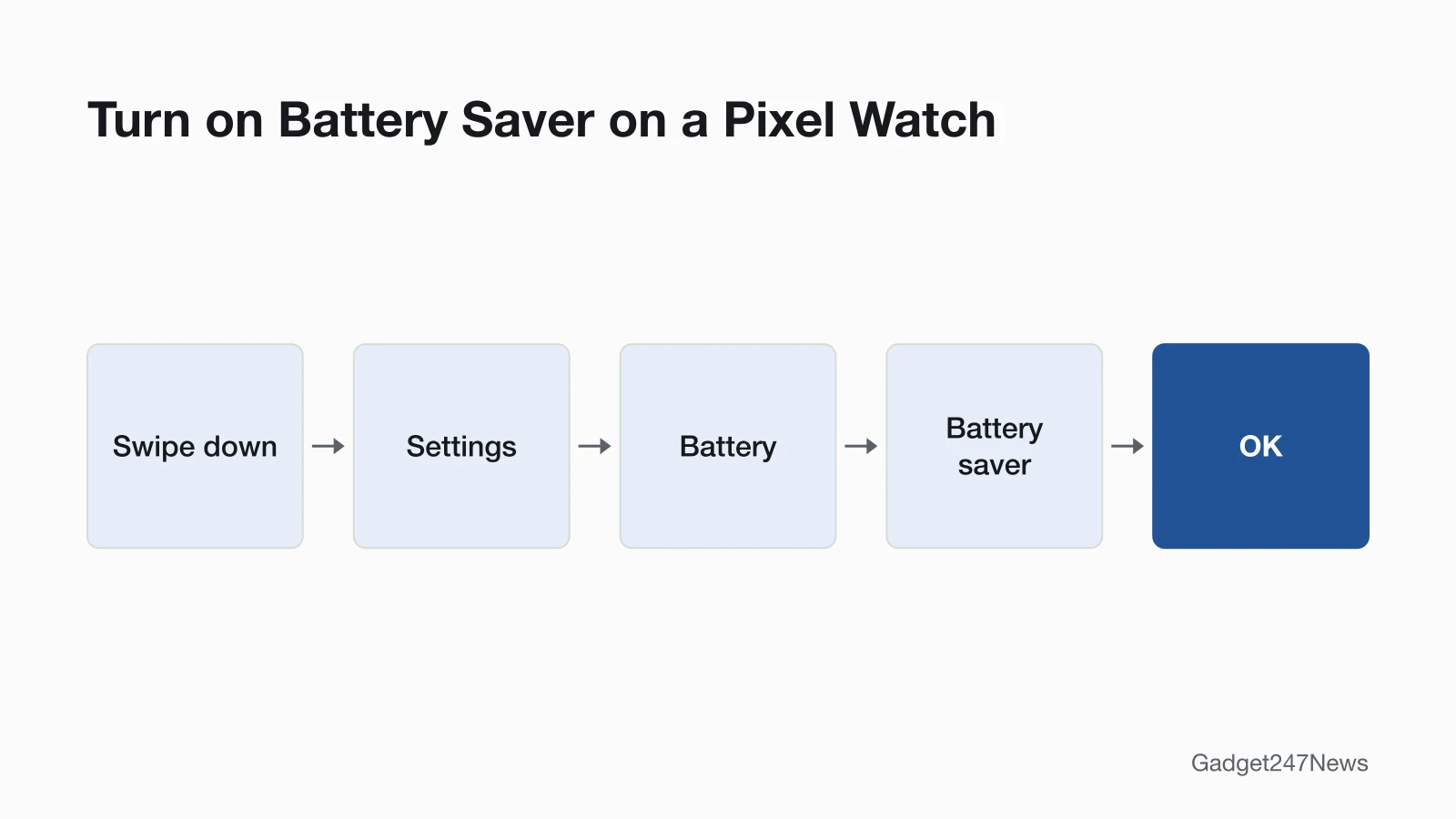
- Swipe down on the watch face and tap Settings.
- Tap Battery.
- Turn on Battery saver, then tap OK.
Battery Saver disables the Always-on Display but keeps Tilt-to-wake on; background activity is limited and notifications might be delayed. It also turns on by itself when the battery reaches 15%. Google says it keeps health and fitness tracking and safety features running, and its rated Battery Saver hours include notifications, calls and GPS during workouts without music.
One trade-off: Google's sync help says Battery Saver and Bedtime mode limit background data, so your data may not sync to the Google Health app (formerly the Fitbit app) until they're turned off. Turn Battery Saver off when you want a sync.
Fix 2: Turn Off Always-on Display
- Swipe down and tap Settings, then Display.
- Turn off Always-on Display.
Google rates the Pixel Watch 2, 3, 4 and 5 with Always-on Display turned on, and the first Pixel Watch with it turned off. Google doesn't publish how many hours you gain by switching it off.
Fix 3: Turn Off Tilt-to-Wake and Shorten the Screen Timeout
- Go to Settings › Gestures and turn off Tilt-to-wake.
- Go to Settings › Display › Screen timeout and select a faster timeout.
With Tilt-to-wake off, tilting the watch no longer wakes the display, and a faster timeout sends the watch face to sleep sooner.
Fix 4: Set Mobile Data to Automatic or Off (LTE Models)
- Swipe down, tap Settings, then tap Connectivity › Mobile › Mobile.
- Choose Automatic or Off.
Automatic connects to the cellular network only when there's no Bluetooth or Wi-Fi connection. Off turns the cellular radio off completely, so some features, such as phone calls, won't work while your phone is offline. Google marks this tip LTE only, so Wi-Fi models skip it.
Fix 5: Plan Around GPS Workouts and Use Bedtime Mode
Continuous GPS use gives a Pixel Watch 8 to 10 hours of battery life, against the 24 to 40 hours Google rates with Always-on Display on. Before a long session, turn on Improve location accuracy (Settings › Location › Google Location Accuracy) for what Google calls the most power-efficient location information, and download your music instead of streaming it.
Overnight, open quick settings and tap Bedtime mode. It turns off the watch screen, Tilt-to-wake and Touch-to-wake, and only alarms, priority and repeat callers notify you. Bedtime mode also turns on automatically based on your detected sleep; on a Pixel Watch 4, swipe down and touch and hold Bedtime mode to turn Auto enter or Auto exit on or off.
Fix 6: Update the Watch Software
- Swipe down, tap Settings, then System › System updates. The watch checks for updates, and you can't use it during the check.
- For apps, press the crown and tap Play Store › Manage apps › Update All.
Google recommends having the watch on its charger, charged to at least 50% and connected to Wi-Fi for updates. The full walkthrough is in How to update Pixel Watch.
Fix 7 (Last): Restart, Then Reset
Restart first: press and hold the crown for 3 seconds, scroll down and tap Restart. If the drain continues after you've changed every setting above, a factory reset is the last step. It erases all your apps, settings and data, and you reconnect the watch to your phone afterwards. Both procedures are in How to Restart or Factory Reset a Pixel Watch.
Pixel Watch Battery Life by Model
Google rates the Pixel Watch 4 at up to 40 hours (45 mm) or 30 hours (41 mm) with Always-on Display on, and up to 72 or 48 hours with Battery Saver. Google's figures for every model:
| Model | Always-on Display | Rated battery life | With Battery Saver |
|---|---|---|---|
| Pixel Watch 5 (45 mm) | On | Up to 40 hours | Up to 72 hours |
| Pixel Watch 5 (41 mm) | On | Up to 30 hours | Up to 48 hours |
| Pixel Watch 4 (45 mm) | On | Up to 40 hours | Up to 72 hours |
| Pixel Watch 4 (41 mm) | On | Up to 30 hours | Up to 48 hours |
| Pixel Watch 3 (41 mm and 45 mm) | On | Up to 24 hours | Up to 36 hours |
| Pixel Watch 2 | On | Up to 24 hours | No figure given |
| Pixel Watch | Off | Up to 24 hours | No figure given |
Google gives the Pixel Watch 3 one rating for both sizes. With continuous GPS use, Google rates a Pixel Watch at 8 to 10 hours. The figures come from Google's testing in California on pre-production hardware and software, and Google says actual battery life may be lower.
Still not working?
Still not working?
- Try the next fix: Pixel Watch not charging (if it won't charge fully or the charge stalls).
- Reset your Google Pixel Watch: How to restart or factory reset a Pixel Watch (you'll need to pair it again afterwards).
- Contact Google Support: Google Pixel Watch Help.
- Check repair or warranty options: Replace or file a warranty claim for Google Pixel Watch.
Started after an update? Check the Update Tracker for known issues.
Started After an Update?
Google's battery page doesn't list software updates as a cause of drain. If the drop began right after an update, note your build under Settings › System › About › Versions, then look for known issues in Fitbit and Pixel Watch problems after an update. Install the next update when it arrives, using the conditions in Fix 6.
Battery Health and Replacement
Google's battery page doesn't describe a battery-health screen on the watch. It says Pixel software manages battery performance to help maintain battery health as the battery ages. On a Pixel Watch 4 or 5, Adaptive charging (Settings › Battery) minimizes the wear that comes from staying fully charged for long periods. If the watch still drains fast with Battery Saver on and every tip above applied, contact Google or check your warranty (options 3 and 4 above).
Pixel Watch Battery: Quick Answers
How long does the Pixel Watch 4 battery last?
A Pixel Watch 4 lasts up to 40 hours in the 45 mm size and up to 30 hours in the 41 mm size, with Always-on Display on, by Google's rating. Battery Saver stretches that to up to 72 hours (45 mm) or 48 hours (41 mm).
Why is my Pixel Watch 3 battery draining so fast?
Google rates the Pixel Watch 3 at up to 24 hours with Always-on Display on, in both the 41 mm and 45 mm sizes. The drains Google names are Always-on Display, Tilt-to-wake, mobile data on LTE models and GPS workouts. Battery Saver raises the rating to up to 36 hours.
Does LTE drain the Pixel Watch battery faster?
Google's tip for an LTE Pixel Watch that loses charge too quickly on the network is to set Mobile to Automatic or Off. Google says battery life may differ with the mobile network and signal strength, but it publishes no figure that compares LTE and Wi-Fi models.
Sources
We checked this page against the pages below, most recently on . How we verify fixes
- Charge Google Pixel Watch and tips to improve battery life (Google, support.google.com)Official
- Install & update apps on Google Pixel Watch (Google, support.google.com)Official
- Fix a blank, frozen, or error message on the Google Pixel Watch screen (Google, support.google.com)Official
- Why won't my Fitbit device sync? (Google, support.google.com)Official
- Replace or file a warranty claim for Google Pixel Watch (Google, support.google.com)Official