Pixel Watch Not Syncing? How to Force a Sync

By Suraj Giri, Founder & Publisher. Reviewed by Suraj Giri on .
Published · 6 min read
How this page was made
- Sources. Checked against 10 official pages from Google, most recently on . See the sources.
- No device testing. We don't test fixes on physical devices, so nothing on this page is a hands-on result. A fact counts as verified only when it matches an official source page.
- AI use. As with every page on Gadget247News, AI tools helped research, outline, draft and edit this page, and re-read the official pages to flag facts that didn't match. The illustration at the top was generated with Runway and is labelled under the image.
- Human sign-off. Suraj Giri, Founder & Publisher, read this page and signed it off on . The site won't publish a page without that sign-off.
- Changes. The published and updated dates move only when the content changes, and every change gets a dated note. Spot an error or a fix that didn't work? Email info@gadget247news.com.
Read our AI use policy, editorial policy and corrections policy.
A Pixel Watch that's not syncing is paired and connected, but your steps, sleep or workouts don't show up in the Google Health app (formerly the Fitbit app). A watch that isn't connected to your phone at all has a connection fault, which Fix 1 checks first. For battery, charging and reset problems, start from the full list of Pixel Watch pairing, sync and battery fixes.
For an Apple Watch, Galaxy Watch, Garmin, Fitbit or Oura Ring, the steps differ by brand and are collected under smartwatch sync fixes.
What Syncs Where on a Pixel Watch
A Pixel Watch uses two apps on your phone, and sync problems live in the second one:
| What | App on your phone | What Google says |
|---|---|---|
| Pairing, notifications and reset | Google Pixel Watch app | Setup needs "The latest version of the Google Pixel Watch app" |
| Health and fitness data | Google Health app | "Google Pixel Watch automatically syncs with the Google Health app on your phone" |
| The sync itself | Google Health app | "Your phone is connected to cellular data (LTE) or Wi-Fi" |
Why Your Pixel Watch Isn't Syncing
Google's sync steps for the Pixel Watch series point to 5 causes:
- The watch isn't Connected in the Google Pixel Watch app.
- Bedtime mode or Battery Saver is on. Google says both "limit background data connectivity".
- The watch or phone is offline, or phone Bluetooth is off. The watch needs Bluetooth, cellular data (LTE) or Wi-Fi; the phone needs cellular data (LTE) or Wi-Fi.
- The Google Health app is out of date, on the watch or on the phone.
- The watch isn't listed under Connections in the Google Health app.
The same checklist also asks for the latest Android version on your phone and a charged watch. The fixes below follow Google's order for the Pixel Watch series; the watch restart and factory reset, which Google's sync steps don't include, come last.
Fix 1: Check the Connection First
Open the Google Pixel Watch app and check that its home screen shows your watch as Connected. Google's sync checklist also wants phone Bluetooth on, at Settings › Connected devices › Connection preferences › Bluetooth, and the phone on cellular data (LTE) or Wi-Fi. If the app doesn't say Connected, use the steps for when a Pixel Watch won't connect to your phone, then come back here.
Fix 2: Turn Off Bedtime Mode and Battery Saver
Google says Pixel Watch data "will only sync once they're turned off", so switch off both modes:
- Swipe down on the watch face and turn off Bedtime. Google's tip: disabled icons have a dark background.
- Swipe down, tap Settings, then Battery, and switch Battery saver off.
Google adds that interacting with your Pixel Watch also restores background data connectivity. Battery Saver turns on by itself when the battery reaches 15%, and it disables the Always-on Display and limits background activity, so a watch that ran low can pause syncing on its own. Once the data is through, turn Battery Saver back on if you need the battery life.
Fix 3: Force a Sync in the Google Health App
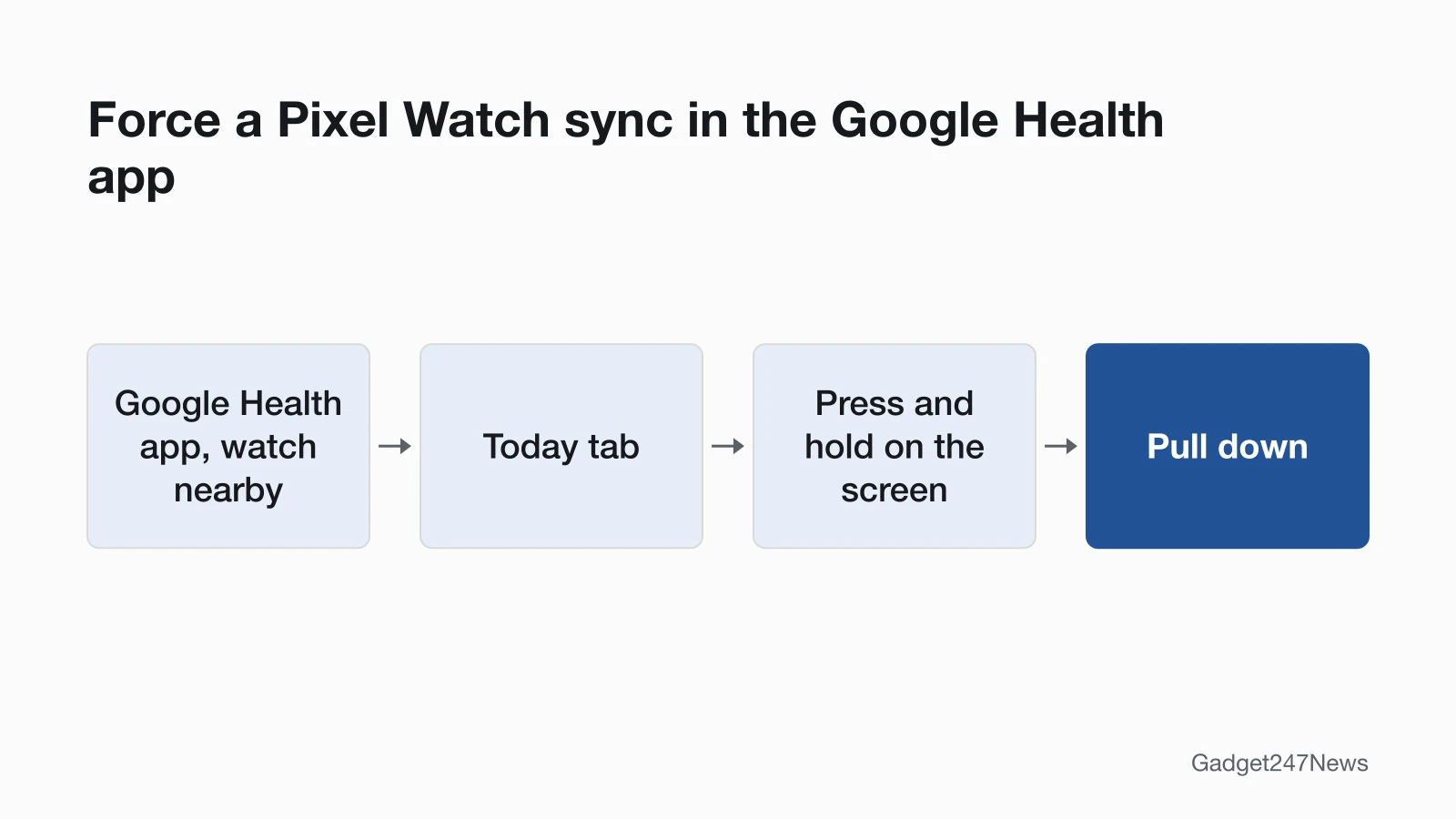
To force a sync, keep the watch nearby, open the Google Health app, tap the Today tab, then press and hold on the screen and pull down. Google lists a Sync Now option for Fitbit devices, but for the Pixel Watch series the pull-down is the manual sync it gives. If nothing new appears, check that the watch is linked to your account:
- On the Today tab, check that your name appears in the greeting.
- Tap Connections at the top left and look for Google Pixel Watch in the list of connected devices.
- If it's missing, tap your device under Connections and follow the on-screen instructions to connect the watch to your account.
Fix 4: Update Google Health on the Watch and Phone
Update the apps on both devices, because Google's checklist wants the Google Health app current on the watch and on the phone:
- On the watch, press the crown, swipe up to the Play Store app and open it. Swipe up, and near the very bottom tap Manage apps › Update all.
- On your phone, update the Google Health app from Google Play.
- Check your phone's Android version at Settings › About Phone (or About Device) › Android Version, and install any pending update.
Google also says to update the Pixel Watch app to "keep your phone and watch synced". For the watch's own software, see how to update your Pixel Watch.
Fix 5: Restart Your Phone
Restart your phone; it's step 2 on Google's Pixel Watch sync list, right after the settings checks. After the phone restarts, open the Google Health app and try the pull-down sync again.
Fix 6: Reinstall the Google Health App
Uninstall and reinstall the Google Health app, which is Google's step 3, and reopen it after each step to check the sync. First confirm your phone runs a supported Android version: Google warns that on an older version "you won't be able to reinstall the app". If the watch still won't sync, remove all other Fitbit devices from your Google Health account and from your phone's list of connected Bluetooth devices.
Fix 7 (Last): Restart or Reset the Watch
Google's Pixel Watch sync steps end with contacting Customer Support, not with a factory reset. A watch restart is the gentler option: press and hold the crown for 3 seconds, then scroll down and tap Restart. A factory reset is a last resort, because Google warns that all your apps, settings, and data are erased; the steps to factory reset a Pixel Watch also cover pairing it again.
The Fitbit App Is Now Google Health
Starting May 19, 2026, the Fitbit app became the Google Health app, and Google addresses the change to Pixel Watch users as well as Fitbit owners. With a Pixel Watch connected, the app is organized into 4 tabs: Today, Fitness, Sleep and Health. Google said that for most people the app would update automatically between May 19 and May 26. The background is in our story on Fitbit's move to Google.
Still not working?
- Try the next fix: Pixel Watch not getting notifications (if alerts are missing too).
- Reset your Google Pixel Watch: factory reset a Pixel Watch (you'll need to pair it again afterwards).
- Contact Google Support: Google Pixel Watch Help.
- Check repair or warranty options: Replace or file a warranty claim for Google Pixel Watch.
Started after an update? Check the Update Tracker for known issues.
Started After an Update?
If syncing stopped right after an update, find out what installed first. On the watch, swipe down, tap Settings › System › About, then tap Versions to see the version details. With that in hand, check which Fitbit or Pixel Watch update you have and whether it has a known sync issue. Then run Fix 4, since Google's checklist expects the Google Health app to be current on both devices.
Not Syncing to Other Apps
The Google Health app links to other apps in two ways, Google says: most third-party apps and devices share data through Health Connect on Android phones, and some connect directly. To add one directly, open the Google Health app, tap Connections at the top left, tap Partner apps or Apps and services, then choose the app and follow its instructions. Google notes that third-party data may not be available for all Google Health metrics. This covers device settings only and isn't medical advice.
Pixel Watch Sync: Quick Answers
Does Pixel Watch sync automatically?
Yes. Google says Google Pixel Watch automatically syncs with the Google Health app on your phone. Bedtime mode and Battery Saver limit background data connectivity, and Google says data will only sync once they're turned off. Turning either mode off, or interacting with the watch, restores background data.
Why is my Pixel Watch data missing in the Google Health app?
Missing data means the watch hasn't synced with the Google Health app yet. Check three items from Google's sync checklist first: the watch shows Connected in the Google Pixel Watch app, Bedtime mode and Battery Saver are off, and the watch is listed under Connections (Fixes 1 to 3). Then press and hold on the Today tab and pull down to force a sync.
Does Pixel Watch still use the Fitbit app?
Not under that name: starting May 19, 2026, the Fitbit app became the Google Health app, and your Pixel Watch's fitness data syncs there. Pairing, notifications and the factory reset stay in the Google Pixel Watch app.
Sources
We checked this page against the pages below, most recently on . How we verify fixes
- Why won't my Fitbit device sync? (Google Health Help, Google Pixel Watch series) (Google, support.google.com)Official
- Get started with Google Health on Google Pixel Watch (Google, support.google.com)Official
- How to fix a blank, unresponsive, rebooting, or flickering Fitbit device screen (manual sync) (Google, support.google.com)Official
- Charge Google Pixel Watch and tips to improve battery life (Google, support.google.com)Official
- Fix notification issues on your Google Pixel Watch (Google, support.google.com)Official
- Install & update apps on Google Pixel Watch (Google, support.google.com)Official
- Set up Google Pixel Watch (Google, support.google.com)Official
- Fix a blank, frozen, or error message on the Google Pixel Watch screen (Google, support.google.com)Official
- What is new with the redesigned Google Health app (Google, support.google.com)Official
- Connect third-party devices and apps to the Google Health app (Google, support.google.com)Official