Pixel Watch Not Getting Notifications? How to Fix It

By Suraj Giri, Founder & Publisher. Reviewed by Suraj Giri on .
Published · 6 min read
How this page was made
- Sources. Checked against 9 official pages from Google, most recently on . See the sources.
- No device testing. We don't test fixes on physical devices, so nothing on this page is a hands-on result. A fact counts as verified only when it matches an official source page.
- AI use. As with every page on Gadget247News, AI tools helped research, outline, draft and edit this page, and re-read the official pages to flag facts that didn't match. The illustration at the top was generated with Runway and is labelled under the image.
- Human sign-off. Suraj Giri, Founder & Publisher, read this page and signed it off on . The site won't publish a page without that sign-off.
- Changes. The published and updated dates move only when the content changes, and every change gets a dated note. Spot an error or a fix that didn't work? Email info@gadget247news.com.
Read our AI use policy, editorial policy and corrections policy.
This guide is for alerts that reach your Android phone but not your Google Pixel Watch. Missing steps, sleep or workouts point to a sync problem instead, and a watch showing "Disconnected" needs Fix 4 first. Other Pixel Watch problems are on Pixel Watch pairing, sync and battery fixes.
Every phone step here is an Android step, because Google says "iPhones aren't supported" for Pixel Watch. For another brand's watch, the alert and sync checks are on smartwatch data not syncing to the app.
Why Your Pixel Watch Isn't Getting Notifications
A Pixel Watch misses notifications when a setting on the phone, in the Google Pixel Watch app or on the watch holds them back, or when the watch loses its connection. Google's troubleshooting page covers these six causes:
- The phone's notifications for the Google Pixel Watch app are off or set to silent.
- The Google Pixel Watch app has Mute notifications from phone or Hide silent notifications turned on.
- A watch mode is on: Bedtime, Do Not Disturb or Theater mode.
- Silence watch when not being worn is on, so alerts go silent while the watch is off your wrist.
- The watch isn't connected over Bluetooth, Wi-Fi or LTE, or the paired phone is turned off.
- The phone or the watch isn't on the latest software.
Google's page doesn't mention battery optimization or a notification-access permission, so neither is on this list.
How to Fix a Pixel Watch That Isn't Getting Notifications
These are the checks on Google's notifications page. Google lists updating and unlinking as "before you begin" steps; here they come last, because unlinking means pairing the watch again.
Fix 1: Turn On the Pixel Watch App's Notifications on Your Phone
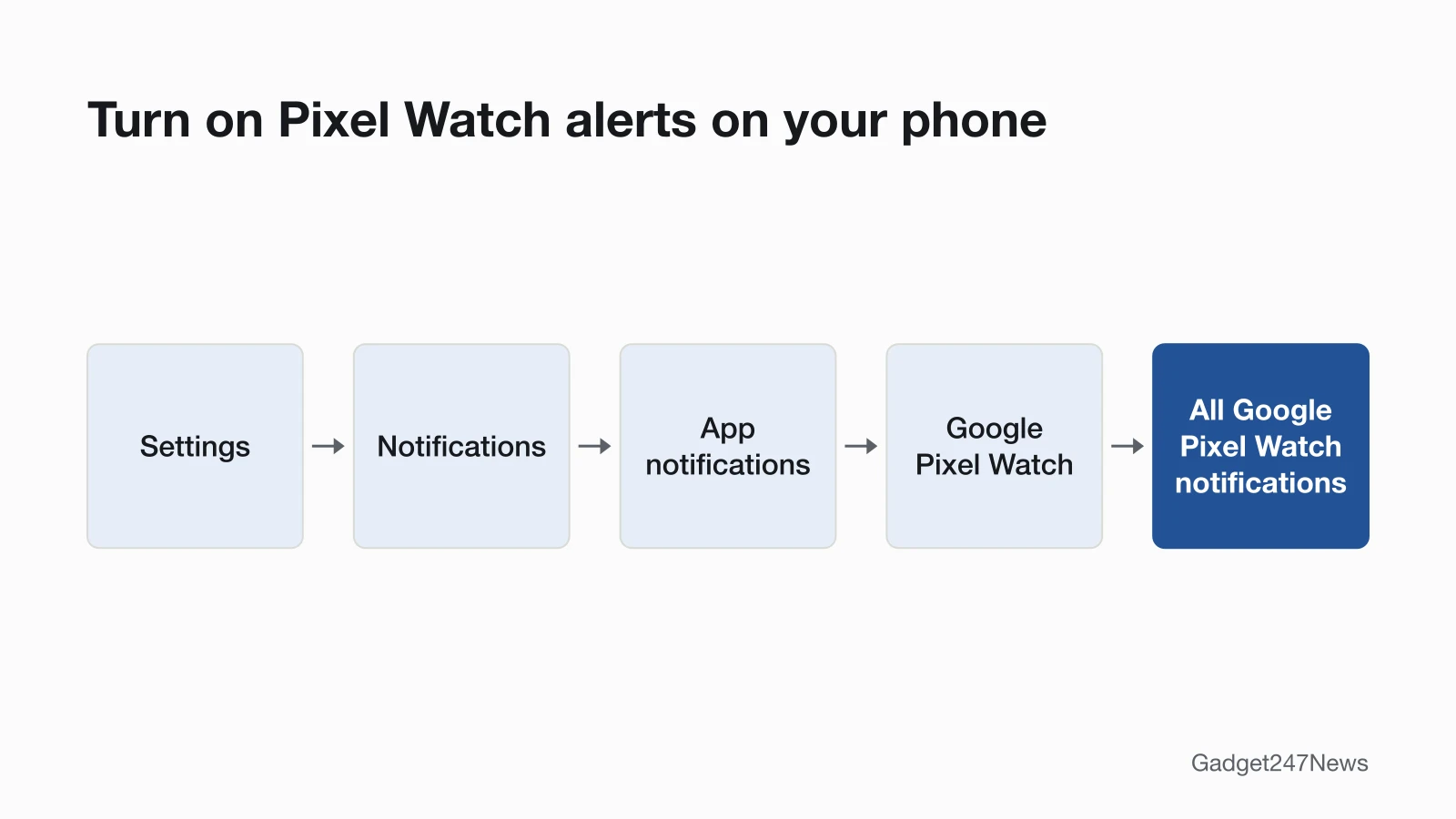
Turn on All Google Pixel Watch notifications in your phone's app notification settings:
- On your phone, open Settings › Notifications › App notifications › Google Pixel Watch.
- Turn on All Google Pixel Watch notifications.
- If the app's notifications are set to silent, go to Other, tap General notifications, turn on Show notifications and select Default.
Google's tip: turn on General notifications "so your Google Pixel Watch app's phone notifications aren't silent." Menu names differ on some phones; Google's Android help says "Settings can vary by phone."
Fix 2: Check the Google Pixel Watch App's Notification Settings
Turn off Mute notifications from phone and Hide silent notifications in the Google Pixel Watch app:
- Open the Google Pixel Watch app on your phone and go to Notifications.
- In the "Manage watch notifications" section, make sure Mute notifications from phone and Hide silent notifications are turned off.
With Mute on, notifications you get while using your phone don't appear on the watch. Hide silent notifications hides the alerts your phone sets to silent (Fix 1).
Fix 3: Turn Off Do Not Disturb, Bedtime and Theater Mode
Turn off every mode that pauses notifications on the watch itself:
- Swipe down on the watch face and make sure Bedtime, Do Not Disturb and Theater mode are off. In Google's words, "Disabled icons have a dark background."
- On the watch, go to Settings › Vibration and turn off Silence watch when not being worn.
Google says these three modes disable notifications, and the Vibration setting silences them whenever you're not wearing the watch.
Fix 4: Check the Watch Is Connected
Turn on Bluetooth and Wi-Fi on the watch; Google says notifications need Bluetooth, Wi-Fi or an LTE-enabled watch:
- Swipe down on the watch and tap Settings › Connectivity › Bluetooth, then turn on Bluetooth.
- Swipe right to go back, tap Wi-Fi and turn on Wi-Fi.
- On an LTE watch you use without Bluetooth or Wi-Fi, tap Settings › Connectivity › Mobile to confirm the carrier plan.
Keep the phone on as well: Google says "The phone paired with your watch must be turned on to receive notifications." If the watch still shows "Disconnected", work through Pixel Watch not connecting to the Pixel Watch app.
Fix 5: Update the Phone and Watch
Update both devices: Google's first "before you begin" check is that your phone and watch "have the latest software versions." With the watch on its charger, at least 50% battery and Wi-Fi on, tap Settings › System › System updates. On the phone, check for an Android update and update the Google Pixel Watch app from Google Play. The full steps are on Pixel Watch software update.
Fix 6 (Last): Unlink and Pair Again
Unlink the watch and pair it again only after Fixes 1 to 5: "Unlink your watch in the Google Pixel Watch app, then pair it again." Restart it first: hold the crown for 3 seconds, scroll down and tap Restart. Google's notifications page doesn't say whether unlinking erases the watch, but Reset and unpair watch does: a factory reset erases "all your apps, settings, and data." Use it only when you want to factory reset a Pixel Watch.
Texts, Calls and Specific Apps
Texts and calls have extra requirements on Google's calls and texts pages.
Text Messages Not Showing or Not Sending
Set the Android messaging app as the default messaging app on your phone. Google says you can send and receive texts on Pixel Watch "With the Android messaging app set as the default messaging client on your phone." The texting terms on Google's setup page add: "Texting also requires the Messages by Google app." Texts also depend on the phone: the watch "syncs texts with your phone so your connected phone must be online." On a Wi-Fi Pixel Watch, you can't send or receive texts unless your phone is nearby.
Calls Not Showing
Turn off the modes that pause notifications for missed-call alerts. Google says to make sure "you're not muting call notifications": swipe down on the watch and check that those modes are off. Calls also need the Fix 4 connection: a Wi-Fi model needs your phone nearby, and a Pixel Watch 4G LTE doesn't.
Still not working?
If alerts still don't reach the watch after all six fixes:
- Try the next fix: Pixel Watch not syncing (if your data is missing too).
- Reset your Google Pixel Watch: factory reset a Pixel Watch (you'll need to pair it again afterwards).
- Contact Google Support: Google Pixel Watch Help.
- Check repair or warranty options: Replace or file a warranty claim for Google Pixel Watch.
Started after an update? Check the Update Tracker for known issues.
Stopped Suddenly After an Update?
If notifications stopped suddenly right after an update, start with Google's first "before you begin" check: the latest software on both the phone and the watch. Install any newer update on each, then look up your build on Fitbit and Pixel Watch problems after an update for a known issue. Your build number is at Settings › System › About › Versions on the watch.
Want Fewer Alerts Instead?
The same switches work the other way: turn on Mute notifications from phone in the Google Pixel Watch app to keep alerts you get while using the phone off your wrist, or turn on Do Not Disturb or Theater mode from the watch face. Silence watch when not being worn keeps the watch quiet when you take it off.
Pixel Watch Notifications: Quick Answers
Why is my Pixel Watch not getting text notifications?
Text alerts depend on your phone's messaging setup: Google ties watch texting to the Android messaging app set as your phone's default. With that set, check the phone's All Google Pixel Watch notifications switch, then turn off Do Not Disturb, Bedtime and Theater mode on the watch.
Why can't my Pixel Watch send texts?
A Pixel Watch syncs texts with your phone, so the phone must be online, and a Wi-Fi model needs the phone nearby. The texting terms on Google's setup page also say texting requires the Messages by Google app.
How do I change the notification sound on my Pixel Watch?
Swipe down, tap Settings, then tap Sound to turn the volume up or down, or Vibration to turn vibrations on or off. The Google pages we checked on September 27, 2026 don't list a setting that picks a different notification tone.
Sources
We checked this page against the pages below, most recently on . How we verify fixes
- Fix notification issues on your Google Pixel Watch (Google, support.google.com)Official
- Make and receive phone calls and SMS texts on Pixel Watch (Google, support.google.com)Official
- Fix phone call and text message issues on Pixel Watch (Google, support.google.com)Official
- Set up Google Pixel Watch (Google, support.google.com)Official
- Compatibility requirements & region availability for Pixel Watch (Google, support.google.com)Official
- Install & update apps on Google Pixel Watch (Google, support.google.com)Official
- Fix a blank, frozen, or error message on the Google Pixel Watch screen (Google, support.google.com)Official
- Change the watch face, background, and other settings on Pixel Watch (Google, support.google.com)Official
- Control notifications on Android (Google, support.google.com)Official