How to Set an Alarm on Apple Watch

By Suraj Giri, Founder & Publisher. Reviewed by Suraj Giri on .
Published · 4 min read
How this page was made
- Sources. Checked against 5 official pages from Apple, most recently on . See the sources.
- No device testing. We don't test fixes on physical devices, so nothing on this page is a hands-on result. A fact counts as verified only when it matches an official source page.
- AI use. As with every page on Gadget247News, AI tools helped research, outline, draft and edit this page, and re-read the official pages to flag facts that didn't match. The illustration at the top was generated with Runway and is labelled under the image.
- Human sign-off. Suraj Giri, Founder & Publisher, read this page and signed it off on . The site won't publish a page without that sign-off.
- Changes. The published and updated dates move only when the content changes, and every change gets a dated note. Spot an error or a fix that didn't work? Email info@gadget247news.com.
Read our AI use policy, editorial policy and corrections policy.
Open the Alarms app on your Apple Watch, tap the Add button, set the time with the Digital Crown, then tap the Check button. Every alarm you add can play a sound or vibrate your watch at a set time. This page covers alarms only; if your Apple Watch face won't change, that has its own guide.
If the watch is still in its box, set up your new Apple Watch first, then come back to set your alarms.
How to Add an Alarm on Apple Watch
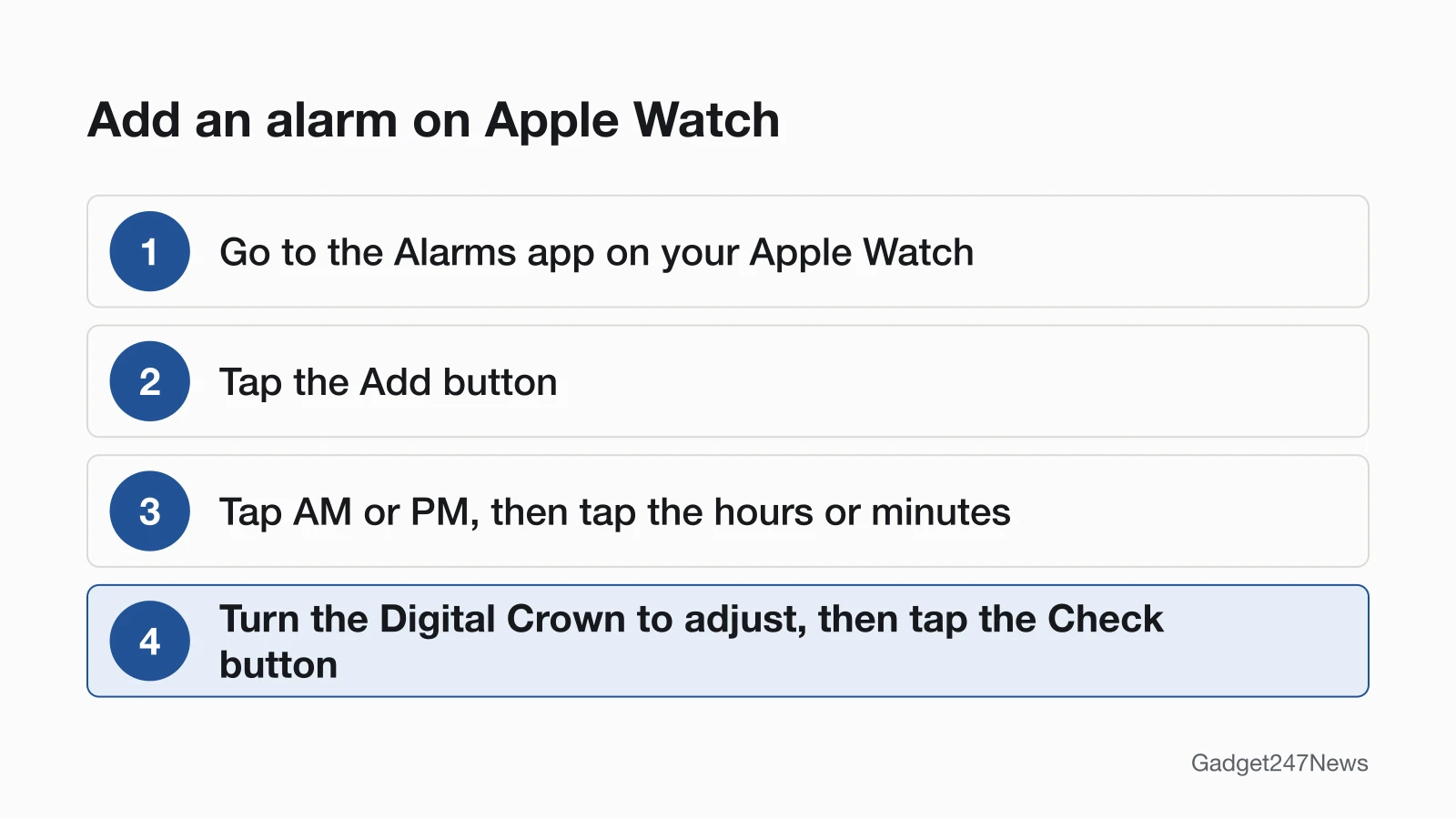
To add an alarm on Apple Watch, work through the Alarms app in five steps:
- Go to the Alarms app on your Apple Watch.
- Tap the Add button.
- Tap AM or PM, then tap the hours or minutes.
- Turn the Digital Crown to adjust, then tap the Check button.
- Tap the alarm's switch to turn it on or off.
Ask Siri Instead
Siri can set the alarm by voice. Apple's example is to ask Siri something like "Set repeating alarm for 6 a.m."
Repeat, Label or Snooze an Alarm
To repeat, label or snooze an alarm, open the Alarms app, tap the alarm time, then pick one of Apple's six options:
- Change time: set a different alarm time.
- Repeat: choose the days of the week the alarm repeats.
- Label: give the alarm a name, like Apple's "Water the plants."
- Snooze: show a Snooze button with the alarm.
- Snooze Duration: choose how long the alarm pauses.
- Break Through Silent Mode: have sound always play while you wear the watch.
Tapping Snooze waits "several minutes" before the alarm sounds again, in Apple's words. To stop yourself snoozing, tap the alarm in the list and turn off Snooze.
How to Delete an Alarm
To delete an alarm, swipe it away in the Alarms app:
- Go to the Alarms app on your Apple Watch.
- Swipe left on the alarm, then tap the Delete button.
Set a Silent Alarm That Only Taps Your Wrist
To set a silent alarm, turn on Silent Mode: press the side button to open Control Center, then tap the Silent Mode button. Apple's tip says this gives you "an alarm that taps your wrist, but doesn't make a sound," so leave Break Through Silent Mode off for that alarm. There's one exception: while the watch is charging, alarms still sound, even in Silent Mode. Our guide to silence an Apple Watch covers what else Silent Mode mutes.
Get Your iPhone Alarms on Apple Watch
To get your iPhone alarms on the watch, turn on one setting in the Apple Watch app:
- Set the alarm on your iPhone.
- Go to the Apple Watch app on your iPhone.
- Tap My Watch, tap Clock, then turn on Push Alerts from iPhone.
When the alarm goes off, your watch alerts you so you can snooze or dismiss it. It doesn't work the other way round: you aren't alerted on your iPhone when your Apple Watch alarms go off.
Use Apple Watch as a Bedside Alarm Clock (Nightstand Mode)
To use the watch as a bedside clock, turn on Nightstand Mode:
- Go to the Settings app on your Apple Watch.
- Tap General, tap Nightstand Mode, then turn on Nightstand Mode.
Connect the watch to its charger and it shows the charging status, the current time and date, and the time of any alarm you've set. Tap the display or lightly nudge the watch to see the time. When the alarm sounds, press the side button to turn it off, or press the Digital Crown to snooze.
How to Check It Worked
The alarm is set when it shows in the Alarms list with its switch turned on. If you have a sleep schedule, its wake-up alarm also appears in the Alarms app; to change that schedule, see how to track sleep on Apple Watch.
If Your Apple Watch Alarm Isn't Working
When your Apple Watch alarm isn't working, check these four settings in order:
- Silent Mode is on, so the alarm only taps your wrist. Tap the alarm and turn on Break Through Silent Mode.
- The alarm's switch is off, or the alarm doesn't repeat on that day. Tap the alarm and check Repeat.
- The alarm lives on your iPhone, and Push Alerts from iPhone is off in the Apple Watch app.
- The volume is low. Open Settings on the watch, tap Sounds & Haptics, turn off Automatically Adjust Volume, then adjust the volume slider.
An alarm that seems early or late can mean the watch face shows a different time. Apple says alarms "will still match the actual time" when the face is set ahead, so check the face and fix the time on an Apple Watch if needed.
Related Setup Tasks
Two more setup tasks sit close to alarms:
- How to Unlock an Apple Watch, for the watch passcode.
- How to silence an Apple Watch, linked in the silent alarm section above.
Alarm Questions
The last three questions cover alarms away from your iPhone, sleep alarms and Nightstand Mode.
Does the Apple Watch alarm work without my iPhone?
Yes. Apple lists alarms among the things Apple Watch can still do away from your iPhone, even without Wi-Fi, next to the world clock, timers and the stopwatch. Alarms you set on your iPhone reach the watch through a separate setting, Push Alerts from iPhone.
How do I skip tomorrow's wake-up alarm?
Open the Alarms app, tap the alarm that appears below Alarms, then tap Skip for Tonight. It works on a wake-up alarm that's part of your sleep schedule and skips it for that evening only. For a regular alarm, tap its switch to turn it off instead.
How do I turn off an alarm in Nightstand Mode?
Press the side button to turn the alarm off, or press the Digital Crown to snooze it. An alarm set in the Alarms app wakes you gently in Nightstand Mode, with a unique alarm sound. To check the time in Nightstand Mode, Apple adds that even nudging or tapping the table might work.
Sources
We checked this page against the pages below, most recently on . How we verify fixes
- Add an alarm on Apple Watch (Apple Watch User Guide) (Apple, support.apple.com)Official
- Silence notifications for extended periods on Apple Watch (Apple Watch User Guide) (Apple, support.apple.com)Official
- Adjust volume and haptics on Apple Watch (Apple Watch User Guide) (Apple, support.apple.com)Official
- Use Apple Watch without its paired iPhone (Apple Watch User Guide) (Apple, support.apple.com)Official
- Change the time settings on your Apple Watch (Apple, support.apple.com)Official