How to Set Up an Apple Watch Step by Step

By Suraj Giri, Founder & Publisher. Reviewed by Suraj Giri on .
Published · 4 min read
How this page was made
- Sources. Checked against 8 official pages from Apple, most recently on . See the sources.
- No device testing. We don't test fixes on physical devices, so nothing on this page is a hands-on result. A fact counts as verified only when it matches an official source page.
- AI use. As with every page on Gadget247News, AI tools helped research, outline, draft and edit this page, and re-read the official pages to flag facts that didn't match. The illustration at the top was generated with Runway and is labelled under the image.
- Human sign-off. Suraj Giri, Founder & Publisher, read this page and signed it off on . The site won't publish a page without that sign-off.
- Changes. The published and updated dates move only when the content changes, and every change gets a dated note. Spot an error or a fix that didn't work? Email info@gadget247news.com.
Read our AI use policy, editorial policy and corrections policy.
To set up an Apple Watch, turn it on, hold it near your iPhone with the Lock Screen dismissed, and follow the prompts; pairing happens in step 4. This guide is part of our Apple Watch pairing, sync and battery fixes. If your phone can't find the watch at all, see smartwatch not connecting first.
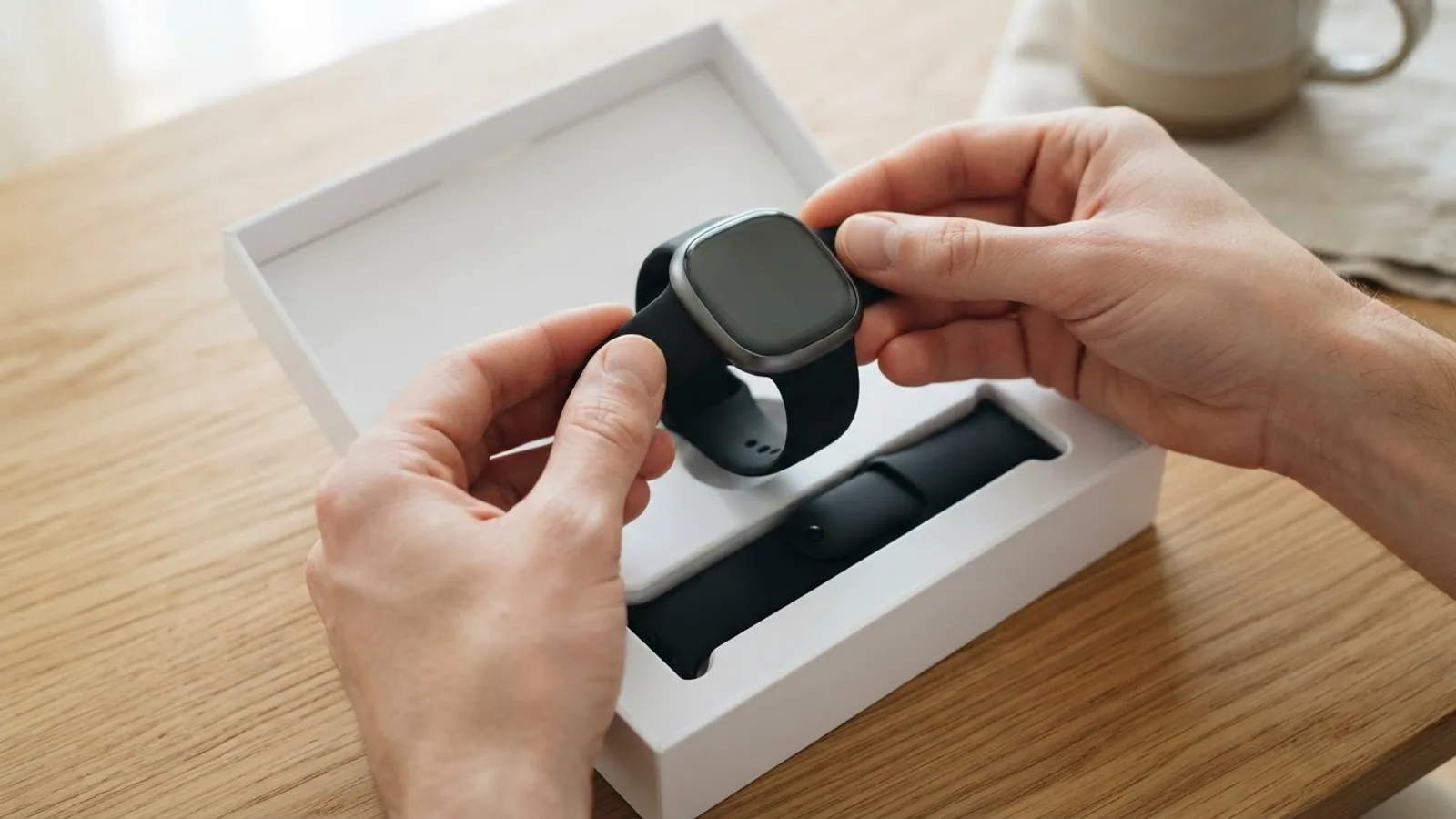
How to Set Up Your Apple Watch
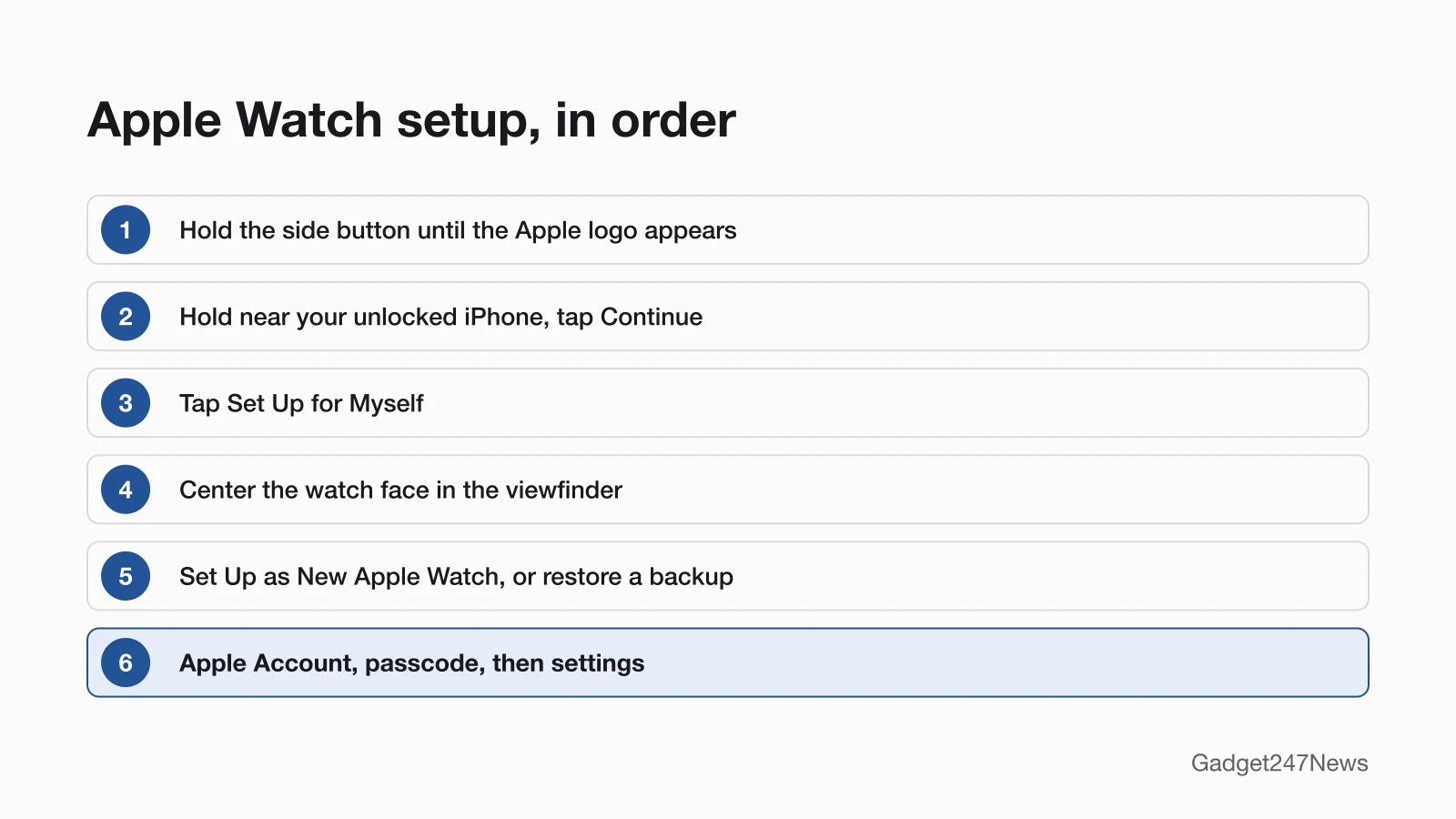
To set up your Apple Watch, follow these 10 steps in order, with the watch and iPhone close together.
- Press and hold the side button until the Apple logo appears, then put the watch on your wrist.
- Dismiss your iPhone's Lock Screen and hold the watch near it. When "Use your iPhone to set up this Apple Watch" appears, tap Continue. If it doesn't, open the Apple Watch app, tap All Watches, then Add Watch.
- Tap Set Up for Myself, or Set Up for a Family Member for someone in your family.
- Center the watch face in the iPhone's viewfinder and wait for the message that your Apple Watch is paired. If your iPhone can't read it, tap Pair Apple Watch Manually.
- Tap Set Up as New Apple Watch for your first Apple Watch, or restore from a backup (table below). Install a watchOS update if asked; if your iPhone offers an iOS update, tap Update Now.
- Choose your wrist and tap Continue, then read the Terms and Conditions and tap Agree.
- Enter your Apple Account password if asked. Otherwise, sign in later in the Apple Watch app under General › Apple Account.
- Tap Create a Passcode or Add a Long Passcode, then enter the code on the watch. Don't Add Passcode skips it, but Apple Pay needs one.
- Configure text size, review the settings shared with your iPhone, and add your date of birth for Fitness and Health. Cellular models can set up cellular; the last screens offer Apple Pay.
- Keep the watch and iPhone close while they sync. The watch face appears when your watch is ready to use.
Set Up as New or Restore From a Backup?
Set up as new for a first watch or a clean start; restore from a backup when you pair the same watch with this iPhone again or replace an older one. Apple says watch content "is backed up continuously to the iPhone" while they're paired.
| Option | When to choose it | What happens |
|---|---|---|
| Set Up as New Apple Watch | Your first Apple Watch, or a fresh start | You fully customize your watch settings |
| Restore from a backup | A replacement watch, or the same watch paired again with this iPhone | Choose Restore from Backup, or tap Customize Settings on Make This Your New Apple Watch, then pick a stored backup |
Moving to a new iPhone is a separate transfer; follow How to pair an Apple Watch with a new iPhone.
If the Camera Pairing Doesn't Work
Tap Pair Apple Watch Manually at the bottom of the iPhone screen, then follow the onscreen instructions. Apple offers it when you can't use the camera, the animation doesn't appear, or your iPhone can't read it. Our Apple Watch pairing steps also cover pairing again.
Setting Up a Watch for a Family Member
Choose Set Up for a Family Member in step 3 to set up a watch for someone without an iPhone; your iPhone then manages some of its settings. Apple calls this Apple Watch For Your Kids (formerly Family Setup). Requirements include a cellular Apple Watch Series 4 or later, or SE or later, and an iPhone 6s or later with iOS 14 or later.
Can You Set Up an Apple Watch With an Android Phone?
No. Apple says, "To use your Apple Watch, you need to pair it with your iPhone," so an Android phone can't set one up. Our explainer on Apple Watch with Android has the full answer.
How to Check That Setup Worked
Setup worked when these three checks pass:
- The watch face shows. Apple says it appears when the watch is ready to use.
- Control Center shows a green iPhone icon. Press the side button to open it; a red iPhone icon or red X means the watch and iPhone aren't connected.
- Notifications reach the watch. Apple says missing notifications, messages or calls can mean the two aren't connected.
If Apple Watch Setup Doesn't Work
When setup fails or shows an error, Apple's three checks are: update the iPhone to the latest iOS, restart the iPhone, and restart the watch. If they still can't connect, see Apple Watch won't connect to your phone. Two failures have their own fixes.
The Watch Shows a Watch Face During Pairing
A watch face during pairing means the watch is still paired with an iPhone; so does a passcode prompt. Unpair it from that iPhone, or erase it on the watch: Settings › General › Reset › Erase All Content and Settings. Erasing on the watch leaves Activation Lock on, so have the Apple Account and password used to set it up. How to Restart or Factory Reset an Apple Watch has the full steps.
Pairing Stalls or Freezes
If the pairing animation stays on screen for several minutes, press and hold the Digital Crown while the watch is in pairing mode, then tap Reset. After it resets, pair it again.
Setup Questions
These answers cover the iPhone requirement and what to set up next.
Can you set up an Apple Watch without an iPhone?
No. Setting up an Apple Watch takes an iPhone. With Apple Watch For Your Kids the wearer needs no iPhone, but your iPhone sets it up and manages some of its settings, and features that depend on a companion iPhone aren't available.
What should I set up first after pairing?
Start with a watch face, your apps and Apple Pay, which needs the passcode from step 8. See how to add apps to an Apple Watch. On a cellular model, set up cellular on Apple Watch next. For faces, see How to Change the Apple Watch Face.
Sources
We checked this page against the pages below, most recently on . How we verify fixes
- Set up your Apple Watch (Apple, support.apple.com)Official
- Pair and set up Apple Watch with iPhone (Apple Watch User Guide) (Apple, support.apple.com)Official
- Restore Apple Watch from a backup (Apple Watch User Guide) (Apple, support.apple.com)Official
- Set up Apple Watch for a family member (Apple, support.apple.com)Official
- If your Apple Watch isn't connected or paired with your iPhone (Apple, support.apple.com)Official
- If you can't pair an Apple Watch with your iPhone (Apple, support.apple.com)Official
- Unpair and erase your Apple Watch (Apple, support.apple.com)Official
- Apple Watch and iPhone compatibility (Apple, support.apple.com)Official