How to Pair an Apple Watch With a New iPhone

By Suraj Giri, Founder & Publisher. Reviewed by Suraj Giri on .
Published · 4 min read
How this page was made
- Sources. Checked against 9 official pages from Apple, most recently on . See the sources.
- No device testing. We don't test fixes on physical devices, so nothing on this page is a hands-on result. A fact counts as verified only when it matches an official source page.
- AI use. As with every page on Gadget247News, AI tools helped research, outline, draft and edit this page, and re-read the official pages to flag facts that didn't match. The illustration at the top was generated with Runway and is labelled under the image.
- Human sign-off. Suraj Giri, Founder & Publisher, read this page and signed it off on . The site won't publish a page without that sign-off.
- Changes. The published and updated dates move only when the content changes, and every change gets a dated note. Spot an error or a fix that didn't work? Email info@gadget247news.com.
Read our AI use policy, editorial policy and corrections policy.
To pair an Apple Watch with a new iPhone, back up your old iPhone, set up the new one, then open the Apple Watch app while you wear the watch with its passcode entered. For a first watch, see how to connect an Apple Watch to an iPhone; other problems are in Apple Watch fixes, and other brands' owners can use smartwatch Not Connecting to Phone.
How to Move Your Apple Watch to a New iPhone
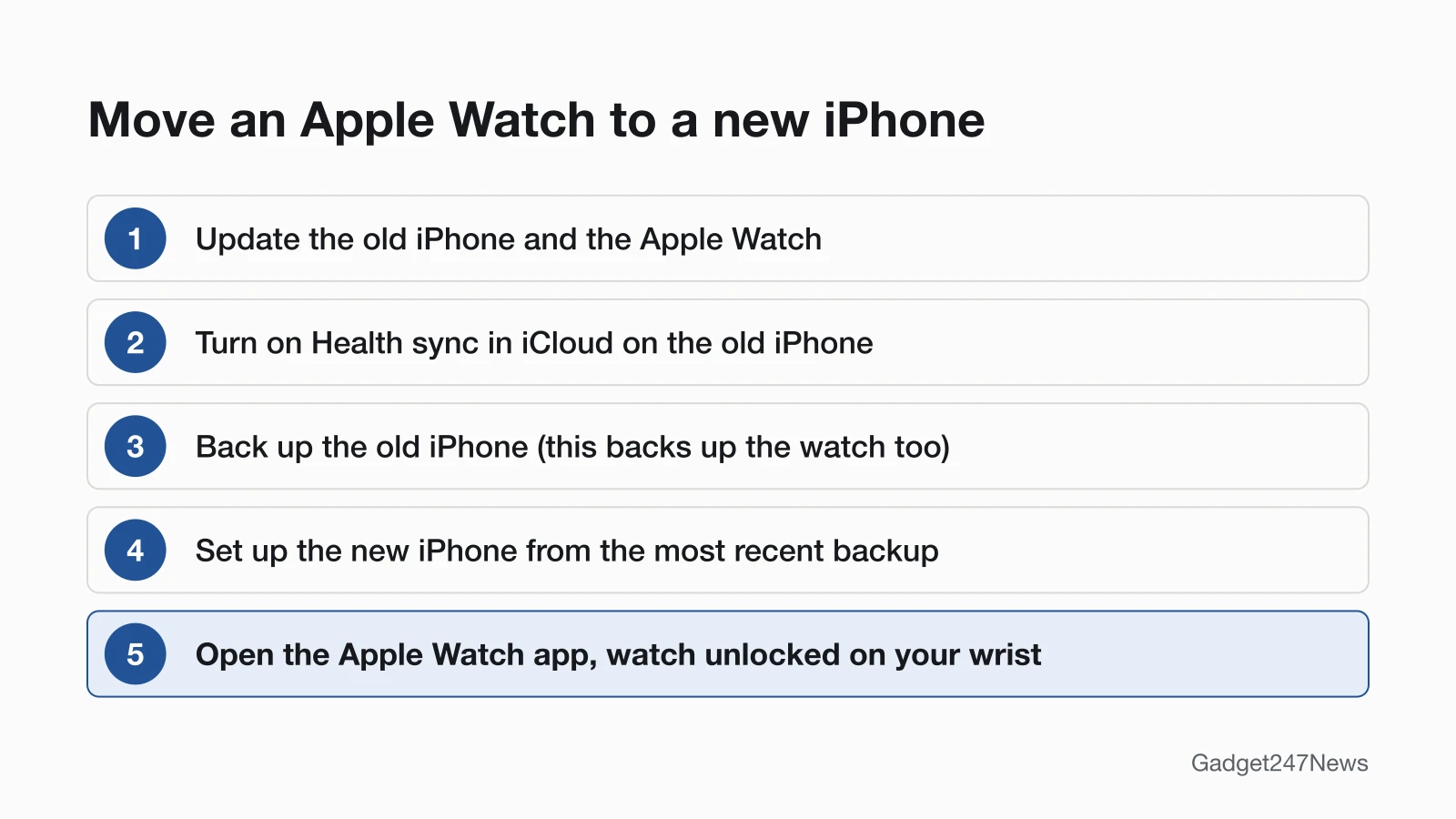
Do these steps in order, starting on your old iPhone.
Step 1: Update Your Old iPhone and Apple Watch
Update your old iPhone and update your Apple Watch to the newest versions available. Apple suggests doing it overnight or when you have time, with both devices charged.
Step 2: Turn On Health Sync and Back Up the Old iPhone
Turn on Health sync first, then back up the old iPhone:
- On the old iPhone, open Settings, tap your name, tap iCloud, then tap Saved to iCloud (if See All shows next to it, tap See All). Tap Health and make sure Sync this iPhone is on.
- If you back up to a computer instead of iCloud, encrypt the backup so it keeps your Health and Activity content.
- Back up the old iPhone to iCloud or your computer. Backing up your iPhone also backs up your Apple Watch.
Step 3: Set Up Your New iPhone
Set up the new iPhone and, when you transfer apps and data from a backup, choose the most recent one. If it isn't listed, make sure the iPhone and Apple Watch are up to date. When the iPhone asks if you want to use your Apple Watch, keep the watch on your wrist with its passcode entered, then tap Continue.
Step 4: Open the Apple Watch App on the New iPhone
Then finish in the Apple Watch app:
- Wear your Apple Watch with its passcode entered, and keep the iPhone nearby.
- Open the Apple Watch app on the new iPhone.
- If it asks you to confirm that you want to use your watch, follow the onscreen steps to finish setting up.
If Your Situation Is Different
Apple's troubleshooting page covers each of these three situations separately.
You Don't Have the Old iPhone Anymore
Without the old iPhone, erase the watch, pair it with the new iPhone and restore its backup:
- On the watch, open Settings, tap General, tap Reset, then tap Erase All Content and Settings.
- Set up your new iPhone and sign in to iCloud.
- Open the Apple Watch app on the new iPhone and pair the watch.
- Restore the most recent watch backup when asked; with no backup, set the watch up as new.
Activity, Workouts and settings that changed since the last backup are lost. Health and Activity data in iCloud returns on its own, though it can take a few days; Activity Sharing data isn't stored in iCloud. Erasing without the paired iPhone leaves Activation Lock on, so you need the Apple Account and password used to set up the watch (see how to remove Activation Lock on an Apple Watch).
The Watch Didn't Finish Pairing During Setup
If your content moved but the watch didn't finish pairing, tap Finish Pairing:
- On the new iPhone, open the Apple Watch app.
- Go to the My Watch tab and tap All Watches. Pairing Not Complete appears next to the watch.
- Put the watch on your wrist and enter its passcode.
- Tap Finish Pairing to sync your Apple Watch content with the new iPhone.
If pairing stopped during a first-time setup instead, the Apple Watch setup steps cover the whole process.
The Watch Is Stuck on the Apple Logo While Pairing
If the watch stays on the black screen with the white Apple logo, restart it, then reset it:
- Press and hold the Digital Crown and the side button at the same time until the watch restarts, then release both.
- Firmly press the screen, or press and hold the Digital Crown.
- Tap Reset, then bring the iPhone near the watch and follow the onscreen steps to pair it.
How to Check It Worked
The move worked when the watch connects to the new iPhone and your data shows up:
- Control Center on the watch (press the side button) shows the green iPhone icon; a red iPhone icon or red X means it isn't connected.
- In the Apple Watch app, My Watch › All Watches doesn't show Pairing Not Complete next to your watch.
- Your Health and Activity history appears on the new iPhone.
If Your Apple Watch Won't Pair With the New iPhone
If the new iPhone never asked about your Apple Watch during setup, unpair the watch from the old iPhone, pair it with the new one, and restore it from a backup when asked. A watch that pairs but later drops its connection needs Apple Watch not connecting to iPhone.
Health and Activity Data Missing After the Switch
If Health data is missing after a computer transfer, turn Health on in iCloud on both iPhones: Settings › your name › iCloud › Saved to iCloud › Health. The data then updates on the new iPhone whenever it's on Wi-Fi and signed in to iCloud. Without iCloud, and without the old iPhone to back up, Apple says the content can't be recovered. This covers device settings only and isn't medical advice.
New iPhone Pairing: Quick Answers
How do I relink my Apple Watch to my iPhone?
On the same iPhone, restart both devices; if they still won't connect, unpair the watch and pair it again. First-time pairing is covered in How to Pair an Apple Watch With Your iPhone.
How do I get my Apple Watch to pair again?
Unpair it in the Apple Watch app, which erases the watch and saves a backup to your iPhone, then pair it again and tap Restore from Backup. How to Pair an Apple Watch With Your iPhone has the pairing steps.
How do I reset my Apple Watch to pair again?
Unpairing is the reset: it erases the watch and restores factory settings. Without the paired iPhone, erase it on the watch under Settings › General › Reset, then enter its Apple Account and password to pair it again; How to Unpair an Apple Watch From Your iPhone has the steps.
Sources
We checked this page against the pages below, most recently on . How we verify fixes
- Pair your Apple Watch with a new iPhone (Apple, support.apple.com)Official
- If you can't pair your Apple Watch with a new iPhone (Apple, support.apple.com)Official
- Back up your Apple Watch (Apple, support.apple.com)Official
- Unpair and erase your Apple Watch (Apple, support.apple.com)Official
- If your Apple Watch isn't connected or paired with your iPhone (Apple, support.apple.com)Official
- If your Apple Watch is stuck on the Apple logo (Apple, support.apple.com)Official
- If you can't pair an Apple Watch with your iPhone (Apple, support.apple.com)Official
- Manage Health data on your iPhone, iPad, or Apple Watch (Apple, support.apple.com)Official
- Wake and unlock Apple Watch (Apple Watch User Guide) (Apple, support.apple.com)Official