Apple Watch Not Connecting to Your Phone? How to Fix It

By Suraj Giri, Founder & Publisher. Reviewed by Suraj Giri on .
Published · 6 min read
How this page was made
- Sources. Checked against 12 official pages from Apple, most recently on . See the sources.
- No device testing. We don't test fixes on physical devices, so nothing on this page is a hands-on result. A fact counts as verified only when it matches an official source page.
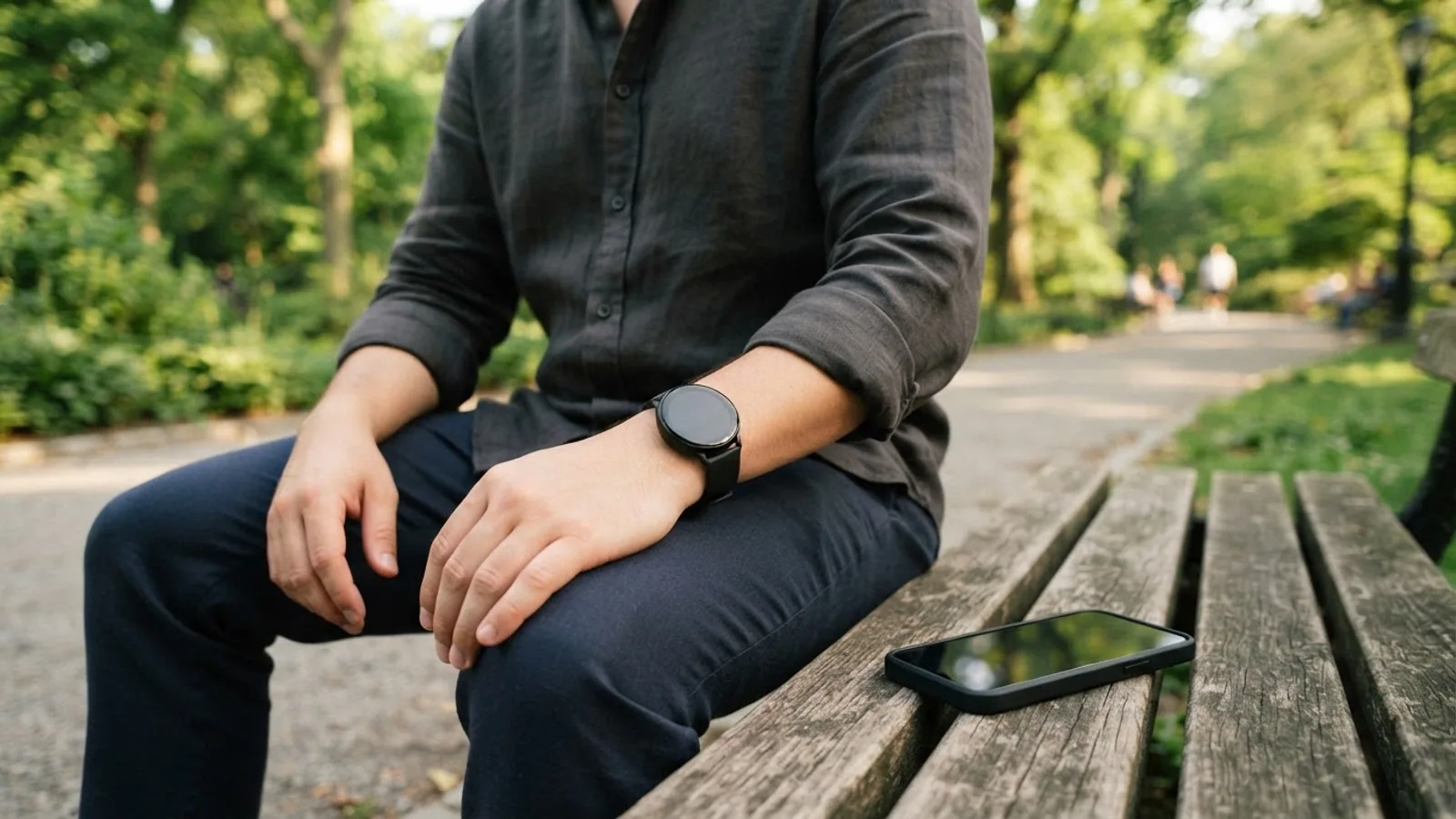
- AI use. As with every page on Gadget247News, AI tools helped research, outline, draft and edit this page, and re-read the official pages to flag facts that didn't match. The illustration at the top was generated with Runway and is labelled under the image.
- Human sign-off. Suraj Giri, Founder & Publisher, read this page and signed it off on . The site won't publish a page without that sign-off.
- Changes. The published and updated dates move only when the content changes, and every change gets a dated note. Spot an error or a fix that didn't work? Email info@gadget247news.com.
Read our AI use policy, editorial policy and corrections policy.
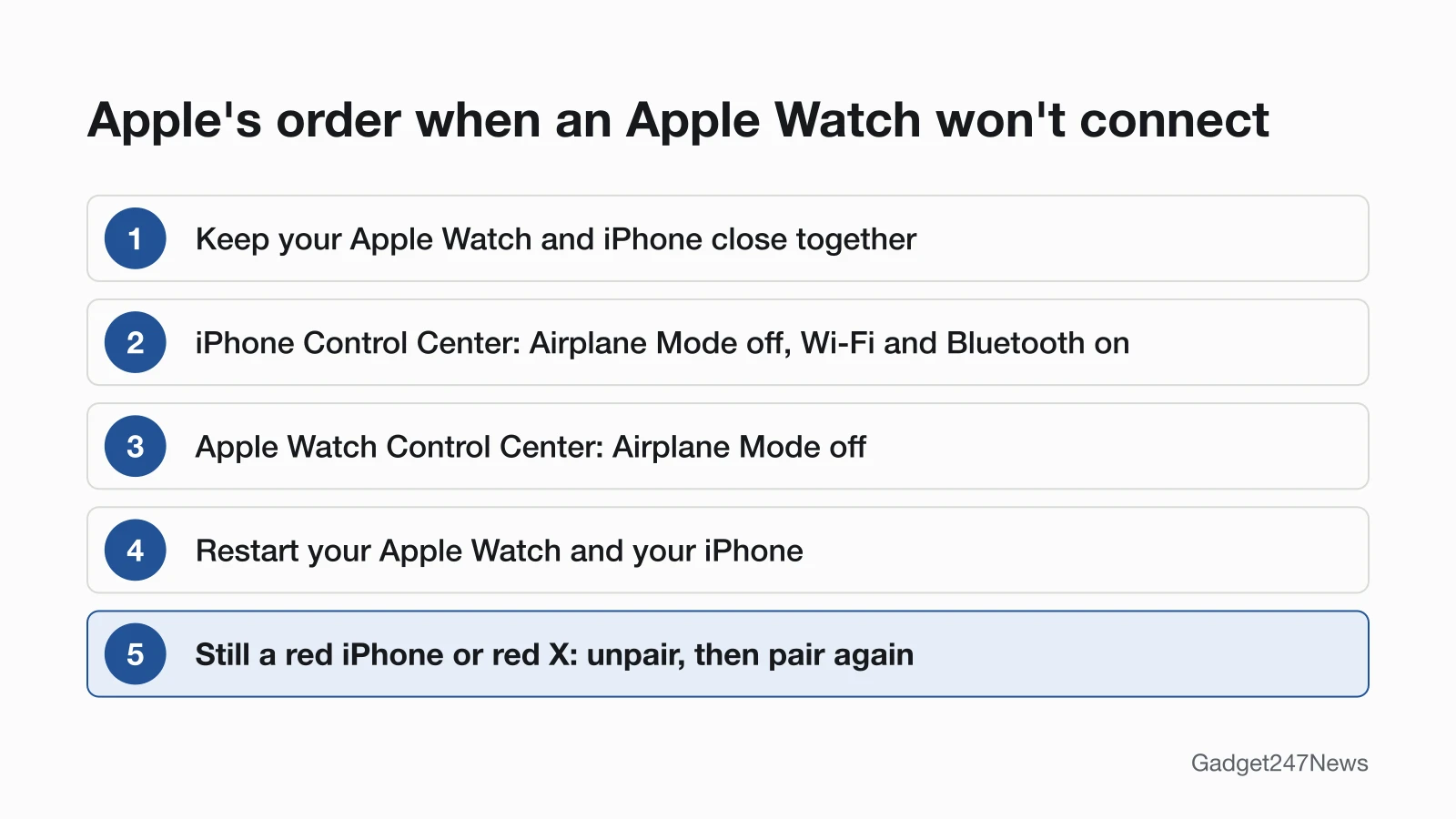
An Apple Watch that isn't connecting to your phone shows a red iPhone icon in Control Center, or won't finish pairing with your iPhone. Apple's fixes run from settings to a restart, with unpairing last, and the five fixes below keep that order. Apple Watch pairs only with an iPhone. For battery, charging and other faults, start with how to fix your Apple Watch. If a Samsung, Garmin or Fitbit smartwatch keeps disconnecting from your phone, use the cross-brand guide instead.
How to Tell If Your Apple Watch Is Disconnected
Press the side button on your Apple Watch to open Control Center, then check the connection icon. A red iPhone icon or red X icon means the watch and iPhone aren't connected, and a green iPhone icon means they're connected again. Apple also treats missing notifications, messages and calls as a sign that the two devices might not be connected.
Why Your Apple Watch Won't Connect to Your iPhone
Six causes sit behind Apple's troubleshooting steps, listed in the order the fixes below deal with them:
- Out of range. Apple's first step is to keep the watch and paired iPhone close together so they're in range.
- Airplane Mode is on, on the iPhone or on the watch, or Wi-Fi or Bluetooth is off on the iPhone.
- A software glitch in either device. When something isn't working right, Apple's advice is to restart the watch and its paired iPhone.
- iOS older than your watch needs. Each model has a minimum: Apple Watch Series 12 and Ultra 4 need iOS 27 or later on the iPhone.
- The watch is already paired, or pairing stalled. If the watch shows a clock face during setup, Apple says to make sure it isn't already paired.
- You switched to a new iPhone and the watch is still paired to the old one.
Fixes 1 to 3 handle the first three causes without erasing anything.
How to Fix an Apple Watch That Won't Connect
Work down the list and check the Control Center icon after each fix, since Apple says to see if the devices connect after each step. Unpairing and pairing again comes last.
Fix 1: Bring Your Apple Watch and iPhone Close Together
Put your Apple Watch next to its paired iPhone, then open Control Center on the watch again. Apple gives no distance, only that the two should be close together and in range. If the green iPhone icon appears, the connection is back. If the red icon stays, go to Fix 2.
Fix 2: Turn Off Airplane Mode and Turn On Wi-Fi and Bluetooth
Check both devices, because the iPhone and the watch each have their own Airplane Mode:
- On your iPhone, swipe down from the top-right corner of the screen to open Control Center. Make sure Airplane Mode is off and that Wi-Fi and Bluetooth are on.
- On your Apple Watch, press the side button to open Control Center, then make sure Airplane Mode is off.
If both were already set this way, move on to the restart.
Fix 3: Restart Your Apple Watch and iPhone
Restart both devices: turn off an Apple Watch and its iPhone, then turn them on again. Take the watch off its charger first, because Apple says you can't restart it while it's charging.
- On the watch, press and hold the side button until the sliders appear, tap the power button, then drag the Power Off slider to the right.
- Hold down the side button until the Apple logo appears.
- Restart the iPhone. On models with Face ID, press and hold the side button and a volume button, drag the slider, then hold the side button until the Apple logo appears.
If the watch won't turn off, force it to restart: hold the side button and the Digital Crown together for at least 10 seconds, until the Apple logo appears. Apple says to do this only if you can't restart the watch the normal way.
Fix 4: Update Your iPhone and Apple Watch
Apple's connection page doesn't list an update among its steps, so treat this as a check rather than a promised fix. Apple's pairing guide says to update your iPhone to the latest version of iOS, and each watch needs a minimum iOS version (cause 4). A watch that can't reach its iPhone can still update on Wi-Fi: open Settings, tap General, tap Software Update, then tap Install if an update is available. Apple's update checklist asks for at least 50 percent charge, and Apple says to leave the watch on its charger until the update completes.
Fix 5 (Last): Unpair and Pair Again
If your Apple Watch still won't pair or connect, unpair it from your iPhone, then pair it again. Unpairing erases the watch, restores it to factory settings and removes Activation Lock:
- Keep your Apple Watch and iPhone close together. On the iPhone, open the Apple Watch app, go to the My Watch tab and tap All Watches.
- Tap the info button next to your watch, tap Unpair Apple Watch, then tap Unpair [your Apple Watch name]. On a cellular model, keep your plan if you'll pair again.
- Type your Apple Account password, then tap Unpair.
- Pair the watch again in the Apple Watch app, and restore it from a backup when asked.
Pairing again is also how you relink the watch to your iPhone. Every way to disconnect an Apple Watch from an iPhone is in our unpair guide.
How to Reset Your Apple Watch to Pair Again
To reset your Apple Watch to pair again without the paired iPhone, erase it on the watch itself:
- Open the Settings app on your watch.
- Tap General, then tap Reset.
- Tap Erase All Content and Settings, type your passcode if asked, then tap Erase All to confirm.
- Wait for the watch to unpair completely, then pair it again.
An erase on the watch leaves Activation Lock on, so you'll need the Apple Account and password that set up the watch before it pairs again. If pairing stalls, with the pairing animation on screen for several minutes, press and hold the Digital Crown while the watch is in pairing mode, then tap Reset. If you forgot the watch's passcode, use the Apple Watch passcode reset instead. Our reset guide covers how to factory reset an Apple Watch step by step.
Connection Problems With New Phones, Android and Wi-Fi
Three connection cases need their own steps: a new iPhone, an Android phone and a Wi-Fi network.
Apple Watch Won't Connect to a New iPhone (Including iPhone 17)
A new iPhone needs Apple's transfer steps: update the old iPhone and the watch, back up the old iPhone, then set up the new one. Apple wants the watch and new iPhone at least 50 percent charged, and both iPhones on Wi-Fi. Apple gives no separate steps for iPhone 17; its compatibility table lists iPhone 11 or later for the newest watches. If your Apple Watch won't pair with a new phone, our guide covers each case.
Can an Apple Watch Connect to an Android Phone?
No. Apple says that to use your Apple Watch, you need to pair it with your iPhone, and its compatibility table lists only iPhone models. The full answer is in Apple Watch and Android compatibility.
Apple Watch Won't Connect to Wi-Fi
An Apple Watch joins only compatible Wi-Fi: Apple lists 802.11b/g/n networks on 2.4 GHz or 5 GHz, and networks your iPhone used while connected to the watch. It can't join captive networks that need a login, in places like hotels, schools and stores. To join, press the side button, touch and hold the Wi-Fi button, tap the network, enter the password if asked, then tap Join. The watch uses Wi-Fi when the iPhone is off or out of range, and the Wi-Fi icon then shows in Control Center.
Still not working?
- Try the next fix: if the watch reconnects but Health or Activity data is missing, see Apple Watch Not Syncing? How to Force a Sync.
- Reset your Apple Watch: How to Restart or Factory Reset an Apple Watch (you'll need to pair it again afterwards).
- Contact Apple Support: Apple Support.
- Check repair or warranty options: Apple Service and Repair for Apple Watch.
Started after an update? Check the Update Tracker for known issues.
Problems That Follow a Lost Connection
A lost connection shows up as missing notifications, messages and calls; Apple lists all three as signs that the devices might not be connected. Check them again once the green iPhone icon is back. While disconnected, the watch still tracks workouts and activity goals on its own. If notifications still don't arrive after reconnecting, see Apple Watch not getting notifications. For missing Health or Activity data, use the sync guide linked above.
Connection Questions
Why does my Apple Watch keep disconnecting?
Range and Airplane Mode are the first two things to check when an Apple Watch keeps disconnecting: keep it near the iPhone, check Airplane Mode on both devices, then restart both (Fixes 1 to 3). On a watch in Low Power Mode, Wi-Fi and cellular data also turn off when the iPhone isn't nearby, until you open and use an app that needs a network connection.
Sources
We checked this page against the pages below, most recently on . How we verify fixes
- If your Apple Watch isn't connected or paired with your iPhone (Apple, support.apple.com)Official
- Restart Apple Watch (Apple Watch User Guide) (Apple, support.apple.com)Official
- Unpair and erase your Apple Watch (Apple, support.apple.com)Official
- If you can't pair an Apple Watch with your iPhone (Apple, support.apple.com)Official
- Pair and set up Apple Watch with iPhone (Apple Watch User Guide) (Apple, support.apple.com)Official
- Apple Watch and iPhone compatibility (Apple, support.apple.com)Official
- Update your Apple Watch (Apple, support.apple.com)Official
- Pair your Apple Watch with a new iPhone (Apple, support.apple.com)Official
- If you can't pair your Apple Watch with a new iPhone (Apple, support.apple.com)Official
- Connect Apple Watch to a Wi-Fi network (Apple Watch User Guide) (Apple, support.apple.com)Official
- Use your Apple Watch without your iPhone nearby (Apple, support.apple.com)Official
- Apple Service and Repair for Apple Watch (Apple, support.apple.com)Official