Apple Watch Not Syncing? How to Force a Sync

By Suraj Giri, Founder & Publisher. Reviewed by Suraj Giri on .
Published · 6 min read
How this page was made
- Sources. Checked against 10 official pages from Apple, most recently on . See the sources.
- No device testing. We don't test fixes on physical devices, so nothing on this page is a hands-on result. A fact counts as verified only when it matches an official source page.
- AI use. As with every page on Gadget247News, AI tools helped research, outline, draft and edit this page, and re-read the official pages to flag facts that didn't match. The illustration at the top was generated with Runway and is labelled under the image.
- Human sign-off. Suraj Giri, Founder & Publisher, read this page and signed it off on . The site won't publish a page without that sign-off.
- Changes. The published and updated dates move only when the content changes, and every change gets a dated note. Spot an error or a fix that didn't work? Email info@gadget247news.com.
Read our AI use policy, editorial policy and corrections policy.
An Apple Watch that's paired but not syncing with your iPhone leaves gaps in Health, Activity or Calendar. The six fixes below run from the connection to pairing again. Our hub lists all Apple Watch pairing and battery fixes; for Samsung, Garmin or Fitbit, see the guide to a smartwatch not syncing.

Syncing vs Connecting: Which Problem Do You Have?
Press the side button to open Control Center: a red iPhone icon or red X means a connection problem, so reconnect your Apple Watch first. A green iPhone icon means the watch is connected and the problem is syncing, which the fixes below cover. Syncing is data moving between your Apple Watch and iPhone; connecting is the link that syncing depends on.
What Your Apple Watch Syncs With Your iPhone
Apple's pages describe four kinds of watch data, each with its own requirement:
| Data | Where it shows up | What it needs | Fix |
|---|---|---|---|
| Health and Activity data | Health app on the iPhone; iCloud keeps it up to date on devices signed in to the same Apple Account | Fitness Tracking on; Health turned on in iCloud for other devices | Fixes 2 and 4 |
| Calendar | Calendar on the watch | Apple doesn't state a watch-side requirement | Fix 5: Reset Sync Data (not on a watch a family member set up) |
| App settings, watch-face customizations, Health and Fitness data | Automatic backup on the paired iPhone | Watch and iPhone near each other | Fix 6: restore from backup |
| Notifications, messages and calls | Apple Watch | Watch connected to the iPhone | Notifications guide (below) |
Reset Sync Data is Apple's calendar tool, so don't count on it for missing Health data.
Why Your Apple Watch Isn't Syncing
Six causes line up with Apple's settings; the fixes below check the first five in order:
- The watch is disconnected or out of range of its iPhone.
- Fitness Tracking is off, so Health doesn't track steps or other information from the watch.
- Health isn't on in iCloud, which matters when the data should reach an iPad or another iPhone.
- A different Apple Account on one device. iCloud keeps Health and Activity data up to date on devices signed in to the same account.
- Calendar data is out of date on the watch; Apple's Reset Sync Data forces it to sync.
- A third-party app isn't allowed to share data with Health.
Cause 5 affects calendars only; the rest affect Health and Activity data.
How to Force a Sync on Apple Watch
The Apple support pages we checked describe no button that syncs Health data on demand, so these six steps restart the sync in order.
Fix 1: Check the Connection
Open Control Center on the watch with the side button and look for the green iPhone icon. If it shows a red iPhone or red X, keep the watch next to the iPhone and turn Airplane Mode off on both devices. On the iPhone, Wi-Fi and Bluetooth must be on. Then check for the green icon again.
Fix 2: Turn On Fitness Tracking
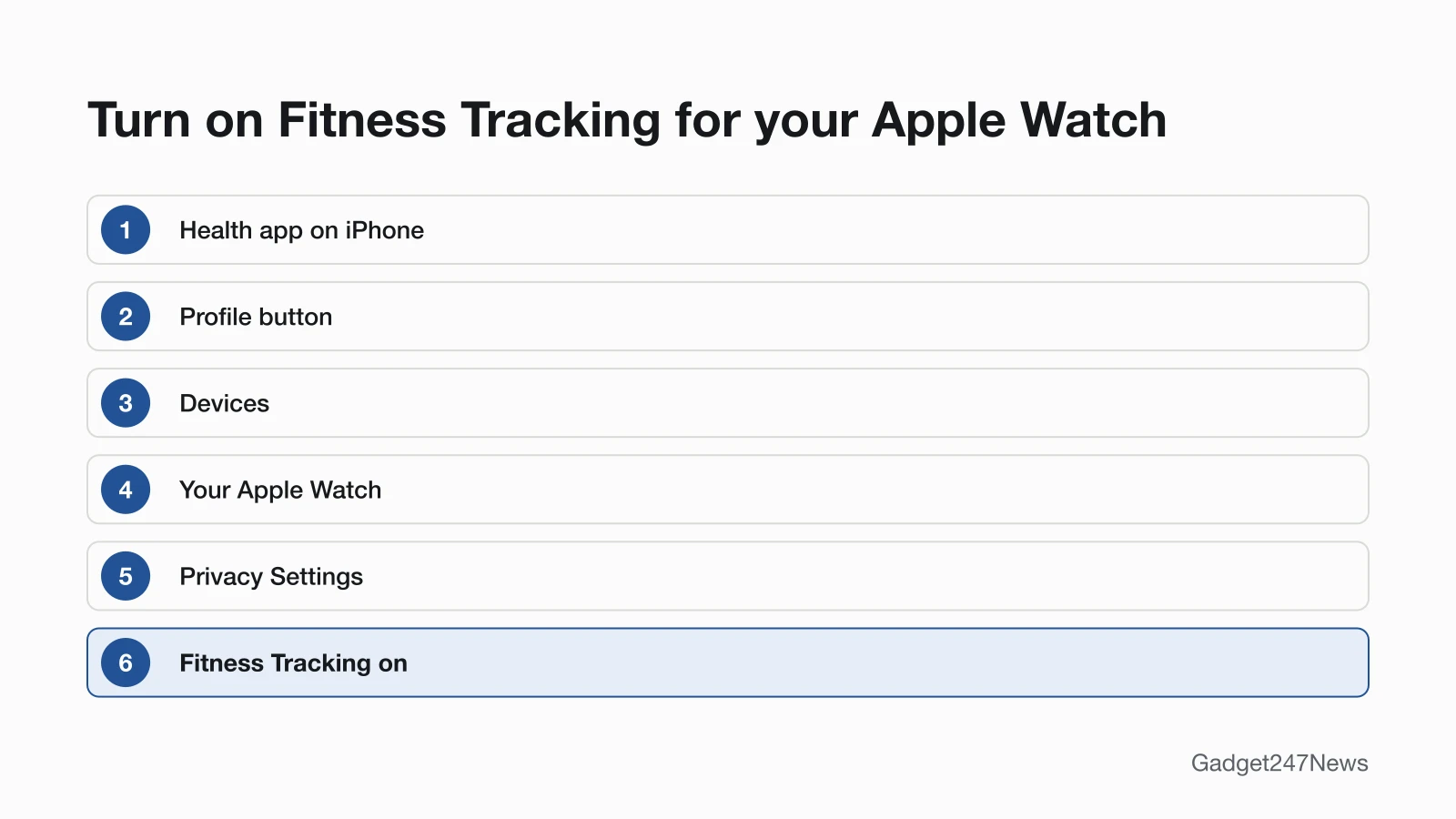
When Health doesn't track steps or other information, Apple's fix is to turn on Fitness Tracking for your Apple Watch:
- Open the Health app on your iPhone.
- Tap the Profile button, then tap Devices.
- Tap your Apple Watch.
- Tap Privacy Settings and turn on Fitness Tracking.
Fix 3: Restart Your Apple Watch and iPhone
Turn both devices off and on again, as Apple suggests when something isn't working right on the watch and its paired iPhone. Take the watch off its charger first, because Apple says it can't restart while it's charging. The button steps to restart an Apple Watch, including a force restart, are in our restart guide.
Fix 4: Turn On Health in iCloud
Health in iCloud keeps Health and Activity data up to date across devices signed in to the same Apple Account. Turn it on when data is missing on an iPad or a new iPhone:
- Open Settings on your iPhone, tap your name, then tap iCloud.
- Tap Saved to iCloud. If See All appears next to it, tap See All.
- Tap Health and make sure Sync this iPhone is on.
Repeat the steps on the other iPhone or iPad. Apple encrypts Health information while it's stored in iCloud and as it moves between iCloud and your device.
Fix 5: Reset Sync Data (Calendar)
Reset Sync Data is Apple's way to force sync Calendar data on Apple Watch. Apple documents it for calendars only, so don't rely on it for missing workouts:
- Open the Apple Watch app on your iPhone and tap the My Watch tab.
- Tap General, then tap Reset.
- Tap Reset Sync Data.
If a family member set up your Apple Watch for you, Apple says you can't force sync Calendar data.
Fix 6 (Last): Unpair and Pair Again
Unpair the watch and pair it again only when every other fix has failed; Apple lists it last for a watch that won't connect. Before it unpairs, the watch backs up to your iPhone, and unpairing then restores it to factory settings. The Unpair Apple Watch button is in the Apple Watch app under My Watch, All Watches, then the info button next to your watch. Restore the backup when you pair again. Our reset guide shows how to wipe an Apple Watch without its iPhone. If your Apple Watch keeps asking for the passcode and you've forgotten it, reset the passcode first.
Syncing Problems by App
Two sync problems show up inside specific apps: Activity on the iPhone, and third-party health apps.
Activity Rings or Steps Not Updating on iPhone
Activity rings or steps that aren't updating on the iPhone point to Fitness Tracking first, so turn it on with Fix 2. Activity Sharing is separate: iCloud doesn't store Activity Sharing data. To check steps on Apple Watch itself, see our steps guide, and Apple's Manage Health data page covers the Health settings in full. This covers device settings only and isn't medical advice.
Third-Party Apps Not Getting Health Data
Check the app's access in Health. Open the Health app, tap the Profile button, then under Privacy tap Apps. Tap the app and turn on the health categories you want it to track. Apple adds that you might need to open the app itself and allow it to share data with Health. An app missing from the list might not be compatible.

Still not working?
- Try the next fix: if you also get no notifications on your Apple Watch, work through that guide next.
- Reset your Apple Watch: How to Restart or Factory Reset an Apple Watch (you'll need to pair it again afterwards).
- Contact Apple Support: Apple Support.
- Check repair or warranty options: Apple Service and Repair for Apple Watch.
Started after an update? Check the Update Tracker for known issues.
Sync Questions
Why won't my Apple Watch sync with my phone anymore?
A watch that stops syncing needs the connection and its sync settings checked again: the green iPhone icon, Fitness Tracking and the Apple Account on each device. After an iOS update, look for an "Update Apple Watch" alert on the iPhone. Apple says some iOS updates need a watchOS update so your data, including Activity data, keeps syncing. Known problems after watchOS releases are listed under Apple Watch update known issues.
How do I force my Apple Watch to sync?
To force your Apple Watch to sync, reconnect it until the green iPhone icon shows, then restart the watch and iPhone. For calendars, tap Reset Sync Data in the Apple Watch app under My Watch, General, Reset. Unpair and pair again only as the last step.
Why have my Apple devices stopped syncing?
Health and Activity data stay up to date across your iPhone and iPad through iCloud, on devices signed in to the same Apple Account with Health turned on in iCloud. Check both on each device (Fix 4). After moving to a new iPhone, Apple says you might need to wait a few days for all your iCloud data to appear.
Sources
We checked this page against the pages below, most recently on . How we verify fixes
- If your Apple Watch isn't connected or paired with your iPhone (Apple, support.apple.com)Official
- Manage Health data on your iPhone, iPad, or Apple Watch (Apple, support.apple.com)Official
- If your iCloud Contacts, Calendars, or Reminders won't sync (Apple, support.apple.com)Official
- Back up your Apple Watch (Apple, support.apple.com)Official
- Restart Apple Watch (Apple Watch User Guide) (Apple, support.apple.com)Official
- Unpair and erase your Apple Watch (Apple, support.apple.com)Official
- Pair your Apple Watch with a new iPhone (Apple, support.apple.com)Official
- If you can't pair your Apple Watch with a new iPhone (Apple, support.apple.com)Official
- Update your Apple Watch (Apple, support.apple.com)Official
- Apple Service and Repair for Apple Watch (Apple, support.apple.com)Official