How to Reset an Apple Watch Without the Passcode

By Suraj Giri, Founder & Publisher. Reviewed by Suraj Giri on .
Published · 4 min read
How this page was made
- Sources. Checked against 11 official pages from Apple, most recently on . See the sources.
- No device testing. We don't test fixes on physical devices, so nothing on this page is a hands-on result. A fact counts as verified only when it matches an official source page.
- AI use. As with every page on Gadget247News, AI tools helped research, outline, draft and edit this page, and re-read the official pages to flag facts that didn't match. The illustration at the top was generated with Runway and is labelled under the image.
- Human sign-off. Suraj Giri, Founder & Publisher, read this page and signed it off on . The site won't publish a page without that sign-off.
- Changes. The published and updated dates move only when the content changes, and every change gets a dated note. Spot an error or a fix that didn't work? Email info@gadget247news.com.
Read our AI use policy, editorial policy and corrections policy.
If you forgot your Apple Watch passcode, or the watch is disabled after too many wrong tries, Apple says you need to reset the watch and set it up again, then restore from a backup when asked. If you know the passcode and want a factory reset, erase an Apple Watch and start over instead; other problems start at Apple Watch fixes.

Can You Reset the Passcode Without Erasing the Watch?
No. Every route on the Apple pages we checked erases the watch: you reset it, set it up again and restore from a backup, and the backup doesn't include the old passcode.
How to Reset Your Apple Watch Without the iPhone
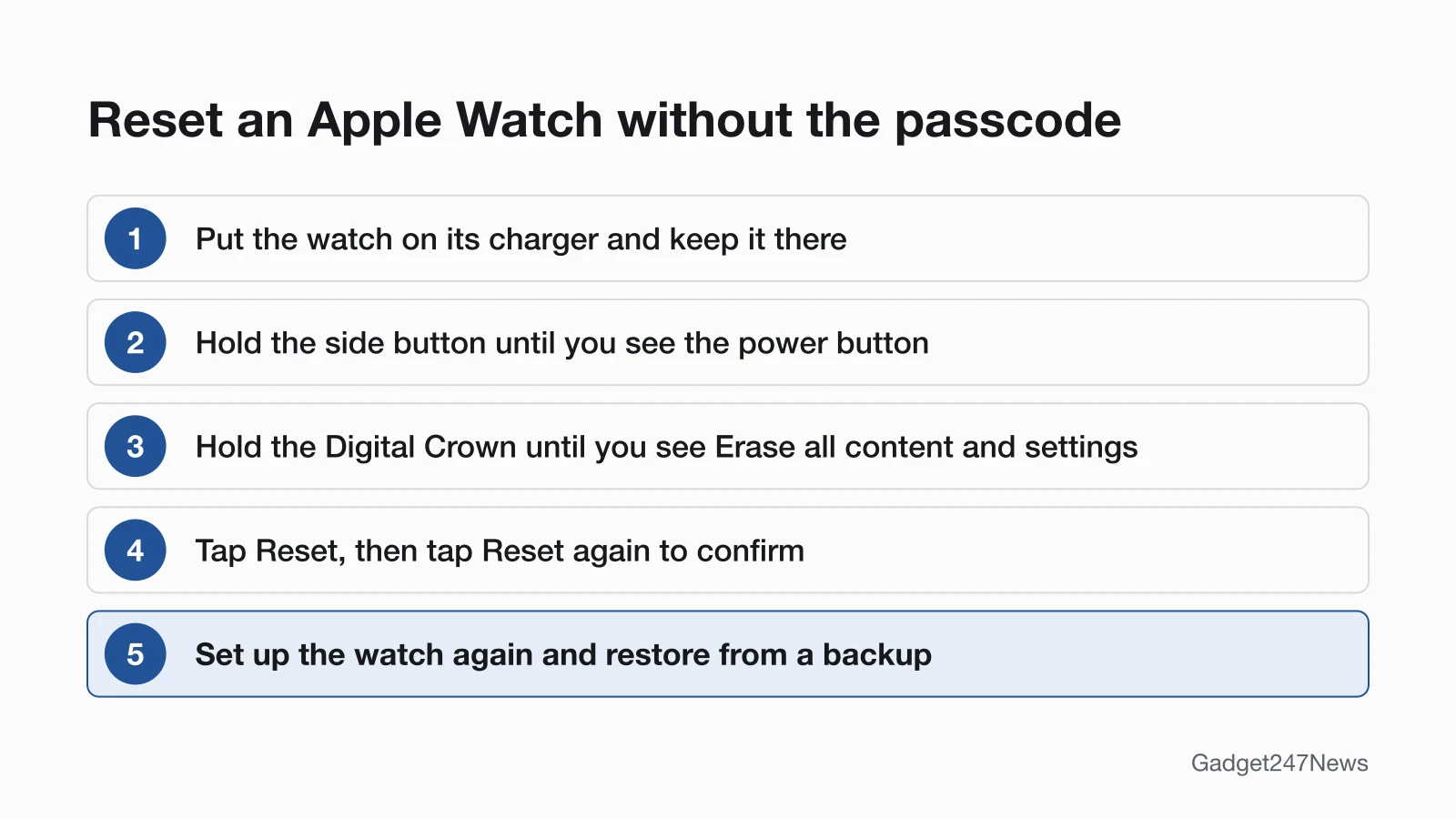
To reset your Apple Watch without the iPhone, put it on its charger and use the side button and the Digital Crown:
- Put your watch on its charger and keep it there until you finish these steps.
- Press and hold the side button until you see the power button in the upper-right corner of the display. On earlier versions of watchOS, you see the Power Off slider instead.
- Press and hold the Digital Crown until you see Erase all content and settings.
- Tap Reset, then tap Reset again to confirm.
- Wait for the process to finish, then set up your Apple Watch again. When asked, restore from a backup.
How to Reset It From Your Paired iPhone
To reset it from your paired iPhone, erase the watch from the General settings in the Apple Watch app:
- Keep your Apple Watch and iPhone close together until you finish these steps.
- Open the Apple Watch app on your iPhone, then tap the My Watch tab.
- Tap General, swipe down, then tap Reset.
- Tap Erase Apple Watch Content and Settings, then confirm at the bottom of the screen. You might need to enter your Apple Account password.
- On GPS + Cellular models, keep your plan if you want to pair this watch and iPhone again, or remove it if you don't. When the process finishes, set up the watch again and restore from a backup.
Watch Disabled After Too Many Passcode Attempts
A disabled Apple Watch uses the same reset. Apple's User Guide says a watch disabled by a forgotten passcode or too many incorrect attempts can be reset from the watch or the iPhone, then set up again. If Erase Data is turned on, the data on the watch is erased after 10 failed passcode attempts.
What You Lose and What You Keep
The reset erases the watch, but your iPhone saves a backup first:
- Erased: all media, data and settings on your Apple Watch.
- Kept: a backup of the watch's contents, created on your iPhone before the erase. Content stored in iCloud isn't deleted either.
- Not in the backup: Bluetooth pairings, Apple Pay cards, the passcode and Messages.
The Reset Doesn't Remove Activation Lock
The reset leaves Activation Lock on, so you'll need the Apple Account and password that were used to set up the watch before you can pair it again. With Activation Lock on, that account and password are also required to unpair the watch, pair it with a new iPhone or turn off Find My. To remove Activation Lock, Apple says to unpair the watch first. If the watch is locked to someone else's account, see Apple Watch Activation Lock.
Set Up Again and Restore From Backup
To set it up again, pair the watch with your iPhone as you would a new one, then pick your backup:
- Hold the watch close to your iPhone. When "Use your iPhone to set up this Apple Watch" appears, tap Continue.
- Follow the instructions on your iPhone, and tap Restore from Backup when setup offers it.
- Enter your Apple Account password when asked. Then tap Create a Passcode on your iPhone and type your new code on the watch.
If the Reset Doesn't Work
If holding the side button doesn't bring up the power button, Apple's advice for a watch you can't turn off is a force restart: hold the side button and the Digital Crown together for at least 10 seconds, until the Apple logo appears. If the pairing animation stays on screen for several minutes during setup, press and hold the Digital Crown, tap Reset and pair again. If the watch still can't connect, see Apple Watch won't pair, then contact Apple Support. For another brand of watch, see how to reset a smartwatch.
Keeps Asking for Your Passcode or Apple Account Password?
A passcode prompt each time you put the watch on is expected when a passcode is set. An Apple Account password prompt (the old Apple ID password) during setup means Activation Lock is on:
| Prompt | What it means | What to do |
|---|---|---|
| Watch passcode, each time you put the watch on | Wrist Detection, on by default, locks the watch when you're not wearing it | Enter the passcode. The switch is in Settings › Passcode › Wrist Detection on the watch. More options: How to Unlock an Apple Watch |
| Apple Account password during setup | Activation Lock is still on | Enter the Apple Account and password used to set up the watch |
If setup asks for a previous owner's Apple Account password, Apple says you might need to contact that owner to remove Activation Lock.
Resetting Without a Passcode: Quick Answers
How do you reset an Apple Watch after too many passcode attempts?
Use the same reset on the charger: hold the side button until the power button appears, hold the Digital Crown until Erase all content and settings shows, then tap Reset twice. If Erase Data was turned on, the watch's data was already erased after 10 failed attempts.
What's the difference between a hard reset, force reset and soft reset?
The Apple pages we checked don't use those names. They describe a restart (off, then on again), a force restart (the side button and the Digital Crown held together for at least 10 seconds) and a reset, which erases all content and settings. If the watch won't restart normally, see Apple Watch not turning off.
How do I reset my Apple Watch to pair again?
Use your iPhone to unpair an Apple Watch: unpairing erases it and also removes Activation Lock, so it's ready to pair again.
Sources
We checked this page against the pages below, most recently on . How we verify fixes
- If you forgot your Apple Watch passcode (Apple, support.apple.com)Official
- If you forget your Apple Watch passcode (Apple Watch User Guide) (Apple, support.apple.com)Official
- If you can't pair an Apple Watch with your iPhone (Apple, support.apple.com)Official
- Back up your Apple Watch (Apple, support.apple.com)Official
- Set up your Apple Watch (Apple, support.apple.com)Official
- If your Apple Watch is stuck on the Apple logo (Apple, support.apple.com)Official
- What to do before you sell, give away, or trade in your Apple Watch, or buy one from someone else (Apple, support.apple.com)Official
- Restart Apple Watch (Apple Watch User Guide) (Apple, support.apple.com)Official
- Wake and unlock Apple Watch (Apple Watch User Guide) (Apple, support.apple.com)Official
- Restore Apple Watch from a backup (Apple Watch User Guide) (Apple, support.apple.com)Official
- If you forgot your Apple Account password (Apple, support.apple.com)Official