Apple Watch Won't Turn Off? How to Force Restart It

By Suraj Giri, Founder & Publisher. Reviewed by Suraj Giri on .
Published · 6 min read
How this page was made
- Sources. Checked against 7 official pages from Apple, most recently on . See the sources.
- No device testing. We don't test fixes on physical devices, so nothing on this page is a hands-on result. A fact counts as verified only when it matches an official source page.
- AI use. As with every page on Gadget247News, AI tools helped research, outline, draft and edit this page, and re-read the official pages to flag facts that didn't match. The illustration at the top was generated with Runway and is labelled under the image.
- Human sign-off. Suraj Giri, Founder & Publisher, read this page and signed it off on . The site won't publish a page without that sign-off.
- Changes. The published and updated dates move only when the content changes, and every change gets a dated note. Spot an error or a fix that didn't work? Email info@gadget247news.com.
Read our AI use policy, editorial policy and corrections policy.
This guide is for an Apple Watch that refuses to power off: it's on the charger, the screen is frozen, the wrong sliders appear, or it's stuck on the Apple logo. To power off an Apple Watch that responds normally, use the everyday steps instead. Other faults, from pairing to battery, start at Apple Watch pairing and sync fixes.
A reset comes last, after every fix here, because it erases the watch. How resets work on Apple Watch and other brands is in the guide to reset a smartwatch.

Why Your Apple Watch Won't Turn Off
Five problems can stop an Apple Watch from turning off:
- It's on its charger. Apple says you can't restart an Apple Watch while it's charging, and its turn-off steps start with disconnecting the charger.
- The Power Off slider isn't on the first screen. Holding the side button shows sliders for Medical ID, Compass Backtrack and Emergency Call; Power Off appears after you tap the Power button at the top right.
- The watch isn't responding, so the sliders never appear or won't move, and Apple's answer is a force restart.
- It's stuck on the Apple logo, a separate fault that Apple fixes with its own four steps.
- The side button doesn't respond at all. Turning the watch off and force restarting it both need that button, and Apple's power and restart pages don't cover a button fault, so contact Apple Support.
Fixes 1 to 4 below follow the same order.
How to Fix an Apple Watch That Won't Turn Off
Try these in order: Fixes 1 and 2 cover a watch that works but won't power down, and Fixes 3 to 5 are for a watch that has stopped responding.
Fix 1: Take It Off the Charger
Take your Apple Watch off its charger before anything else, because Apple's user guide says: "You can't restart your Apple Watch while it's charging."
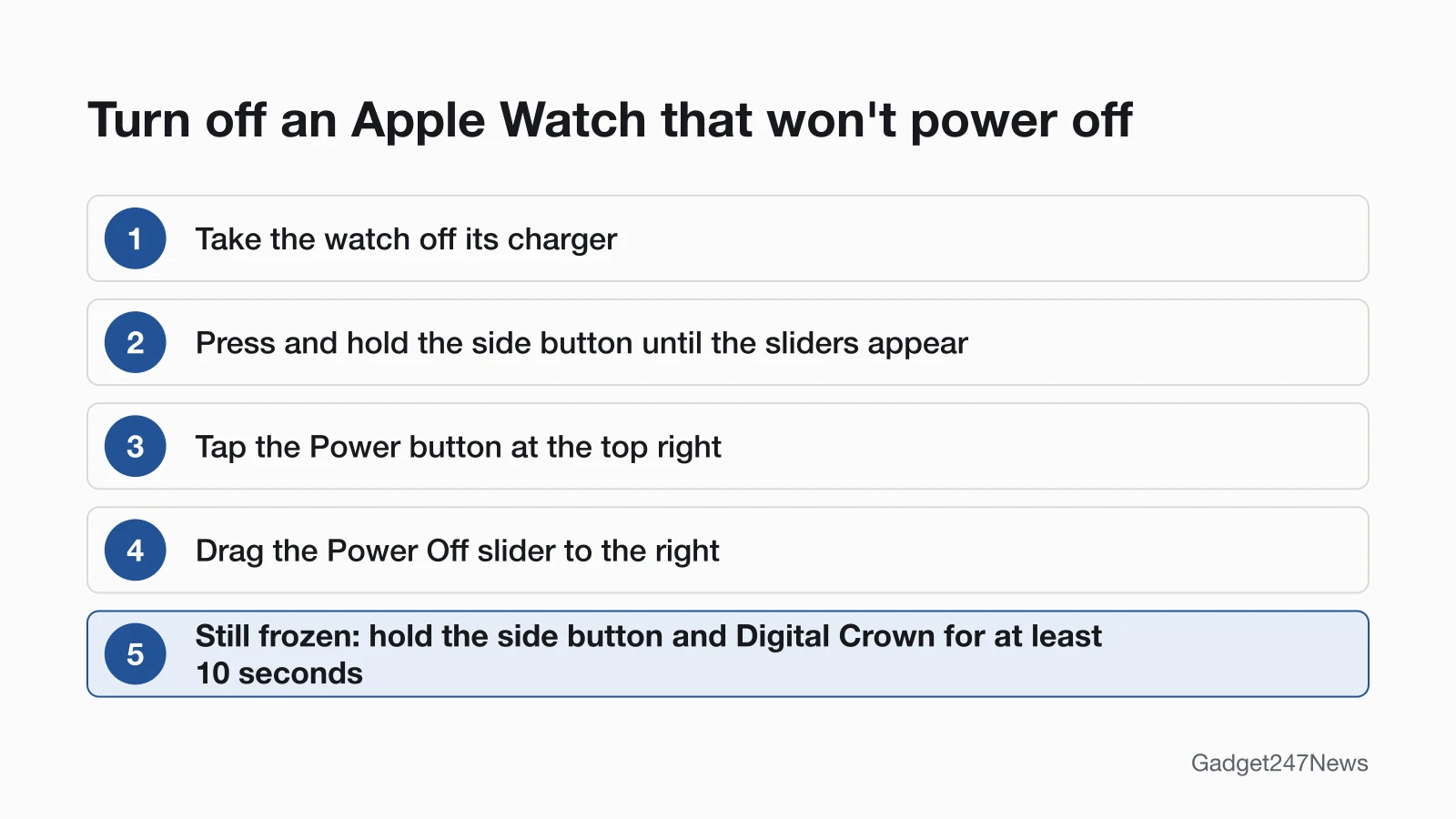
- Remove your Apple Watch from its charger.
- Press and hold the side button until the sliders appear.
- Tap the Power button (the power icon) at the top right, then drag the Power Off slider to the right.
To turn it back on, hold the side button until the Apple logo appears.
Fix 2: Use the Power Icon, Not the Other Sliders
In Apple's watchOS 27 user guide, holding the side button opens a screen with three sliders, Medical ID, Compass Backtrack and Emergency Call, and none of them is the Power Off slider. The Power button sits at the top right of that screen. Tap it first to reach the Power Off slider that switches off the watch. Take care with Emergency Call: Apple says dragging it starts a call to emergency services immediately. The same steps for a watch that responds normally are in How to Turn Off and Restart an Apple Watch.
If the Emergency SOS Countdown Starts
Keep holding the side button past the sliders and the watch starts a countdown, then calls emergency services automatically. If that happens by accident:
- Release the side button to stop the countdown.
- If the call has already been made, don't hang up. Wait until a responder answers, then explain that you don't need help.
Your watch then asks whether to send a text message to your emergency contacts; tap No to cancel it. To stop a held side button from dialing, open the Apple Watch app on your iPhone, tap My Watch, tap Emergency SOS, then turn off Hold Side Button to Dial. The Emergency Call slider still works with the setting off.
Fix 3: Force Restart a Frozen Apple Watch
Force restart your Apple Watch when it won't respond to the side button or the sliders. Apple's caveat: "Do this only if you're unable to restart your Apple Watch."
- Press and hold the side button and the Digital Crown at the same time.
- Keep holding for at least 10 seconds, until the Apple logo appears.
- Release both buttons. Once the watch face is back, turn the watch off with Fix 1.
Apple notes the watch might take a few moments to restart. If the Apple logo stays on the screen, go to Fix 4.
Fix 4: Stuck on the Apple Logo
For an Apple Watch stuck on the Apple logo, Apple's order has four steps:
- Force restart it: press and hold the side button and Digital Crown until the screen turns black and the Apple logo reappears, then release both buttons.
- If the logo persists, unpair an Apple Watch and pair it again, with the watch and iPhone close together. When you unpair, your iPhone creates a backup of your Apple Watch, and Restore from Backup brings it back during setup.
- Check for a software update: in the Apple Watch app, go to My Watch → General → Software Update, then tap Download and Install if one is available.
- If it's still stuck on the Apple logo, get service from Apple.
Force Restart vs Reset: What's the Difference?
A force restart and a reset solve different problems. A force restart is for a watch you can't turn off normally; a reset erases the watch and returns it to factory settings, so you pair it again afterwards. Reset is the last step, never the first.
| Action | What it does | Your data |
|---|---|---|
| Force restart | Restarts a watch that won't turn off normally: side button and Digital Crown for at least 10 seconds | Apple's force restart steps don't mention erasing |
| Reset (erase) | Erases the watch and restores factory settings, from Settings on the watch or by unpairing on the iPhone | Erased; unpairing on the iPhone creates a backup, and you pair the watch again afterwards |
The full reset steps are in How to Restart or Factory Reset an Apple Watch.
Fix 5: Reset as the Last Step
Reset your Apple Watch only if it keeps freezing after Fixes 1 to 4. Unpairing with your iPhone erases the watch, restores factory settings and removes Activation Lock, and your iPhone creates a backup of the watch when you unpair. To do it, reset your Apple Watch to factory settings with the steps on that page. If the passcode is what locks you out, use the Apple Watch passcode reset instead; it starts from the watch on its charger.

Still Not Working?
- Try the next fix: if the screen went black and stays black, see Apple Watch won't turn on after charging.
- Reset your Apple Watch: How to Restart or Factory Reset an Apple Watch (you'll need to pair it again afterwards).
- Contact Apple Support: Get service.
- Check repair or warranty options through Apple's service page; AppleCare+ is explained in What Is AppleCare+ for AirPods and Apple Watch.
Started after an update? Check the current watchOS version for Apple Watch and the Update Tracker for known issues.
Related Apple Watch Power Problems
Two power faults look like this one but need different fixes:
- Apple Watch not charging with a red lightning bolt: the red bolt means the battery is too low to turn on.
- Apple Watch Won't Turn On: a screen that stays blank even when you press the side button.
Apple Watch Won't Turn Off: Quick Answers
Short answers to three related questions about a watch that won't power down.
Can you turn off an Apple Watch while it's charging?
No. Apple's user guide says "You can't restart your Apple Watch while it's charging," and its turn-off steps begin with disconnecting the charger. Take the watch off the charger first, then hold the side button, tap the Power button and drag Power Off.
How do you reset an unresponsive Apple Watch?
For an unresponsive Apple Watch, Apple's first step is a force restart, not a reset: hold the side button and Digital Crown for at least 10 seconds, until the Apple logo appears. Erase the watch only if it keeps freezing after that, as in Fix 5.
How do you revive a dead Apple Watch?
A red lightning bolt on a dead-looking Apple Watch means it doesn't have enough battery power to turn on: charge it for up to 30 minutes, and if it still won't charge, force restart it. Apple Watch Won't Turn On has the full steps.
Sources
We checked this page against the pages below, most recently on . How we verify fixes
- Restart Apple Watch (Apple Watch User Guide) (Apple, support.apple.com)Official
- Turn Apple Watch on or off (Apple Watch User Guide) (Apple, support.apple.com)Official
- If your Apple Watch is stuck on the Apple logo (Apple, support.apple.com)Official
- Use Emergency SOS on your Apple Watch (Apple, support.apple.com)Official
- If your Apple Watch won't turn on or won't charge (Apple, support.apple.com)Official
- Unpair and erase your Apple Watch (Apple, support.apple.com)Official
- If you forget your Apple Watch passcode (Apple Watch User Guide) (Apple, support.apple.com)Official