How to Restart or Factory Reset an Apple Watch

By Suraj Giri, Founder & Publisher. Reviewed by Suraj Giri on .
Published · 4 min read
How this page was made
- Sources. Checked against 7 official pages from Apple, most recently on . See the sources.
- No device testing. We don't test fixes on physical devices, so nothing on this page is a hands-on result. A fact counts as verified only when it matches an official source page.
- AI use. As with every page on Gadget247News, AI tools helped research, outline, draft and edit this page, and re-read the official pages to flag facts that didn't match. The illustration at the top was generated with Runway and is labelled under the image.
- Human sign-off. Suraj Giri, Founder & Publisher, read this page and signed it off on . The site won't publish a page without that sign-off.
- Changes. The published and updated dates move only when the content changes, and every change gets a dated note. Spot an error or a fix that didn't work? Email info@gadget247news.com.
Read our AI use policy, editorial policy and corrections policy.
To restart an Apple Watch, hold the side button, tap the Power button and drag Power Off. To factory reset it, unpair it in the Apple Watch app on your iPhone, or erase it on the watch in Settings › General › Reset. Other faults start at Apple Watch Problems and Fixes; other brands are in How to reset any smartwatch.

Restart vs Factory Reset: Which One Do You Need?
A restart turns the Apple Watch off and on again; a factory reset erases all media, data and settings and returns the watch to factory settings. Restart first, and reset only when that fails. The table compares the three options Apple describes. The "Yes" for the two restarts is our reading, because Apple's restart steps only switch the power:
| Option | What it does | Keeps your data? | Use it when |
|---|---|---|---|
| Restart (soft reset) | Turns the watch off, then on again | Yes | Something isn't working right |
| Force restart (hard reset) | Restarts the watch with the side button and Digital Crown held together | Yes | The watch won't turn off, or the problem continues after a restart |
| Factory reset (erase or unpair) | Erases the watch and restores factory settings | No, but your paired iPhone holds a backup | A restart didn't help, or you're selling the watch or pairing it again |
How to Restart an Apple Watch (Soft Reset)
To restart an Apple Watch, turn it off with the side button and then turn it back on:
- Press and hold the side button until the sliders appear, tap the Power button, then drag the Power Off slider to the right.
- Hold the side button until the Apple logo appears. The watch face appears when the watch is on.
The full walkthrough, including restarting the paired iPhone, is in How to turn off and restart an Apple Watch.
How to Force Restart an Apple Watch (Hard Reset)
To force restart an Apple Watch, hold the side button and Digital Crown together for at least 10 seconds, until the Apple logo appears. Apple says to use it only when you can't restart the watch the normal way; a frozen screen that ignores the side button is covered in Apple Watch won't turn off.
How to Factory Reset an Apple Watch
You can factory reset an Apple Watch in two ways: unpair it from your iPhone, or erase it in the watch's Settings app. Use the iPhone route when you can, because it also removes Activation Lock; the watch route leaves Activation Lock on.
Factory Reset From Your iPhone (Unpair)
To factory reset an Apple Watch from your iPhone, keep the watch and iPhone close together and unpair it:
- Open the Apple Watch app, go to the My Watch tab and tap All Watches.
- Tap the info button next to the watch you want to reset.
- Tap Unpair Apple Watch, then tap Unpair [your Apple Watch name].
- On a cellular watch, choose whether to keep or remove the plan.
- Type your Apple Account password to disable Activation Lock, then tap Unpair.
Apple says unpairing restores the watch to factory settings and removes Activation Lock, and your iPhone backs the watch up as it unpairs. Afterwards you can set the watch up again, or turn it off if you're selling it; the guide to unpair an Apple Watch covers both.
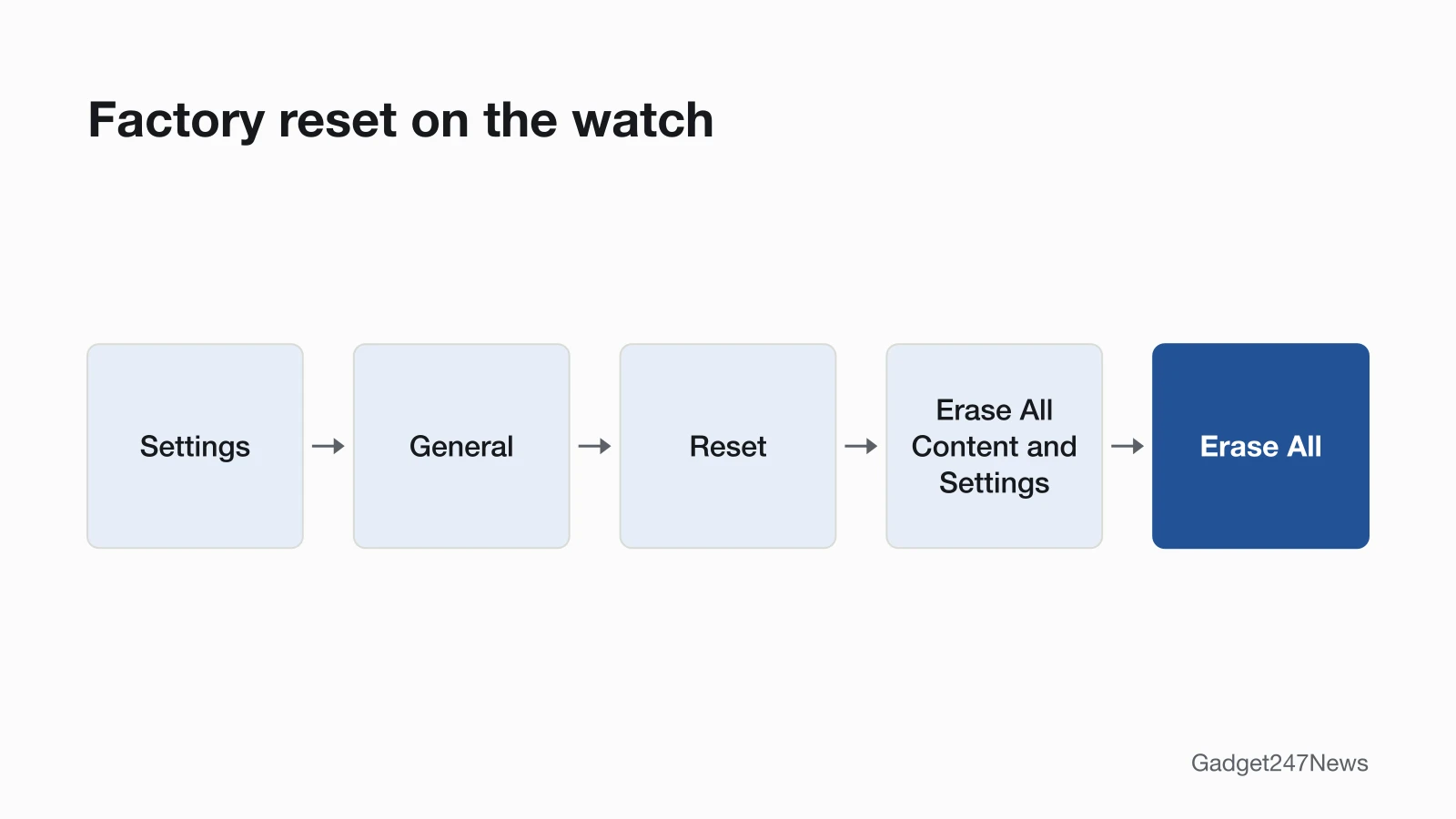
Factory Reset on the Watch (Erase All Content and Settings)
To factory reset an Apple Watch without its iPhone, erase it from the Settings app on the watch:
- Open the Settings app.
- Tap General, then tap Reset.
- Tap Erase All Content and Settings.
- Type your passcode if asked. On a cellular watch, choose whether to keep or remove the plan.
- Tap Erase All to confirm.
This route doesn't remove Activation Lock. When you set the watch up again, you'll need the Apple Account and password linked to it. If you can't sign in to that account, see How to remove Activation Lock from an Apple Watch.
How to Check the Reset Worked
A restart worked when your watch face appears after the Apple logo. A factory reset worked when the watch is ready to set up: hold it near your iPhone, and the iPhone shows "Use your iPhone to set up this Apple Watch". A passcode prompt during setup means it's still paired with another iPhone. To pair it again, follow How to Pair an Apple Watch With Your iPhone and restore from a backup when asked.
If Resetting Doesn't Work
A watch that reset but won't pair or reconnect afterwards has a connection problem between the watch and your iPhone, and Apple Watch not connecting to iPhone has those checks. A watch that won't restart or reset at all needs the steps below.
Apple Watch Won't Restart or Reset
A normal restart won't work while the watch is charging, so lift it off the charger first; if it still won't restart, use the force restart above. A red lightning bolt means the battery doesn't have enough power to turn on, so charge it first. Don't look for a hidden button: Apple Watch has no SIM slot or reset button, and the holes in the case are for sound and, on Apple Watch Ultra, water-depth measurement. If it won't turn off at all, see Apple Watch Won't Turn Off.
Reset Questions
How do I reset an Apple Watch after too many passcode attempts?
Use Apple's reset for a forgotten passcode: with the watch on its charger, you use the side button and the Digital Crown to reach Erase all content and settings, no passcode needed. The Apple Watch passcode reset page has every step.
Does factory resetting an Apple Watch delete my data?
Yes, a factory reset wipes the watch itself: erasing removes all media, data and settings. Your paired iPhone keeps a backup, made automatically while the two are near each other and again when you unpair. Restore it during setup to bring back app settings, watch faces and Health and Fitness data (Health and Fitness data need iCloud or an encrypted backup on your computer).
Sources
We checked this page against the pages below, most recently on . How we verify fixes
- Unpair and erase your Apple Watch (Apple, support.apple.com)Official
- Restart Apple Watch (Apple Watch User Guide) (Apple, support.apple.com)Official
- Turn Apple Watch on or off (Apple Watch User Guide) (Apple, support.apple.com)Official
- Set up your Apple Watch (Apple, support.apple.com)Official
- Back up your Apple Watch (Apple, support.apple.com)Official
- If you forgot your Apple Watch passcode (Apple, support.apple.com)Official
- If your Apple Watch won't turn on or won't charge (Apple, support.apple.com)Official