How to Unpair an Apple Watch From Your iPhone

By Suraj Giri, Founder & Publisher. Reviewed by Suraj Giri on .
Published · 4 min read
How this page was made
- Sources. Checked against 7 official pages from Apple, most recently on . See the sources.
- No device testing. We don't test fixes on physical devices, so nothing on this page is a hands-on result. A fact counts as verified only when it matches an official source page.
- AI use. As with every page on Gadget247News, AI tools helped research, outline, draft and edit this page, and re-read the official pages to flag facts that didn't match. The illustration at the top was generated with Runway and is labelled under the image.
- Human sign-off. Suraj Giri, Founder & Publisher, read this page and signed it off on . The site won't publish a page without that sign-off.
- Changes. The published and updated dates move only when the content changes, and every change gets a dated note. Spot an error or a fix that didn't work? Email info@gadget247news.com.
Read our AI use policy, editorial policy and corrections policy.
Unpairing (some people call it unsyncing) is how you disconnect an Apple Watch from your iPhone, remove it from your iCloud account before you sell it, or reset it to pair again. It's also Apple's last step when a watch won't connect: if that's the problem, try Apple Watch Not Connecting to Your Phone first. Other faults start at Apple Watch Problems and Fixes.
What Happens When You Unpair an Apple Watch
Unpairing backs up the watch to your iPhone, erases it and removes Activation Lock. Apple's support pages describe three results:
- Your iPhone backs up the watch first, so the latest data is saved.
- The watch is erased and restored to factory settings.
- Activation Lock is removed, and the watch comes off your iCloud account.
The backup keeps app settings, watch-face customizations and Health and Fitness data (Health and Fitness data needs iCloud or an encrypted backup on your computer). It doesn't include Bluetooth pairings, Apple Pay cards, the watch passcode or Messages.
How to Unpair Your Apple Watch Using Your iPhone
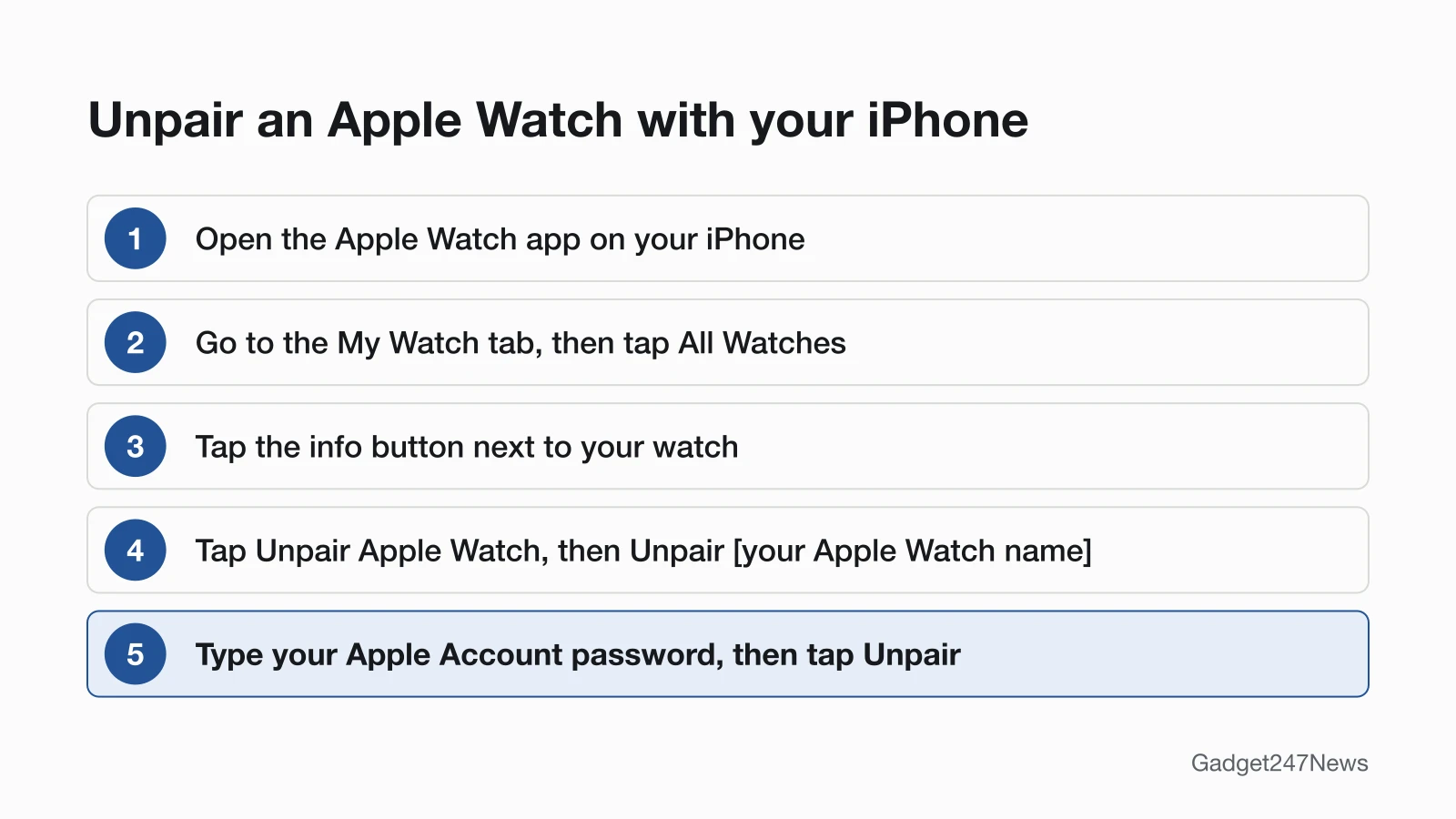
To unpair your Apple Watch using your iPhone, open the Apple Watch app and start from All Watches:
- Keep your Apple Watch and iPhone close together.
- On your iPhone, open the Apple Watch app.
- Go to the My Watch tab and tap All Watches.
- Tap the info button next to the watch you want to unpair.
- Tap Unpair Apple Watch.
- Tap Unpair [your Apple Watch name]. If the watch has a cellular plan, choose to keep or remove it (see below).
- Type your Apple Account password to disable Activation Lock, then tap Unpair.
After it unpairs, you can set the watch up again, or turn it off if you're selling it or giving it away.
If Your Watch Has a Cellular Plan
If the watch has cellular, the unpair screens ask whether to keep or remove its plan:
- Keep your plan if you'll pair your watch and iPhone again.
- Remove your plan if you're selling or giving away your watch. To cancel the cellular subscription, contact your carrier.
How to Unpair an Apple Watch Without Your iPhone
Without the iPhone, you can only erase the watch: it returns to factory settings, but Activation Lock stays on. Apple Watch has no reset button or SIM slot. The erase happens in the watch's Settings app:
- On your Apple Watch, open the Settings app.
- Tap General, then tap Reset.
- Tap Erase All Content and Settings, and type your passcode if asked.
- If the watch has a cellular plan, keep it or remove it, using the same rule as above.
- Tap Erase All to confirm.
To turn off Activation Lock when you set the watch up again, you'll need the Apple Account and password linked to it. If you've forgotten the watch passcode, follow the steps to reset an Apple Watch without the passcode instead.
Unpair vs Erase: What Happens to Activation Lock
Of these two methods, only unpairing with the iPhone removes Activation Lock; erasing on the watch leaves it on. The table compares them:
| Method | Erases the watch | Backs up to iPhone | Removes Activation Lock | Best for |
|---|---|---|---|---|
| Unpair with iPhone | Yes | Yes, as it unpairs | Yes | Selling, giving away or pairing again |
| Erase on the watch | Yes | Not part of Apple's erase steps | No | Keeping the watch when you don't have the paired iPhone |
Apple says the watch also backs up to its paired iPhone automatically whenever the two are near each other. If you can't sign in to the Apple Account the watch is locked to, see How to Remove Activation Lock From an Apple Watch.
How to Check It's Unpaired
An unpaired Apple Watch is erased and ready to set up again. Two signs confirm it:
- On your iPhone, the Apple Watch app offers Start Pairing if that was your only watch, or Add Watch if you have others.
- On the watch, the passcode lock screen and the Home screen are gone. Apple says a watch that still shows either one needs to be erased.
How to Pair It Again After Unpairing
To pair it again, keep the watch close to your iPhone, tap Start Pairing (or Add Watch), and follow the instructions on your iPhone to finish setup. Tap Restore from Backup to bring back the watch's backed-up settings. Moving to a different phone follows its own steps in How to Pair an Apple Watch With a New iPhone. For watches from other brands, see smartwatch Not Connecting to Phone.
Apple Watch Keeps Disconnecting? Unpair Is the Last Step
Unpairing comes last in Apple's order for an Apple Watch that isn't connected to its iPhone. First keep the watch and iPhone close together, check that Airplane Mode is off and Wi-Fi and Bluetooth are on in the iPhone's Control Center, turn Airplane Mode off on the watch, then restart both. Only after that, unpair and pair again. The not-connecting guide linked at the top has each step.
Selling or Giving Away Your Apple Watch?
Unpair it with your iPhone before you hand it over, because unpairing is the step that turns off Activation Lock. If you already gave the watch away, you can still erase it and turn off Activation Lock from a computer. Sign in to Find My iPhone on iCloud.com, select All Devices and click the watch. Click Erase Apple Watch and select Next until it's erased, then click the X button next to it. If the watch is missing, see how to find a lost Apple Watch.
Unpairing: Quick Answers
How do I reset my Apple Watch to pair again?
Unpair it with your iPhone. That erases the watch, restores factory settings and turns off Activation Lock, which leaves it ready to pair again. Your iPhone backs the watch up first, so when you pair again, tap Restore from Backup to bring your settings back.
How do I get my Apple Watch to pair again?
Keep the unpaired watch close to your iPhone, tap Start Pairing and follow the instructions, then tap Restore from Backup. For the whole setup, see how to pair an Apple Watch with an iPhone.
How do I relink my Apple Watch to my iPhone?
If the watch is only disconnected, keep it close to the iPhone, check Airplane Mode, Wi-Fi and Bluetooth, then restart the watch and the iPhone. Apple puts unpairing and pairing again last.
Sources
We checked this page against the pages below, most recently on . How we verify fixes
- Unpair and erase your Apple Watch (Apple, support.apple.com)Official
- Back up your Apple Watch (Apple, support.apple.com)Official
- If your Apple Watch is stuck on the Apple logo (Apple, support.apple.com)Official
- If your Apple Watch isn't connected or paired with your iPhone (Apple, support.apple.com)Official
- What to do before you sell, give away, or trade in your Apple Watch, or buy one from someone else (Apple, support.apple.com)Official
- If you can't pair an Apple Watch with your iPhone (Apple, support.apple.com)Official
- Restore Apple Watch from a backup (Apple Watch User Guide) (Apple, support.apple.com)Official