Apple Watch Won't Turn On? Causes and Fixes

By Suraj Giri, Founder & Publisher. Reviewed by Suraj Giri on .
Published · 6 min read
How this page was made
- Sources. Checked against 11 official pages from Apple, most recently on . See the sources.
- No device testing. We don't test fixes on physical devices, so nothing on this page is a hands-on result. A fact counts as verified only when it matches an official source page.
- AI use. As with every page on Gadget247News, AI tools helped research, outline, draft and edit this page, and re-read the official pages to flag facts that didn't match. The illustration at the top was generated with Runway and is labelled under the image.
- Human sign-off. Suraj Giri, Founder & Publisher, read this page and signed it off on . The site won't publish a page without that sign-off.
- Changes. The published and updated dates move only when the content changes, and every change gets a dated note. Spot an error or a fix that didn't work? Email info@gadget247news.com.
Read our AI use policy, editorial policy and corrections policy.
Apple's first answer for an Apple Watch that won't turn on is time on the charger: a screen that stays blank when you press the side button might need up to 30 minutes of charging before the watch starts. Other faults are listed in our Apple Watch pairing, sync and battery fixes. If you own another brand, the guide to factory reset a smartwatch lists each maker's charge-first step for a watch that won't power on.

Why Your Apple Watch Won't Turn On
We group what Apple's support pages cover into five reasons an Apple Watch stays off or dark, and the fixes below follow the same order:
- The battery is fully drained. A red lightning bolt means the watch doesn't have enough battery power to turn on; a blank screen or the charging cable icon can mean it needs up to 30 minutes on the charger.
- The charger isn't making contact. Apple's checks cover the cable, the adapter, the watch's position on the magnets, and a clean charger with no plastic wrap.
- The watch isn't responding. A force restart is Apple's step for a watch that won't respond or won't charge.
- The watch is on, but the display stays dark. Theater Mode keeps the screen dark until you tap it, press a button or turn the Digital Crown.
- A problem these steps can't fix. If your Apple Watch still isn't working, Apple says you might need to get service.
How to Fix an Apple Watch That Won't Turn On
Work through these four fixes in order, and stop when the Apple logo appears.
Fix 1: Charge It for Up to 30 Minutes
Leave your Apple Watch on its charger for up to 30 minutes before you try anything else. Apple says a watch whose screen stays blank when you press the side button, or that shows the charging cable icon, might need that long before it turns on. If your watch is out of power, Apple says the lightning bolt itself might take up to 30 minutes to appear.
Fix 2: Check the Charger
Check the charger if no lightning bolt appears after you connect the watch:
- Use the charger that came with your watch: the Apple Watch Magnetic Charging Cable or Apple Watch Magnetic Fast Charging USB-C Cable.
- Plug the charging cable all the way into the USB Power Adapter, then plug the adapter all the way into a power outlet.
- Reposition the back of the watch on the charger until the magnets align and a lightning bolt appears on the watch face.
- Clean the back of the watch and the charger, and remove any plastic wrap from both sides of the charger.
Dock angles, region-specific chargers and other charging faults are covered in our Apple Watch charging fixes.
Fix 3: Try Another Cable and Adapter
Try a different Apple Watch charging cable and a different USB Power Adapter, then give the watch time on the new setup. Apple also lets you plug the charging cable into a USB port instead of an adapter.
Fix 4 (Last): Force Restart Your Apple Watch
Force restart your Apple Watch when it still won't turn on after charging:
- Press and hold the side button and Digital Crown together for at least 10 seconds.
- Release both buttons when the Apple logo appears.
The everyday steps to turn off and turn your Apple Watch back on are in our restart guide. Don't reset an Apple Watch to fix this: unpairing erases the watch and restores factory settings, and Apple's steps for a watch that won't turn on don't include it. If the watch starts but asks for a passcode you've forgotten, you can reset an Apple Watch without the passcode.
Stuck on the Apple Logo After Restarting
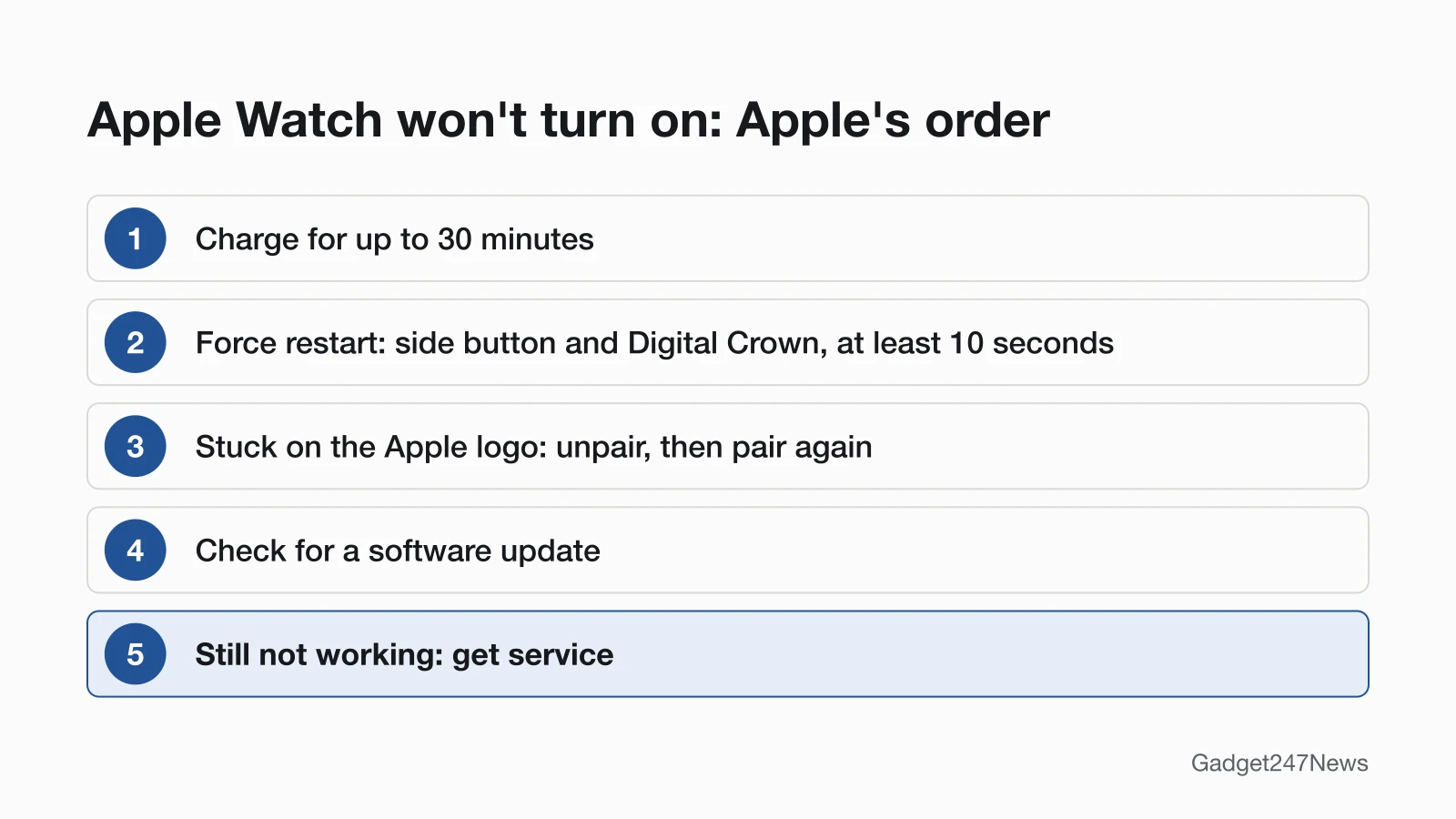
A watch that shows the Apple logo and goes no further has its own order from Apple: force restart it until the screen turns black and the logo reappears, then unpair and pair it again with the watch and iPhone close together. Next, check for an update in the Apple Watch app under My Watch, General, Software Update, and get service if it's still stuck. Your iPhone creates a backup of the watch when you unpair, and Restore from Backup brings it back during setup.
Apple Watch Screen Won't Turn On
If the watch seems to be on but the screen stays dark, check Theater Mode first: it keeps the display dark until you tap the screen, press a button or turn the Digital Crown, even with Always On, and you turn it off from its icon in Control Center. In Low Power Mode, Always On isn't available, so tap the display to see the watch face. Wake on Wrist Raise, in Settings under Display & Brightness, controls whether raising your wrist wakes it. For a cracked or damaged display, see Apple Watch screen repair.
New Apple Watch or Apple Watch Ultra Won't Turn On
The same steps apply to every model, including Apple Watch Ultra, because Apple's won't-turn-on page doesn't split them by model. To turn on a new watch, press and hold the side button until the Apple logo appears. Apple's setup guide gives the same answer for a new watch that won't start: it might need charging. Remove all plastic wrap from both sides of the new charger before you do. On Apple Watch Ultra or later, Apple suggests removing the band if the watch won't connect reliably to a Magnetic Charging Dock or MagSafe Duo Charger lying flat.
Apple Watch Won't Turn On After Swimming
To remove water, wipe the watch with a nonabrasive, lint-free cloth, and don't use heat, compressed air or sprays. After swimming, Apple says to rinse Series 2 and later under lightly running, warm, fresh water, then dry the watch and band thoroughly. A swimming workout turns on Water Lock, which stops the display from responding to touch; press and hold the Digital Crown to turn it off, and a series of tones clears water from the speaker (on watchOS 8 or earlier, rotate the Digital Crown instead). When the speaker sounds muffled after getting wet, Apple says letting the watch charge overnight might speed up evaporation. If it still won't turn on, contact Apple Support.
Red Lightning Bolt Won't Go Away
Keep the watch on its charger: a red lightning bolt means there isn't enough battery power to turn on, and it changes to a red lightning bolt inside a ring once the charging cable is connected. If the bolt is still there after 30 minutes, see red lightning bolt on Apple Watch.

Still not working?
- Try the next fix: Apple Watch Not Charging? Causes and Fixes, if no lightning bolt ever appears on the charger.
- Reset your Apple Watch: How to Restart or Factory Reset an Apple Watch (you'll need to pair it again afterwards).
- Contact Apple Support: get service.
- Check repair or warranty options: Apple Watch Battery Replacement: Cost and Options.
Started after an update? Check the Update Tracker for known issues.
The Opposite Problem: Apple Watch Won't Turn Off
A watch that stays on but frozen is the opposite fault: it won't power off, or its sliders won't respond. Our guide for that fault shows how to force restart an Apple Watch that won't power down, and why a watch on its charger can't be restarted the normal way.
Power Questions
Two short answers for a watch that shows nothing on screen or has stopped responding.
How do I revive a dead Apple Watch?
Revive a dead Apple Watch by charging it for up to 30 minutes with the Apple cable that came with it, plugged all the way into the USB Power Adapter, and the adapter plugged all the way into a power outlet. Then hold the side button and Digital Crown for at least 10 seconds to force a restart. If the screen stays dark after both, work through the fixes above in order.
How do I reset an unresponsive Apple Watch?
An unresponsive Apple Watch needs a force restart before any reset: hold the side button and Digital Crown for at least 10 seconds. Unpairing, the reset step, erases the watch, so it comes only after the other fixes on Apple Watch Won't Turn Off.
Sources
We checked this page against the pages below, most recently on . How we verify fixes
- If your Apple Watch won't turn on or won't charge (Apple, support.apple.com)Official
- If your Apple Watch is stuck on the Apple logo (Apple, support.apple.com)Official
- Turn Apple Watch on or off (Apple Watch User Guide) (Apple, support.apple.com)Official
- Restart Apple Watch (Apple Watch User Guide) (Apple, support.apple.com)Official
- Check your battery and charge your Apple Watch (Apple, support.apple.com)Official
- Set up your Apple Watch (Apple, support.apple.com)Official
- Status icons and symbols on Apple Watch (Apple, support.apple.com)Official
- Adjust the display settings on Apple Watch (Apple Watch User Guide) (Apple, support.apple.com)Official
- About Apple Watch water resistance (Apple, support.apple.com)Official
- How to use Water Lock and eject water from your Apple Watch (Apple, support.apple.com)Official
- Unpair and erase your Apple Watch (Apple, support.apple.com)Official