How to Unlock an Apple Watch

By Suraj Giri, Founder & Publisher. Reviewed by Suraj Giri on .
Published · 4 min read
How this page was made
- Sources. Checked against 6 official pages from Apple, most recently on . See the sources.
- No device testing. We don't test fixes on physical devices, so nothing on this page is a hands-on result. A fact counts as verified only when it matches an official source page.
- AI use. As with every page on Gadget247News, AI tools helped research, outline, draft and edit this page, and re-read the official pages to flag facts that didn't match. The illustration at the top was generated with Runway and is labelled under the image.
- Human sign-off. Suraj Giri, Founder & Publisher, read this page and signed it off on . The site won't publish a page without that sign-off.
- Changes. The published and updated dates move only when the content changes, and every change gets a dated note. Spot an error or a fix that didn't work? Email info@gadget247news.com.
Read our AI use policy, editorial policy and corrections policy.
Wake your Apple Watch, then enter your watch passcode. You can also set the watch to unlock automatically when you unlock your iPhone. Other watch settings have their own guides, for example how to change the Apple Watch face.
If you forgot your Apple Watch passcode, you need a reset, not an unlock: Apple's fix is to reset the watch and set it up again.
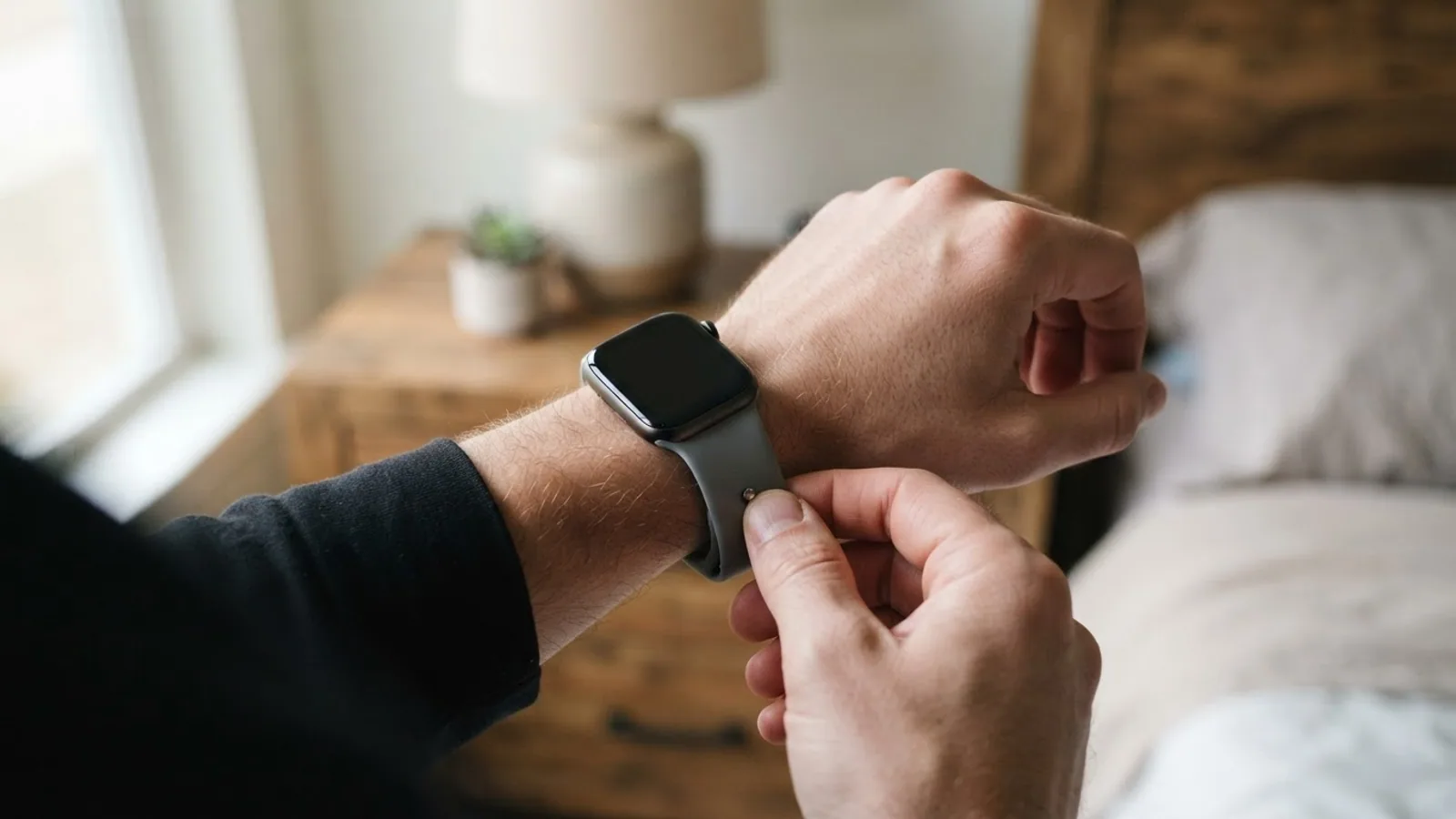
How to Unlock Apple Watch With Your Passcode
To unlock Apple Watch with your passcode, wake the display first:
- Wake the watch: raise your wrist, tap the display, or press or turn the Digital Crown.
- Enter the watch passcode.
Apple says your Apple Watch passcode can be different from your iPhone passcode, and that it's better to use different passcodes.
How to Unlock Apple Watch From Your iPhone
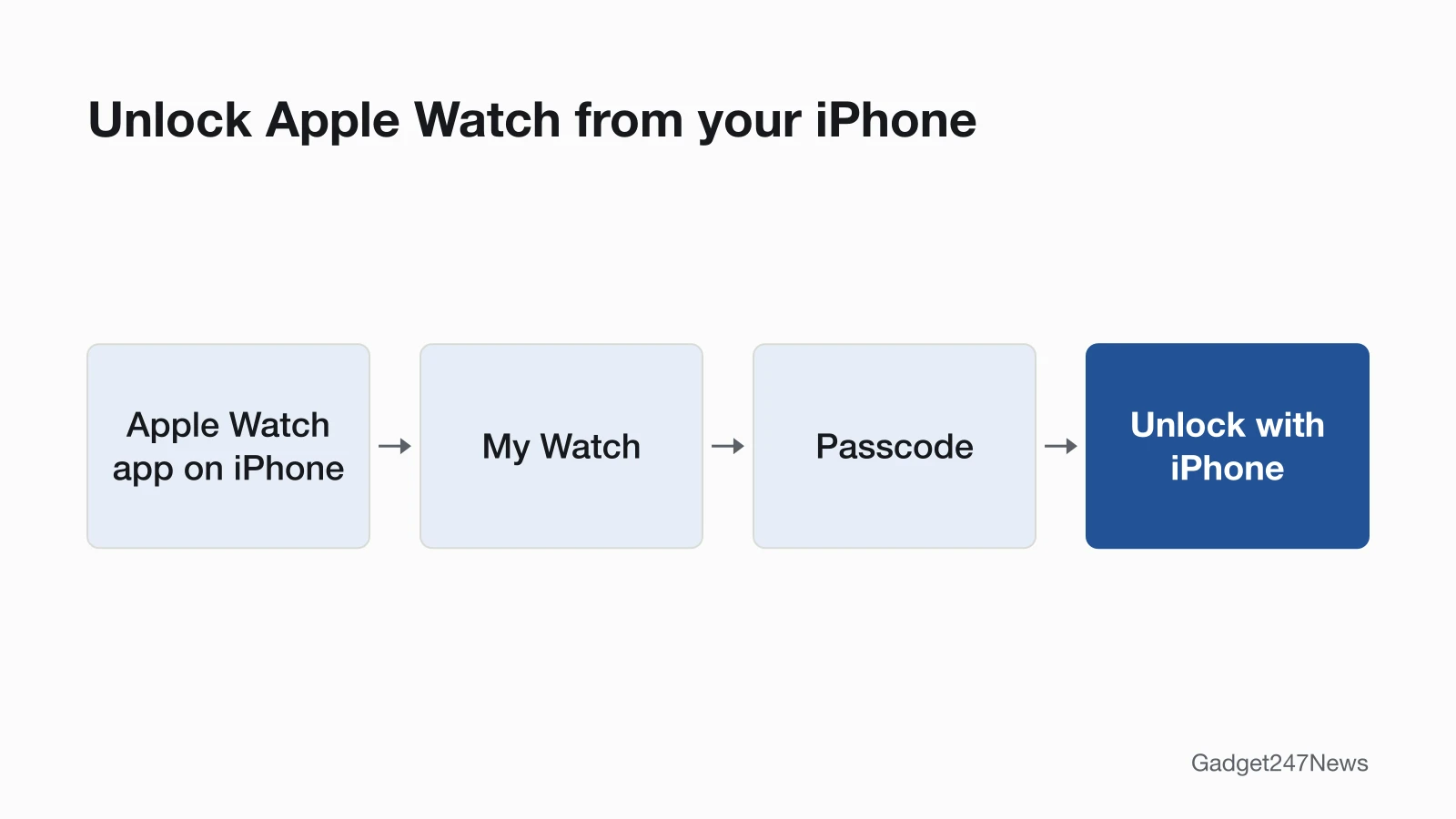
To unlock Apple Watch from your iPhone, turn on one switch in the Apple Watch app:
- Go to the Apple Watch app on your iPhone.
- Tap My Watch, then tap Passcode.
- Turn on Unlock with iPhone.
From then on, the watch unlocks when you unlock your iPhone. Your iPhone must be within normal Bluetooth range of the watch, about 33 feet or 10 meters. If Bluetooth is off on Apple Watch, enter the passcode on the watch to unlock it.
How to Lock Your Apple Watch
To lock your Apple Watch on demand, use Control Center:
- Press the side button to open Control Center.
- Tap the Lock button.
You must enter your passcode the next time you use the watch. The watch also locks itself: with Wrist Detection, it locks automatically when you're not wearing it, and Wrist Detection is on by default. To change it, open the Settings app on the watch, tap Passcode, then turn Wrist Detection on or off.
What Turning Off Wrist Detection Changes
Turning off Wrist Detection changes five Apple Watch features:
- Apple Pay: asks for your passcode when you double-click the side button to pay.
- Activity: some measurements are unavailable.
- Heart rate: tracking and notifications turn off.
- Locking: the watch no longer locks and unlocks automatically.
- Fall calls: the watch doesn't automatically make an emergency call, even after it detects a hard impact fall.
How to Turn Off Water Lock
To turn off Water Lock, press and hold the Digital Crown until the display says Unlocked. A series of tones plays to clear any water left in the speaker, and then the display works as usual. On watchOS 8 or earlier, rotate the Digital Crown instead of pressing it.
Water Lock is a different lock from the passcode. While it's on, the watch doesn't respond to touch on its display, so the screen can seem locked. It turns on by itself when you begin a water-based workout, such as swimming or surfing.
Use Apple Watch to Unlock Your Mac or iPhone
To use Apple Watch to unlock your Mac or iPhone, give the watch a passcode, then turn on each device's setting.
Mac. Apple's Auto Unlock needs four things:
- A Mac (mid-2013 or later) with macOS 10.13 or later.
- The Mac's Wi-Fi and Bluetooth turned on.
- The same Apple Account on the Mac and the watch, with two-factor authentication turned on.
- A passcode on the watch.
On macOS 13 or later, choose Apple menu › System Settings, then click Login Password and select "Use Apple Watch to unlock apps and your Mac." On macOS 12 or earlier, the checkbox is in System Preferences › Security & Privacy › General.
iPhone. Go to Settings › Face ID & Passcode, enter your passcode, then turn on Unlock With Apple Watch for your watch. It covers Siri requests and times when an obstruction prevents Face ID from recognizing your face.
For both, Apple Watch must be on your wrist, unlocked and close to the device.
How to Check It Worked
Unlock with iPhone worked when unlocking your iPhone also unlocks the watch. Unlock With Apple Watch confirms itself: the watch taps your wrist to let you know your iPhone has been unlocked.
If Your Apple Watch Won't Unlock
When your Apple Watch won't unlock, match what you see to a cause:
- You've forgotten the passcode. A forgotten code needs a reset, covered in the passcode guide linked at the top of this page.
- Unlock with iPhone does nothing. Check that Bluetooth is on for the watch and that the iPhone is within about 33 feet (10 meters).
- The screen ignores taps. Check for Water Lock and hold the Digital Crown until the display says Unlocked.
- The display stays dark. If the watch doesn't wake when you tap the display or press or turn the Digital Crown, Apple says it may need charging.
A watch that's disabled after too many wrong passcodes needs the same reset as a forgotten code.
Related Setup Tasks
These setup tasks sit next to the passcode:
- How to Change the Time on an Apple Watch
- Change the passcode: open Settings on the watch, tap Passcode, tap Change Passcode, then follow the onscreen prompts.
- Set up Apple Pay on Apple Watch: Apple says you can't use Apple Pay with the passcode turned off, so a new passcode is a good moment to add a card.
Unlock Questions
These answers cover a watch that keeps locking, wrong passcodes and a Mac that stays locked.
Why does my Apple Watch keep locking?
Wrist Detection locks the watch automatically when you're not wearing it, so it asks for the passcode after you take it off. Turning it off in Settings › Passcode stops that, but it also changes the five features listed above.
What happens after 10 wrong passcodes?
If you turned on Erase Data in Settings › Passcode, Apple Watch erases its data after 10 consecutive attempts to unlock it with the wrong passcode. Apple offers the setting to protect your information if the watch is lost or stolen.
Why won't my Apple Watch unlock my Mac?
Check the four requirements above, especially two-factor authentication and the watch passcode, then wear the watch unlocked and near the Mac. If two-factor authentication is off, Apple says to follow the onscreen instructions, then try selecting the checkbox again.
Sources
We checked this page against the pages below, most recently on . How we verify fixes
- Wake and unlock Apple Watch (Apple Watch User Guide) (Apple, support.apple.com)Official
- How to use Water Lock and eject water from your Apple Watch (Apple, support.apple.com)Official
- Manage your passcode on Apple Watch (Apple Watch User Guide) (Apple, support.apple.com)Official
- Unlock your Mac with Apple Watch (Apple Watch User Guide) (Apple, support.apple.com)Official
- Unlock your iPhone with Apple Watch (Apple Watch User Guide) (Apple, support.apple.com)Official
- If you forget your Apple Watch passcode (Apple Watch User Guide) (Apple, support.apple.com)Official