How to Set Up Apple Pay on Apple Watch

By Suraj Giri, Founder & Publisher. Reviewed by Suraj Giri on .
Published · 4 min read
How this page was made
- Sources. Checked against 7 official pages from Apple, most recently on . See the sources.
- No device testing. We don't test fixes on physical devices, so nothing on this page is a hands-on result. A fact counts as verified only when it matches an official source page.
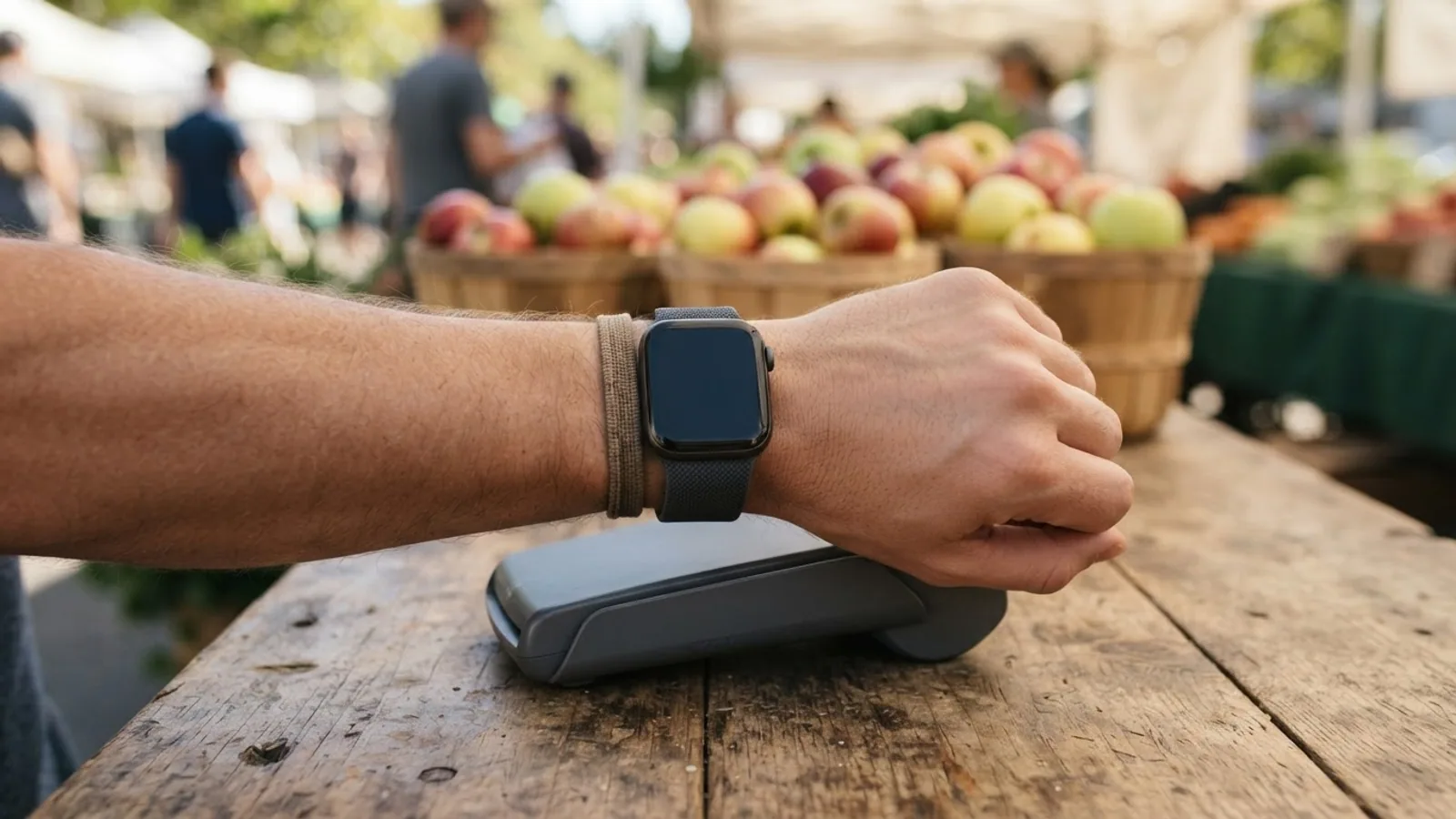
- AI use. As with every page on Gadget247News, AI tools helped research, outline, draft and edit this page, and re-read the official pages to flag facts that didn't match. The illustration at the top was generated with Runway and is labelled under the image.
- Human sign-off. Suraj Giri, Founder & Publisher, read this page and signed it off on . The site won't publish a page without that sign-off.
- Changes. The published and updated dates move only when the content changes, and every change gets a dated note. Spot an error or a fix that didn't work? Email info@gadget247news.com.
Read our AI use policy, editorial policy and corrections policy.
Open the Apple Watch app on your iPhone, tap Wallet & Apple Pay, then tap Add Card. Then double-click the side button to pay with that card. This guide sits with the other watch setup guides, such as how to change the Apple Watch face.
If your watch isn't paired yet, set up an Apple Watch as new first. Apple Pay needs a passcode on the watch, and removing that passcode later removes your cards from it.
How to Add a Card to Apple Pay on Apple Watch
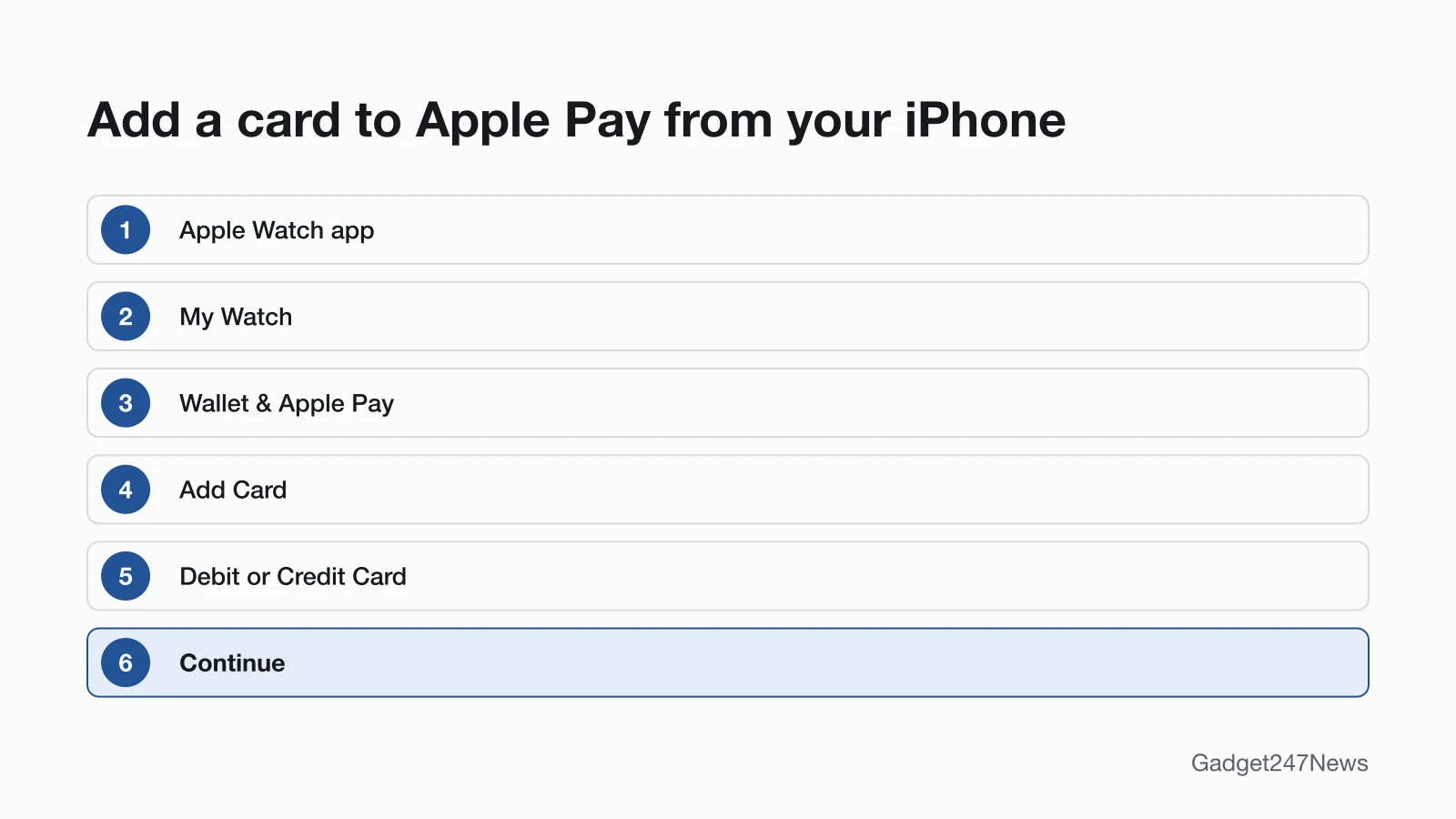
To add a card to Apple Pay on Apple Watch, start in the Apple Watch app on your iPhone:
- On your paired iPhone, open the Apple Watch app.
- In the My Watch tab, tap Wallet & Apple Pay.
- Tap Add Card.
- Tap Debit or Credit Card for a new card, or Cards Found For You for a card you used before.
- Tap Continue.
- Tap or hold the card close to your iPhone. If that doesn't add it, position the card in the frame to scan it, or tap Enter Card Details Manually and follow the onscreen instructions.
Your bank or card issuer may then ask you to verify your information. Some issuers want more details, or ask you to download an app, before they approve the card for Apple Pay.
Add a Card on the Watch Instead
To add a card from the watch itself, use the Wallet app:
- Open the Wallet app on your Apple Watch.
- Tap the More Options button, then tap Add Card.
- Choose a category, then follow the onscreen instructions.
Those instructions might include a text message, security questions or a confirmation in the card issuer's app.
How to Pay With Apple Watch in Stores
To pay with Apple Watch in a store, start with the side button:
- Double-click the side button.
- Scroll to choose a card.
- Hold Apple Watch near the contactless card reader, with the display facing the reader, until a gentle tap and beep confirm that the payment information was sent.
The merchant has to accept Apple Pay, and also your payment card and its payment network. Apple names stores, restaurants, ticket terminals and gas stations as places to use it.
Pay Online or in Apps
To pay online or in an app, look for the Apple Pay button at checkout:
- Tap the Apple Pay button.
- Review the payment, shipping and billing information.
- Double-click the side button to complete the payment.
Choose Your Default Card
To choose your default card on the watch, open the Wallet app, touch and hold the card, then drag it to the top of the card stack. From your iPhone, open the Apple Watch app, tap Wallet & Apple Pay, then tap Apple Pay Defaults. That screen sets the default card, your shipping address, email and phone number.
How to Check It Worked
The setup worked when the card shows up in the Wallet app on your Apple Watch, where Apple Pay keeps your eligible cards. For a second check, double-click the side button and scroll: the new card should be one of the cards you can choose.
If Apple Pay on Apple Watch Isn't Working
When Apple Pay on Apple Watch isn't working, check these five things, most likely first:
- Your card issuer. Ask the issuer whether it supports Apple Pay. If you see Could Not Add Card, Invalid Card or Card Device Limit, contact your bank or card issuer, because Apple does not approve or decline cards.
- The watch passcode. Apple Pay on the watch needs one, and removing it removes your cards.
- Your country or region. You have to be in a supported country or region.
- Two-factor authentication. Apple asks you to confirm it's turned on for your Apple Account.
- Wrist Detection. With it off, the watch asks for your passcode when you double-click the side button to pay.
Apple's full list, which also covers software updates, device compatibility and service outages, is on its page for when you can't add a card to Apple Wallet.
Related Setup Tasks
Two more setup guides for the same watch:
- How to set up cellular on Apple Watch, for adding a cellular plan to the watch.
- Passcode and unlock settings, covered in the unlock guide linked in the questions below.
Apple Pay Questions
These answers cover paying without your iPhone, the passcode prompt and supported countries.
Can I use Apple Pay on Apple Watch without my iPhone?
Yes. Apple lists "Make purchases with Apple Pay" among the things Apple Watch can do when you're away from your iPhone and not connected to Wi-Fi, even on a watch without a cellular plan. You add the card itself from the Apple Watch app on your iPhone or the Wallet app on the watch.
Why does my Apple Watch ask for my passcode when I pay?
Your Apple Watch asks for its passcode at checkout when Wrist Detection is turned off. Apple says that with it off, you're prompted to enter your passcode when you double-click the side button to authorize the payment. To turn it back on, open the Settings app on the watch, tap Passcode, then turn on Wrist Detection. For the other ways the passcode works day to day, see how to unlock an Apple Watch.
Does Apple Pay work in my country?
Apple Pay works in the countries and regions on Apple's list, with cards from participating banks and card issuers there. In most countries and regions you have to be 13 years of age or older to use Apple Pay, and some regions set a higher minimum age.
Sources
We checked this page against the pages below, most recently on . How we verify fixes
- Set up Apple Pay (Apple, support.apple.com)Official
- Make purchases with Apple Pay on Apple Watch (Apple Watch User Guide) (Apple, support.apple.com)Official
- Set up cards and passes in Wallet on Apple Watch (Apple Watch User Guide) (Apple, support.apple.com)Official
- If you can't add a card to Apple Wallet to use with Apple Pay (Apple, support.apple.com)Official
- Countries and regions that support Apple Pay (Apple, support.apple.com)Official
- Wake and unlock Apple Watch (Apple Watch User Guide) (Apple, support.apple.com)Official
- Use Apple Watch without its paired iPhone (Apple Watch User Guide) (Apple, support.apple.com)Official