How to Change the Time on an Apple Watch

By Suraj Giri, Founder & Publisher. Reviewed by Suraj Giri on .
Published · 4 min read
How this page was made
- Sources. Checked against 8 official pages from Apple, most recently on . See the sources.
- No device testing. We don't test fixes on physical devices, so nothing on this page is a hands-on result. A fact counts as verified only when it matches an official source page.
- AI use. As with every page on Gadget247News, AI tools helped research, outline, draft and edit this page, and re-read the official pages to flag facts that didn't match. The illustration at the top was generated with Runway and is labelled under the image.
- Human sign-off. Suraj Giri, Founder & Publisher, read this page and signed it off on . The site won't publish a page without that sign-off.
- Changes. The published and updated dates move only when the content changes, and every change gets a dated note. Spot an error or a fix that didn't work? Email info@gadget247news.com.
Read our AI use policy, editorial policy and corrections policy.
Open Settings on your Apple Watch, tap Clock, tap +0 min, turn the Digital Crown to choose the minutes, then tap Done. That sets the time shown on the watch face ahead. To fix a wrong time or time zone, change the date and time settings on your iPhone instead (steps below). If it's the clock design you want to change, see our guide for when your Apple Watch face won't change.
Time settings are one of several watch setup tasks; a watch fresh out of the box starts with the guide to set up your new Apple Watch.
How to Set Your Apple Watch Time Ahead
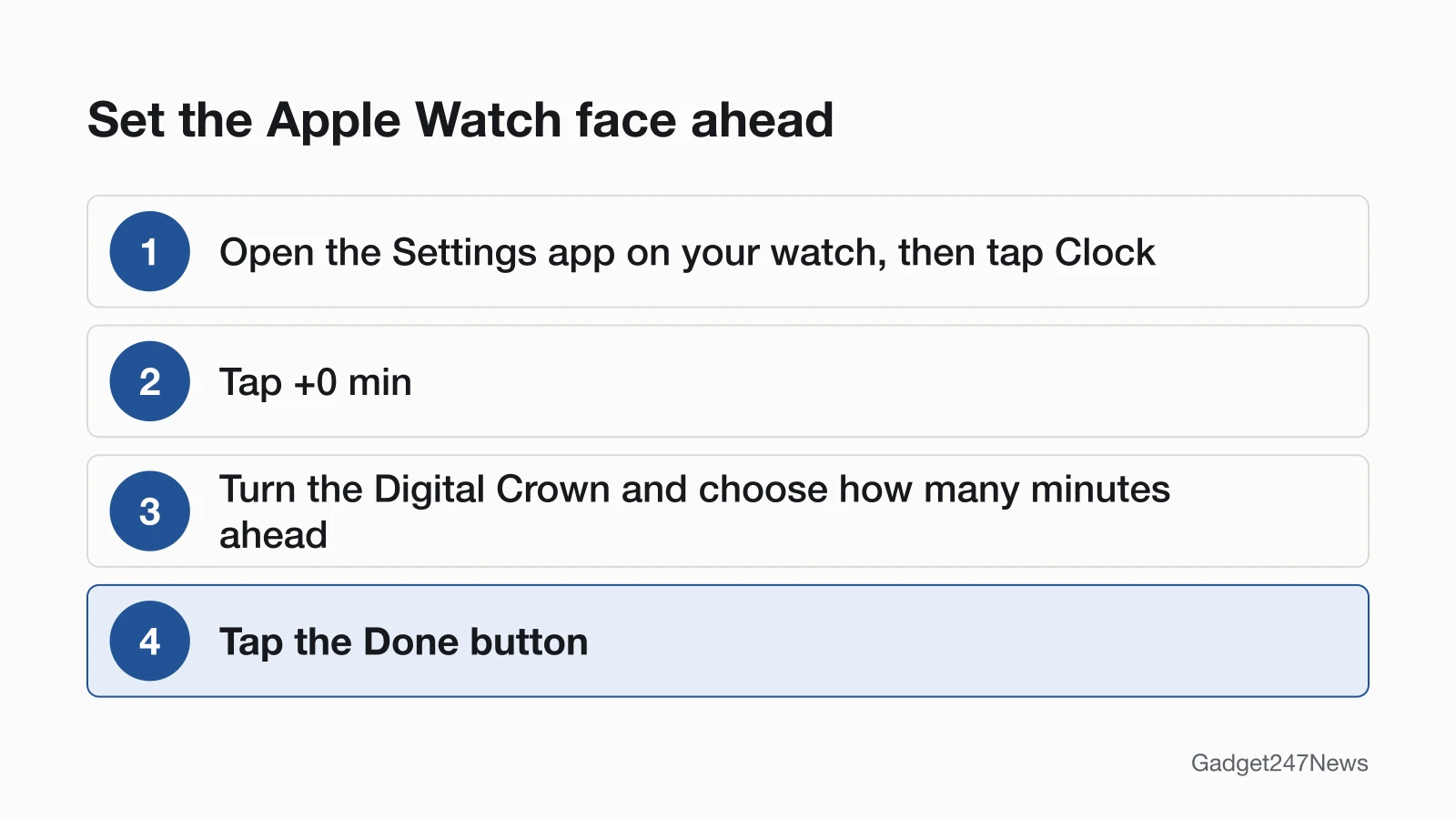
To set your Apple Watch time ahead of the actual time, use the Clock settings on the watch:
- Open the Settings app on your watch, then tap Clock.
- Tap +0 min.
- Turn the Digital Crown and choose how many minutes ahead to set your watch. Apple's dial goes up to 59 minutes.
- Tap the Done button.
Only the face moves. In Apple's words: "Your alarms, notifications, World Clock, and other times will still match the actual time." To undo it, repeat the steps and choose 0 minutes.
How to Fix the Wrong Time or Time Zone
To fix the wrong time or time zone, work on the paired iPhone. Apple's Apple Watch time article covers only 24-hour time and setting the face ahead; Apple's fix for a wrong time runs through the iPhone's Date & Time settings and ends with a restart of the paired watch:
- Make sure the iPhone is connected to the internet.
- Install the latest software update for the iPhone.
- Open Settings, tap General, tap Date & Time, then turn on Set Time Automatically.
- If a message says that updated time zone information is available, restart the iPhone and the paired Apple Watch.
For the time zone, also turn on Setting Time Zone: open Settings, tap Privacy & Security, tap Location Services, scroll to the bottom, tap System Services, then turn it on. That lets the iPhone use its current location to find the correct time zone.
If Set Time Automatically is dimmed (grayed out), Apple names two causes: a Screen Time passcode, or a corporate profile with device restrictions. Apple adds that the option might not be available with all carriers or in all countries and regions.
How to Switch to 24-Hour Time
To switch to 24-hour time, open the Apple Watch app on your iPhone, tap My Watch, tap Clock, then turn on 24-Hour Time. Afternoon and evening hours then show as 13 through 23, so 8
PM appears as 20.Other Time Settings
Three more settings give you other ways to check the time:
- Speak Time: in Settings on the watch, tap Clock, then turn on Speak Time. Hold two fingers on the watch face to hear the time.
- Chimes: in the same Clock settings, turn on Chimes to play a sound on the hour, then tap Sounds to choose Bells or Birds.
- World Clock: open the World Clock app, tap the List button, then the Add button, enter a city name, tap Search, then tap the city name to add it. Cities you add on your iPhone also appear on the watch.
How to Check It Worked
The change worked when the watch face shows the time you set, ahead of the actual time, while your alarms still ring at the actual time. After a time zone fix, check that Set Time Automatically is still on in the iPhone's Date & Time settings.
If Your Apple Watch Isn't Showing the Time
When your Apple Watch isn't showing the time, check these five things in order:
- Wake on Wrist Raise is off. In Settings, tap Display & Brightness, then turn on Wake on Wrist Raise so the watch wakes when you raise your wrist.
- Theater Mode is on. It keeps the display dark when you raise your wrist. Tap the display, press the side button, or turn or press the Digital Crown to wake the watch.
- Low Power Mode is on. Always On isn't available in Low Power Mode; tap the display to see the watch face.
- The Sleep Focus is active. In Settings, tap Sleep, then turn on Show Time to show the date and time while the Sleep Focus is on.
- The watch needs charging. If the watch doesn't wake when you tap the display or press or turn the Digital Crown, it may need charging; see what to do when your Apple Watch screen won't turn on.
Related Setup Tasks
These setup guides sit next to this one:
- How to Set Up Apple Pay on Apple Watch
- How to set an alarm on Apple Watch; alarms keep the actual time even when the face is set ahead.
Time Questions
These answers cover a wrong time, a face that runs ahead and a watch that shows no time.
How do I fix the time on my Apple Watch?
Turn on Set Time Automatically in your iPhone's Date & Time settings, and restart the iPhone and the paired watch if a message says updated time zone information is available. If the watch is a few minutes ahead on purpose, the setting lives on the watch itself, under Settings › Clock.
Why is my Apple Watch time ahead?
Check Settings › Clock on the watch first: that's where the watch face is set ahead of the actual time. Repeat the set-ahead steps and choose 0 minutes to bring it back. Apple says alarms, notifications and World Clock keep the actual time, so they were never ahead. If the face isn't set ahead, fix the iPhone's Date & Time settings instead.
Why is my Apple Watch not showing the time?
A display or Focus setting is hiding it, or the watch needs charging. Check Wake on Wrist Raise, Theater Mode, Low Power Mode and the Sleep Focus's Show Time setting in that order, then charge the watch if it still won't wake. The list above gives each setting's path.
Sources
We checked this page against the pages below, most recently on . How we verify fixes
- Change the time settings on your Apple Watch (Apple, support.apple.com)Official
- If you can't change the time or time zone on your Apple device (Apple, support.apple.com)Official
- Tell time on Apple Watch (Apple Watch User Guide) (Apple, support.apple.com)Official
- Use World Clock on Apple Watch to check the time in other locations (Apple Watch User Guide) (Apple, support.apple.com)Official
- Adjust the display settings on Apple Watch (Apple Watch User Guide) (Apple, support.apple.com)Official
- Silence notifications for extended periods on Apple Watch (Apple Watch User Guide) (Apple, support.apple.com)Official
- Track your sleep on Apple Watch (Apple Watch User Guide) (Apple, support.apple.com)Official
- Wake and unlock Apple Watch (Apple Watch User Guide) (Apple, support.apple.com)Official