Apple Watch Not Getting Notifications? How to Fix It

By Suraj Giri, Founder & Publisher. Reviewed by Suraj Giri on .
Published · 7 min read
How this page was made
- Sources. Checked against 10 official pages from Apple, most recently on . See the sources.
- No device testing. We don't test fixes on physical devices, so nothing on this page is a hands-on result. A fact counts as verified only when it matches an official source page.
- AI use. As with every page on Gadget247News, AI tools helped research, outline, draft and edit this page, and re-read the official pages to flag facts that didn't match. The illustration at the top was generated with Runway and is labelled under the image.
- Human sign-off. Suraj Giri, Founder & Publisher, read this page and signed it off on . The site won't publish a page without that sign-off.
- Changes. The published and updated dates move only when the content changes, and every change gets a dated note. Spot an error or a fix that didn't work? Email info@gadget247news.com.
Read our AI use policy, editorial policy and corrections policy.
Apple sends each notification to your Apple Watch or your iPhone, not both, so an alert that lands on the phone isn't always a fault. Real misses come from a lock, the phone link, a Focus or an app setting, and the six fixes below take them in that order. Notifications and data both travel over that phone link, which is also the first thing to check for a smartwatch not syncing. For other faults, start from Apple Watch troubleshooting.
Why Notifications Go to Your iPhone Instead of Your Watch
Notifications go to your iPhone instead of your Apple Watch whenever the iPhone isn't locked or asleep. In Apple's words: "If your iPhone is unlocked, you get notifications on your iPhone instead of your Apple Watch." When the iPhone is locked or asleep, the alert goes to the watch, unless the watch itself is locked. Reading or dismissing a notification on the watch also dismisses it from the iPhone.
Why Your Apple Watch Isn't Getting Notifications
An Apple Watch misses notifications for six reasons, and the fixes below cover each one:
- Your iPhone is in use. While the phone isn't locked, it keeps the notifications.
- The watch is disconnected. A red iPhone icon or red X in Control Center means the link is down, and alerts go to the iPhone.
- The watch is locked. A lock icon shows on the watch face. A watch that can't detect your wrist can lock while you wear it and stop displaying notifications.
- Do Not Disturb or a Focus is on. The moon icon on the watch face means Do Not Disturb, and a Focus shared across devices reaches the watch too.
- The app's notifications are off, either on the iPhone or in the watch's own settings for that app.
- Messages uses a different Apple Account on the iPhone than on the watch, which affects texts only.
How to Fix Apple Watch Notifications
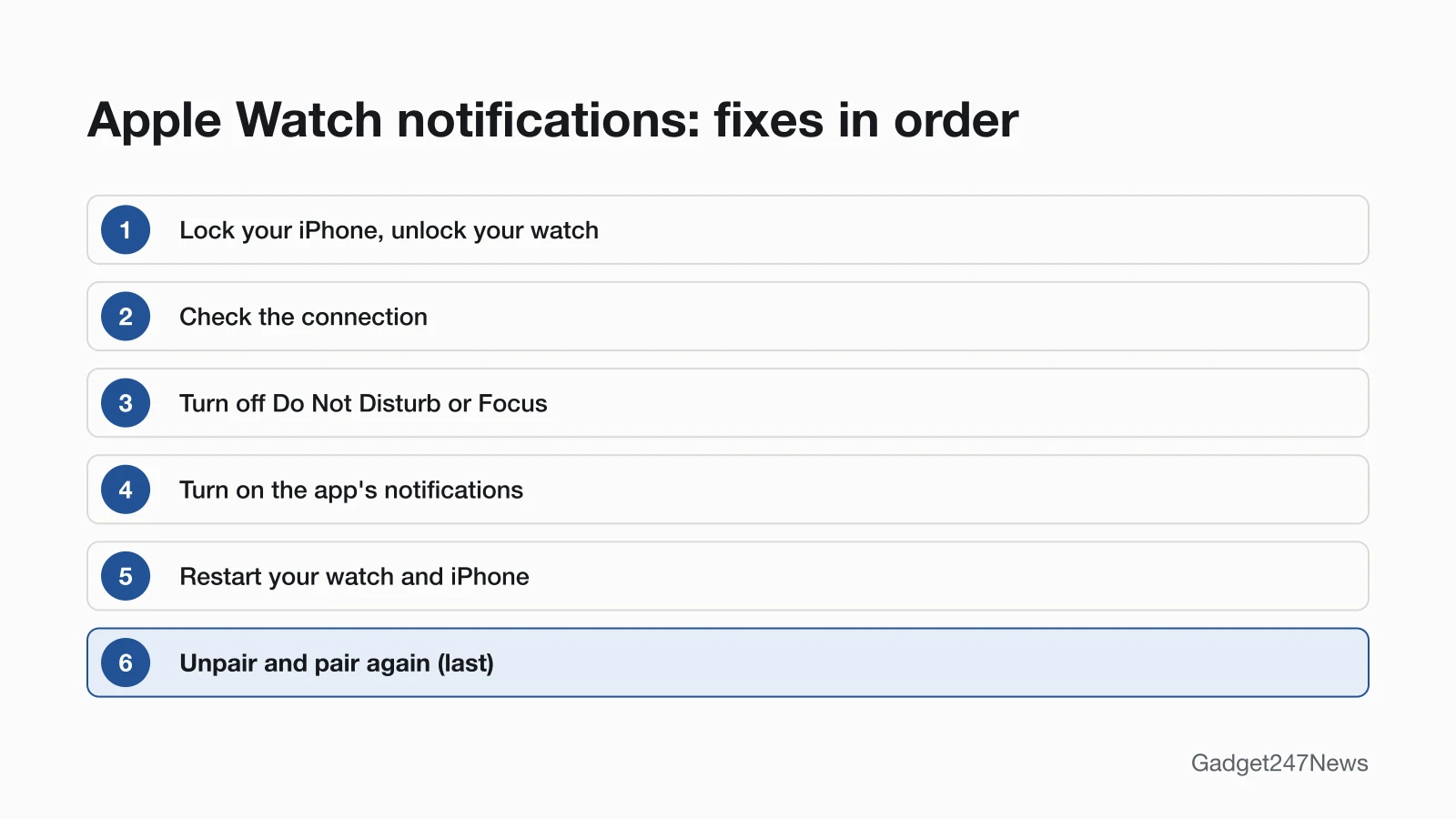
Work through these six fixes in order and test a notification after each one; unpairing comes last because it erases the watch.
Fix 1: Lock Your iPhone and Unlock Your Watch
Lock your iPhone, or let it sleep, then wake your Apple Watch and enter its passcode if it asks: alerts reach the watch only while the iPhone is locked or asleep and the watch isn't locked. A lock icon on the watch face means the watch is locked. If it locks while you wear it, make sure it lies flat on top of your wrist so the sensor on the back touches your skin, with no sleeve or bracelet in between.
Fix 2: Check the Connection
Press the side button to open Control Center on your watch: the green iPhone icon means it's connected, and a red iPhone icon or red X means it isn't. Keep the watch and iPhone close together. On the iPhone, check that Airplane Mode is off and Wi-Fi and Bluetooth are on; on the watch, turn Airplane Mode off. If the icon stays red, reconnect your Apple Watch with the full steps.
Fix 3: Turn Off Do Not Disturb or Focus
Turn off Do Not Disturb on the watch and any Focus on the iPhone, because a watch in Do Not Disturb sends its notifications to your iPhone:
- On your Apple Watch, look for the moon icon on the watch face. Press the side button to open Control Center, then tap the highlighted Do Not Disturb icon to turn it off.
- On your iPhone, open Control Center, tap the Focus that's on, such as Do Not Disturb or Work, then tap it again to turn it off. With Share Across Devices on, a Focus works on your linked devices too.
- To keep a Focus and still get some alerts, open Settings on the iPhone, tap Focus, tap the Focus, tap People or Apps, then add the people or apps you want notifications from.
Fix 4: Turn On Notifications for the App
Turn on the app's notifications in two places, the iPhone's Settings and the Apple Watch app, because the watch keeps its own setting for each app:
- On your iPhone, open Settings, tap Notifications, tap the app, then turn on Allow Notifications.
- Open the Apple Watch app, tap My Watch, then tap Notifications.
- Tap the app. Choose Mirror my iPhone to copy the iPhone's settings, or tap Custom (some apps only) and choose Allow Notifications. Send to Notification Center puts them in Notification Center without an alert, and Notifications Off sends none.
- If you muted or turned off the app from the watch, scroll down the same Notifications screen to the list of installed apps and turn the app back on.
That second setting explains notifications that are on for the iPhone but never reach the watch. Third-party apps add one condition: Apple delivers their notifications only if your paired iPhone is also connected to a network.
Fix 5: Restart Your Apple Watch and iPhone
Restart both devices, and lift the watch off its charger first, because you can't restart an Apple Watch while it's charging. Hold the side button until the sliders appear, tap the Power button, then drag the Power Off slider; hold the side button again until the Apple logo appears. Force restart steps are in how to restart an Apple Watch.
Fix 6 (Last): Unpair and Pair Again
Unpair and pair again only after the other fixes: it's the last step on Apple's connection checklist, and the step Apple asks for before you contact support about messages. Unpairing erases your Apple Watch and restores factory settings, so you set it up again afterwards. For the clean-slate route, erase an Apple Watch and start over. If you've forgotten the watch passcode, see Apple Watch keeps asking for the passcode.
Messages, Calls and Other Alerts
Texts, calls and the red dot on the watch face each add a cause of their own.
Messages Not Coming Through on Apple Watch
Messages that don't arrive on your Apple Watch need Apple's checks, grouped into six steps in the same order. After each step, try sending or receiving a message on the watch again:
- Press the side button to open Control Center, then tap the highlighted Do Not Disturb and Airplane Mode icons to turn them off.
- Make sure the watch can connect to your iPhone, Wi-Fi or cellular. On cellular models, SMS and MMS need the iPhone powered on and connected to Wi-Fi or cellular, though it doesn't need to be nearby.
- Send a message from your iPhone. If the iPhone can't send or receive either, fix Messages on the iPhone first.
- In the Apple Watch app, tap My Watch, tap General, then tap Apple Account to check that you're signed in.
- On your iPhone, open Settings, tap Apps, then Messages, and make sure iMessage is on. Tap Send & Receive and check that it uses the same Apple Account as your watch.
- Sign out of iMessage under Send & Receive, turn iMessage off and back on, then sign in again. If texts still fail, restart both devices, update both, then unpair and pair again before you contact Apple.
A red exclamation point or "not delivered" next to a message means it didn't send; tap the alert to try again.
Apple Watch Shows Unread Messages When You Have None
The red dot at the top of the watch face means unread notifications, not a count of unread messages. To clear it, touch and hold the top of the watch face to open Notification Center, scroll to the top, then tap Clear All. To hide the dot for good, open the Apple Watch app on your iPhone, tap Notifications, then turn off Notifications Indicator.
Apple Watch Not Receiving Calls
Missed calls share a cause with missed notifications: Apple lists both as signs that the watch and iPhone might not be connected, so start with Fix 2. Away from the iPhone, a watch on Wi-Fi or cellular can still make and answer calls; on Wi-Fi, calling a phone number needs Wi-Fi calling turned on for the watch. In Low Power Mode, incoming calls go to voicemail when the iPhone isn't nearby.
Keyboard Notification Keeps Popping Up
The keyboard notification is Apple Watch Keyboard Input, an iPhone notification that appears when you start dictating or entering text on the watch while the iPhone is nearby. Tap it to continue typing on the iPhone instead. Apple's text-entry guide doesn't list a setting that turns the notification off.

Still not working?
- Try the next fix: if the watch keeps losing its connection, the Apple Watch not connecting guide has the full reconnect steps.
- Reset your Apple Watch: How to Restart or Factory Reset an Apple Watch (you'll need to pair it again afterwards).
- Contact Apple Support: Apple Support.
- Check repair or warranty options: Apple Service and Repair for Apple Watch.
Started after an update? Check the Update Tracker for known issues.
Want Fewer Alerts Instead?
Too many alerts is the opposite problem, and turning them down on purpose has its own guide: How to silence an Apple Watch. For one noisy app, swipe left on its notification in Notification Center, tap the More button, then mute it for an hour or the rest of the day, or turn it off, depending on the app.
Notification Questions
The last answer covers notifications that stop without warning.
Why am I suddenly not receiving notifications?
When notifications stop suddenly, check three changes: a Focus that turned on by schedule, a watch that lost its connection, and a recent iOS or watchOS update. A moon icon on the watch face means Do Not Disturb is on, and a red iPhone icon in Control Center means the link is down. If the stop lines up with an update, compare your version with the known issues on watchOS versions on Apple Watch.
Sources
We checked this page against the pages below, most recently on . How we verify fixes
- Notifications on your Apple Watch (Apple, support.apple.com)Official
- How to get notifications on your iPhone and Apple Watch (Apple, support.apple.com)Official
- If your Apple Watch isn't connected or paired with your iPhone (Apple, support.apple.com)Official
- If you can't send or receive messages on your Apple Watch (Apple, support.apple.com)Official
- If your Apple Watch locks unexpectedly (Apple, support.apple.com)Official
- Restart Apple Watch (Apple Watch User Guide) (Apple, support.apple.com)Official
- Unpair and erase your Apple Watch (Apple, support.apple.com)Official
- Use your Apple Watch without your iPhone nearby (Apple, support.apple.com)Official
- Enter text on Apple Watch (Apple Watch User Guide) (Apple, support.apple.com)Official
- Apple Service and Repair for Apple Watch (Apple, support.apple.com)Official