How to Charge an Apple Watch

By Suraj Giri, Founder & Publisher. Reviewed by Suraj Giri on .
Published · 4 min read
How this page was made
- Sources. Checked against 9 official pages from Apple, most recently on . See the sources.
- No device testing. We don't test fixes on physical devices, so nothing on this page is a hands-on result. A fact counts as verified only when it matches an official source page.
- AI use. As with every page on Gadget247News, AI tools helped research, outline, draft and edit this page, and re-read the official pages to flag facts that didn't match. The illustration at the top was generated with Runway and is labelled under the image.
- Human sign-off. Suraj Giri, Founder & Publisher, read this page and signed it off on . The site won't publish a page without that sign-off.
- Changes. The published and updated dates move only when the content changes, and every change gets a dated note. Spot an error or a fix that didn't work? Email info@gadget247news.com.
Read our AI use policy, editorial policy and corrections policy.
To charge an Apple Watch, plug Apple's magnetic charger into a USB power adapter, then place the back of the watch on it; a green lightning bolt on the watch face confirms it's charging. For any other fault, start at Apple Watch not working, and if a watch from another brand stays dark on its charger, see smartwatch not charging.

How to Charge Your Apple Watch
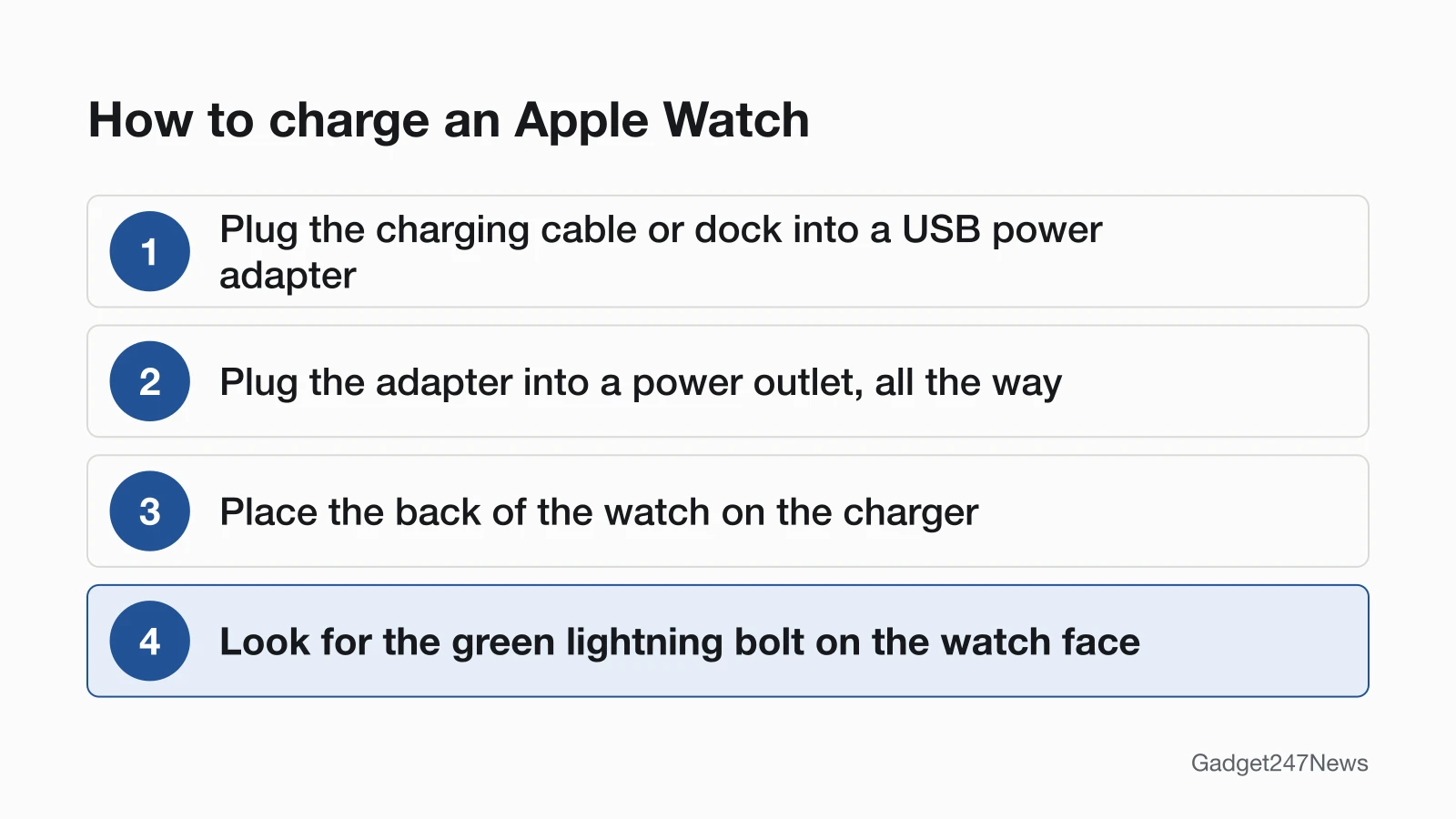
Charge an Apple Watch in four steps, with the watch off your wrist:
- Plug the charging cable or dock into a USB power adapter. The cable also works in a USB port.
- Plug the adapter into a power outlet. Push both plugs in all the way.
- Take off your watch and place its back on the charger. The charger's magnets align the watch for you.
- Look for the green lightning bolt on the watch face. A chime plays unless the watch is in Silent Mode, and the watch goes into Nightstand mode while it charges.
If no lightning bolt appears, lift the watch and set it down again; Apple says the bolt should appear once the magnets align correctly. Which charger you use changes how fast the watch charges.
Which Charger Works With Your Apple Watch?
Use the charger that came in the box with your watch: Apple says it gives the fastest charging speed for that model.
| Charger | Plugs into | Fast charging? | Notes |
|---|---|---|---|
| Magnetic Charging Cable | A USB power adapter | No | Also works in a USB port |
| Magnetic Fast Charging USB-C Cable | A USB-C power adapter (Apple 18W or more to fast charge) | Yes, on Series 7 and later, SE 3, and Ultra and later | Look for the USB-C plug and the aluminum around the magnetic charger |
| Magnetic Charging Dock | A USB power adapter | No | On 44mm, 45mm and 49mm watches, you might need to tilt it or lay it flat so the magnets align |
Only the fast charging cable can fast charge. If you don't know whether your watch is a Series 7 or later, run the Apple Watch model check first.
Does Your Apple Watch Support Fast Charging?
Fast charging works on Apple Watch Series 7 and later, Apple Watch SE 3 and Apple Watch Ultra and later. It needs the Apple USB-C Magnetic Fast Charging Cable and an Apple 18W or greater USB-C Power Adapter, or a comparable third-party USB-C adapter with USB Power Delivery. Apple says Series 10 and later charge from 0 to 80 percent in about 30 minutes, and Series 7, 8 and 9 in about 45 minutes.
How to Check That Your Apple Watch Is Charging
Four places on the watch and your iPhone confirm it's charging:
- The lightning bolt: a green lightning bolt on the watch face means it's charging; a yellow one means Low Power Mode is on.
- Control Center: press the side button to see the battery percentage. Tap the number for a larger charge ring.
- Settings: open Settings, then tap Battery to see the current charge level and a charging graph.
- Complication or widget: add a battery complication to the watch face, or a battery widget on your iPhone that shows the watch's charge level.
In Nightstand mode, tap the charging button to see the charge. A yellow bolt or a charge that stops at 80% comes from two battery settings.
Low Power Mode and Optimized Battery Charging
Low Power Mode turns the charging animation yellow, and Optimized Battery Charging can pause a charge at 80%. At 10%, an alert offers Low Power Mode; it turns off automatically at 80% unless you set it for a number of days. Optimized Battery Charging, in Settings, then Battery, then Battery Health, learns your daily charging routine and can hold the battery between 75% and 80% until you need the watch. A watch that stops at 80% isn't broken: tap the watch, tap the charging icon, then tap Charge to Full Now.
If Your Apple Watch Won't Charge
If no lightning bolt appears after you reposition the watch, or the watch won't turn on, work through Apple Watch not charging. A red lightning bolt means the battery is too low for the watch to turn on. If the watch charges but shows the disconnected iPhone icon, it has lost its link to your phone: reconnect your Apple Watch.
Why is my Apple Watch plugged in but not charging?
A plugged-in Apple Watch that doesn't charge needs Apple's checks in order: use the cable that came with the watch, push the cable and adapter in all the way, reposition the watch, then clean the back of the watch and the charger, and remove any plastic wrap. If none helps, try a different cable and adapter; the full order is on Apple Watch Not Charging.
Why is my Apple Watch showing a red lightning bolt when I first charge it?
A red lightning bolt means the watch doesn't have enough battery power to turn on; leave it on the charger, where it can take up to 30 minutes to turn on. If it seems stuck on a red lightning bolt, see Apple Watch red lightning bolt.
How do I revive a dead Apple Watch?
Charge it for up to 30 minutes, then force a restart: press and hold the side button and Digital Crown for at least 10 seconds, or until the Apple logo appears. If the screen stays dark, see Apple Watch won't power on.
How do you know if your Apple Watch battery is bad?
Open Settings, tap Battery, then Battery Health, and check Maximum Capacity, which compares the battery to when it was new. If Battery Health says Battery Needs Service, Apple says to contact Apple Support; see Apple Watch battery service options.
Sources
We checked this page against the pages below, most recently on . How we verify fixes
- Check your battery and charge your Apple Watch (Apple, support.apple.com)Official
- Charge the battery on Apple Watch (Apple Watch User Guide) (Apple, support.apple.com)Official
- If your Apple Watch won't turn on or won't charge (Apple, support.apple.com)Official
- About fast charge on Apple Watch (Apple, support.apple.com)Official
- About Optimized Battery Charging on Apple Watch (Apple, support.apple.com)Official
- Use Low Power Mode on your Apple Watch (Apple, support.apple.com)Official
- Check battery health and usage on Apple Watch (Apple Watch User Guide) (Apple, support.apple.com)Official
- If the battery in your Apple Watch drains too quickly (Apple, support.apple.com)Official
- Check the status of Apple Watch (Apple Watch User Guide) (Apple, support.apple.com)Official