Apple Watch Battery Draining Fast? Causes and Fixes

By Suraj Giri, Founder & Publisher. Reviewed by Suraj Giri on .
Published · 7 min read
How this page was made
- Sources. Checked against 11 official pages from Apple, most recently on . See the sources.
- No device testing. We don't test fixes on physical devices, so nothing on this page is a hands-on result. A fact counts as verified only when it matches an official source page.
- AI use. As with every page on Gadget247News, AI tools helped research, outline, draft and edit this page, and re-read the official pages to flag facts that didn't match. The illustration at the top was generated with Runway and is labelled under the image.
- Human sign-off. Suraj Giri, Founder & Publisher, read this page and signed it off on . The site won't publish a page without that sign-off.
- Changes. The published and updated dates move only when the content changes, and every change gets a dated note. Spot an error or a fix that didn't work? Email info@gadget247news.com.
Read our AI use policy, editorial policy and corrections policy.
Apple Watch battery life depends on many factors, Apple says, including the age of your watch and how you use it. The fixes below follow the settings Apple names on its battery drain page. Other faults start at Apple Watch not working, and other brands are covered in smartwatch battery draining fast.

Why Your Apple Watch Battery Drains Fast
We group the tips on Apple's battery drain page (Apple Support 122789) and its linked pages into seven causes of fast drain, each with a setting or step:
- A recent watchOS update. Update tasks continue in the background, so wait a few days.
- The Always On display. Turn it off in Settings › Display & Brightness › Always On.
- Audio through the built-in speaker. It can drain the battery more quickly on newer models, so listen through AirPods or another Bluetooth audio device.
- Distance from your iPhone. The watch is most efficient on a Bluetooth connection to its paired iPhone, so keep the two within range.
- A weak Wi-Fi or cellular signal. Check the signal bars in Control Center, and turn on Airplane Mode where Wi-Fi is weak or there's no cellular coverage.
- Long outdoor workouts. Turn on Settings › Workout › Fewer GPS and Heart Rate Readings.
- An aging battery. A lithium-ion battery holds less charge as it chemically ages; check Settings › Battery › Battery Health › Maximum Capacity.
How to Find What's Draining Your Battery
Three screens on the watch show the battery's level, its recent history and its health:
- Press the side button to see the battery percentage in Control Center.
- Open the Settings app and tap Battery for a graph of the recent history of the battery charge and the time it was last charged.
- Tap Battery Health and scroll down to Maximum Capacity, the capacity relative to when the battery was new.
Apple's user guide doesn't describe a per-app battery list on the watch, so use the charge graph to see when the level fell.
How to Stop Your Apple Watch Battery Draining
Work down these seven fixes in order: the first six come from Apple's battery drain page, and restarting or pairing again comes last.
Fix 1: Wait a Few Days After an Update
If your Apple Watch battery suddenly started draining after a watchOS update, wait a few days and then check again. Apple says certain tasks related to the update continue in the background and might affect battery life. If the drain lasts longer, compare your version with the Apple Watch update known issues we list for each release.
Fix 2: Turn Off Always On
Turn off Always On in the watch's Display & Brightness settings:
- Open the Settings app on your watch and tap Display & Brightness.
- Scroll down, then tap Always On.
- Tap Always On again to turn the feature off.
Low Power Mode also disables Always On; this setting turns off only Always On and leaves Low Power Mode off.
Fix 3: Turn On Low Power Mode
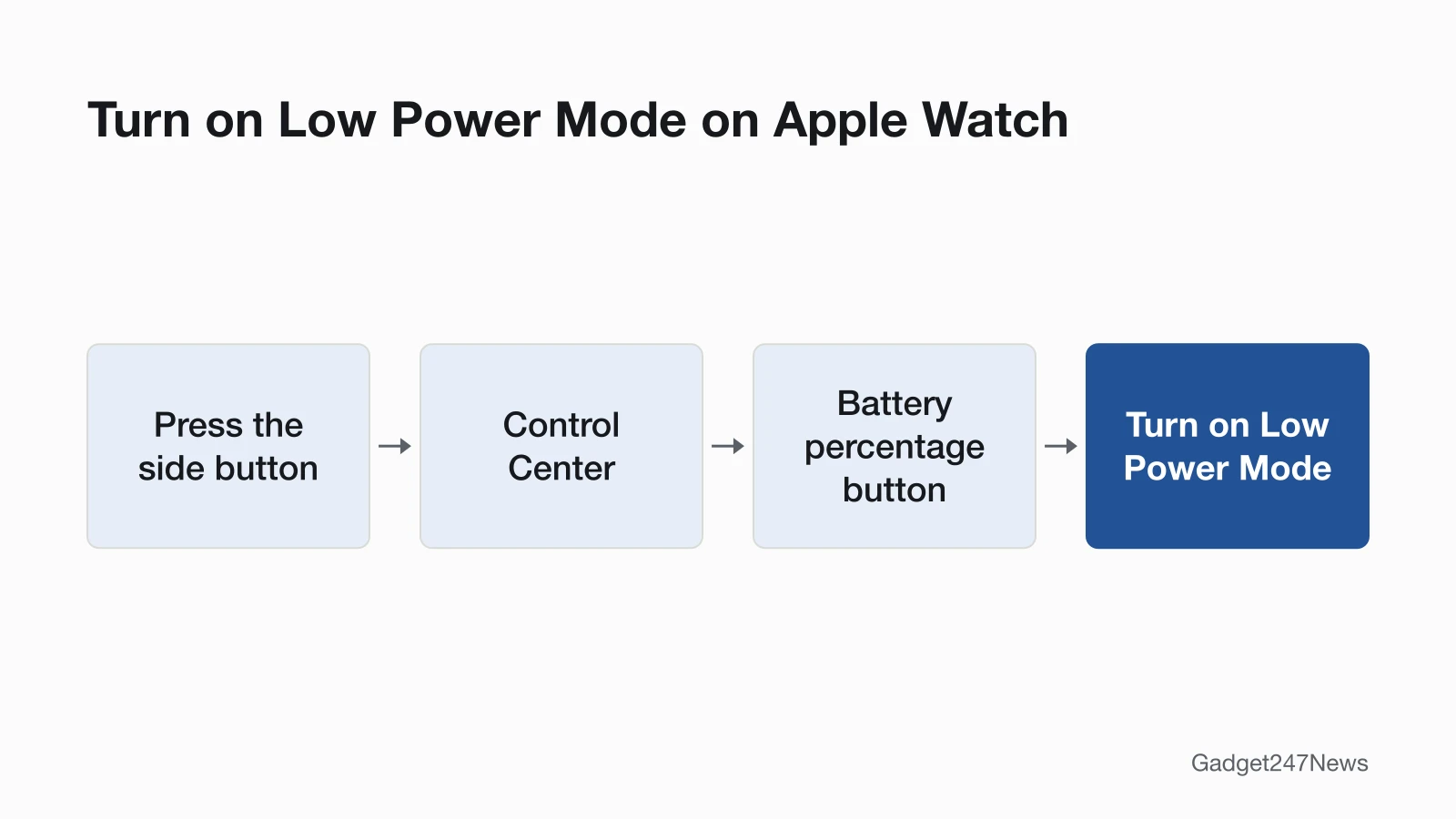
Turn on Low Power Mode from Control Center:
- Press the side button to open Control Center.
- Tap the battery percentage button.
- Turn on Low Power Mode, scroll to the bottom, then tap Turn On, or Turn On For and choose On for 1 Day, On for 2 Days or On for 3 Days.
When the battery goes down to 10%, an alert asks if you want to turn it on, and it turns off once the battery is charged to 80%, unless you chose a number of days.
Low Power Mode turns off features that include the Always On display, background heart rate and blood oxygen measurements, heart rate notifications, and the double tap and wrist flick gestures. Without your iPhone nearby, it also turns off Wi-Fi, cellular, and incoming calls and notifications; missed ones are retrieved once an hour. Separately, with watchOS 27 the watch can extend battery life by pausing features you don't use often. An Extending Battery notification names the paused feature, and its Settings button opens that feature's settings so you can turn it back on.
Fix 4: Keep Your Watch Near Your iPhone and Use Wi-Fi
Keep your Apple Watch within range of its paired iPhone: Apple says the watch is most efficient with a Bluetooth connection to that iPhone. Away from it, use Wi-Fi when you can, because Wi-Fi uses less battery power than cellular, and look for a strong signal in the bars on the Wi-Fi or cellular icon at the top of the display when Control Center is open. If you'll be somewhere with weak Wi-Fi or no cellular coverage for some time, turn on Airplane Mode.
Fix 5: Use Fewer GPS and Heart Rate Readings in Workouts
Set the watch to take fewer GPS and heart rate readings in long outdoor workouts:
- Open the Settings app on your watch.
- Scroll down, then tap Workout.
- Tap Fewer GPS and Heart Rate Readings.
The setting works when Low Power Mode is on and you start an outdoor walking, running or hiking workout in the Workout app. It needs watchOS 9.1 or later on Apple Watch SE (2nd generation), Series 8 and later, or Ultra and later. While it's active, workout alerts are off and splits and segments aren't recorded.
Fix 6: Turn Off Optimized Charging Temporarily
Turn off Optimized Battery Charging or Optimized Charge Limit on days when the watch has to last as long as possible between charges. Both features help maintain the battery's maximum capacity, and Optimized Battery Charging may defer charging to 100% until shortly before you need the watch.
- Open the Settings app, scroll down and tap Battery.
- Tap Battery Health.
- Turn off either feature, then choose Turn Off Until Tomorrow or Turn Off.
Apple warns that turning off Optimized Charge Limit can increase wear on your battery and reduce its lifespan.
Fix 7 (Last): Restart, Then Pair Again
Restart your Apple Watch if the drain continues after Fixes 1 to 6. Take it off the charger first, since Apple says you can't restart it while it's charging, then hold the side button, tap the Power button and drag the Power Off slider. Our guide shows how to restart an Apple Watch and turn it back on.
Pairing again is a bigger step, and Apple's battery drain page doesn't list it. Unpairing erases your Apple Watch and restores factory settings, although your iPhone creates a backup of the watch when you unpair. Contact Apple Support before you go that far. If you still go ahead, use our steps to factory reset an Apple Watch. If you've forgotten the passcode, see How to reset an Apple Watch without the passcode.
Battery Settings by Apple Watch Model
The battery settings on your watch depend on its model and its watchOS version.
Which Battery Settings Your Model Has
The four battery settings from the fixes above, with the models, watchOS versions and paths Apple gives:
| Setting | Models and watchOS | Where to find it |
|---|---|---|
| Low Power Mode | watchOS 9 or later | Control Center (battery percentage) or Settings › Battery |
| Fewer GPS and Heart Rate Readings | watchOS 9.1 or later on SE (2nd generation), Series 8 and later, Ultra and later | Settings › Workout |
| Optimized Battery Charging | watchOS 7 or later | Settings › Battery › Battery Health |
| Optimized Charge Limit | Supported models: Apple names Apple Watch Ultra, and says turning off Optimized Battery Charging also turns it off on SE, Series 6, Series 7 and Series 8 | Settings › Battery › Battery Health |
To check your model name, see Which Apple Watch do I have.

Still not working?
- Try the next fix: Apple Watch Not Charging? Causes and Fixes, if the battery won't charge.
- Reset your Apple Watch: How to Restart or Factory Reset an Apple Watch (you'll need to pair it again afterwards).
- Contact Apple Support: get service.
- Check repair or warranty options: Apple Watch Battery Replacement: Cost and Options.
Started after an update? Check the Update Tracker for known issues.
Get an email when a watchOS update drains your battery, and when it's fixed.
How to Check Your Apple Watch Battery Health
Check battery health in Settings › Battery › Battery Health: Maximum Capacity shows the battery's capacity relative to when it was new, and the watch alerts you when capacity is significantly reduced. For a Battery Needs Service message there, Apple's step is to contact Apple Support. Some models recalibrate after a software update and then estimate maximum capacity more accurately:
- Series 4 and Series 5: watchOS 9.0 or later
- Series 6 (44mm): watchOS 9.4 or later
- Series 7 and SE 2: watchOS 26 or later
- Series 8 and Ultra: watchOS 26.6 or later
On Series 5 and later, SE and later, and Ultra and later, built-in performance management helps reduce the impact of an aged battery on how the watch performs.
Battery Life and Replacement
Battery wear, battery life and replacement each get a short answer here and a full page elsewhere.
Is my Apple Watch battery bad?
An Apple Watch battery needs attention when Battery Health shows Battery Needs Service; the watch also alerts you when battery capacity is significantly reduced. All rechargeable batteries are consumables with a limited lifespan; service options are on Apple Watch Battery Replacement.
How long does an Apple Watch battery last?
Apple rates a full charge at up to 24 hours on Series 12, up to 18 hours on SE 3 and up to 50 hours on Ultra 4, from its own testing, and says actual results will vary. The battery is designed to retain up to 80% of its original capacity at 1000 complete charge cycles, Apple says; more in Apple Watch battery lifespan.
Is it worth replacing the battery on an Apple Watch?
Decide after you check Battery Health: Apple says to contact Apple Support if it shows Battery Needs Service or you think the battery needs replacement. Replacement options and what they cost are covered on Apple Watch Battery Replacement.
Sources
We checked this page against the pages below, most recently on . How we verify fixes
- If the battery in your Apple Watch drains too quickly (Apple, support.apple.com)Official
- Use Low Power Mode on your Apple Watch (Apple, support.apple.com)Official
- Check battery health and usage on Apple Watch (Apple Watch User Guide) (Apple, support.apple.com)Official
- Check your battery and charge your Apple Watch (Apple, support.apple.com)Official
- Apple Watch Battery and Performance (Apple, support.apple.com)Official
- Restart Apple Watch (Apple Watch User Guide) (Apple, support.apple.com)Official
- Unpair and erase your Apple Watch (Apple, support.apple.com)Official
- If your Apple Watch is stuck on the Apple logo (Apple, support.apple.com)Official
- Batteries: Maximizing Performance (Apple) (Apple, apple.com)Official
- Apple Watch: Battery (Apple) (Apple, apple.com)Official
- Batteries: Service and Recycling (Apple) (Apple, apple.com)Official