Apple Watch Won't Update? How to Fix watchOS Updates

By Suraj Giri, Founder & Publisher. Reviewed by Suraj Giri on .
Published · 6 min read
How this page was made
- Sources. Checked against 7 official pages from Apple, most recently on . See the sources.
- No device testing. We don't test fixes on physical devices, so nothing on this page is a hands-on result. A fact counts as verified only when it matches an official source page.
- AI use. As with every page on Gadget247News, AI tools helped research, outline, draft and edit this page, and re-read the official pages to flag facts that didn't match. The illustration at the top was generated with Runway and is labelled under the image.
- Human sign-off. Suraj Giri, Founder & Publisher, read this page and signed it off on . The site won't publish a page without that sign-off.
- Changes. The published and updated dates move only when the content changes, and every change gets a dated note. Spot an error or a fix that didn't work? Email info@gadget247news.com.
Read our AI use policy, editorial policy and corrections policy.
A watchOS update that won't start, stalls or can't verify needs Apple's update conditions checked first: the watch at least 50 percent charged and on its charger, and the iPhone updated, on Wi-Fi and nearby. The seven fixes below start with those conditions and end with the unpair route, Apple's last step. For other faults, fix your Apple Watch from the hub, and see whether a new watchOS is out in Apple Watch updates on the Update Tracker.
Why Your Apple Watch Won't Update
Apple's support pages cover six situations that stop an Apple Watch update, listed in the order the fixes below deal with them:
- An update condition isn't met: the watch is below 50 percent or off its charger, or the iPhone isn't on Wi-Fi or close by.
- The iPhone isn't on the latest iOS. Updating to watchOS 27 requires iOS 27 on the paired iPhone.
- The update won't start, and Apple's fix is to delete the update file.
- The watch doesn't have enough storage and shows a notification asking for more.
- The watch can't reach the Internet, which shows up as "Unable to Verify Update".
- The watch or iPhone model isn't supported by the newest watchOS.
The sixth isn't a fault you can fix; the first five are covered in order below.
How to Fix an Apple Watch That Won't Update
Try these fixes in order; the unpair route, which erases the watch, comes last.
Fix 1: Check Apple's Update Conditions
Check the four conditions Apple lists for a watchOS update, in Apple's words:
- Your iPhone is "updated to the latest version of iOS".
- Your Apple Watch is "at least 50 percent charged".
- Your iPhone is "connected to Wi-Fi".
- Your watch stays "on its charger while the update completes".
Apple also says to keep your iPhone near your Apple Watch throughout the update. If you tapped Update Tonight in the update notification, leave the watch and iPhone charging overnight so the update can complete.
Fix 2: Update Your iPhone First
Update the iPhone before the watch, because watchOS 27 requires iPhone 11 or later, or iPhone SE (2nd generation) or later, with iOS 27:
- Plug your iPhone into power and connect it to Wi-Fi.
- Open Settings, tap General, then tap Software Update. If an update is available, tap Download and Install.
- When the iOS update finishes, try the watch update again.
Fix 3: Restart Your Apple Watch and iPhone
Restart both devices, lifting the watch off its charger first, because you can't restart an Apple Watch while it's charging:
- Take the watch off the charger. Press and hold the side button until the sliders appear, tap the Power button, then drag the Power Off slider to the right.
- Hold the side button until the Apple logo appears to turn the watch back on.
- Restart your iPhone: on any model, open Settings, tap General, tap Shut Down, then hold the side or top button until the Apple logo appears. Put the watch back on its charger and try the update again.
A restart only turns the watch off and back on, which is different from the steps to wipe an Apple Watch.
Fix 4: Delete the Update File and Try Again
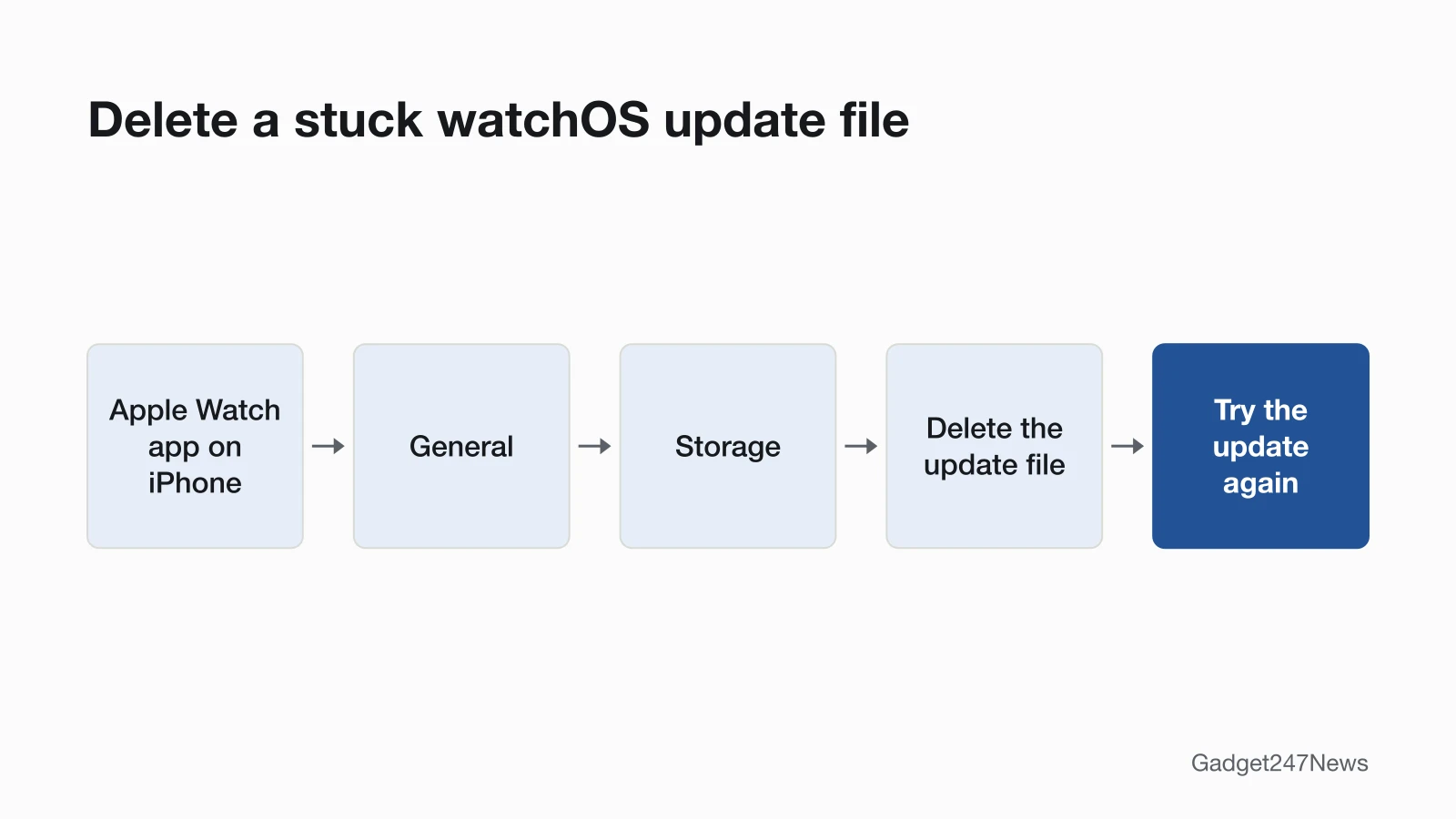
Delete the update file when the update won't start; Apple gives these four steps:
- Open the Apple Watch app on your iPhone.
- Tap General, then tap Storage.
- Delete the update file.
- Try again to update your Apple Watch: in the Apple Watch app, tap My Watch, General, then Software Update, and download the update again.
Fix 5: Free Up Storage on Your Apple Watch
Free up storage when the watch says it needs more available storage for the update:
- On the watch, open Settings, tap General, then tap Storage to see how much space is free.
- Restart your Apple Watch, then try the update again.
- If it still won't install, remove music, turn off photo syncing and remove some apps.
- Try the update again. After it installs, add back the music, photos and apps you removed.
Fix 6: "Unable to Verify Update"
"Unable to Verify Update" means your Apple Watch can't verify the watchOS update because it isn't connected to the Internet:
- Make sure the watch is online, through your iPhone or directly on Wi-Fi or cellular, then try again.
- Restart the watch, check it's still online, then try again.
- Remove music or photos synced to the watch and try again; if it still fails, remove some apps.
If none of that works, Apple's next step is Fix 7.
Fix 7 (Last): Unpair, Update, Then Restore Your Backup
Unpair the watch, set it up as new, update, then restore your backup. It's the longest route, because you set the watch up twice. Keep your Apple Watch and iPhone close together throughout:
- Unpair: on your iPhone, open the Apple Watch app, go to the My Watch tab, tap All Watches, tap the info button next to your watch, then tap Unpair Apple Watch. On GPS + Cellular models, choose to keep your cellular plan, then tap again to confirm. Your iPhone backs up the watch before it's erased.
- Set up the watch with your iPhone and choose to set up as new, not from a backup.
- Download and install the watchOS update.
- Unpair the watch again, set it up once more and choose restore from backup.
You might need your Apple Account password to turn off Activation Lock. If you've forgotten the watch passcode, see how to reset an Apple Watch without the passcode.
Apple Watch and iPhone Models That Can't Get the Latest watchOS
watchOS 27 needs both a supported Apple Watch and a supported iPhone, so an older pair can't install it at all.
Is Your Apple Watch Too Old for watchOS 27?
watchOS 27 runs on Apple Watch SE 3, Apple Watch Series 9 and later, and Apple Watch Ultra 2 and later, paired with a newer iPhone:
| Device | Needed for watchOS 27 |
|---|---|
| Apple Watch | Apple Watch SE 3, Series 9 and later, Ultra 2 and later |
| iPhone | iPhone 11 or later, or iPhone SE (2nd generation) or later, with iOS 27 |
If your watch isn't listed, Software Update shows the newest version your watch can use instead, and watchOS 27 won't appear; that isn't a fault. To check which model you have, identify your Apple Watch model. Every release and its known issues are on watchOS versions and known issues on Apple Watch.
Why Is My Apple Watch Update Taking So Long?
An Apple Watch update can take from several minutes to an hour, according to Apple. Leave the watch on its charger, don't restart your iPhone or Apple Watch, and don't quit the Apple Watch app while it installs. When the update completes, the watch restarts on its own.
Still not working?
- Try the next fix: if the watch and iPhone have lost their connection, see Apple Watch won't pair.
- Reset your Apple Watch: wipe an Apple Watch (you'll need to pair it again afterwards).
- Contact Apple Support: Apple Support.
- Check repair or warranty options: Apple Service and Repair for Apple Watch.
Started after an update? Check the Update Tracker for known issues.
How to Update an Apple Watch the Normal Way
The step-by-step routine and the version check live in the watchOS update on Apple Watch guide; this page stays on updates that fail. Apple's two routes are the Apple Watch app on your iPhone and, without the iPhone, Settings on the watch itself.
Problems That Start After an Update
Known issues for each watchOS release are on the version page linked above. If battery life drops after the update, Apple says update tasks continue in the background: wait a few days, then check again, and if it still drains, see Apple Watch dying fast. Get an email when a watchOS update breaks something, and when it's fixed: the Gadget247News update newsletter will send these alerts once sign-up opens.
Apple Watch Update Questions
Two more answers from Apple's update page, on updating without an iPhone and on update time.
Can I update an Apple Watch without my iPhone?
Yes, you can install the update on the watch itself: connect the watch to Wi-Fi, open Settings, tap General, then Software Update, and tap Install if an update is available. Leave the watch on its charger until it finishes, and don't restart it.
How long does an Apple Watch update take?
An Apple Watch update takes from several minutes to an hour, Apple says, so you might start it overnight or when you have time.
Sources
We checked this page against the pages below, most recently on . How we verify fixes
- Update your Apple Watch (Apple, support.apple.com)Official
- If you don't have enough storage to update your Apple Watch (Apple, support.apple.com)Official
- If you see 'Unable to Verify Update' when updating Apple Watch (Apple, support.apple.com)Official
- Restart Apple Watch (Apple Watch User Guide) (Apple, support.apple.com)Official
- Update your iPhone or iPad (Apple, support.apple.com)Official
- If the battery in your Apple Watch drains too quickly (Apple, support.apple.com)Official
- Apple Service and Repair for Apple Watch (Apple, support.apple.com)Official