How to Turn Galaxy Buds On and Off

By Suraj Giri, Founder & Publisher. Reviewed by Suraj Giri on .
Published · 4 min read
How this page was made
- Sources. Checked against 8 official pages from Samsung, most recently on . See the sources.
- No device testing. We don't test fixes on physical devices, so nothing on this page is a hands-on result. A fact counts as verified only when it matches an official source page.
- AI use. As with every page on Gadget247News, AI tools helped research, outline, draft and edit this page, and re-read the official pages to flag facts that didn't match. The illustration at the top was generated with Runway and is labelled under the image.
- Human sign-off. Suraj Giri, Founder & Publisher, read this page and signed it off on . The site won't publish a page without that sign-off.
- Changes. The published and updated dates move only when the content changes, and every change gets a dated note. Spot an error or a fix that didn't work? Email info@gadget247news.com.
Read our AI use policy, editorial policy and corrections policy.
Samsung Galaxy Buds don't have a power button: open the case to turn them on, and put them back in the case to turn them off. Left out of your ears and unused, they go to sleep by themselves. This page covers on, off and restart for every model; for anything else, fix your Galaxy Buds from our hub. If another brand's earbuds won't power on, start with our guide for when wireless earbuds won't charge.
How to Turn On Galaxy Buds
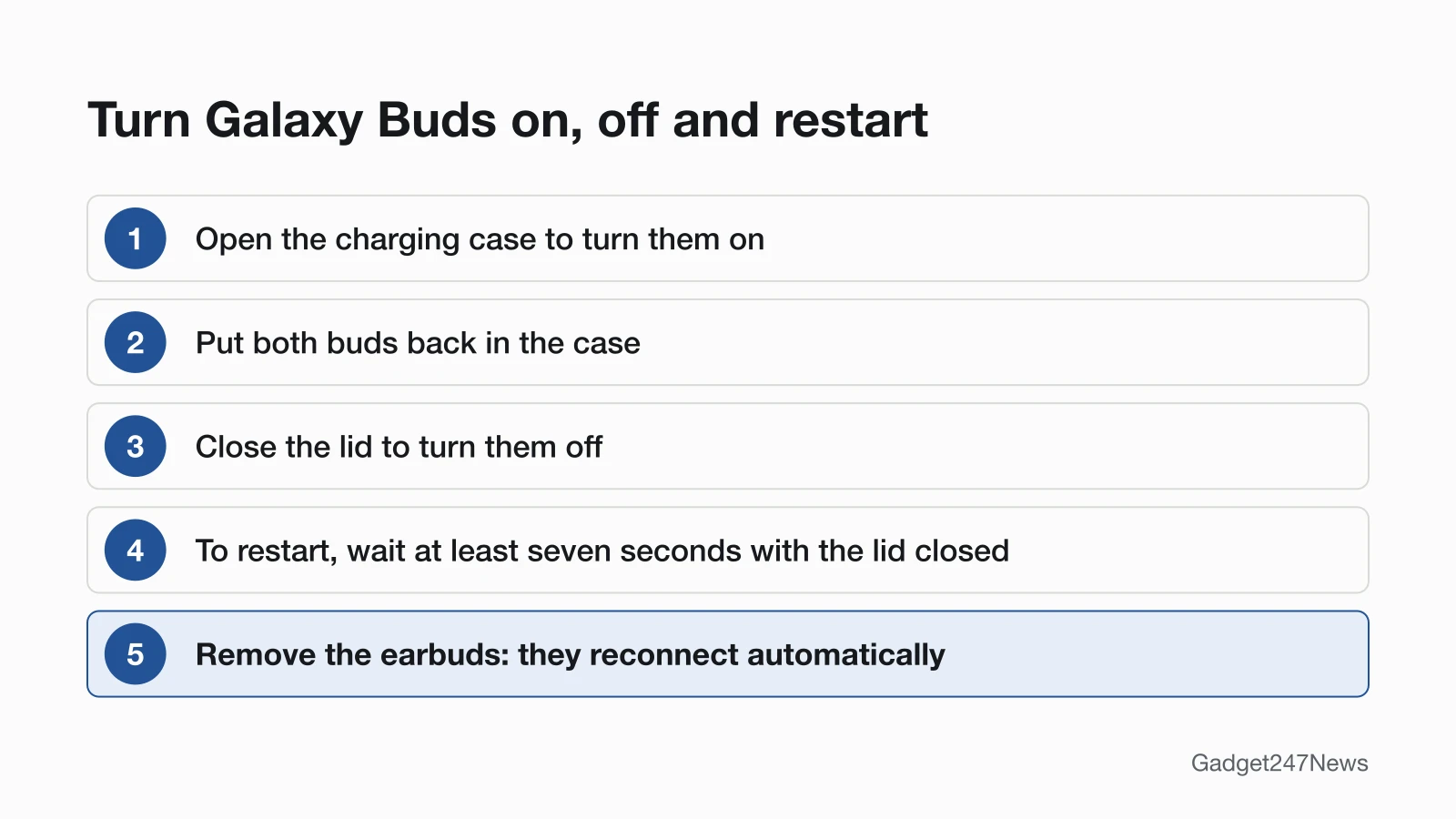
To turn on Galaxy Buds, open the charging case with the buds inside:
- Open the charging case with the earbuds stored inside.
- Take the buds out and put them in your ears. Galaxy Buds3 and Buds3 Pro play a sound when their sensors detect that you're wearing them.
- Wait a moment: once paired, Samsung says the buds "will automatically attempt to connect to your mobile device whenever you open the lid of the charging case."
The first time you open the case, the buds enter Bluetooth pairing mode and a pop-up appears on a Samsung phone; tap Connect. The method is the same on Galaxy Buds Live and every other model, because Samsung says Galaxy Buds models "cannot be powered off"; its power-off steps only work on the Gear IconX. Samsung also notes that the earbuds "will power on when they are charging."
How to Turn Off Galaxy Buds
To turn off Galaxy Buds, put them back in the case:
- Put both buds in their slots in the charging case.
- Close the lid.
Samsung says placing the earbuds in the charging case disconnects them from your phone. To disconnect them without the case, open the Galaxy Wearable app, tap Menu in the top left corner, then tap Disconnect to confirm. Samsung wrote those steps for the Galaxy Wearable app and doesn't give a One UI 8 Settings location for Disconnect on the page we read.
Do Galaxy Buds Turn Off by Themselves?
Galaxy Buds switch themselves off in effect, through Sleep Mode. In Samsung's words: "If the earbuds are not used for a predefined length of time after being removed from your ears, the earbuds will enter Sleep Mode and it will be disconnected from the mobile device." Samsung doesn't say how long that time is, or offer a setting to change it, on the page we read. If the battery still runs down between uses, see Galaxy Buds battery dying fast.
How to Restart Galaxy Buds
To restart Galaxy Buds, use the charging case:
- Insert the earbuds into the charging case and close the lid.
- Wait at least seven seconds.
- Remove the earbuds. They restart and reconnect to your device automatically.
If the battery indicator for the buds or the case doesn't flash while they restart, Samsung says to charge both earbuds. A restart is not a factory reset: a reset returns the buds to their default settings, and the steps are on our page to factory reset Galaxy Buds.
How to Check Your Galaxy Buds Are On
Galaxy Buds are on when your phone shows them as connected:
- Check the connection in your phone's Bluetooth settings or the Galaxy Wearable app, as Samsung suggests. On a One UI 8 phone, your Galaxy Buds appear in Settings under your name.
- On Galaxy Buds3 Pro, watch the blade lights: Samsung says they light up "when opening and closing the charging case" and when pairing with a Galaxy device.
If Your Galaxy Buds Won't Turn On
Charge the case with the included USB cable and a Samsung-approved wall adapter. If the case's indicator lights don't respond, disconnect and reconnect the charger, then "charge the case for at least 10 minutes." Make sure the charging contacts inside the case and on the buds are clean, and that each bud sits fully in its slot. If the buds turn on but won't pair, see Samsung Galaxy Buds not connecting to your phone. If they won't take a charge at all, go to Galaxy Buds not charging.
Turning Off Noise Canceling Instead
If you want to switch off the noise canceling rather than the buds, Samsung gives two routes. On most models, ANC "will only work when both earbuds are inserted in your ears," and the original Galaxy Buds and Galaxy Buds+ don't have it.
- On the buds: touch and hold one earbud while you're wearing both. A beep means ANC is on; touch and hold again and a different sound plays as it turns off.
- Galaxy Buds3 and Buds3 Pro: in the Galaxy Wearable app, tap Active noise canceling; tap Off, or remove the earbuds, to turn it off.
- Galaxy Buds2 Pro: tap Active noise canceling to turn it on and Off to turn it off.
- Galaxy Buds2 and Buds Pro: tap Active noise canceling again to turn it off.
- Galaxy Buds Live: tap the switch next to Active noise canceling.
Samsung's noise canceling page gives these steps for the Galaxy Wearable app only and doesn't list a One UI 8 Settings path. For how the feature itself works, read What is noise cancelling.
Galaxy Buds Power: Quick Answers
How do I turn off Galaxy Buds3 Pro?
Put the Galaxy Buds3 Pro in the charging case and close the lid. Like every Galaxy Buds model, the Buds3 Pro has no power switch, and its blade lights light up as the case closes.
How do I turn on noise canceling on Galaxy Buds3?
Wear both Galaxy Buds3, open the Galaxy Wearable app and tap Active noise canceling; you hear an activation sound when it turns on. Samsung's Buds3 steps also include a level slider to increase or decrease the noise canceling.
How do I turn off Galaxy Buds without the case?
Samsung describes no off switch, so you have two options without the case: leave the buds out of your ears and unused until they enter Sleep Mode, or disconnect them in the Galaxy Wearable app with Menu, then Disconnect.
Sources
We checked this page against the pages below, most recently on . How we verify fixes
- How to connect or disconnect Galaxy Buds to a mobile? (Samsung, samsung.com)Official
- How to restart or reset your Samsung earbuds (Samsung, samsung.com)Official
- Samsung earbuds do not turn on or charge (Samsung, samsung.com)Official
- The battery life of your Samsung earbuds (Samsung, samsung.com)Official
- Getting started with your Galaxy Buds3 and Galaxy Buds3 Pro (Samsung, samsung.com)Official
- What do the blade lights mean on the Galaxy Buds3 Pro? (Samsung, samsung.com)Official
- Galaxy earbuds do not play notifications (Samsung, samsung.com)Official
- Use Active noise canceling on your Samsung Galaxy earbuds (Samsung, samsung.com)Official