Galaxy Buds Not Connecting? Causes and Fixes

By Suraj Giri, Founder & Publisher. Reviewed by Suraj Giri on .
Published · 7 min read
How this page was made
- Sources. Checked against 12 official pages from Samsung and Google, most recently on . See the sources.
- No device testing. We don't test fixes on physical devices, so nothing on this page is a hands-on result. A fact counts as verified only when it matches an official source page.
- AI use. As with every page on Gadget247News, AI tools helped research, outline, draft and edit this page, and re-read the official pages to flag facts that didn't match. The illustration at the top was generated with Runway and is labelled under the image.
- Human sign-off. Suraj Giri, Founder & Publisher, read this page and signed it off on . The site won't publish a page without that sign-off.
- Changes. The published and updated dates move only when the content changes, and every change gets a dated note. Spot an error or a fix that didn't work? Email info@gadget247news.com.
Read our AI use policy, editorial policy and corrections policy.
This page covers Samsung Galaxy Buds that won't connect, won't pair or never appear on your phone. Buds that connect and then drop out have a different fault, and so do lost buds; both get their own sections after the fixes. For Galaxy Buds battery, sound or reset problems, start from the Galaxy Buds fixes hub.
For earbuds from other makers, the cross-brand guide for when earbuds won't connect has each maker's first fix.
Why Won't My Galaxy Buds Connect?
Galaxy Buds won't connect for one of six reasons, and each of Samsung's fixes below targets one of them:
- The buds need a restart. Closing them in the case until the light goes out restarts them.
- Interference from Wi-Fi routers or running microwaves near the buds or the phone.
- Flat buds or a flat case. Samsung says to charge both if the indicator light flashes red or orange.
- They aren't in pairing mode, or another device holds them. Auto switch moves the buds between Galaxy devices signed in to the same Samsung account, for example to the phone for a call.
- The two buds have lost their link to each other, which Samsung restores with a sync step in the case.
- An old pairing entry or old software on the phone or the buds.
A factory reset isn't on Samsung's connection page at all, so it comes last here.
How to Fix Galaxy Buds That Won't Connect
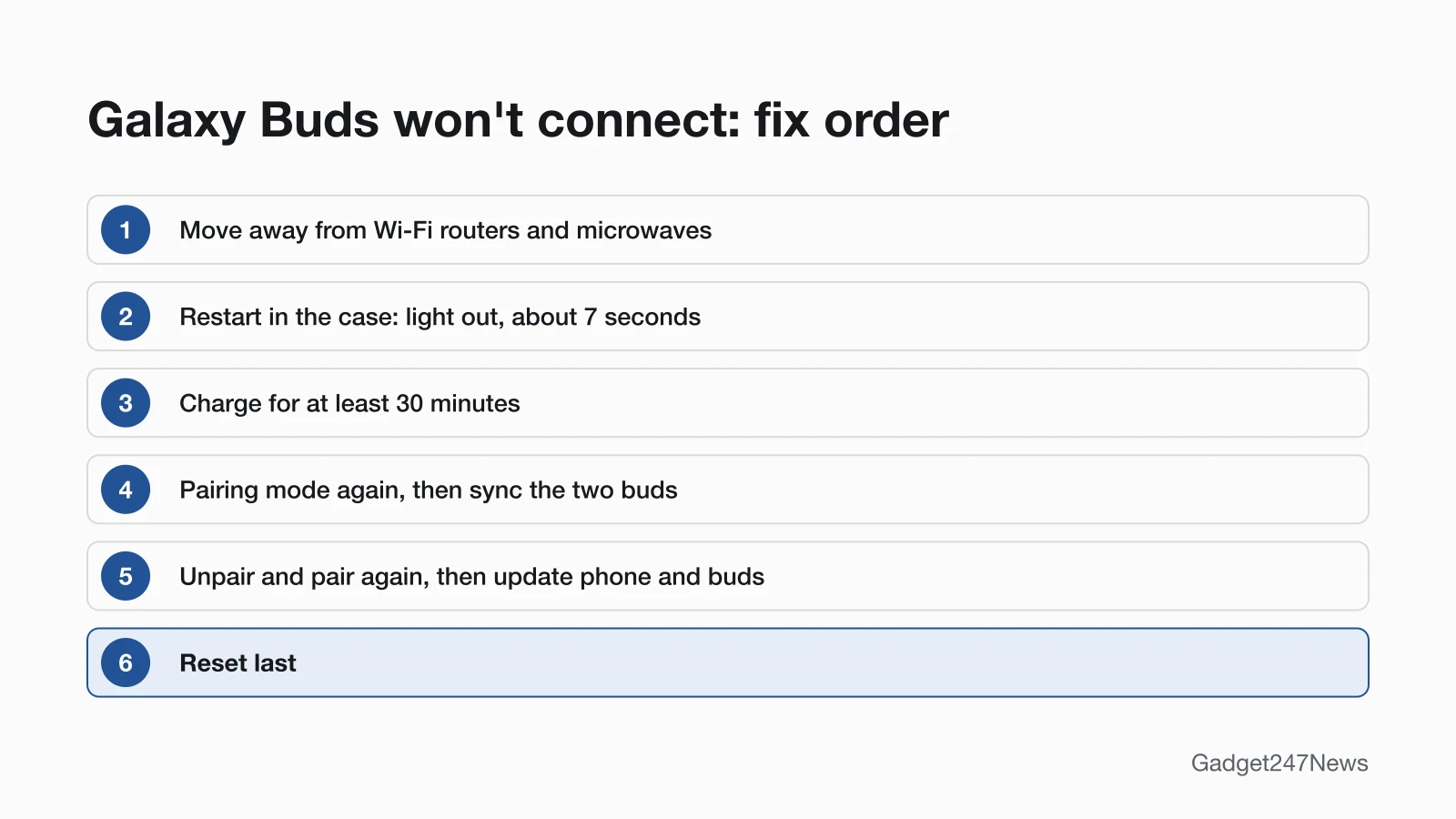
These fixes follow the order of Samsung's page "Samsung earbuds don't connect or won't stay connected," with pairing mode from Samsung's connect guide at Fix 4 and the reset last.
Fix 1: Move Away From Interference
Move the buds and your phone "away from Wi-Fi routers or running microwaves," then try to connect again. Samsung also asks for "an uninterrupted path for the signal" between the earbuds and the connected device.
Fix 2: Restart the Buds in the Case
Restart the buds in their charging case:
- Put both buds in the case and close the lid.
- Wait for the light on the case to go out, about 7 seconds. Samsung's restart page asks for "at least seven seconds."
- Take the buds out and connect them again.
Samsung's restart page says the buds then "restart and automatically reconnect to your device." If the indicator light flashes red or orange instead, charge the buds and case first.
Fix 3: Charge Them for at Least 30 Minutes
Charge the buds in their case for at least 30 minutes:
- Put both buds in the case, close the lid, and check that the charging contacts are clean and free of debris.
- Plug the USB cable into the charging port on the back of the case, and the Samsung-approved adapter straight into a power outlet. The charging light comes on when the case gets power.
Don't charge them from a computer: Samsung says that can make the earbuds charge slower. Case light colors are explained on our Galaxy Buds not charging page.
Fix 4: Put Them in Pairing Mode Again
Put the buds back in pairing mode so your phone can find them:
- Close the buds in the case for 5 to 6 seconds, then open it.
- If they still don't appear, force pairing mode with your model's control:
| Model | Control | Hold for |
|---|---|---|
| Galaxy Buds4, Buds4 Pro | Connect button on the back of the case | More than 3 seconds |
| Galaxy Buds3, Buds3 Pro | Connect button on the bottom of the case, after closing and reopening the lid | Three seconds |
| Galaxy Buds2, Buds2 Pro | Both touchpads, buds in the case | Until the case lights flash |
| Galaxy Buds, Buds+, Buds Live, Buds Pro | Both touchpads, buds in your ears | A few seconds |
Every device's full steps are in How to connect and pair Galaxy Buds.
Fix 5: Sync the Two Buds With Each Other
Sync the buds when only the right or left earbud connects:
- Take the buds out of the case for a moment, then put them back.
- Touch and hold both buds' touchpads for seven seconds or more while they're in the case. The battery light flashes green and returns to its first color, and the buds are coupled.
Galaxy Buds3 and Buds4 cases use a button instead. Samsung's one-side page has you open the case and hold the connect button for 7 seconds: on the bottom of the case for Galaxy Buds3, Buds3 Pro and Buds3 FE, and on the back for Buds4 and Buds4 Pro. Galaxy Buds FE use the touchpads.
Fix 6: Unpair the Buds and Pair Them Again
Unpair the buds on your phone, then pair them as new:
- Put both buds in your ears. Samsung says you'll hear a beeping sound once they're detected.
- On a Galaxy phone, open Settings, tap Connections, then Bluetooth. Tap the gear icon next to your buds, then tap Unpair at the bottom of the screen.
- Pair them again: from the QuickPair pop-up on a Galaxy phone with One UI 8, or from the Galaxy Wearable app on other Android phones.
On Android phones from other makers, Google calls the unpair step Forget, under the settings icon next to the device.
Fix 7: Update the Phone and the Earbud Software
Update both ends of the connection:
- Restart the phone by powering it off and back on.
- Check the phone for a software update. Samsung says the device you connect to "may require a software or firmware update."
- Update the buds. On One UI 8.0 or later, open Settings, tap your Galaxy Buds, then tap Earbuds software update > Download and install. On One UI 7.0 or earlier, the same two labels are in the Galaxy Wearable app.
The buds disconnect from your phone during the update and reconnect automatically when it's done. The full update steps are in Galaxy Buds firmware update.
Fix 8 (Last): Reset Your Galaxy Buds
Reset the buds only after Fixes 1 to 7. A factory reset "will return your earbuds to their default settings." Samsung's connection page ends with a service request instead of a reset, while its UK reset page says a reset "can help resolve connection or performance issues." Charge both buds to at least 15% first. The Settings and Galaxy Wearable routes are in Galaxy Buds soft and factory reset steps.
Galaxy Buds Not Connecting by Model and Phone
Where the buds pair, and where their settings live, depends on your phone's software.
No Pop-Up, or Not in the Galaxy Wearable App
On a Galaxy phone with One UI 8, Galaxy Buds pair from the QuickPair pop-up, and their settings sit in the phone's Settings, not in Galaxy Wearable. Look for them there. If the pop-up doesn't appear, Samsung says to "press and hold the connect button on the bottom of the earbuds case"; on Galaxy Buds4 and Buds4 Pro, Samsung's laptop guide puts that button on the back. On other Android phones, Galaxy Wearable needs Android 11.0 or above and at least 1.5 GB of memory, per Samsung's Galaxy Buds3 Pro page. Galaxy Buds3 that won't enter pairing mode need the lid closed and reopened first. Laptop and Android host steps are in How to Connect Galaxy Buds to a Windows PC and How to Connect Galaxy Buds to Android.
Still not working?
If the buds still won't connect after all eight fixes, work down this list:
- Try the next fix: Why Galaxy Buds keep disconnecting (if they connect and then drop out).
- Reset your Samsung Galaxy Buds: Galaxy Buds soft and factory reset steps (you'll need to pair them again afterwards).
- Contact Samsung Support: Samsung Support. Samsung's connection page also gives 1-800-SAMSUNG for service.
- Check repair or warranty options: Samsung repair service.
Started after an update? Check the Update Tracker for known issues.
How to Find Galaxy Buds That Aren't Connected
To find Galaxy Buds that aren't connected, use Samsung's finder tools. SmartThings Find and Samsung Find both "let you narrow down your buds' location on a map, enable a ringing sound, and receive notifications when they've been found." In Galaxy Wearable, Find My Earbuds opens Samsung Find. Samsung's find page doesn't say whether buds that are off or out of range still update their location. Setup steps are in How to find lost Galaxy Buds.
Stopped Connecting After an Update?
Galaxy Buds that suddenly stop connecting after an update have a software question to answer first. Samsung's connection page ends with software steps: restart the phone, check it for updates, then update the earbud software (Fix 7). If the trouble began right after an update, check the Galaxy Buds and Galaxy Watch firmware tracker for known issues before you reset anything.
Galaxy Buds Not Connecting: Quick Answers
Why won't my Galaxy Buds connect to my phone?
Samsung says restarting the buds, resetting the Bluetooth connection or updating the Galaxy Wearable app normally fixes Galaxy Buds that won't connect. Restart them first: close the lid until the case light goes out, about 7 seconds. Then move away from Wi-Fi routers and running microwaves, and unpair and pair them again if they still won't connect.
How do I force Galaxy Buds to pairing mode?
Hold the connect button on the case, or both touchpads on older buds. The button sits on the back of the Galaxy Buds4 case and the bottom of the Buds3 case. Buds2 and Buds2 Pro take both touchpads while in the case; the original Buds, Buds+, Buds Live and Buds Pro take both touchpads while in your ears.
My Galaxy Buds 3 pairing mode isn't working. What can I do?
Close the lid, reopen it, then press and hold the Connect button on the bottom of the Buds3 case for three seconds, buds still inside. If the lights don't flash green-blue-red, restart the buds in the case, update your phone's software, and try once more.
Why is my phone not detecting my Galaxy Buds?
Your phone won't detect Galaxy Buds that aren't in pairing mode, that Auto switch has moved to another Galaxy device, or that carry an old pairing entry. Force pairing mode first. If that fails, unpair them in Bluetooth settings and pair them again.
Sources
We checked this page against the pages below, most recently on . How we verify fixes
- Samsung earbuds don't connect or won't stay connected (Samsung, samsung.com)Official
- How to restart or reset your Samsung earbuds (Samsung, samsung.com)Official
- How to connect your Samsung Galaxy earbuds (Samsung, samsung.com)Official
- How to connect Samsung Galaxy Buds series to a laptop to listen to music (Samsung UK) (Samsung, samsung.com)Official
- How to pair Galaxy Buds using Bluetooth in Samsung One UI 8 (Samsung Australia) (Samsung, samsung.com)Official
- What to do when sound is not heard from one side of your Samsung Galaxy Buds series (Samsung UK) (Samsung, samsung.com)Official
- How to update your Samsung Galaxy Buds software (Samsung UK) (Samsung, samsung.com)Official
- How to reset your Samsung Galaxy Buds (Samsung UK) (Samsung, samsung.com)Official
- Use Auto switch with your Galaxy buds and paired devices (Samsung, samsung.com)Official
- Galaxy Buds3 Pro product page, footnotes (Samsung UAE) (Samsung, samsung.com)Official
- Find your lost Samsung Galaxy earbuds (Samsung, samsung.com)Official
- Find & set up Bluetooth devices near your Android device (Android Help) (Google, support.google.com)Official