Why Beats Keep Disconnecting

By Suraj Giri, Founder & Publisher. Reviewed by Suraj Giri on .
Published · 6 min read
How this page was made
- Sources. Checked against 11 official pages from Apple and Microsoft, most recently on . See the sources.
- No device testing. We don't test fixes on physical devices, so nothing on this page is a hands-on result. A fact counts as verified only when it matches an official source page.
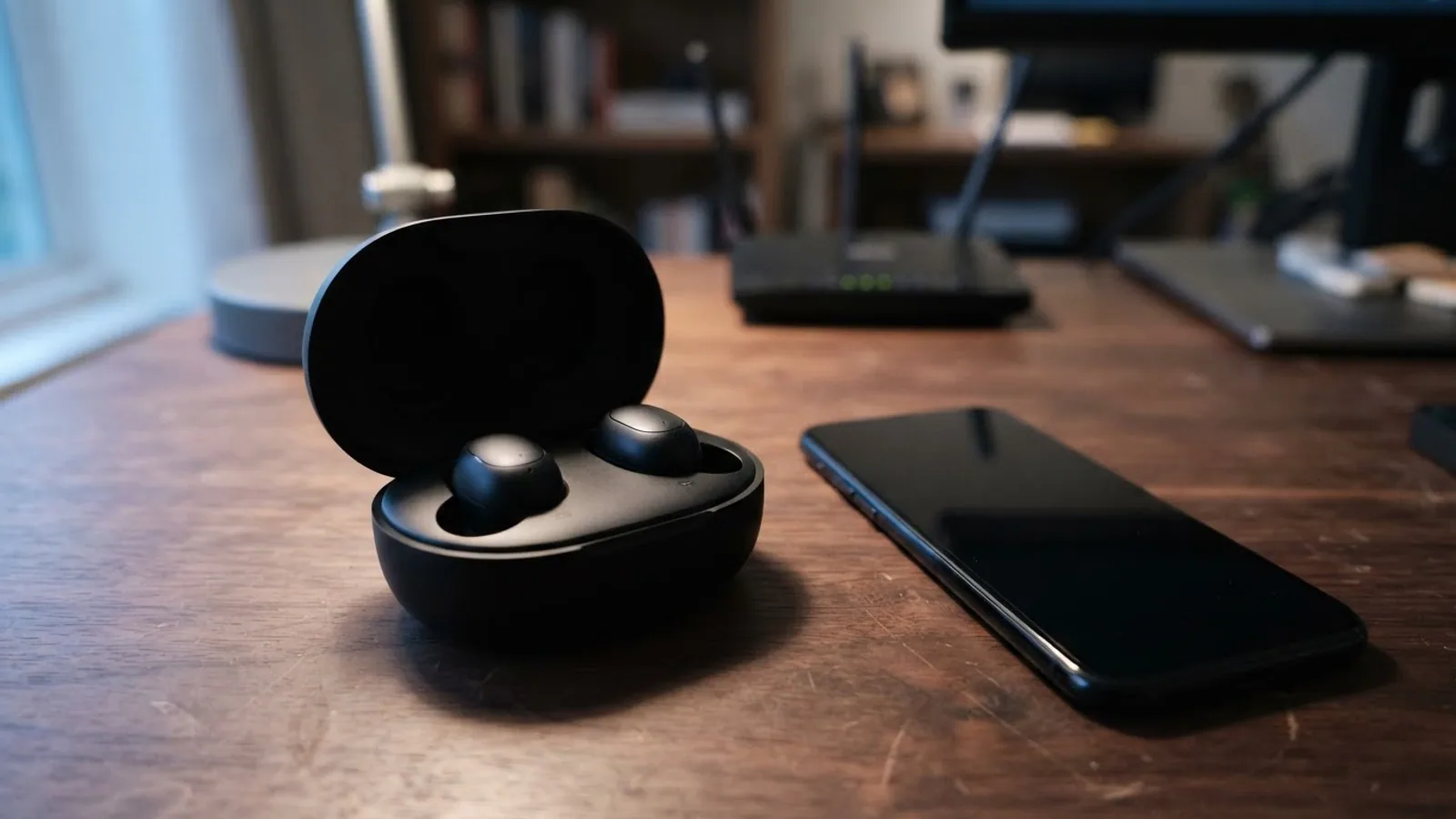
- AI use. As with every page on Gadget247News, AI tools helped research, outline, draft and edit this page, and re-read the official pages to flag facts that didn't match. The illustration at the top was generated with Runway and is labelled under the image.
- Human sign-off. Suraj Giri, Founder & Publisher, read this page and signed it off on . The site won't publish a page without that sign-off.
- Changes. The published and updated dates move only when the content changes, and every change gets a dated note. Spot an error or a fix that didn't work? Email info@gadget247news.com.
Read our AI use policy, editorial policy and corrections policy.
This page is for Beats headphones and earbuds that connect, then drop, cut out or jump to another device. If yours never connect in the first place, that's a different fault; start from Beats headphones not working and pick the pairing fix there. The 30-foot range above is Apple's figure for Beats, from its page on wireless Beats that won't connect.
Earbuds from other makers have their own ranges and menus, so for Samsung, Sony, Bose or Pixel Buds see earbuds keep disconnecting. The fixes below come from Apple's Beats support pages, checked on September 27, 2026; the Windows steps come from Microsoft.
Why Do My Beats Keep Disconnecting?
Beats keep disconnecting for six common reasons, listed from the one Apple checks first to the last resort:
- Distance or obstructions: the phone is more than 30 feet away, or walls or floors sit between you.
- Interference: crowds, heavy Wi-Fi activity, poorly shielded cables, microwave ovens and wireless speakers.
- Streaming audio: Apple says headphones might lose their connection more often with streaming audio than with audio stored on your device.
- Automatic switching: Beats Fit Pro, Powerbeats Fit, Beats 360 and Powerbeats Pro 2 move to whichever Apple device you're listening to.
- Automatic Ear Detection: on Beats Fit Pro and Powerbeats Fit, playback pauses when you remove one earbud.
- A stale pairing: the Bluetooth record needs forgetting, and after that, a reset.
How to Fix Beats That Keep Disconnecting
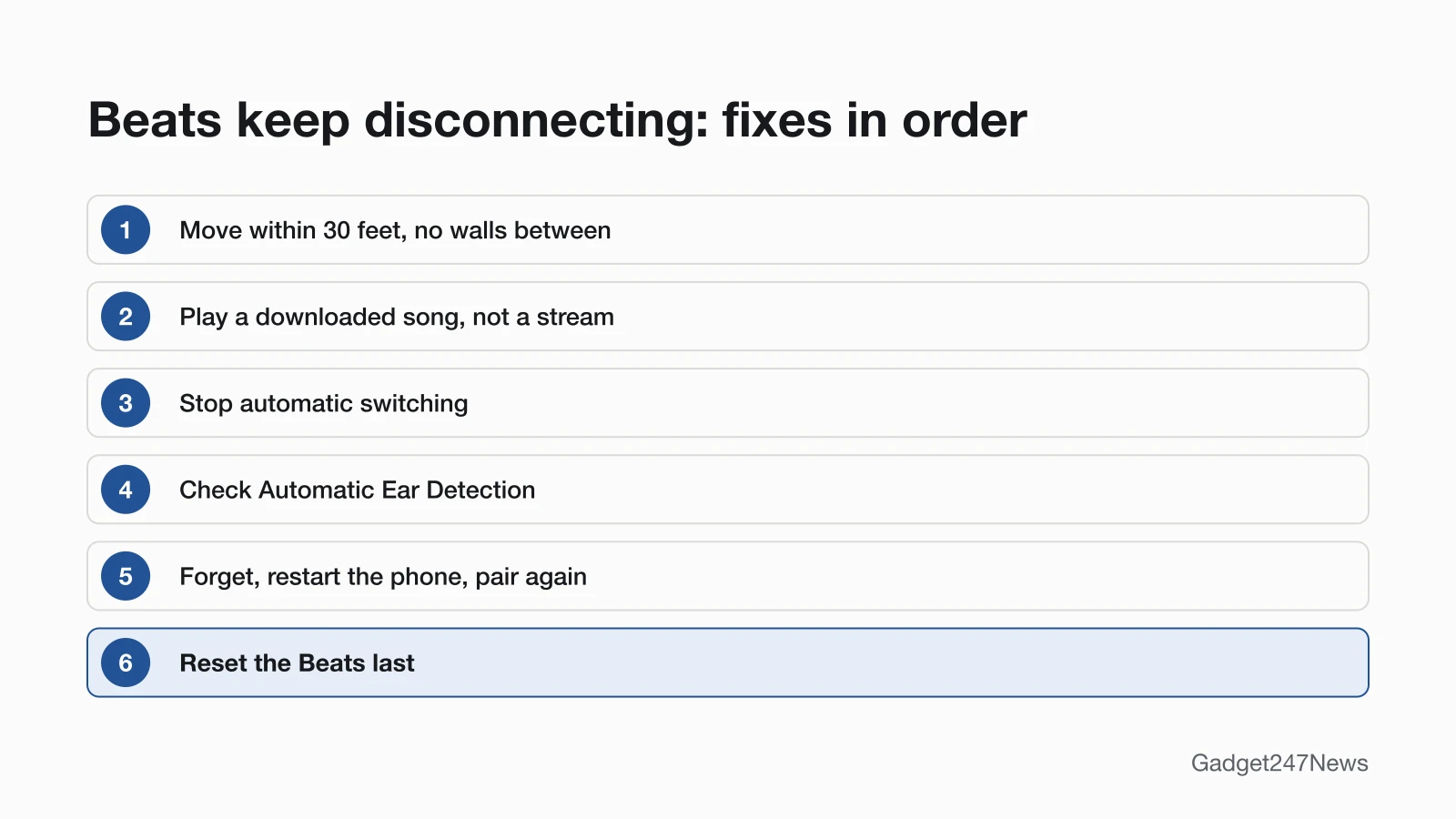
Fixes 1, 2, 6 and 7 follow the order on Apple's two Beats connection pages; Fixes 3 to 5 check Beats features those pages don't mention, and the reset stays last.
Fix 1: Move Closer and Away From Interference
Apple's first step for Beats is location: place your Beats and your paired device within 30 feet of each other. Apple's page on sound that cuts out, which covers Beats headphones and other Bluetooth headphones, adds these habits:
- Keep the phone close to you, so no walls or floors sit between you and it.
- Move away from microwave ovens, Wi-Fi routers and wireless speakers, or turn the oven or speaker off.
- Leave busy spots with many people or a lot of Wi-Fi activity.
A phone left charging in another room puts a wall between you and your Beats.
Fix 2: Test With Downloaded Audio
Play audio stored on the phone to find out whether the drop comes from the stream:
- With the phone within a few feet of you, open the Music app and play a song that doesn't have the Download button next to it (or tap Download first).
- Listen for drops. If the downloaded song plays cleanly, the signal or the stream is the problem, not the Beats.
When that test passes, go back to Fix 1 for the places where the drops happen.
Fix 3: Stop Beats Switching to Your Mac or iPad
Beats that jump to your Mac or iPad are switching automatically, which Apple lists for Beats Fit Pro, Powerbeats Fit, Beats 360 and Powerbeats Pro 2 when your devices use the same Apple Account. To keep them on your iPhone:
- Go to Settings > Bluetooth, then tap the name of your Beats near the top of the screen.
- Tap Connect to This iPhone. If you don't see it, tap Audio & Routing first.
- Tap When Last Connected to This iPhone.
On a Mac, open Apple menu > System Settings, click your Beats in the sidebar, and below Connect to This Mac choose When Last Connected to this Mac. AirPods automatic switching works the same way on Apple's earbuds.
Fix 4: Check Automatic Ear Detection
Ear detection pauses audio on purpose. On Beats Fit Pro and Powerbeats Fit, Apple says playback pauses when you remove one earbud and stops when you remove both. Apple's settings page says "supported Beats" have the feature and doesn't list the models.
- iPhone: go to Settings, tap the name of your Beats, then scroll to Automatic Ear Detection. Android: open the Beats app (tap My Beats if the device screen doesn't appear) and scroll to the same switch.
- Turn it off only to test. If the pauses stop, ear detection caused them, not a lost connection.
Fix 5: Charge and Update Them
Charge and software come next:
- Check the battery. On iPhone, go to Settings and tap the name of your Beats; for earbuds, hold the open case with both earbuds inside near the phone. In the Beats app for Android, tap My Beats and read the level below the image of your Beats.
- Update the phone, then the Beats. Apple's reset page asks you to first make sure the device they're paired with is up to date. Beats firmware arrives automatically on Apple devices and through the Beats app on Android; to update Beats headphones firmware by hand, follow that guide.
Beats that drop even when fully charged aren't losing power, so return to Fixes 1 to 4.
Fix 6: Unpair Your Beats and Pair Again
Apple's fix for headphones that keep disconnecting after the downloaded-audio test is to unpair, restart and pair again:
- iPhone: go to Settings, tap the name of your Beats near the top of the screen, then tap Forget This Device. This removes them from every device on the same Apple Account.
- Mac: choose Apple menu > System Settings, click your Beats in the sidebar, then click Forget this Device.
- Android: go to Settings > Connections > Bluetooth, tap the Settings button next to your Beats, then tap Unpair, and tap Unpair again in the notification.
- Restart the phone or computer.
- Then pair Beats headphones again with the steps for your device.
Fix 7: Reset Your Beats (Last Step)
Reset only after Fixes 1 to 6, and only once the paired device is up to date. After a reset you pair them again to your Apple or Android device; the button and hold time for each model are in the guide to factory reset Beats headphones.
Beats Disconnecting From a Laptop or Android Phone
The same distance and interference rules apply on laptops and Android phones; only the menus change.
Disconnecting From a Windows Laptop
On a Windows 11 laptop, remove the Beats and add them again: select Start > Settings > Bluetooth & devices, choose More options (…) > Remove device, then select Add device. Microsoft's page on Bluetooth that keeps disconnecting also points at power saving, including the Power Management tab in Device Manager. The full setup for Beats headphones on a Windows laptop is on its own page.
Disconnecting on Android
Automatic switching is an Apple feature, so Fix 3 doesn't apply to an Android phone. Work through distance, then the Automatic Ear Detection switch in the Beats app, then unpair and pair again. Apple prints two Android routes: Settings > Connections > Bluetooth in the Beats guide, and Settings > Connected devices > Connection preferences > Bluetooth on its headphones page.
Still not working?
Still not working?
- Try the next fix: Beats headphones won't pair.
- Reset your Beats headphones: the factory reset in Fix 7 (you'll need to pair them again afterwards).
- Contact Beats Support: Beats Support.
- Check repair or warranty options: fixing broken Beats headphones.
Started after an update? Check the Update Tracker for known issues.
Related Problems
Three nearby Beats faults have their own fixes:
- Beats that won't connect at all: the fix linked in step 1 of the block above.
- One Beats earbud not working or staying silent while the other plays.
- Sound that cuts out on one side only, which the same one-earbud page covers.
Stopped Working After an Update?
Beats that started dropping right after an iOS, Android or firmware update may have a known issue. Check the Update Tracker linked in the block above for Beats firmware notes, then run Fix 6: forget the Beats, restart the phone and pair them again.
Beats Disconnecting: Quick Answers
Why do my Beats headphones keep cutting out?
Beats headphones cut out mostly because of distance, walls or interference. Keep the phone within 30 feet with nothing between you, away from microwaves and busy Wi-Fi. Apple also notes that streaming audio can drop more often than songs stored on the device.
Why does one Beats earbud keep disconnecting?
Put both earbuds in the case and hold it open near your iPhone: the screen shows each earbud's battery level and the case's. Charge a flat earbud. If one still drops, reset them; the reset for cased Beats earbuds starts with both earbuds in the open case. The one-earbud page has more.
How do I unpair Beats headphones?
Unpair Beats on the phone, not on the headphones. On iPhone, go to Settings, tap your Beats, then Forget This Device; on Android, Settings > Connections > Bluetooth, the Settings button, then Unpair. Solo3 Wireless works the same way: Apple's Beats connection page uses the Info button, then Forget This Device.
Sources
We checked this page against the pages below, most recently on . How we verify fixes
- If you can't connect to your wireless Beats product (Apple, support.apple.com)Official
- If the sound from your wireless headphones cuts out or is distorted (Apple, support.apple.com)Official
- Switch Beats between Apple devices (Beats User Guide) (Apple, support.apple.com)Official
- Turn Beats automatic ear detection on or off (Beats User Guide) (Apple, support.apple.com)Official
- Use your Beats Fit Pro or Powerbeats Fit (Beats User Guide) (Apple, support.apple.com)Official
- Check the charge status (Beats User Guide) (Apple, support.apple.com)Official
- Update Beats (Beats User Guide) (Apple, support.apple.com)Official
- Unpair Beats (Beats User Guide) (Apple, support.apple.com)Official
- Reset Beats (Beats User Guide) (Apple, support.apple.com)Official
- Troubleshoot Bluetooth not connecting in Windows (Microsoft, support.microsoft.com)Official
- Bluetooth keeps disconnecting in Windows (Microsoft, support.microsoft.com)Official