One Beats Earbud Not Working? Left or Right Side Fixes

By Suraj Giri, Founder & Publisher. Reviewed by Suraj Giri on .
Published · 6 min read
How this page was made
- Sources. Checked against 12 official pages from Apple and Google, most recently on . See the sources.
- No device testing. We don't test fixes on physical devices, so nothing on this page is a hands-on result. A fact counts as verified only when it matches an official source page.
- AI use. As with every page on Gadget247News, AI tools helped research, outline, draft and edit this page, and re-read the official pages to flag facts that didn't match. The illustration at the top was generated with Runway and is labelled under the image.
- Human sign-off. Suraj Giri, Founder & Publisher, read this page and signed it off on . The site won't publish a page without that sign-off.
- Changes. The published and updated dates move only when the content changes, and every change gets a dated note. Spot an error or a fix that didn't work? Email info@gadget247news.com.
Read our AI use policy, editorial policy and corrections policy.
This guide is for one Beats earbud, or one side of your Beats headphones, that has gone silent, sounds quieter than the other side or keeps dropping out. If both sides sound quiet or muffled, that's a different fix, covered in the escalation list at the end. For pairing, battery and other problems, start with the fixes on our page to fix your Beats headphones.
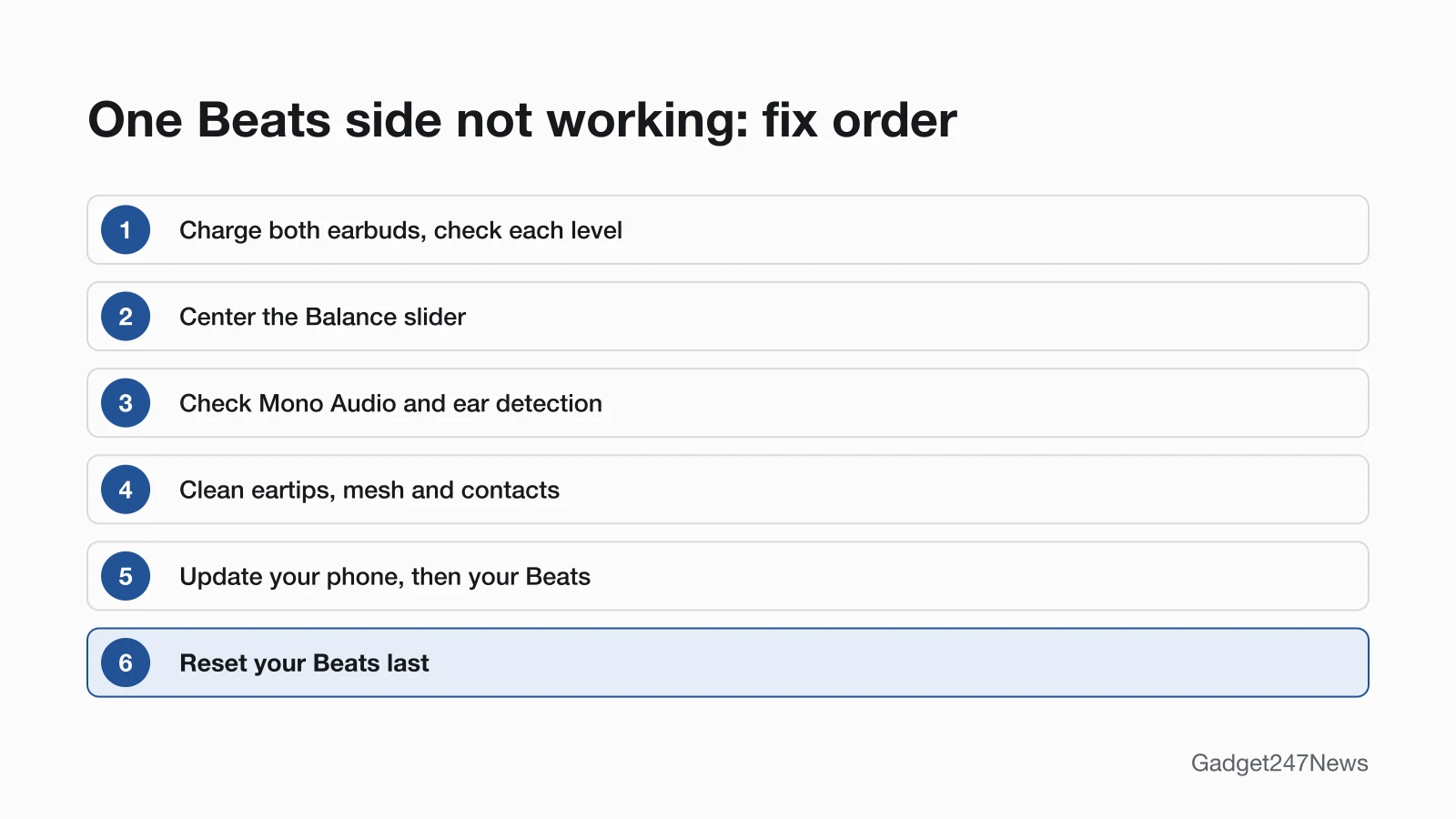
The six fixes below run from charge to settings, cleaning and updates, with the reset kept for last. For AirPods, Galaxy Buds and other brands, the page on a left or right earbud not working gives each maker's first fix.
Why Is Only One Side of My Beats Working?
Six causes can leave one side of your Beats silent or quieter, and the fixes below check them in this order:
- A flat earbud that isn't charging in the case, or headphones that have run down.
- The audio balance on your iPhone, Mac or Android phone moved off center, so one side plays quieter.
- A phone setting: Mono Audio is off, so you hear stereo rather than the same content in both ears, or Automatic Ear Detection has paused playback because one earbud is out of your ear.
- A dirty eartip, speaker mesh or charging contact on the earbud that has gone quiet or won't charge.
- Out-of-date software on the paired phone, or old Beats firmware.
- A fault the fixes can't clear, which is a job for Beats Support.
How to Fix Beats That Only Work on One Side
Apple has no Beats one-side article, so these steps use Apple's Beats charging, sound and reset pages; reset comes last.
Fix 1: Charge Both Earbuds and Check Each Battery
Start with power: charge both earbuds and read each one's level before you change any setting:
- Place both earbuds in the charging case, then connect the case to a power outlet using a USB-C cable and a compatible power adapter.
- Check each level. On iPhone or iPad, leave the case open and hold it close to your device: the levels for both earbuds and the case appear onscreen. On a Mac, go to System Settings > Bluetooth and look at the top of the My Devices list. On Android, open the Beats app, tap the menu button, then tap My Beats.
- If one earbud shows no level, clean its charging contacts (Fix 4), then seat it in the case again.
Fix 2: Center the Audio Balance
When one side plays quieter than the other, set the Balance slider to the middle on the phone or computer your Beats are playing from:
- iPhone: Go to Settings, tap Accessibility, tap Audio & Visual, then scroll down to Balance. Make sure the slider is set in the middle.
- Android: Google puts the balance control under Audio adjustment in your Accessibility settings. Menu names differ between phone makers, so look for left and right balance there.
- Mac: Choose Apple menu > System Settings, click Sound in the sidebar, click Output, select your Beats, then drag the Balance slider to the middle.
Balance is part of your phone's or Mac's own settings, so check it on every device you play from.
Fix 3: Check Mono Audio and Automatic Ear Detection
Two settings can make one side sound wrong or stop, and both are switches you set on your phone, tablet or computer:
- Mono Audio plays the same content in both ears instead of stereo sound. On iPhone or iPad, go to Settings > Accessibility > Audio & Visual and turn on Mono Audio. On a Mac, go to System Settings > Accessibility > Audio and turn on Play stereo audio as mono. On Apple Watch, it's under Settings > Accessibility, below Hearing. Apple notes that with Mono Audio on, you can't use Spatial Audio and head tracking.
- Automatic Ear Detection pauses Beats Fit Pro and Powerbeats Fit when you remove one earbud and resumes when you replace it. To turn it off on iPhone, go to Settings, tap your Beats near the top of the screen, then tap the Automatic Ear Detection switch. On a Mac, click your Beats in the System Settings sidebar. On Android, the switch is on the device screen in the Beats app.
Fix 4: Clean the Eartips, Mesh and Contacts
Apple says to never wear earphones if the eartips appear dirty, so clean each part with the method Apple gives for it:
- Wipe the eartips and earbuds with a dry cleaning cloth to remove dust and oil. Don't use aerosol sprays, solvents or abrasives.
- On Beats headphones, use a dry cloth on the ear cups and ear cup mesh, never a damp one.
- On Beats Studio Buds, Studio Buds +, Beats Fit Pro and Powerbeats Fit, clean the earbud charging contacts with a cotton swab slightly dampened with warm water, and keep liquid out of the openings.
For the case pins and other Beats models, see our guide to clean your earbuds and case.
Fix 5: Update Your Phone and Your Beats
Apple's reset page puts the update before the reset: make sure the device your Beats are paired with is up to date first.
- Update iOS, iPadOS, macOS or Android on the phone or computer your Beats use.
- Let the Beats firmware update. It arrives automatically over the air on Apple devices and through the Beats app on Android; the Beats headphones firmware update page has Apple's conditions and the version check.
Fix 6: Reset Your Beats (Last Step)
Apple lists sound issues as a reason to reset Beats, once the paired device is up to date. For Beats Fit Pro, Powerbeats Fit, Studio Buds +, Powerbeats Pro 2 and Solo Buds, the reset starts with both earbuds in the case and the case open. Afterwards you pair them again. The button and hold time for each model are on factory reset Beats headphones.
Left, Right or One Earcup
The fix order is the same on either side; what changes is the model and whether it has a case. If one earbud or earcup keeps cutting out rather than going silent, see what to do when Beats headphones keep cutting out.
| Situation | What's different |
|---|---|
| Left or right earbud silent | Same fixes. Check that earbud's level first (Fix 1). |
| Beats Fit Pro left earbud | Same fixes. The reset: both earbuds in the case with the case open, then hold the system button for 15 seconds, until the light flashes red and white. |
| One earcup of Beats headphones (Solo 4, Studio Pro, Beats 360) | No case. Charge by USB-C, center the balance, then reset. The charging light turns white once they're at least 95 percent charged (right earcup on Solo 4, left earcup on Beats 360). If you use a cable, grasp the plug to disconnect it, never the cable. |
| One side quieter, not silent | Balance first (Fix 2), then clean the eartip and mesh (Fix 4). |
| Only one earbud connects at all | A pairing problem: see Beats not connecting. |
Solo Buds differ from the other earbuds at the reset: Apple's step is to hold the button above the "b" logo on both earbuds for at least 10 seconds, with both earbuds in the open case.
Still not working?
If one side is still silent after the reset, work through these in order:
- Try the next fix: get full sound back in your headphones.
- Reset your Beats headphones: factory reset Beats headphones (you'll need to pair them again afterwards).
- Contact Beats Support: Beats Support (external).
- Check repair or warranty options: fixing broken Beats headphones.
Started after an update? Check the Update Tracker for known issues.
Stopped Working After an Update?
If one side of your Beats stopped working right after an iPhone, Android or Beats firmware update, check the Update Tracker first for known issues on your model. Then run Fix 5, so the paired phone and the Beats firmware are both current, and reset your Beats with Fix 6 only if the side is still silent.
Beats One Side: Quick Answers
Why is one of my Beats earbuds not working?
The first thing to check on one silent Beats earbud is its charge, because an earbud with no charge left can't play audio. Check each earbud's level on your iPhone with the case open, or under My Beats in the Beats app on Android. Clean the charging contacts, center the Balance slider, and reset last.
Why is my left Beats earbud not working?
A left Beats earbud gets the same fixes as a right one: charge both, check that earbud's level, center the Balance slider and clean the eartip. If it's still silent, reset with both earbuds in the case and the case open, then pair them again.
Why is one side of my Beats headphones not working?
The first checks for one silent side of Beats headphones are charge, balance and Mono Audio. Charge them by USB-C, center the Balance slider on your iPhone and try Mono Audio. If one earcup stays silent after a reset, contact Beats Support.
Sources
We checked this page against the pages below, most recently on . How we verify fixes
- Charge Beats headphones, earphones, and speakers (Apple, support.apple.com)Official
- Check the charge status (Beats User Guide) (Apple, support.apple.com)Official
- If your left or right AirPod isn't working (Apple, support.apple.com)Official
- Use accessibility features on Android (Google, support.google.com)Official
- Change the sound output settings on Mac (Apple, support.apple.com)Official
- Play the same sound in both ears on your Beats (Apple, support.apple.com)Official
- Use your Beats Fit Pro or Powerbeats Fit (Apple, support.apple.com)Official
- Turn Beats automatic ear detection on or off (Apple, support.apple.com)Official
- Clean and store your Beats earphones or headphones (Apple, support.apple.com)Official
- Clean your Beats Studio Buds, Beats Studio Buds +, Beats Fit Pro, and Powerbeats Fit (Apple, support.apple.com)Official
- Update Beats (Apple, support.apple.com)Official
- Reset Beats (Apple, support.apple.com)Official