How to Update Beats Firmware

By Suraj Giri, Founder & Publisher. Reviewed by Suraj Giri on .
Published · 4 min read
How this page was made
- Sources. Checked against 3 official pages from Apple and Beats, most recently on . See the sources.
- No device testing. We don't test fixes on physical devices, so nothing on this page is a hands-on result. A fact counts as verified only when it matches an official source page.
- AI use. As with every page on Gadget247News, AI tools helped research, outline, draft and edit this page, and re-read the official pages to flag facts that didn't match. The illustration at the top was generated with Runway and is labelled under the image.
- Human sign-off. Suraj Giri, Founder & Publisher, read this page and signed it off on . The site won't publish a page without that sign-off.
- Changes. The published and updated dates move only when the content changes, and every change gets a dated note. Spot an error or a fix that didn't work? Email info@gadget247news.com.
Read our AI use policy, editorial policy and corrections policy.
Beats firmware updates arrive automatically, over the air, on an iPhone, iPad or Mac, and through the Beats app on Android. On Apple devices a manual update means setting up Apple's conditions and waiting; on Android, you tap Update in the app. For pairing, battery and sound problems, see Beats headphones pairing, battery and sound fixes.
The Beats firmware versions we've logged, with dates and sources, are listed with Beats headphone updates on the Update Tracker.
How to Update Beats With an iPhone, iPad or Mac
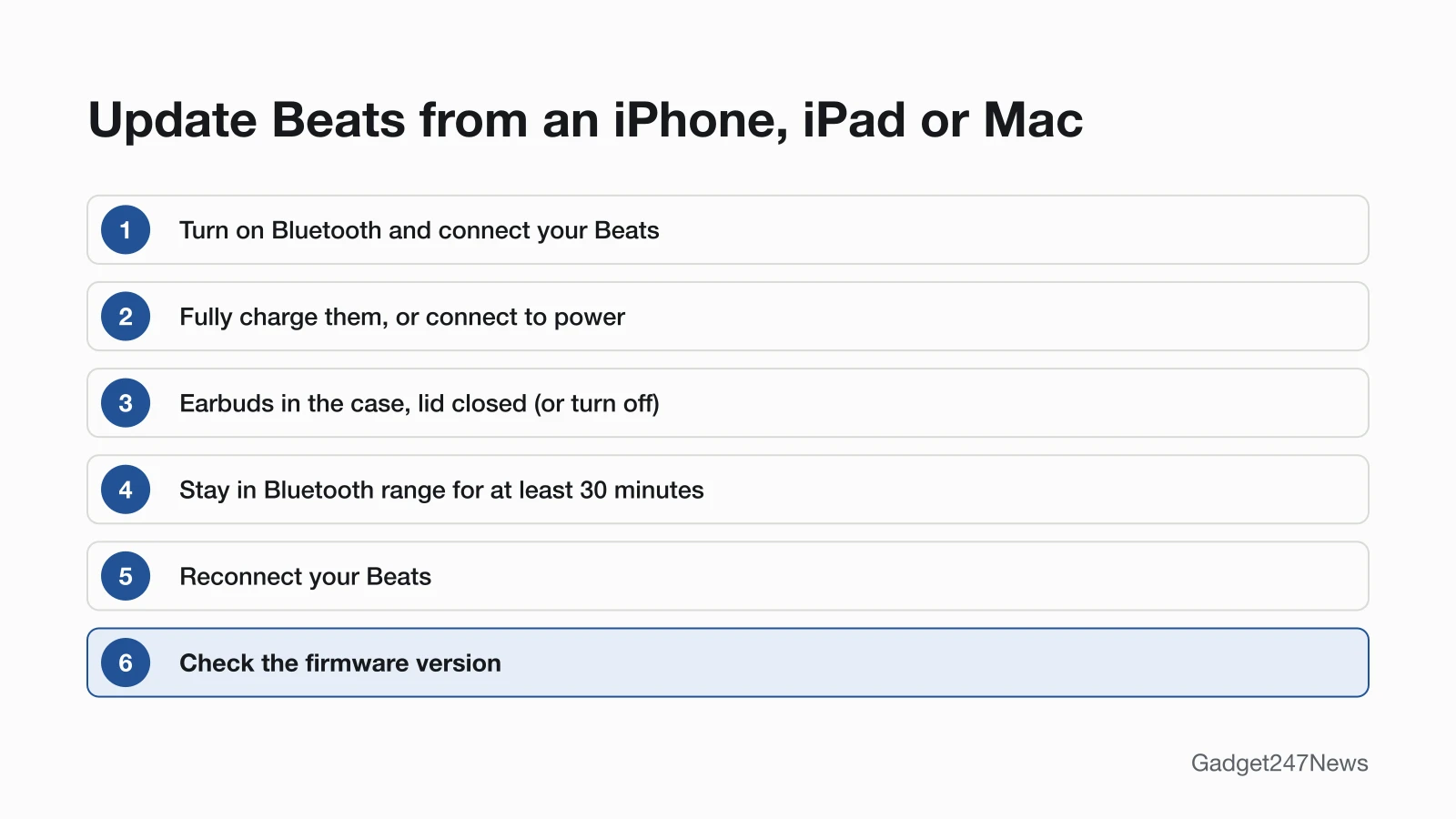
To update Beats headphones or earbuds from an Apple device, meet Apple's conditions and wait at least 30 minutes. Apple's steps, in order:
- On your iPhone, iPad or Mac, make sure Bluetooth is turned on.
- Make sure your Beats headphones or earbuds are connected to that device.
- "Fully charge your Beats (or make sure they're connected to power)."
- Beats with a case: "Place both earbuds in the case, then close the lid." Beats with a power or system button: "Turn off your Beats device."
- "Keep your Beats in Bluetooth range of your iPhone, iPad, or Mac, then wait at least 30 minutes for the firmware to update."
- Reconnect your Beats headphones or earbuds to your iPhone, iPad or Mac.
- Check the firmware version (steps below).
Apple's steps for iPhone, iPad and Mac include no Update button to tap, so the 30-minute wait in step 5 is when the firmware updates.
How to Update Beats on Android
On Android, the Update button appears in the Beats app only when a firmware update is available:
- On your Android device, make sure Bluetooth is turned on.
- Make sure your Beats headphones or earbuds are turned on and connected to the device.
- Open the Beats app.
- If an update is available, tap Update on your Beats device's screen in the app, then follow the onscreen instructions.
To let the firmware update in the background, turn on Allowed (below Optimize Your Beats Product) in the My Beats screen. If you don't have the Beats app yet, tap Play Store on your Android device, search for the Beats app and tap Install; the full setup is on the page to connect Beats headphones to Android.
How to Check Your Beats Firmware Version
Your Beats firmware version shows in About on iPhone, in System Settings on a Mac, and in the Under the Hood section of the Beats app:
- iPhone or iPad: Go to Settings, tap the name of your Beats near the top of the screen, scroll down to the About section, then look for the version number.
- Mac: Choose Apple menu > System Settings, click the name of your Beats in the sidebar, then look for the version number.
- Android: Open the Beats app, scroll down to Under the Hood on the device screen, then look for the firmware version number. If an update is available, an Update button sits at the top of the screen.
Which Devices Can Update Beats?
Apple's Update Beats page names iPhone, iPad, Mac and Android devices as update routes; Windows isn't on it.
| Device | Delivers the update? | How | Source |
|---|---|---|---|
| iPhone or iPad | Yes | Automatically, over the air, on the latest iOS or iPadOS and Wi-Fi | Update Beats |
| Mac | Yes | Automatically, over the air, on the latest macOS and Wi-Fi | Update Beats |
| Android device | Yes | Update button in the Beats app, when an update is available | Update Beats |
| Windows PC | Not listed by Apple | No Windows route on Apple's page | Update Beats |
| Beats 360 with Android | Updates automatically by default | Might show no Update button ("you might not see an Update button"); to update manually, turn off "Update device automatically" in My Beats | Update Beats |
How to Check the Update Worked
An update worked when the version number has changed since you last checked:
- Check the version again with the steps above. Apple notes that when your firmware is up to date, it says Latest next to Firmware.
- If the number hasn't changed, repeat the Apple-device conditions once, including the full 30 minutes in Bluetooth range.
If Your Beats Won't Update
When Beats headphones or earbuds won't update, re-check each condition: the latest iOS, iPadOS or macOS, Wi-Fi, Bluetooth on, fully charged or connected to power, in range, and at least 30 minutes. On Android, confirm they're connected in the Beats app. Apple's next step: "If you still can't update your firmware, reset your Beats, then try to update the firmware again." If they won't stay connected long enough, see Beats headphones won't connect first.
What Changed in the Latest Beats Update?
Apple's Update Beats page gives the steps but no release notes and no current version numbers. We log each Beats firmware version we find, with its date and source, on the Update Tracker, so check there for your model before and after you update. Get an email when a Beats update breaks something, and when it's fixed.
Beats Firmware: Quick Answers
Is there a Beats Updater for Mac or PC?
Apple's current Update Beats page lists two routes: automatic updates on an iPhone, iPad or Mac, and the Update button in the Beats app on Android. It doesn't mention a desktop Beats Updater, and neither does the Beats Support page we checked on September 27, 2026, so we don't link a download.
How do I update my Beats Studio Buds?
For Beats Studio Buds +, put both earbuds in the case, close the lid and keep them in Bluetooth range of your updated iPhone, iPad or Mac on Wi-Fi for at least 30 minutes. On Android, tap Update in the Beats app. Apple's current Beats User Guide lists Studio Buds + but not the original Studio Buds.
How do I check my Beats firmware version?
On iPhone, go to Settings, tap your Beats name, then look under About. On a Mac, open System Settings and click your Beats in the sidebar. On Android, open the Beats app and scroll to Under the Hood on the device screen.
Sources
We checked this page against the pages below, most recently on . How we verify fixes
- Update Beats (Apple, support.apple.com)Official
- Install and set up the Beats app for Android (Apple, support.apple.com)Official
- Beats Support (Beats, beatsbydre.com)Official