How to Add a Workout on Apple Watch

By Suraj Giri, Founder & Publisher. Reviewed by Suraj Giri on .
Published · 4 min read
How this page was made
- Sources. Checked against 7 official pages from Apple, most recently on . See the sources.
- No device testing. We don't test fixes on physical devices, so nothing on this page is a hands-on result. A fact counts as verified only when it matches an official source page.
- AI use. As with every page on Gadget247News, AI tools helped research, outline, draft and edit this page, and re-read the official pages to flag facts that didn't match. The illustration at the top was generated with Runway and is labelled under the image.
- Human sign-off. Suraj Giri, Founder & Publisher, read this page and signed it off on . The site won't publish a page without that sign-off.
- Changes. The published and updated dates move only when the content changes, and every change gets a dated note. Spot an error or a fix that didn't work? Email info@gadget247news.com.
Read our AI use policy, editorial policy and corrections policy.
Open the Workout app on your Apple Watch, turn the Digital Crown to the workout you want, then tap the Play button. To add an exercise that isn't on the list, scroll down and tap the Add button to see every workout type. This covers device settings only and isn't medical advice. For overnight tracking on the same watch, see how to track sleep on Apple Watch.
If your watch isn't paired to your iPhone yet, set up an Apple Watch as new first, then come back to the Workout app.
How to Start a Workout on Apple Watch
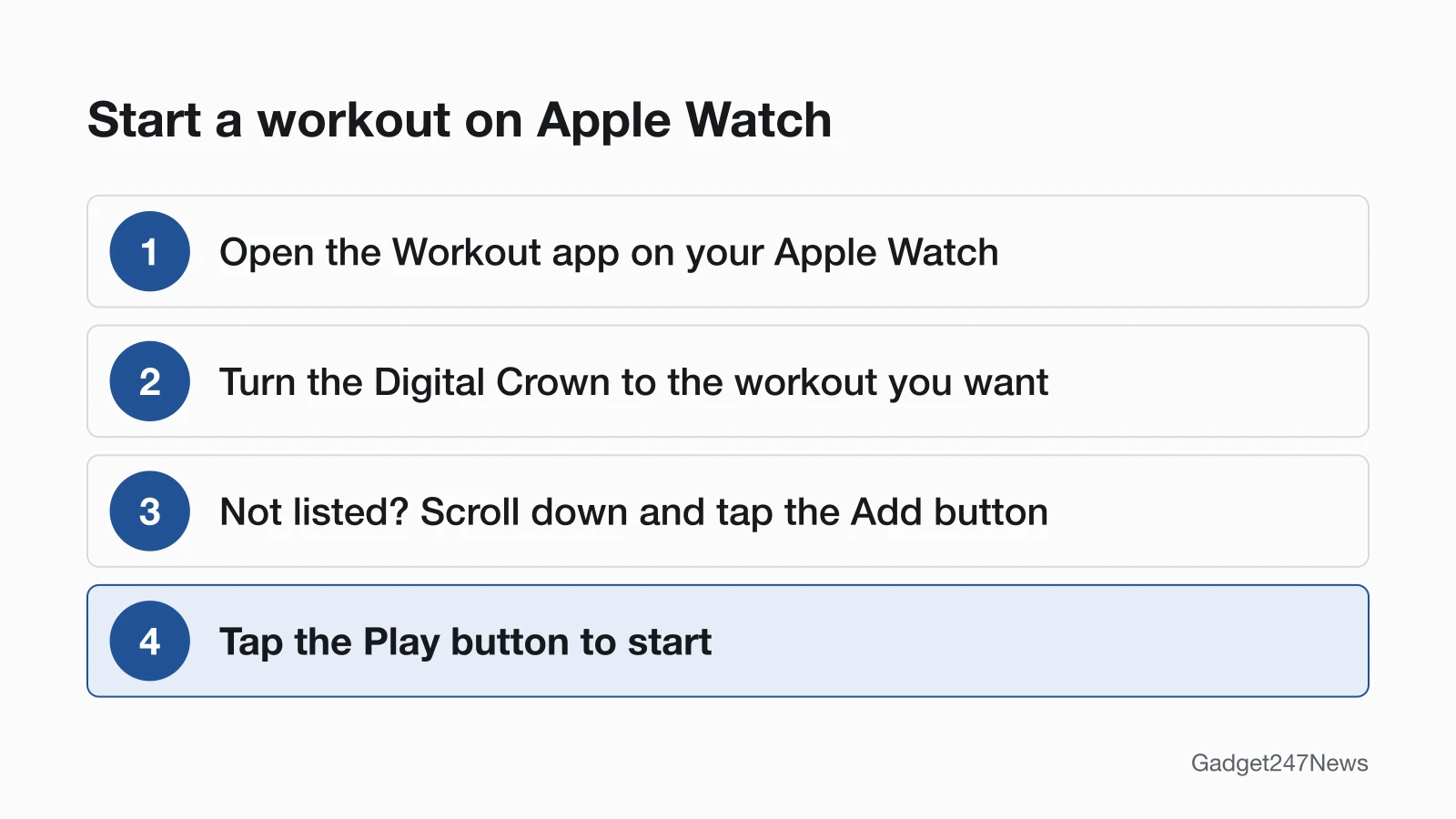
To start a workout on Apple Watch, pick it in the Workout app:
- Open the Workout app on your Apple Watch.
- Turn the Digital Crown to the workout you want to do.
- To see every workout type, scroll down and tap the Add button at the bottom of the list.
- When you're ready, tap the Play button.
Tapping the center of the screen also starts the workout quickly, and on Apple Watch Ultra models the Action button can start one. With Siri, say something like "Start a 30-minute outdoor run."
Add a Workout Type That Isn't Listed
For an activity that isn't in your list, tap Add Workout and choose the type that best matches what you're doing. If nothing matches, choose Other, which Apple offers for exactly that case. The list reorders itself over time: as you use the app, the order of workouts reflects your preferences.
How to Pause, Add Another or End a Workout
During a workout, swipe right to reach the controls:
- Pause: tap Pause. You can also press the side button and the Digital Crown at the same time, at any point.
- Add another: tap New, tap a workout type, then tap Quick Start or pick a custom workout.
- End: tap End, turn the Digital Crown to rate your effort and view the summary, then tap the End button at the top.
To get a confirmation before a workout ends, turn on End Workout Confirmation in Settings, then Workout.
Why Your Apple Watch Keeps Pausing Workouts
Check these three causes, starting with the setting that pauses workouts on purpose:
- Auto-Pause is on. Apple Watch "automatically pauses and resumes your outdoor running and cycling workouts", for example when you stop to cross the street or get a drink of water. To turn it off, open Settings, tap Workout, then tap Auto-Pause.
- The pause shortcut was pressed. Pressing the side button and the Digital Crown together pauses a workout, so check that a sleeve cuff or glove isn't pushing on both buttons.
- Accidental taps. If your exercise or gear causes accidental taps, press the side button to open Control Center and tap the Water Lock button so the workout isn't interrupted.
If a workout is paused, the Resume Workout reminder prompts you to resume; workout reminders are on by default.
Where to See Your Workouts
Finished workouts show up on both devices. On the watch, open the Activity app, scroll to the bottom of the screen and tap a workout to review it. On iPhone, open the Fitness app, tap Summary, then tap the Sessions area to see your workout history and each session's details.
Wear It the Way Apple Recommends
Apple's fit test: shake your wrist, then turn your palm face up. If the back of the watch loses contact with your skin, tighten the band. Apple says the sensors work only when the watch sits on the top of your wrist, and it describes the right fit as snug but comfortable.
Which Workouts Apple Watch Tracks
Apple's list of workout types runs to 76 entries, from Archery to Yoga (our count of its page on September 27, 2026). It includes Swimming (Pool/Open Water) and Wheelchair (Outdoor Walking Pace/Outdoor Running Pace). If you told the watch you use a wheelchair, Apple's Workout guide adds that outdoor push workouts track pushes instead of steps. The full list is on Apple's Workout types on Apple Watch page.
If Your Workout Isn't Recording Properly
Check these three device-side causes when a workout records less than you expect. With Heart Rate turned off in Privacy settings, you won't get a heart rate measurement (check it in the Watch app on iPhone, under Privacy). Low Power Mode, which an Extended Workout turns on, switches off background heart rate and blood oxygen measurements during workouts. Distance and pace measurements improve after calibration: about 20 minutes of outdoor walking or running at your normal pace.
For the heart-rate side, see How to Check Heart Rate on Apple Watch. A workout that shows on the watch but not on iPhone points to syncing: see Apple Watch data not updating in the app.
Apple's Workout Documentation
Apple's Start a workout on Apple Watch guide covers starting, controlling and ending a workout, and Apple's tips for workout and activity measurements cover fit, workout choice and calibration.
Workout Questions
Short answers on ending a workout, turning off Auto-Pause and picking the right workout type.
How do I end a workout on Apple Watch?
Swipe right and tap End. Turn the Digital Crown to rate your effort, tap the Done button, then tap the End button at the top. If End Workout Confirmation is on, the watch asks you to confirm first. To change the effort rating later on iPhone, open Fitness, tap Sessions, then the workout, then Effort.
How do I stop my Apple Watch from pausing my run?
Turn off Auto-Pause: open Settings on the watch, tap Workout, then tap Auto-Pause and switch it off. Apple describes Auto-Pause for outdoor running and cycling workouts. You can still pause by hand with the side button and the Digital Crown.
Which workout should I choose?
Choose the workout that best matches what you're doing. Apple's example: for a run on a treadmill, choose Indoor Run. Apple Watch selects the most appropriate inputs for each workout; when you run indoors, for example, it also uses the accelerometer. When no type fits, pick Other.
Sources
We checked this page against the pages below, most recently on . How we verify fixes
- Start a workout on Apple Watch (Apple Watch User Guide) (Apple, support.apple.com)Official
- Change settings in Workout on Apple Watch (Apple Watch User Guide) (Apple, support.apple.com)Official
- Workout types on Apple Watch (Apple, support.apple.com)Official
- Apple Watch measurement tips (Apple Support article 105002) (Apple, support.apple.com)Official
- Wearing your Apple Watch (Apple, support.apple.com)Official
- Track daily activity with Apple Watch (Apple Watch User Guide) (Apple, support.apple.com)Official
- See your activity summary in Fitness on iPhone (iPhone User Guide) (Apple, support.apple.com)Official