One Galaxy Bud Not Working? Left or Right Side Fixes

By Suraj Giri, Founder & Publisher. Reviewed by Suraj Giri on .
Published · 6 min read
How this page was made
- Sources. Checked against 8 official pages from Samsung and Apple, most recently on . See the sources.
- No device testing. We don't test fixes on physical devices, so nothing on this page is a hands-on result. A fact counts as verified only when it matches an official source page.
- AI use. As with every page on Gadget247News, AI tools helped research, outline, draft and edit this page, and re-read the official pages to flag facts that didn't match. The illustration at the top was generated with Runway and is labelled under the image.
- Human sign-off. Suraj Giri, Founder & Publisher, read this page and signed it off on . The site won't publish a page without that sign-off.
- Changes. The published and updated dates move only when the content changes, and every change gets a dated note. Spot an error or a fix that didn't work? Email info@gadget247news.com.
Read our AI use policy, editorial policy and corrections policy.
This guide is for one Samsung Galaxy Bud, left or right, that is silent, won't connect or sounds much quieter than the other. Samsung's one-side page names four possible causes: "earbud fit, debris on the speaker mesh, sound balance settings, or a temporary connection issue between the earbuds." If both sides sound quiet, that is a different fault, covered at the end. For every other problem, see our Galaxy Buds pairing, battery and sound fixes.
For another brand's earbuds, our cross-brand page covers headphones only working on one side.
Why Is Only One Galaxy Bud Working?
Samsung's support pages point to six reasons one Galaxy Bud stops working:
- A lost link between the two buds; Samsung says setting that connection up again "can restore normal sound output."
- A flat bud, or one not seated on its charging contacts.
- Earwax or debris on that bud's speaker mesh, or ear tips that don't match.
- A left/right sound balance slider pushed to one side on your phone.
- Old earbud software, or two buds running different software versions.
- A damaged bud; Samsung says damaged earbuds won't charge, while the undamaged one keeps charging.
A reset is the last resort in that list, not a cause.
How to Fix a Galaxy Bud That Isn't Working
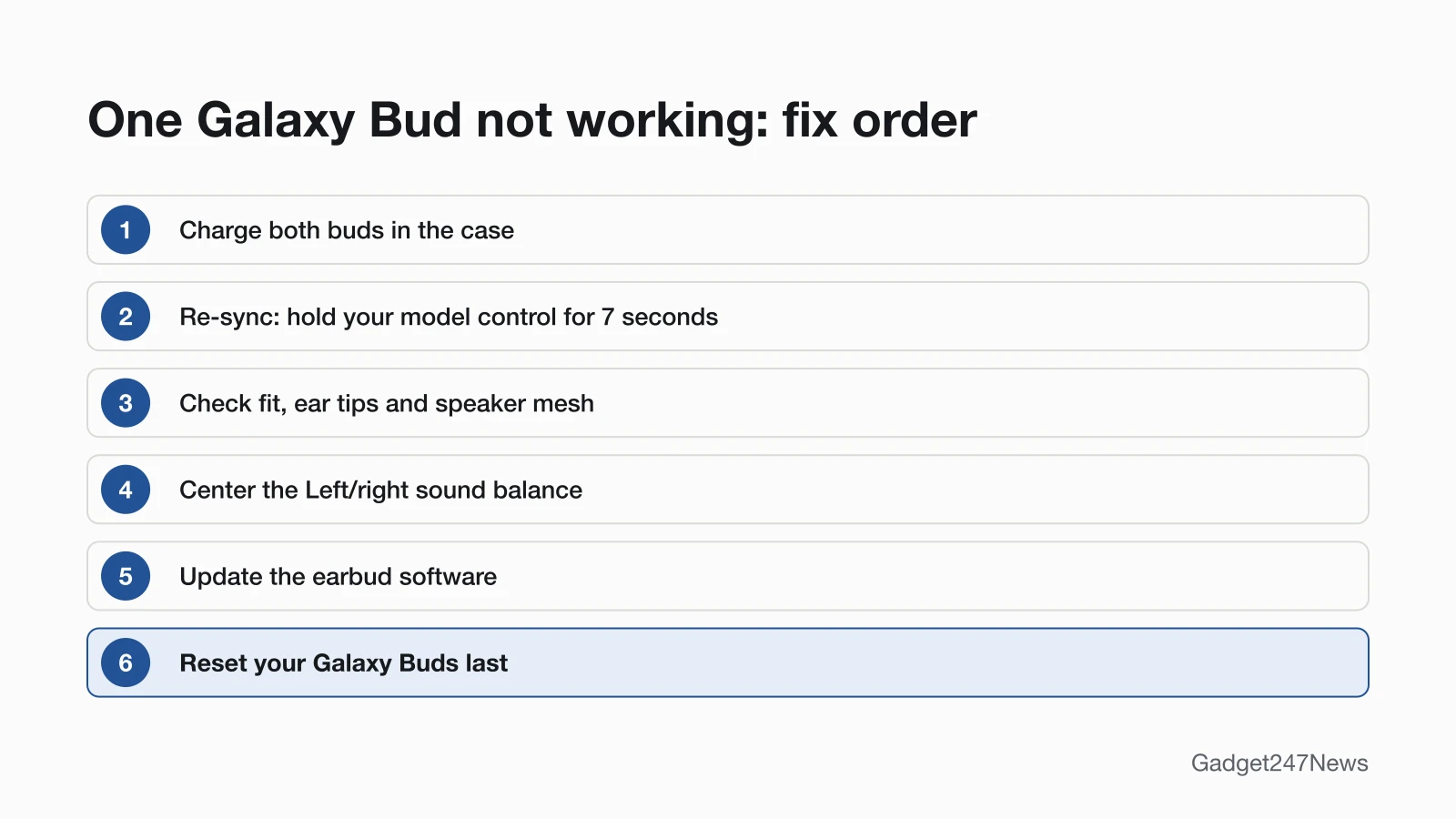
These follow Samsung's one-side and connection pages; reset comes last. The steps are the same for the left and the right bud.
Fix 1: Charge Both Buds in the Case
Charge both buds before you re-sync them:
- Seat both buds fully in their slots; Samsung says the charging contacts won't connect if a bud isn't in its correct spot.
- Charge the case with the included USB cable and a Samsung-approved wall adapter. Samsung's connection page says to "charge the earbuds for at least 30 minutes."
Clean any dust or wax off the contacts in the case and on the buds while they're out.
Fix 2: Re-Sync the Buds With Each Other
Re-sync the buds in the charging case with your model's control, held for 7 seconds:
- Put both buds in the charging case and check that they're seated properly.
- Hold your model's control for 7 seconds. On Galaxy Buds4 and Buds4 Pro, open the case and hold the connect button on the back. On Galaxy Buds3, Buds3 Pro and Buds3 FE, open the case and hold the connect button on the bottom. On earlier models, touch and hold both buds at the same time while they're in the case.
- Watch the case light. On earlier models, Samsung says that when "the indicator light flashes and then turns off, the earbuds are connected to each other"; on Buds4 models it flashes blue first.
If the light keeps flashing red, the buds didn't couple. Samsung's fix is to take both buds out, put them back and hold your model's control again for 7 seconds.
Fix 3: Check the Fit, Ear Tips and Speaker Mesh
Check the fit and the mesh next, using three of the checks Samsung lists before any settings change:
- Make sure both buds are worn correctly and fit securely.
- Confirm the left and right ear tips are the same size and properly attached.
- Look for debris or earwax on the speaker mesh of the quiet bud.
Samsung points to each model's user manual for its cleaning method; for a general method, see how to clean earwax out of earbuds.
Fix 4: Center the Sound Balance
Center the left/right balance on your phone; Samsung says to adjust it "if sound is louder on one side":
- Galaxy phone: open Settings, tap Accessibility, then Hearing enhancements. Under Left/right sound balance, move the slider back toward the middle.
- iPhone: open Settings, tap Accessibility, then Audio & Visual, and scroll to Balance. Apple's steps say to make sure the slider "is set in the middle."
- Other Android phones: the balance setting's name depends on the phone; we haven't verified one menu name that fits them all.
Samsung notes that the balance setting "is not applied during calls," and that Galaxy Buds and Buds+ (SM-R170/R175) may not support it at all.
Fix 5: Update the Earbud Software
Update your phone first, then the buds, as Samsung's connection page suggests:
- On a One UI 8 Galaxy phone, open Settings, tap your Galaxy Buds, then Earbuds software update and Download and install.
- On One UI 7.0 or earlier, open the Wearable app and tap the same two options.
Samsung says that when a replacement bud runs different software from the existing one, "the earbuds may not enter connection mode" until the software is updated. Other routes, including a PC, are in How to update Galaxy Buds firmware.
Fix 6 (Last): Reset Your Galaxy Buds
Reset the buds only when the five fixes above haven't brought the silent side back. A factory reset returns the earbuds "to their default settings." The steps are in How to Reset Galaxy Buds.
Left, Right and Model Differences
Left and right buds use the same fixes; only the re-sync control changes by model, as the table shows.
| Situation | What to do | Source |
|---|---|---|
| Galaxy Buds4, Buds4 Pro | Open the case, hold the connect button on the back of the case for 7 seconds; the light flashes blue, then turns off | Samsung one-side page |
| Galaxy Buds3, Buds3 Pro, Buds3 FE | Open the case, hold the connect button on the bottom of the case for 7 seconds | Samsung one-side page |
| Galaxy Buds FE, Buds2 Pro, Buds2, Buds Pro, Buds Live, Buds+ | With the buds in the case, touch and hold both at the same time for 7 seconds | Samsung one-side page |
| Case light keeps flashing red | Take both buds out, put them back and hold your model's control again for 7 seconds | Samsung one-side page |
| Two buds on different software | Update the software from Earbuds settings | Samsung one-side page |
| One bud won't charge | See Galaxy Buds not charging | Samsung charging page |
Still not working?
If that bud still won't play after all six fixes, go through these in order:
- Try the next fix: headphones volume too low (if both sides sound quiet).
- Reset your Samsung Galaxy Buds: How to reset Galaxy Buds (you'll need to pair them again afterwards).
- Contact Samsung Support: Samsung Support (external).
- Check repair or warranty options: Samsung repair service (external).
Started after an update? Check the Update Tracker for known issues.
Stopped Working After an Update?
If one side went quiet right after a phone or earbud update, check our list of Galaxy Buds and Galaxy Watch firmware for a known issue before you reset. Samsung's connection page lists updates for both the phone and the earbuds as fixes, and its one-side page adds that buds on different software versions may not couple until the software is updated.
Get an email when a Galaxy Buds update breaks something, and when it's fixed.
One Galaxy Bud Not Working: Quick Answers
Why is my left Galaxy Bud not working?
A silent left Galaxy Bud can mean the buds are no longer coupled to each other, which Samsung names as a cause when sound "is not heard from one earbud at all." Charge both buds, then re-sync them in the case with your model's control for 7 seconds. The right bud uses the same steps.
How do I reconnect one Galaxy Bud?
Reconnect one Galaxy Bud by re-syncing the pair in the charging case with your model's control. On touchpad models, Samsung US says "the earbud battery indicator light will flash green and return to its initial color," and the buds are then synced.
Can I use one Galaxy Bud on its own?
Yes, Samsung says you can use a single Galaxy Bud with your phone, and the sound switches from stereo to mono. You can't update the buds' software while using a single earbud, and Samsung says "a single replacement earbud cannot be purchased."
Sources
We checked this page against the pages below, most recently on . How we verify fixes
- What to do when sound is not heard from one side of your Samsung Galaxy Buds series (Samsung, samsung.com)Official
- Samsung earbuds don't connect or won't stay connected (Samsung, samsung.com)Official
- Sync the Samsung earbuds to each other (Samsung, samsung.com)Official
- Use a single Galaxy bud with your phone (Samsung, samsung.com)Official
- Samsung earbuds do not turn on or charge (Samsung, samsung.com)Official
- How to update your Samsung Galaxy Buds software (Samsung, samsung.com)Official
- How to restart or reset your Samsung earbuds (Samsung, samsung.com)Official
- If your left or right AirPod isn't working (iPhone Balance setting) (Apple, support.apple.com)Official