Fitbit Won't Update? How to Fix Stuck Firmware Updates

By Suraj Giri, Founder & Publisher. Reviewed by Suraj Giri on .
Published · 7 min read
How this page was made
- Sources. Checked against 8 official pages from Google, most recently on . See the sources.
- No device testing. We don't test fixes on physical devices, so nothing on this page is a hands-on result. A fact counts as verified only when it matches an official source page.
- AI use. As with every page on Gadget247News, AI tools helped research, outline, draft and edit this page, and re-read the official pages to flag facts that didn't match. The illustration at the top was generated with Runway and is labelled under the image.
- Human sign-off. Suraj Giri, Founder & Publisher, read this page and signed it off on . The site won't publish a page without that sign-off.
- Changes. The published and updated dates move only when the content changes, and every change gets a dated note. Spot an error or a fix that didn't work? Email info@gadget247news.com.
Read our AI use policy, editorial policy and corrections policy.
Google says a Fitbit firmware update occasionally "will start and stop or otherwise fail." Its troubleshooting page starts with what the update needs: a charge of at least 50%, the latest Google Health app (formerly the Fitbit app) and a stable Wi-Fi or cellular connection. This page covers updates that won't start, stop partway or never show up; other faults start from Fitbit fixes.
Before you troubleshoot, check whether a new software version is out for your model on Fitbit and Pixel Watch Updates. Fitbit updates on the Update Tracker show the newest Fitbit version next to every other brand's latest release.
Why Your Fitbit Won't Update
Eight things stop a Fitbit update, going by Google's pages, listed here in the order the fixes below deal with them:
- The battery is under 50%. Google recommends 75% or higher "to prevent power loss."
- The phone has no stable Wi-Fi or cellular connection.
- The Google Health app is out of date, or it was closed before the update finished loading.
- The Bluetooth link needs a reset. Google's Bluetooth step "resets the phone's Bluetooth radio stack."
- The Fitbit or the phone needs a restart.
- The Fitbit is more than 2 to 3 feet from the phone, or other Bluetooth devices nearby (second phones, smart home hubs, other wearables) are getting in the way.
- An old connection profile is still on the phone. Google's advanced fix removes it "to ensure a fresh start when you pair again."
- No update has reached your account yet. Google sends Fitbit updates "to everyone gradually over time."
The first seven have fixes below. The eighth means checking the app again later.
How to Fix a Fitbit That Won't Update
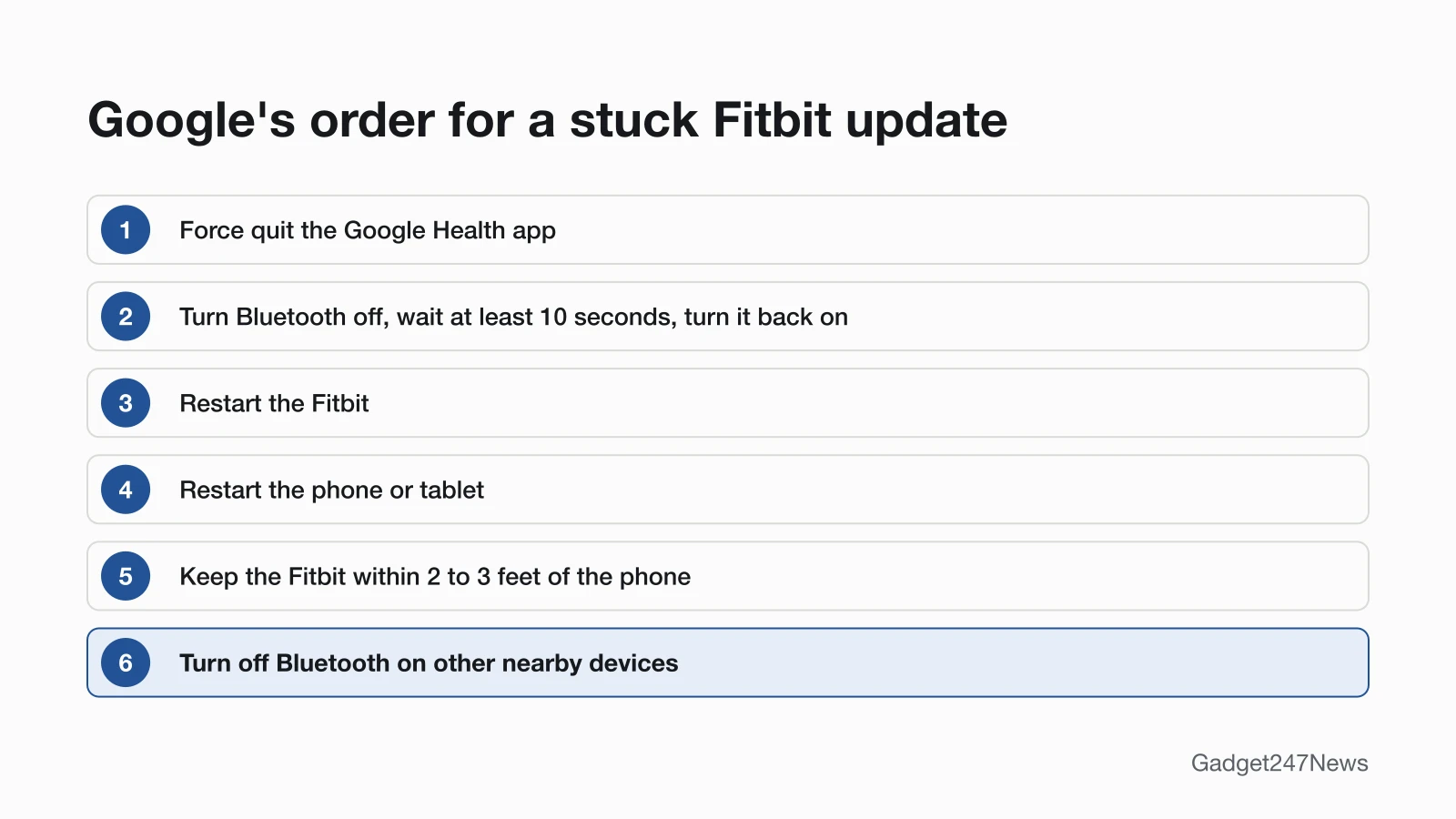
These follow Google's own order; the factory reset is a last resort and sits outside this list.
Fix 1: Meet Google's Update Conditions
Check the conditions Google sets before a Fitbit update, in its own words:
- The Fitbit is "charged to at least 50%."
- The Google Health app is "the latest version available in your app store."
- You have "a stable Wi-Fi or cellular connection."
- The app keeps running: "Keep the Google Health app running in the background while the device syncs."
With all four in place, open the Google Health app with your Fitbit nearby, tap Connections at the top left, tap your device, then tap Update.
Fix 2: Force Quit and Reopen the Google Health App
Force quit the Google Health app on the phone or tablet your Fitbit is paired with, then open it again and restart the update. Google lists this first when an update "doesn't begin" or the device "fails to sync."
Fix 3: Turn Bluetooth Off for 10 Seconds
Turning the phone's Bluetooth off and on is Google's second reconnect step:
- Open your phone's Settings and turn Bluetooth off.
- Wait at least 10 seconds. Google says the pause "resets the phone's Bluetooth radio stack."
- Turn Bluetooth back on, then open the Google Health app and try the update again.
Fix 4: Restart Your Fitbit, Then Your Phone
Restart the Fitbit with the standard method for your model, then do a full restart of the phone or tablet. A restart "turns your device off and on without the loss of any activity data." The button or menu for each model is in the guide to restart or factory reset a Fitbit; use its restart steps only, because the factory reset erases the Fitbit.
Fix 5: Keep It Within 2 to 3 Feet and Quiet Other Bluetooth Devices
Keep the Fitbit within 2 to 3 feet of the phone until the update finishes, and turn off Bluetooth for now on every other device nearby: second phones, smart home hubs and other wearables. Google explains: "Multiple paired devices can cause connectivity issues with the Fitbit device."
Fix 6: Remove It, Forget It in Bluetooth, Set It Up Again
Google calls this a full Bluetooth disconnection. Removing a Fitbit from your account deletes any data you haven't synced, so sync first if the Fitbit still connects.
- In the Google Health app, tap Connections at the top left, tap your Fitbit under "Devices," then tap System › Disconnect device.
- In the phone's Connected devices or Bluetooth settings, find the Fitbit in the previously paired list and tap Forget This Device (iPhone or iPad) or Unpair or Forget (Android). Google says skipping this "leaves residual, corrupted data that prevents successful re-pairing."
- Force quit the Google Health app, reopen it and follow the on-screen instructions to set the Fitbit up again.
If the Fitbit won't set up again, see what to do when your Fitbit won't connect to your phone.
Fix 7: Clear the App's Cache (Android) or Reinstall (iPhone)
Clearing the Google Health app's local cache "frequently solves connectivity issues," Google says, and the method depends on the phone.
On Android:
- Go to Settings › Apps.
- Tap Health › Storage & cache › Clear Cache.
On an iPhone or iPad, where iOS "typically doesn't permit manual cache clearing":
- Forget the Fitbit in Bluetooth settings first (Fix 6, step 2).
- Uninstall the Google Health app, then install it again.
Fix 8 (Last): Try Another Phone
Sign in to your account on a different phone or tablet and run the update from there, with Bluetooth off on the original phone "to avoid conflicts." If it still fails, contact Customer Support (links below). Google keeps the factory reset as a last resort for "persistent update failures that have 'bricked' the device"; it erases unsynced activity statistics, alarms, goals and notification settings.
Update Problems by Model
Two models have update fixes of their own on Google's page, and three problems show up around the update itself.
Versa Lite Edition on Version 38.6.1.1
A Versa Lite Edition on version 38.6.1.1 needs a computer's USB port for one update:
- On the watch, open the Settings app and tap About.
- Read the number under "Version." If it's 38.6.1.1, attach the watch to its charging cable and plug the cable into a USB port on your computer before you begin.
- Keep the watch close to your phone or tablet until the update completes.
- A few days later, a second update prompt appears. That one installs as normal, without the computer.
Google Fitbit Air on Firmware 20001.229.37, .51 or .84
Google Fitbit Air on firmware 20001.229.37, 20001.229.51 or 20001.229.84 installs the latest firmware from the Sync option:
- In the Google Health app, tap Connections at the top left, then your device, then System › About, and read the "Firmware version."
- If it matches one of the three, place the Fitbit Air on its charger.
- Tap Connections › your device › Sync.
- Follow the on-screen instructions to install the latest firmware version.
No Update Button in the App
Update only appears once an update is available for your Fitbit, and Google releases each one "to all customers in phases." If the button is missing, Google's advice is to check the app again later. Your current version is under your Fitbit's name in Connections › your device.
A Clock Error Message After the Update
A clock error on the watch screen after an update clears when you choose a clock face in the Google Health app: tap Connections at the top left, then your device, then Watch faces. Pick a face under the "Clocks" tab and tap Install. On Sense and Versa series watches, Google says the watch "can't exceed 38 apps installed" to update a clock face.
Sense 2 Stuck Restarting After an Update
A Sense 2 caught in a boot loop after an update needs Google's charger-based factory reset sequence, which erases the watch, including unsynced activity. Google reserves it for devices "stuck in boot loops." The six steps are in the restart and factory reset guide linked in Fix 4.
Still not working?
- Try the next fix: if the Fitbit keeps losing its link to your phone, see Fitbit Not Connecting to Your Phone? How to Fix It.
- Reset your Fitbit: How to Restart or Factory Reset a Fitbit (you'll need to set it up again afterwards).
- Contact Google Health Support: Google Health Help. Google's list for a failed update ends with "Contact Customer Support."
- Check repair or warranty options: File a warranty claim for your Fitbit device.
Started after an update? Check the Update Tracker for known issues.
How to Update a Fitbit the Normal Way
The routine steps and the version check are in How to update Fitbit; this page stays on updates that fail. The normal route starts in the Google Health app with the Fitbit nearby, and a progress bar shows on both the Fitbit and the app until the update is complete.
Problems That Start After an Update
A problem that begins right after an update can come from the new version itself, so check the known issues for your model before you reset anything.
After a Fitbit Update
An update started "right as the day changes (at midnight)" can leave your step count wrong for a day. On Charge 6 and Inspire 3, version 214.24 "includes new Bluetooth security features," and you turn them on by reconnecting the device when the Google Health app prompts you. Known issues for each version are on the Fitbit and Pixel Watch updates page.
Get an email when a Fitbit update breaks something, and when it's fixed.
Why is my Fitbit not updating?
A Fitbit is not updating when an update condition is missing or no update has reached it yet: the battery is under 50%, the Google Health app is closed or out of date, the Fitbit is more than 2 to 3 feet from the phone, or Google hasn't sent the new version to your account. Fixes 1, 2 and 5 cover the first three.
How long does a Fitbit update take?
A Fitbit update can take an hour or longer. Google's troubleshooting page says updates "can take up to an hour," and its update page says they "may take more than one hour to complete." Keep the Google Health app running until the progress bar finishes.
Sources
We checked this page against the pages below, most recently on . How we verify fixes
- Google Health Help: Troubleshoot updating your Fitbit device (Google, support.google.com)Official
- Google Health Help: Update your Fitbit device (Google, support.google.com)Official
- Google Health Help: What's changed in the latest Fitbit device update? (Google, support.google.com)Official
- Google Health Help: Restart your Fitbit device (Google, support.google.com)Official
- Google Health Help: How do I set up my Fitbit device? (Google, support.google.com)Official
- Google Health Help: How do I change the clock face on my Fitbit device? (Google, support.google.com)Official
- Google Health Help: What is new with the redesigned Google Health app (Google, support.google.com)Official
- Google Health Help: File a warranty claim for your Fitbit device (Google, support.google.com)Official