How to Connect Skullcandy Earbuds to a Windows PC

By Suraj Giri, Founder & Publisher. Reviewed by Suraj Giri on .
Published · 4 min read
How this page was made
- Sources. Checked against 8 official pages from Microsoft and Skullcandy, most recently on . See the sources.
- No device testing. We don't test fixes on physical devices, so nothing on this page is a hands-on result. A fact counts as verified only when it matches an official source page.
- AI use. As with every page on Gadget247News, AI tools helped research, outline, draft and edit this page, and re-read the official pages to flag facts that didn't match. The illustration at the top was generated with Runway and is labelled under the image.
- Human sign-off. Suraj Giri, Founder & Publisher, read this page and signed it off on . The site won't publish a page without that sign-off.
- Changes. The published and updated dates move only when the content changes, and every change gets a dated note. Spot an error or a fix that didn't work? Email info@gadget247news.com.
Read our AI use policy, editorial policy and corrections policy.
Windows pairs Skullcandy earbuds like any Bluetooth headset: put the earbuds in pairing mode, then pick them in the PC's Bluetooth panel. No Skullcandy software is needed. For other problems, start at our Skullcandy earbuds pairing and charging fixes; for another brand, see how to put Bluetooth earbuds in pairing mode.
How to Pair Skullcandy Earbuds With a Windows 11 PC
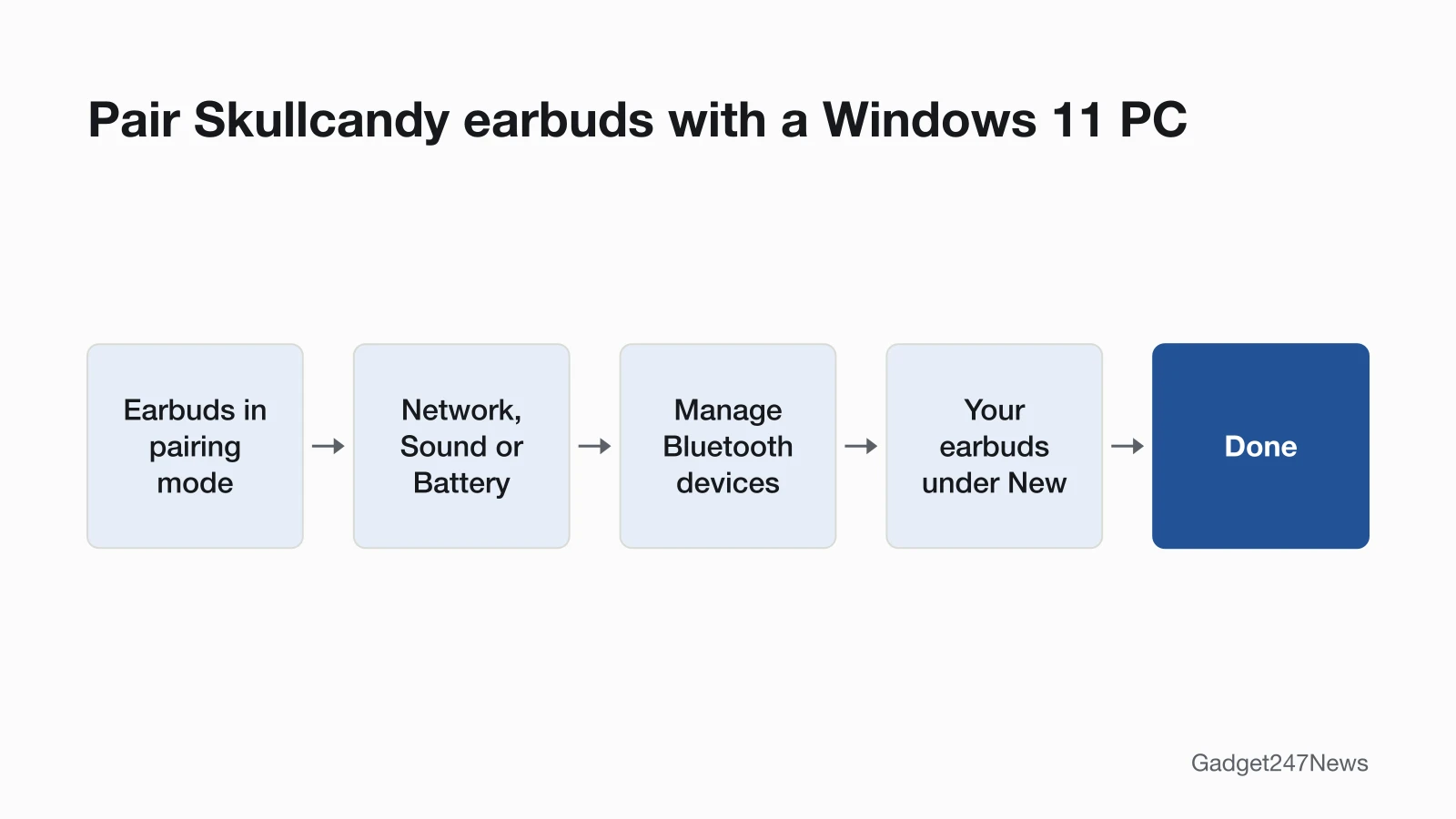
Skullcandy earbuds join a Windows 11 PC from the Bluetooth quick setting, where they appear under New devices once they're in pairing mode:
- Put the earbuds in pairing mode. The first time, take Dime 3 or Rail ANC out of the case and wait for the voice prompt "Ready to pair"; after that, use your model's control in the table below.
- On the PC, select the Network, Sound or Battery icon next to the time and date on the taskbar.
- On the Bluetooth quick setting, select the Manage Bluetooth devices chevron.
- Under New devices, select your earbuds, for example "Dime 3" or "Rail ANC".
- Follow any extra instructions on screen, then select Done.
When the earbuds aren't in the list, Microsoft's tip is to set Bluetooth devices discovery to Advanced: open Start > Settings > Bluetooth & devices > Devices and change it under Device settings.
Pairing Mode for Each Skullcandy Model
Earbuds already connected to a phone need pairing mode again before the PC can see them:
| Skullcandy model | Pairing-mode control | What you hear or see |
|---|---|---|
| Dime 3 | Press and hold the button on either earbud for 3 seconds | "Ready to Pair"; both lights pulse red/blue |
| Rail ANC | Touch and hold the touch sensor on either earbud for 3 seconds | "Ready to pair"; both lights pulse red/blue |
| Method 360 ANC | Press and hold either earbud for 3 seconds | "Ready to pair"; both earbuds pulse blue |
| Indy Evo, Sesh Evo | Put both earbuds in the case until both lights show red, then pull them out | A tone, then only the left earbud flashes red/blue |
Tile-equipped Skullcandy earbuds can show up twice in the list. Pick the plain product name: Skullcandy says an entry ending in "-LE", such as "Sesh Evo-LE", is the Low-Energy connection the Tile app uses. Phones and tablets are covered in How to connect and pair Skullcandy earbuds with any device.
How to Connect on Windows 10
Windows 10 pairs Skullcandy earbuds from its Bluetooth & other devices page:
- Start pairing mode on the earbuds, using the control in the table.
- On the PC, go to Start > Settings > Devices > Bluetooth & other devices.
- Select Add Bluetooth or other device.
- In the Add a device window, select Bluetooth.
- Pick the Skullcandy name from the list; when pairing succeeds, select Done.
These steps remain on Microsoft's page even though Windows 10 support ended on October 14, 2025.
HP, Dell, Lenovo and Other Laptops
The Windows version decides the steps, not the laptop brand. What the laptop does need is Bluetooth: Microsoft says most Windows devices have it built in, and a PC without it can take a USB Bluetooth adapter in a USB port.
How to Check Skullcandy Earbuds Are Connected on Windows
Skullcandy earbuds are connected when you hear "Connected" and Windows plays sound through them:
- Listen for the voice prompt. Skullcandy says Dime 3, Rail ANC and Method 360 ANC announce "connected" when pairing is complete.
- Open the Bluetooth quick setting. With Bluetooth on, the tile reads Connected or shows the name of the device it's connected to.
- Play a video. Audio still coming from the PC's own speakers means a different output is selected: select the Speakers icon on the taskbar, then the arrow beside the volume slider (Select a sound output), and choose the earbuds. Output in Start > Settings > System > Sound does the same.
If Skullcandy Earbuds Won't Connect to Windows
Put the earbuds back in pairing mode with your model's control first: Microsoft's first pairing step is to make the device discoverable, which for Skullcandy earbuds means pairing mode. Then set Bluetooth devices discovery to Advanced. If an old entry won't connect, open Bluetooth & devices > Devices, select More options next to the earbuds, then Remove device > Yes, and pair again. If only one earbud plays, or the earbuds won't pair with your phone either, see Skullcandy earbuds not connecting to your phone.
What Works Differently on a Windows PC
Three things change on a laptop:
- Settings stay on your phone. Skullcandy says its app "will not have app support with your PC, iPad and MacBook", and Rail ANC and Method 360 ANC get firmware updates through it, so update them from your phone.
- Multipoint keeps the phone connected too. Dime 3, Rail ANC and Method 360 ANC pair with two devices at once. Skullcandy's own example is watching YouTube on your laptop while you take a call on your phone. On Dime 3 and Rail ANC, the laptop audio pauses and the call takes priority. More on Bluetooth multipoint on earbuds.
- Multipoint can be switched off. On Rail ANC and Method 360 ANC, turn off Multipoint Pairing in the Skullcandy App to use one device at a time.
Skullcandy Earbuds and Windows: Quick Answers
Can I connect Skullcandy earbuds to a laptop?
Yes. Skullcandy's answer for Dime 3, Rail ANC, Method 360 ANC, Indy Evo and Sesh Evo is "Yes", with a laptop listed next to a phone, tablet and MP3 player.
Can I use Skullcandy earbuds with my laptop and phone at the same time?
Yes, on the Multipoint models Dime 3, Rail ANC and Method 360 ANC. While they're connected to the first device, hold the pairing control for 3 seconds and pair the second. On Dime 3 and Rail ANC, the two devices "will not play simultaneously", Skullcandy says.
Is there a Skullcandy App for Windows?
No. Skullcandy says its app "will only be supported on your mobile devices". Windows pairs the earbuds through its own Bluetooth settings.
Sources
We checked this page against the pages below, most recently on . How we verify fixes
- Pair a Bluetooth device in Windows (Microsoft, support.microsoft.com)Official
- Fix Bluetooth problems in Windows (Microsoft, support.microsoft.com)Official
- Fix sound or audio problems in Windows (Microsoft, support.microsoft.com)Official
- DIME® 3 (Skullcandy Product Help) (Skullcandy, skullcandy.com)Official
- RAIL® ANC (Skullcandy Product Help) (Skullcandy, skullcandy.com)Official
- METHOD 360 ANC (Skullcandy Product Help) (Skullcandy, skullcandy.com)Official
- INDY™ EVO (Skullcandy Product Help) (Skullcandy, skullcandy.com)Official
- SESH® EVO (Skullcandy Product Help) (Skullcandy, skullcandy.com)Official