Oura Ring Not Tracking Sleep

By Suraj Giri, Founder & Publisher. Reviewed by Suraj Giri on .
Published · 6 min read
How this page was made
- Sources. Checked against 12 official pages from Oura, most recently on . See the sources.
- No device testing. We don't test fixes on physical devices, so nothing on this page is a hands-on result. A fact counts as verified only when it matches an official source page.
- AI use. As with every page on Gadget247News, AI tools helped research, outline, draft and edit this page, and re-read the official pages to flag facts that didn't match. The illustration at the top was generated with Runway and is labelled under the image.
- Human sign-off. Suraj Giri, Founder & Publisher, read this page and signed it off on . The site won't publish a page without that sign-off.
- Changes. The published and updated dates move only when the content changes, and every change gets a dated note. Spot an error or a fix that didn't work? Email info@gadget247news.com.
Read our AI use policy, editorial policy and corrections policy.
This guide is for an Oura Ring that shows no sleep, or only part of a night, in the Oura app. This covers device settings only and isn't medical advice. The ring stores data for a while and passes it to the Oura app when they sync, and Oura warns that collected data may be lost after several days without a sync. On a watch instead, see how to track sleep on Apple Watch. If the app gets no new data from the ring at all, fix Oura Ring data not updating in the app first.
Oura's own page on Oura & Medical Conditions says the ring "is not a medical device." So this page sticks to what the ring needs before a night shows up in the app: enough charge, a ring on your finger, a sync and a sleep of three hours or more. It doesn't explain Sleep scores, Readiness or sleep stages.
Why Your Oura Ring Isn't Tracking Sleep
Oura's page on troubleshooting gaps in sleep data gives seven causes, in this order:
- The ring hasn't synced. After several days without a sync, collected data may be lost, for example when the ring's memory fills and starts overwriting older data.
- The battery ran low overnight. The ring goes into a "nighttime low battery mode" so it doesn't power off, and in that mode it may stop gathering new information.
- The ring powered off. A battery that runs flat during sleep means all data from that night is lost, including total sleep and bedtime.
- The sleep was shorter than three hours. Oura needs three hours of sleep stage detection to find a main sleep (Fix 4).
- You moved a lot. High nighttime movement can stop the ring detecting enough Light, REM and Deep sleep, so the night may not appear after a sync.
- The ring wasn't worn to bed. Oura notes that some members put the ring on the charger before sleep and forget to put it back on.
- A software issue. Occasional software glitches can leave sleep data missing, and in rare cases Oura can't recover it.
If sleep data stays missing several nights in a row after the fixes below, Oura says there may be a hardware issue; contact Oura.
How to Fix an Oura Ring That Isn't Tracking Sleep
These follow Oura's own order; a reset comes last.
Fix 1: Sync Your Oura Ring
Sync first, because an unsynced ring is the first cause on Oura's list:
- Set the ring on its charger and leave it there for a few minutes.
- Open the Oura app, then wait while the latest sync finishes.
- If last night's sleep still isn't there, force close the Oura app and relaunch it.
Oura's tip is to sync once before bed and again shortly after waking, so less data has to sync at once. If the ring won't sync at all, the Oura Ring not syncing guide linked above covers the connection side.
Fix 2: Charge to at Least 30% Before Bed
Oura recommends charging the ring to at least 30% before going to bed. With a low battery, Oura says you "may not receive sleep insights for the night": you still get a bedtime and wake-up time, but no Sleep or Readiness Score.
- Check the level by tapping the battery icon in the upper-right corner of the home screen, and charge before bed if it's low.
- Turn on battery reminders: tap the menu in the upper-left corner of the Today tab, go to Settings › Notifications, then turn on battery level notifications.
Oura notes that these notifications don't appear while the ring is in Airplane Mode.
Fix 3: Wear It the Way Oura Recommends
Your Oura Ring should feel snug, not tight, and sit securely at the base of your finger. Oura recommends the index finger first; the middle or ring finger also works well, as long as the knuckle isn't much wider than the base. Oura's Oura Ring 4 page adds: align the ring so the sensors are against the palm side of your finger. Oura also recommends cleaning the three small sensor bumps inside about once a week, with a piece of cloth or a rinse in mild dish soap and water. After charging, put the ring back on before bed.
If it's loose or tight on every finger you try, find your Oura Ring size with Oura's sizing kit.
Fix 4: Check the Sleep Was Long Enough
Oura needs three hours of sleep stage detection to count a main sleep. In Oura's words, the ring "requires a minimum of three hours of sleep stage detection between 6 PM and 6 PM the following day." A night with no continuous sleep of three hours may show nothing after the morning sync. If you sleep again later in the day for three hours or more, that period is shown and counts as the main sleep.
Fix 5: Check Oura's Known Issues and Update the App
Oura keeps a Known Issues list for the ring and app and updates it weekly. On September 27, 2026 (list last updated September 24, 2026), two open issues touched sleep: "Sleep data may be missing or incomplete" (all users on version 7.19.1 or newer) and "Sleep stages may be missing" (iOS users on version 7.20.0 or newer). Update the Oura app to the newest version in your phone's app store, then check the list again for your version.
Fix 6 (Last): Soft Reset, Then Contact Oura
A soft reset comes last, and Oura describes it as a way "to help reset the ring's sensors." In the Oura app, open My Devices from the menu or the battery icon, select your ring and tap Soft reset. The guide to soft reset an Oura Ring also explains when a factory reset comes next. If sleep is still missing several nights in a row, contact Oura about a possible hardware issue.
By Model or Setting
Two topics sit in the Oura app itself: editing a sleep the ring recorded, and an open iPhone issue on Oura Ring 4 and Oura Ring 5.
Adding or Editing a Sleep in the Oura App
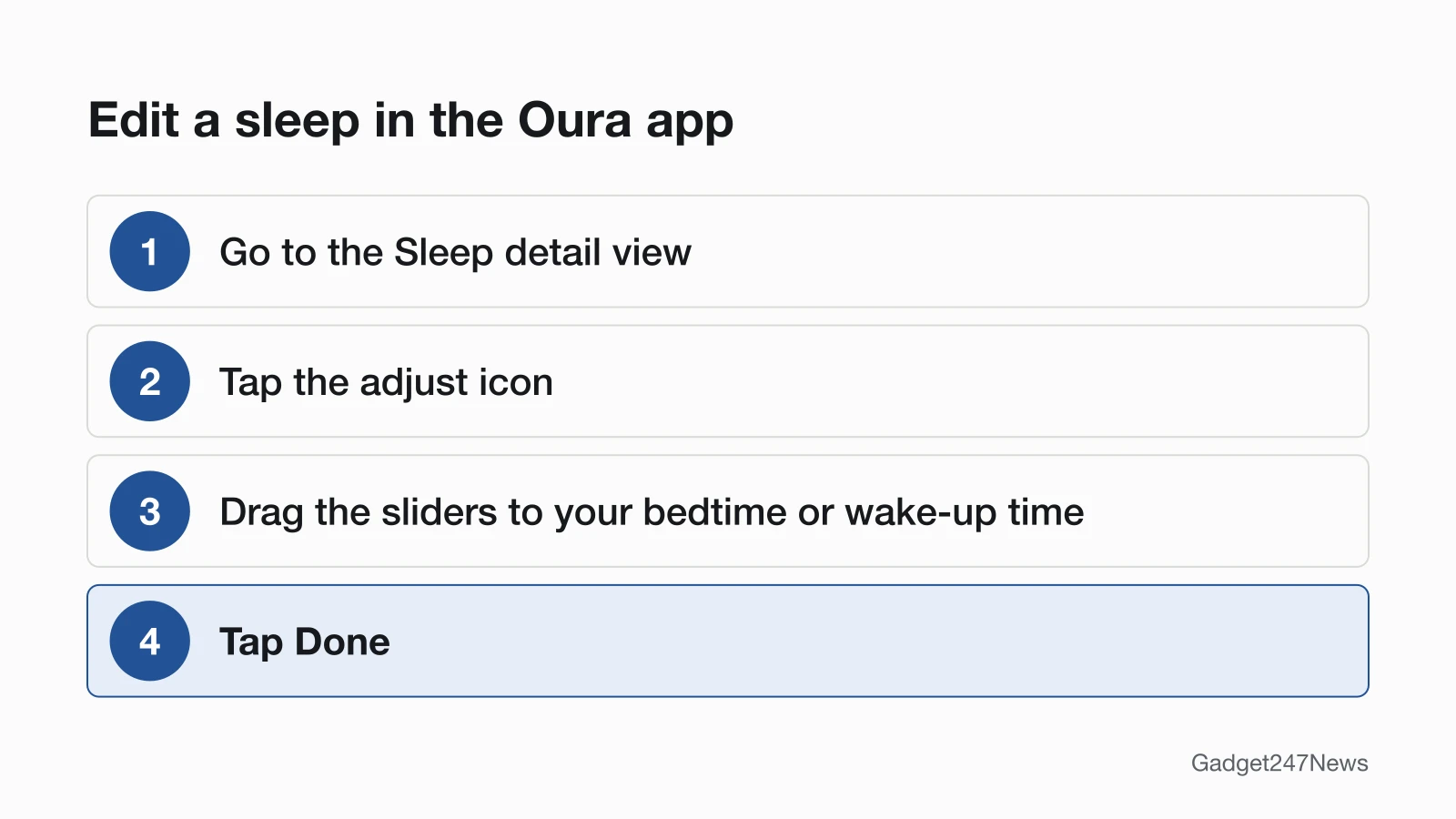
You can edit the bedtime or wake-up time of a sleep the ring recorded:
- Go to the Sleep detail view and tap the adjust icon.
- Drag the sliders to your bedtime or wake-up time, then tap Done.
Oura sets three limits. You can only shorten a sleep period, not extend it. A manually edited sleep period must be at least three hours long. Sleep data older than three days can no longer be edited. Oura's editing page doesn't describe a way to add a night the ring didn't record.
Oura Ring 4 and Oura Ring 5 on iPhone: Sleep Stages Missing
On September 27, 2026, Oura's Known Issues list showed issue 3096, "Sleep stages may be missing," as Open for iOS users on version 7.20.0 or newer. Oura says some members may not see sleep stages or the sleep graph even when their sleep meets the detection requirements, and that the issue can affect multiple nights on Oura Ring 4 and Oura Ring 5.
Still not working?
If a night is still missing after the six fixes, these are the next steps, in order.
Still not working?
- Try the next fix: Oura Ring data not updating in the app (if the app won't update at all).
- Reset your Oura Ring: factory reset an Oura Ring (you'll need to pair it again afterwards).
- Contact Oura Support: Oura Member Care (external).
- Read Oura's own health documentation: Oura & Medical Conditions (external).
Started after an update? Check the Update Tracker for known issues.
More Oura Ring Help
- For charging, pairing and other ring problems, start at Oura Ring troubleshooting.
- A tracking problem on a sport watch instead: Garmin GPS drift.
Oura Ring Sleep Tracking: Quick Answers
Why did my Oura Ring not track my sleep last night?
The likeliest reasons on Oura's list are a missed sync, a battery that ran low or flat overnight, a sleep shorter than three hours, or a ring left off at bedtime. Charge the ring to at least 30% before bed, wear it overnight, and sync it again shortly after waking.
How do I add sleep to my Oura Ring?
You can't add a missed night; Oura only lets you shorten a sleep the ring already recorded. Open the Sleep detail view, tap the adjust icon, drag the sliders and tap Done. The edited sleep has to stay at least three hours long, and sleep data older than three days can't be edited.
Why is my Oura Ring not showing sleep or Readiness?
A new ring needs at least one night of sleep with the ring on before Sleep and Readiness Scores appear the next morning. On a night when the battery ran low, Oura still shows total sleep, time in bed and bedtime start and end, plus an insight on the Readiness card explaining why sleep data is missing.
Sources
We checked this page against the pages below, most recently on . How we verify fixes
- Troubleshooting Gaps in Sleep Data (Oura, support.ouraring.com)Official
- Known Issues (Oura, support.ouraring.com)Official
- Edit Bedtime and Wake-Up Time (Oura, support.ouraring.com)Official
- Oura Ring Battery Tips (Oura, support.ouraring.com)Official
- Use Your Oura Ring Charger (Oura, support.ouraring.com)Official
- How to Choose the Right Oura Ring Size (Oura, support.ouraring.com)Official
- Oura Ring 4 (Oura, support.ouraring.com)Official
- Caring for Your Oura Product (Oura, support.ouraring.com)Official
- Factory Reset an Oura Product (Oura, support.ouraring.com)Official
- Troubleshooting Gaps in Heart Rate Graphs (Oura, support.ouraring.com)Official
- Set Up an Oura Ring (Oura, support.ouraring.com)Official
- Oura & Medical Conditions (Oura, support.ouraring.com)Official