How to Connect Galaxy Buds to a Windows PC

By Suraj Giri, Founder & Publisher. Reviewed by Suraj Giri on .
Published · 4 min read
How this page was made
- Sources. Checked against 11 official pages from Samsung and Microsoft, most recently on . See the sources.
- No device testing. We don't test fixes on physical devices, so nothing on this page is a hands-on result. A fact counts as verified only when it matches an official source page.
- AI use. As with every page on Gadget247News, AI tools helped research, outline, draft and edit this page, and re-read the official pages to flag facts that didn't match. The illustration at the top was generated with Runway and is labelled under the image.
- Human sign-off. Suraj Giri, Founder & Publisher, read this page and signed it off on . The site won't publish a page without that sign-off.
- Changes. The published and updated dates move only when the content changes, and every change gets a dated note. Spot an error or a fix that didn't work? Email info@gadget247news.com.
Read our AI use policy, editorial policy and corrections policy.
Put the buds in pairing mode (case button on Buds3 and Buds4, touchpads on earlier models), then on the PC choose Settings > Bluetooth & devices > Add device > Bluetooth and select your Galaxy Buds. Windows treats Samsung Galaxy Buds like any Bluetooth headset, so only the pairing-mode step changes from model to model.
Other faults are covered in Galaxy Buds Problems and Fixes. For other brands, see how to connect wireless earbuds to your phone and other devices.
How to Pair Galaxy Buds With a Windows 11 PC
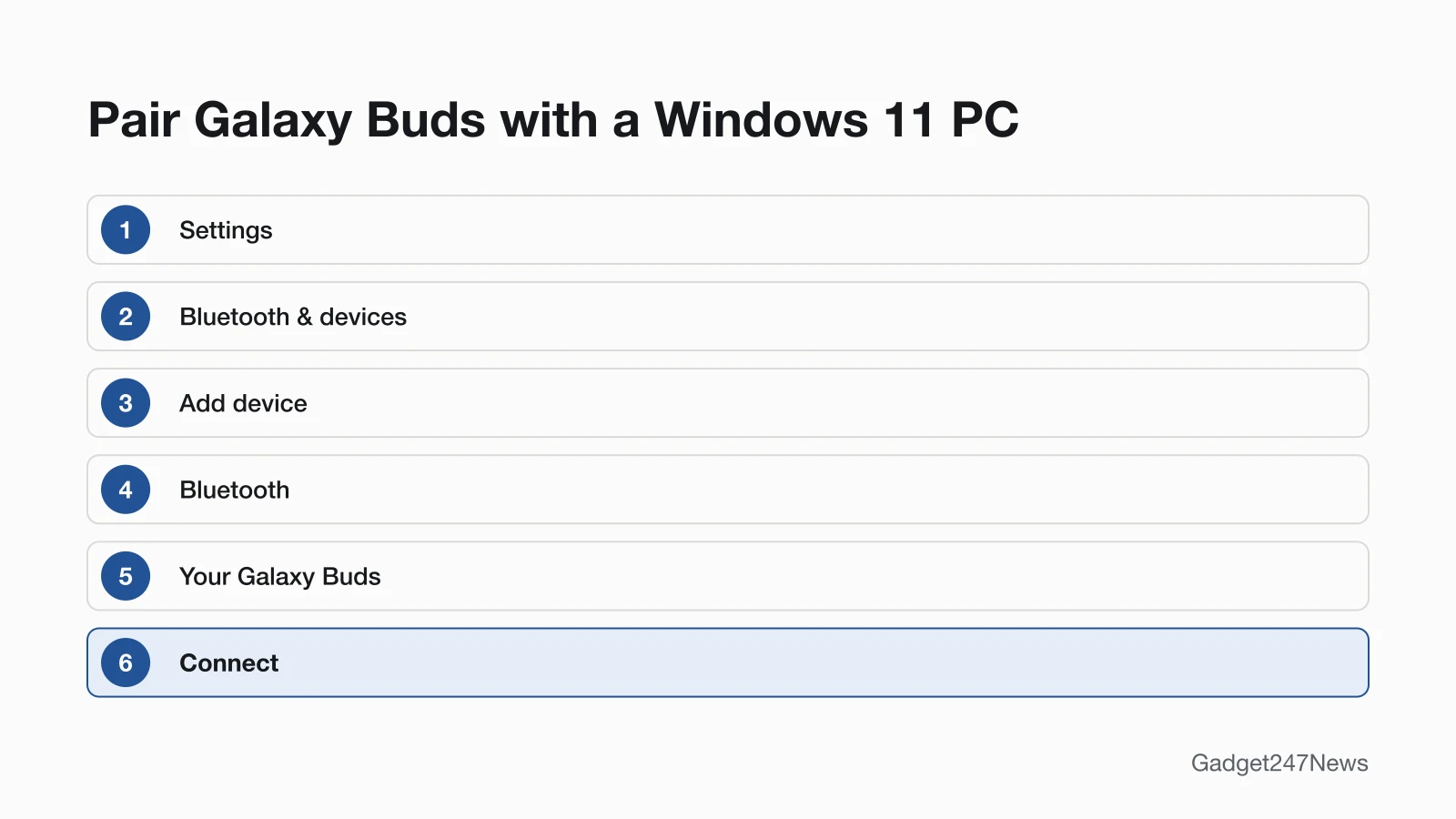
To pair Galaxy Buds with a Windows 11 PC, put them in pairing mode and add them from Bluetooth & devices:
- Put your Galaxy Buds in pairing mode (table below).
- On the PC, select Start > Settings > Bluetooth & devices, and make sure Bluetooth is switched On.
- Select Add device, then choose Bluetooth from the device type options.
- Select your Galaxy Buds from the list of available devices.
- Select Connect to complete the connection.
Samsung notes that menu names and layouts "may vary depending on your device model, software version, or app version." Afterwards, Microsoft says the devices "automatically connect anytime the two devices are in range of each other" while Bluetooth is on.
Laptop Pairing Mode for Each Galaxy Buds Model
Samsung's laptop guide gives each Galaxy Buds group its own pairing-mode step, all with one hold time: more than 3 seconds. Case models start with the buds in the open case.
| Model | Pairing-mode step | What you see or hear |
|---|---|---|
| Galaxy Buds4, Buds4 Pro | Hold the connect button on the back of the case | Status indicator flashes blue, red and green repeatedly |
| Galaxy Buds3, Buds3 Pro | Hold the connect button on the bottom of the case | Status indicator flashes blue, red and green |
| Galaxy Buds2, Buds2 Pro | Touch and hold both earbuds at the same time | Status indicator flashes blue, red and green |
| Galaxy Buds, Buds+, Buds Live, Buds Pro | Wear both earbuds, then touch and hold both touchpads at the same time | A sound from the earbuds |
Galaxy Buds FE and Buds3 FE aren't on Samsung's laptop guide. For phone pairing and the Galaxy Wearable app, see How to connect and pair Galaxy Buds.
How to Connect on Windows 10
To connect Galaxy Buds on Windows 10, use the Add a device window:
- Put your Galaxy Buds in pairing mode (table above).
- Select Start > Settings > Devices > Bluetooth & other devices.
- Select Add Bluetooth or other device, then select Bluetooth in the Add a device window.
- Select your Galaxy Buds, then select Done once they pair.
Dell, HP, Lenovo, Samsung Galaxy Book and Other Laptops
Microsoft writes its steps per Windows version, not per laptop brand, so a Dell, HP, Lenovo or Samsung Galaxy Book uses the steps above. A PC with no Bluetooth can take a USB Bluetooth adapter. If a Swift Pair notification says a new Bluetooth device was found, select Connect.
How to Check Your Galaxy Buds Work on Windows
Your Galaxy Buds work on Windows when the PC's sound and call microphone both run through them:
- Play a song on the PC and listen in the buds.
- If the sound stays on the laptop speakers, select the Sound icon on the taskbar and pick your Galaxy Buds as the audio output, or choose them under Output in Settings > System > Sound.
- For calls, go to Input in the same Sound settings to see your connected microphones, then select your Galaxy Buds as the device for speaking or recording.
Connected but silent? Microsoft also suggests turning Bluetooth off for 10 seconds, then on, and pairing again.
If Your Galaxy Buds Won't Connect to Your PC
If your Galaxy Buds are already paired to another device, such as your phone, Samsung says to put them in pairing mode again; moving them to a PC doesn't need a reset. Still missing? Put the buds in the case, close the lid, wait about 7 seconds for the case light to go out, then try again. On Windows 11, set Bluetooth devices discovery to Advanced under Settings > Bluetooth & devices > Devices. If they paired before and stopped, select More options > Remove device > Yes and pair again. Samsung's full order is on Galaxy Buds Not Connecting.
What Works Differently on a PC
Three Galaxy phone features work differently on a PC:
- Settings and updates run through an app. The Galaxy Buds PC app works with Galaxy Buds3, Buds3 Pro, Buds2, Buds2 Pro, Buds Live and Buds Pro: select Earbuds software update, then Download and install. Samsung's US page doesn't list Buds4 or Buds4 Pro. Phone routes are in How to update Galaxy Buds firmware.
- No Auto switch. Samsung supports Auto switching only on Samsung phones and tablets and Samsung TVs from 2022 and later; Windows PCs aren't on that list.
- No QuickPair pop-up. QuickPair applies only to Samsung Galaxy devices updated to One UI 8.0.
If you also use the buds with a phone, here's how to connect Samsung Galaxy Buds to Android.
Galaxy Buds and Windows: Quick Answers
How do I force Galaxy Buds to pairing mode?
Hold the connect button on the open case for more than 3 seconds: it's on the bottom of the Galaxy Buds3 case and the back of the Buds4 case. On Buds2 and Buds2 Pro, touch and hold both buds in the open case; on older models, wear them and hold both touchpads.
My Galaxy Buds 3 pairing mode isn't working. What can I do?
Close the lid, reopen it, and with both buds still in the case, press and hold the Connect button on the bottom for more than 3 seconds. Samsung's laptop guide says the status indicator then flashes blue, red and green. If the PC still doesn't list them, restart the buds in the case and try again.
Why won't my Galaxy Buds show up on my laptop?
Galaxy Buds stay hidden when they aren't in pairing mode, when they're still paired to your phone, or when Windows 11 shows only common Bluetooth devices. Put them in pairing mode, then set Bluetooth devices discovery to Advanced if they still don't appear.
Sources
We checked this page against the pages below, most recently on . How we verify fixes
- How to connect Samsung Galaxy Buds series to a laptop to listen to music (Samsung, samsung.com)Official
- Pair a Bluetooth device in Windows (Microsoft, support.microsoft.com)Official
- Fix Bluetooth problems in Windows (Microsoft, support.microsoft.com)Official
- Fix Bluetooth connected but no sound issue on Windows (Microsoft, support.microsoft.com)Official
- How to set up and test microphones in Windows (Microsoft, support.microsoft.com)Official
- Fix microphone problems (Microsoft, support.microsoft.com)Official
- How to connect your Samsung Galaxy earbuds (Samsung, samsung.com)Official
- Samsung earbuds don't connect or won't stay connected (Samsung, samsung.com)Official
- How to install software updates on your Samsung earbuds (Samsung, samsung.com)Official
- Use Auto switch with your Galaxy buds and paired devices (Samsung, samsung.com)Official
- How to pair Galaxy Buds using Bluetooth in Samsung One UI 8 (Samsung, samsung.com)Official