How to Connect Galaxy Buds to Android

By Suraj Giri, Founder & Publisher. Reviewed by Suraj Giri on .
Published · 4 min read
How this page was made
- Sources. Checked against 8 official pages from Samsung and Google, most recently on . See the sources.
- No device testing. We don't test fixes on physical devices, so nothing on this page is a hands-on result. A fact counts as verified only when it matches an official source page.
- AI use. As with every page on Gadget247News, AI tools helped research, outline, draft and edit this page, and re-read the official pages to flag facts that didn't match. The illustration at the top was generated with Runway and is labelled under the image.
- Human sign-off. Suraj Giri, Founder & Publisher, read this page and signed it off on . The site won't publish a page without that sign-off.
- Changes. The published and updated dates move only when the content changes, and every change gets a dated note. Spot an error or a fix that didn't work? Email info@gadget247news.com.
Read our AI use policy, editorial policy and corrections policy.
Open the case next to your phone and tap Connect on the pop-up (Galaxy phones with One UI 8), or pair them from the Galaxy Wearable app on other Android phones. Samsung Galaxy Buds also pair from any Android phone's Bluetooth settings, the same way as other Bluetooth headphones, Samsung says. For faults after pairing, see Samsung earbuds not working. Other brands, and the steps to pair Bluetooth earbuds with a tablet, are in the cross-brand guide.
How to Connect Galaxy Buds to a Galaxy Phone With One UI 8
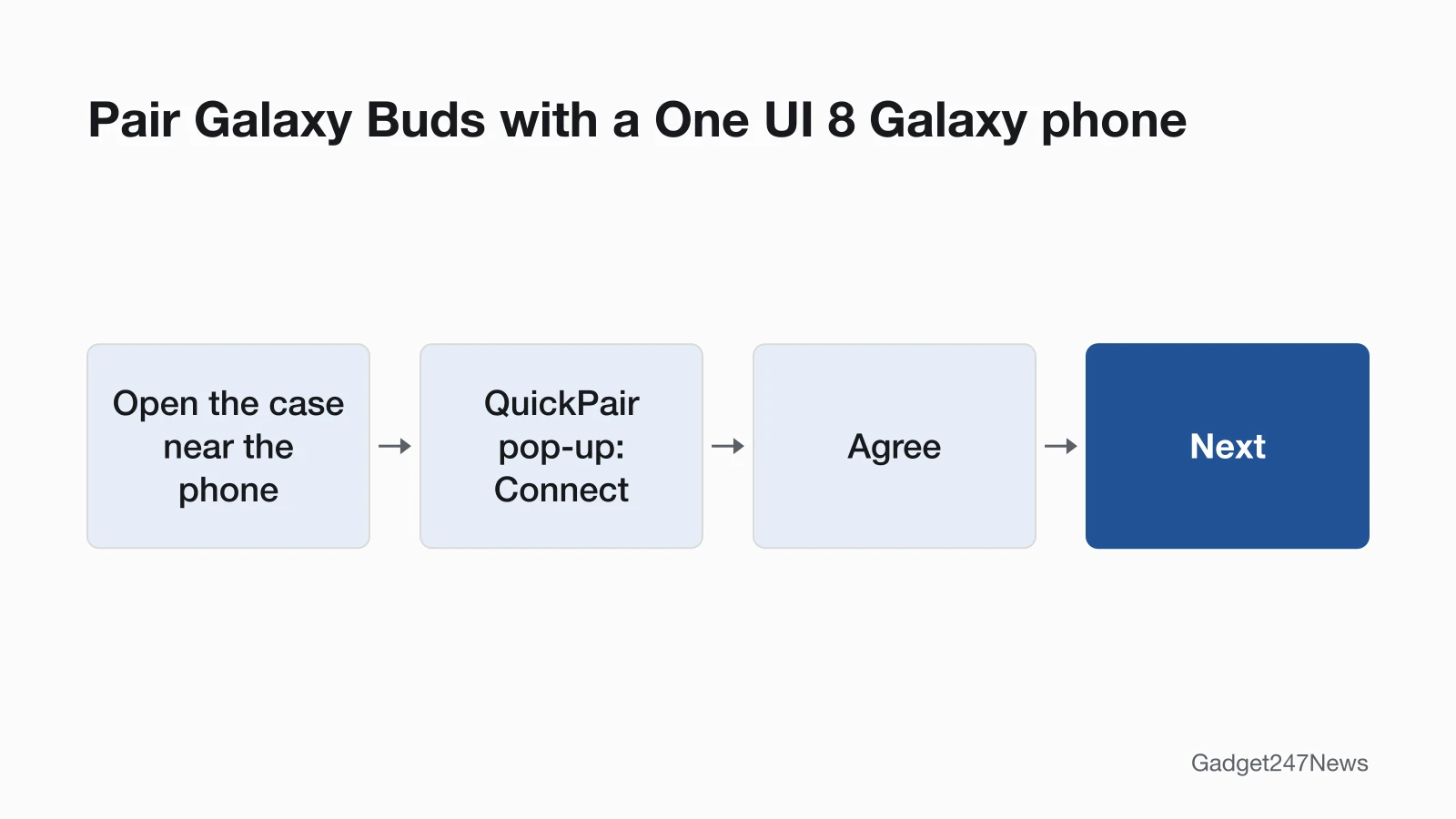
On a Galaxy phone updated to One UI 8, Galaxy Buds pair from the QuickPair pop-up, with no app:
- Open the charging case with the buds inside, near the phone. The buds scan for nearby devices over Bluetooth, and the QuickPair pop-up appears.
- Tap Connect.
- Select the required Terms & Conditions (Optional only if you agree), then tap Agree.
- Tap Next.
If the pop-up doesn't appear, press and hold the connect button on the case. Afterwards, tap the earbuds name in Settings to open their settings. Samsung says the pop-up route is "only applicable to Samsung Galaxy devices that have updated to Samsung One UI 8.0."
How to Connect Galaxy Buds to Other Android Phones (Galaxy Wearable)
On other Android phones, and on Galaxy phones not yet on One UI 8, pair the buds in Galaxy Wearable:
- Open Galaxy Wearable and tap Start.
- Put the buds in the charging case and close the lid for 5 to 6 seconds.
- Open the case.
- Select your buds when the app finds them. Pairing and setup begin; tap OK when a pop-up asks you to confirm.
These steps work for the first device you pair in the app. If Galaxy Wearable already manages a device, Samsung says to tap the Menu icon, then Add new device.
Pair From Bluetooth Settings Instead
Any Android phone can pair Galaxy Buds in Bluetooth settings, without the app:
- Close the buds in the case for 5 to 6 seconds, then open it. Samsung says they "will automatically enter Bluetooth pairing mode."
- Open Bluetooth. On a Samsung phone: Settings > Connections > Bluetooth. On other phones, Google's steps are: swipe down from the top of the screen, touch and hold Bluetooth, then tap Pair new device.
- Tap your Galaxy Buds and follow the on-screen instructions.
Google notes some of its steps work only on Android 15 and up. Bluetooth audio itself works "regardless of the OS," Samsung says.
If Your Galaxy Buds Don't Appear
Buds that don't show up need forced pairing mode:
| Galaxy Buds model | Pairing-mode control |
|---|---|
| Buds4, Buds4 Pro | Connect button on the back of the case |
| Buds3, Buds3 Pro | Close and reopen the lid, then hold the Connect button on the bottom for three seconds |
| Buds2, Buds2 Pro | Both touchpads, buds in the case, until the case lights flash |
| Buds, Buds+, Buds Live, Buds Pro | Both touchpads for a few seconds while you wear them |
Hold times and status lights by model are in How to connect and pair Galaxy Buds.
How to Check Your Galaxy Buds Are Connected
Your Galaxy Buds are paired when Android lists them as connected and their settings screen opens:
- Open Bluetooth. Google says the buds then show as Connected.
- Play a song and listen in both buds.
- Open the buds' settings: tap their name in Settings on One UI 8, or open Galaxy Wearable. Samsung says some app features appear only after the buds have connected at least once.
If Your Galaxy Buds Won't Connect to Your Android Phone
Start with interference and a restart. Samsung's first steps move the buds and phone away from Wi-Fi routers or running microwaves, then close the buds in the case until the light goes out, about 7 seconds. If they still won't connect, unpair them in Bluetooth settings and pair them again. The full fix order, including what to do when they stopped suddenly after an update, is on Galaxy Buds won't connect.
What's Different on a Non-Samsung Android Phone
Three things work differently when Galaxy Buds pair with a Pixel or another non-Samsung Android phone:
- No QuickPair pop-up. Samsung limits it to Galaxy devices on One UI 8.0, so you pair in Galaxy Wearable or Bluetooth settings.
- Settings and software updates sit in Galaxy Wearable. Samsung lists Noise Control, Adaptive EQ, Pinch Control and software update among the app's advanced settings. The update steps are in Galaxy Buds firmware update.
- No Auto switch. Samsung supports it only on Samsung phones and tablets, and Samsung TVs from 2022 and later.
The Samsung pages we read don't mention Google Fast Pair for Galaxy Buds. If you also use the buds with a computer, here's how to connect Galaxy Buds to a laptop.
Galaxy Buds and Android: Quick Answers
How do I force Galaxy Buds to pairing mode?
Use the case button on Galaxy Buds4 and Buds3, or both touchpads on older models. The Buds4 button is on the back of the case and the Buds3 button on the bottom. On Buds2 and Buds2 Pro, hold both touchpads with the buds in the case; on earlier models, hold them while you wear the buds. If Buds3 pairing mode won't start, close and reopen the lid first.
Why is my phone not detecting my Galaxy Buds?
Your Android phone can't find Galaxy Buds that aren't in pairing mode or are still connected to another device. Turn off Bluetooth on that other device, restart the buds in the case, then pair again. On a non-Samsung phone, update Galaxy Wearable too: Samsung names an app update among the usual fixes.
Sources
We checked this page against the pages below, most recently on . How we verify fixes
- How to connect your Samsung Galaxy earbuds (Samsung, samsung.com)Official
- How to pair Galaxy Buds using Bluetooth in Samsung One UI 8 (Samsung Australia) (Samsung, samsung.com)Official
- Getting started with your Galaxy Buds3 and Galaxy Buds3 Pro (Samsung Canada) (Samsung, samsung.com)Official
- Galaxy Buds3 Pro product page, footnotes (Samsung UAE) (Samsung, samsung.com)Official
- How to connect Samsung Galaxy Buds series to a laptop to listen to music (Samsung UK) (Samsung, samsung.com)Official
- Samsung earbuds don't connect or won't stay connected (Samsung, samsung.com)Official
- Use Auto switch with your Galaxy buds and paired devices (Samsung, samsung.com)Official
- Find & set up Bluetooth devices near your Android device (Android Help) (Google, support.google.com)Official