Fitbit Not Getting Notifications? How to Fix It

By Suraj Giri, Founder & Publisher. Reviewed by Suraj Giri on .
Published · 6 min read
How this page was made
- Sources. Checked against 7 official pages from Google, most recently on . See the sources.
- No device testing. We don't test fixes on physical devices, so nothing on this page is a hands-on result. A fact counts as verified only when it matches an official source page.
- AI use. As with every page on Gadget247News, AI tools helped research, outline, draft and edit this page, and re-read the official pages to flag facts that didn't match. The illustration at the top was generated with Runway and is labelled under the image.
- Human sign-off. Suraj Giri, Founder & Publisher, read this page and signed it off on . The site won't publish a page without that sign-off.
- Changes. The published and updated dates move only when the content changes, and every change gets a dated note. Spot an error or a fix that didn't work? Email info@gadget247news.com.
Read our AI use policy, editorial policy and corrections policy.
To get texts on a Fitbit, open the Google Health app (formerly the Fitbit app), tap Connections, then your device, then Notifications, and follow the prompts. Your phone has to receive the notifications itself first: Google says it must receive phone, text, calendar and app notifications. This page is for alerts that reach your phone but not your wrist on a Fitbit that's already set up. A Fitbit that won't pair, or stats that stop updating, have their own guides. Other faults are on Fitbit pairing, sync and battery fixes.
Google lists notifications that stop reaching your Fitbit as a sign it might be disconnected from your phone, the same fault behind a Fitbit that won't sync. We checked these steps against Google's Android and iPhone help on September 27, 2026. For other watches, see smartwatch sync fixes.
Why Your Fitbit Isn't Getting Notifications
We group Google's checklist into seven blockers, in the order Google lists them:
- The phone is too far away. It must be within 30 feet of the Fitbit.
- The conversation is open on your phone. The Fitbit shows only new, unread texts.
- A quiet mode is on the phone: focus, do not disturb, quiet hours or driving mode.
- A quiet mode is on the Fitbit: do not disturb or sleep mode, or device lock is active.
- Notifications are off on the Fitbit, or not set up in the Google Health app.
- Bluetooth trouble: several Bluetooth devices paired to the phone, or a dropped connection.
- Syncing or a fresh app update: syncing can delay a notification, and a Google Health app update can stop them.
How to Fix Fitbit Notifications
These work through Google's checklist, then its troubleshooting steps; setting notifications up again comes last, as it does on Google's page.
Fix 1: Check the Connection and the 30-Foot Range
Keep your phone within 30 feet of your Fitbit, the range Google gives for notifications, and check that Bluetooth is on. Google also lists a dropped connection between the phone and the Fitbit as a cause. If the Fitbit shows as disconnected or won't pair at all, fix that first with the steps for when your Fitbit won't connect to the app.
Fix 2: Turn Off Do Not Disturb and Sleep Mode on Your Fitbit
Each Fitbit keeps Do Not Disturb and Sleep mode in its quick settings, reached a different way per model:
| Model | Where to find Do Not Disturb and Sleep mode |
|---|---|
| Charge 5, Charge 6, Inspire 3, Luxe | Swipe down from the clock face |
| Sense 2, Versa 4 | Swipe down from the clock face |
| Sense, Versa 3 | Swipe right from the clock face |
| Versa, Versa Lite Edition, Versa 2 | Swipe down twice to open the control center, then tap the quick settings icon |
| Charge 4 | Press and hold the button, then swipe left to quick settings |
| Inspire 2, Ace 3 | Press and hold the buttons |
Google's instruction is plain: "Make sure both settings are turned off to receive notifications." If device lock is active, tap the Fitbit's screen to unlock it.
Fix 3: Turn Off Quiet Modes on Your Phone
Phone quiet modes stop notifications at the source:
- iPhone: tap Settings › Focus › Do Not Disturb and make sure it's turned off.
- Android: tap Settings › Sound and make sure Do not disturb is off.
- Either phone: turn off quiet hours or driving mode if you use them.
Fix 4: Turn On Notifications in the Google Health App
Set up notifications in the app once the quiet modes are off:
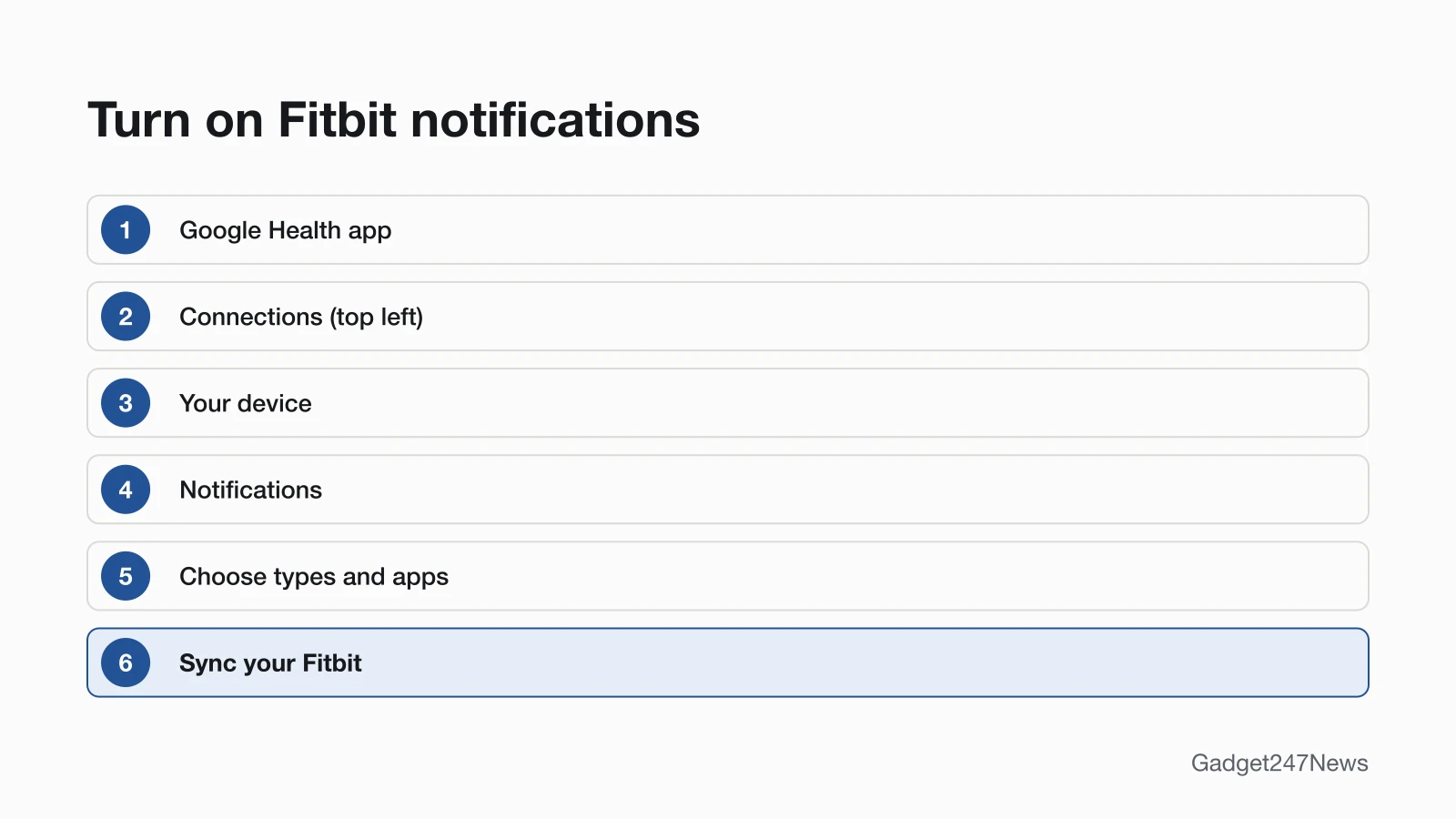
- Open the Google Health app.
- At the top left, tap Connections, then your device.
- Tap Notifications and follow the on-screen instructions. On Android, this is where you allow the Google Health app to access notifications.
- Choose the notification types you want. On Android, pick 1 app per category, such as Dialer for calls, Messages for texts, Calendar for events and Gmail for email.
- Tap App Notifications to add other apps, then sync your Fitbit.
Fix 5: Check Your Phone's Notification Settings
Your phone's own switches decide what it passes on:
| Phone | Turn on | Also check |
|---|---|---|
| iPhone | Settings › Bluetooth › information icon next to your Fitbit › Share System Notifications; Settings › Notifications › Show Previews: Always or When Unlocked | For Phone, Messages, Calendar and other apps: Allow Notifications on and Notification Center on |
| Android | Settings › Connected devices › Connection preferences › Bluetooth; Settings › Apps & notifications › Notifications › Notifications on lock screen | The Google Health app allowed to run in the background; Enable Notification Widget on in the app's notification settings |
On iPhone, a Fitbit shows events from all calendars synced to your default Calendar app.
Fix 6: Force Quit the App, Reset Bluetooth and Restart the Fitbit
Google's troubleshooting steps continue in this order:
- Force quit the Google Health app, then reopen it to sync your Fitbit.
- Turn off Bluetooth on your phone, wait 10 seconds, turn it back on, then open the app to sync.
- iPhone or iPad: in Settings › Bluetooth, tap the information icon next to your Fitbit and turn Share System Notifications off and back on. If it's missing, restart the Fitbit, tap Allow when your iPhone asks to let the Fitbit show notifications, then turn the setting on.
- Restart the Fitbit, then open the app to sync it.
Fix 7 (Last): Refresh Notifications, Then Set Them Up Again
Refresh notifications first, then set them up from scratch:
- In the Google Health app, tap Connections › your device › Notifications and turn off all notifications.
- Restart your phone, open the app, turn notifications back on and sync.
- Still nothing: in your phone's Bluetooth settings, tap the information or gear icon next to your Fitbit and forget it, then set up notifications again in the app and sync.
A factory reset isn't on Google's notification checklist, so save the steps to reset a Fitbit for when Google Support asks you to.
Texts, Calls and Specific Fitbits
Texts, calls and kids' models each have their own limits on a Fitbit.
Text Messages Not Showing
Texts appear only when they're new and unread: with the conversation open on your phone, you won't get a text notification. On Android, pick your messages app for the Text messages category under Notifications. Quick replies are Android only and work on Charge 3, Charge 4, Charge 5, Charge 6, Inspire 3, Luxe, and the Sense and Versa series. Texts in alphabets such as Cyrillic or Arabic may not display properly; on Android, Enable Transliteration converts them to the closest Latin letters.
Calls Not Showing
Charge 3, Charge 4, Charge 5, Charge 6, Inspire 3, Luxe, and the Sense and Versa series let you accept or reject calls when paired to an iPhone or Android phone. On Charge 3, Charge 4 and the Sense and Versa series, an older Android version can reject calls but not accept them. Except for on-wrist calls on Sense and Versa 3, you can't speak into the Fitbit, so accepting answers the call on your nearby phone.
Kids' Fitbits (Ace) Only Show Calls
Ace, Ace 2 and Ace 3 receive call notifications only, so texts and app alerts won't appear on them.
Still not working?
Still not working?
- Try the next fix: Fitbit sync fixes (if your stats are missing too).
- Reset your Fitbit: How to Restart or Factory Reset a Fitbit (you'll need to set it up again afterwards).
- Contact Google Health Support: Google Health Help (external).
- Check repair or warranty options: File a warranty claim for your Fitbit device (external).
Started after an update? Check the Update Tracker for known issues.
Started After an Update?
Google's own tip covers this case: if alerts stopped right after a Google Health app update, restart your phone and set up notifications again. For a Fitbit firmware update that stopped alerts, check Fitbit firmware known issues for current versions and anything Google has acknowledged. Get an email when a Fitbit update breaks something, and when it's fixed.
Want Fewer Alerts Instead?
To cut alerts on purpose, turn off the apps you don't need under App Notifications, or turn on Do Not Disturb or Sleep mode on the Fitbit. With do not disturb or driving mode on the phone, the Fitbit still receives notifications but won't alert you. Turning off notifications you don't need is also one of Google's battery tips for a Fitbit battery draining fast.
Fitbit Notifications: Quick Answers
How do I get texts on my Fitbit?
Make sure your phone shows text notifications, then in the Google Health app tap Connections › your device › Notifications and choose text messages among the notification types. On Android, pick your messages app, such as Messages. Sync the Fitbit afterwards so the change reaches your wrist.
Why is my Fitbit not vibrating for notifications?
Check the quiet modes first: Do Not Disturb or Sleep mode on the Fitbit, or do not disturb or driving mode on the phone, which lets the Fitbit receive notifications without alerting you. On Android, you can also turn on Always Vibrate under Notifications, in the Vibration Settings section of the Google Health app.
Sources
We checked this page against the pages below, most recently on . How we verify fixes
- Change phone notifications on my Fitbit device (Android) (Google, support.google.com)Official
- Change phone notifications on my Fitbit device (iPhone & iPad) (Google, support.google.com)Official
- Why won't my Fitbit device sync? (Google, support.google.com)Official
- Extend your Fitbit device's battery life (Google, support.google.com)Official
- Troubleshoot updating your Fitbit device (Google, support.google.com)Official
- What is new with the redesigned Google Health app (Google, support.google.com)Official
- File a warranty claim for your Fitbit device (Google, support.google.com)Official