Fitbit Battery Draining Fast? Causes and Fixes

By Suraj Giri, Founder & Publisher. Reviewed by Suraj Giri on .
Published · 7 min read
How this page was made
- Sources. Checked against 13 official pages from Google, most recently on . See the sources.
- No device testing. We don't test fixes on physical devices, so nothing on this page is a hands-on result. A fact counts as verified only when it matches an official source page.
- AI use. As with every page on Gadget247News, AI tools helped research, outline, draft and edit this page, and re-read the official pages to flag facts that didn't match. The illustration at the top was generated with Runway and is labelled under the image.
- Human sign-off. Suraj Giri, Founder & Publisher, read this page and signed it off on . The site won't publish a page without that sign-off.
- Changes. The published and updated dates move only when the content changes, and every change gets a dated note. Spot an error or a fix that didn't work? Email info@gadget247news.com.
Read our AI use policy, editorial policy and corrections policy.
Google rates Google Fitbit Air at up to 7 days on a charge and Inspire 3 at up to 10 days, but the always-on display cuts Inspire 3 to up to 3 days. Google adds that "actual results may vary." This page is for a Fitbit that charges, then dies early: a sudden drop points to settings and features, and a gradual decline after several hundred charge cycles points to battery age. Other Fitbit faults are on Fitbit pairing, sync and battery fixes.
We checked every step against Google's Fitbit help pages on September 27, 2026; the phone app is now the Google Health app (formerly the Fitbit app). For Apple Watch, Galaxy Watch, Pixel Watch and other brands, see smartwatch battery draining fast.
Why Your Fitbit Battery Drains Fast
We group the drains on Google's Fitbit battery page into seven causes, from the display to battery age:
- The always-on display. With it on, Charge 5, Charge 6, Inspire 3, Sense 2, Versa 2 and Versa 4 last up to 3 days; Luxe, Sense and Versa 3 last up to 2 days.
- Built-in GPS used continuously. Charge 4, Charge 5 and Charge 6 last up to 5 hours; Sense, Sense 2, Versa 3 and Versa 4 last up to 12 hours.
- Notifications, alarms and reminders to move. Google lists all three as alerts to turn off when you don't need them.
- A screen that wakes too often. Google warns that if you move your hands a lot, the screen "may turn on more often than you realize"; its display tips also cover brightness, Screen Timeout and animated clock faces.
- Music, calls and payments. Google names music control, music apps, on-wrist calls, contactless payments, and Suica or iPass.
- SpO2 tracking. Google says tracking SpO2 data "may require more frequent charging."
- An ageing battery. After several hundred charge cycles, a Fitbit may need charging more often.
How to Fix a Fitbit That Drains Fast
These follow Google's battery page; restart and reset come last. Google's battery page for Fitbit lists no battery-saver mode, so none appears here.
Fix 1: Turn Off the Always-On Display
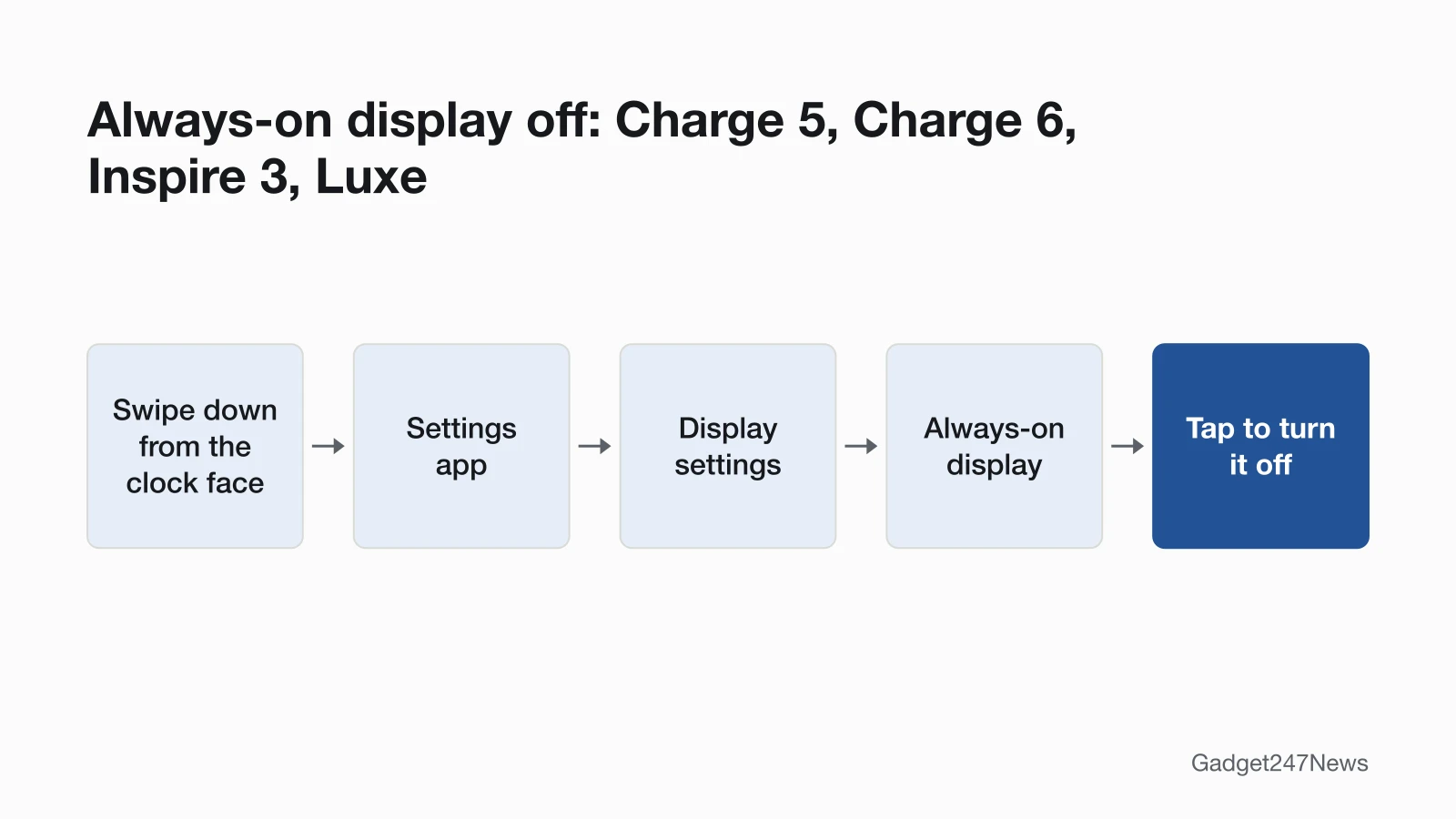
Turn off the always-on display first: when "the battery dies in less than a day", Google's charging page says to turn off Always On in your watch settings. The switch sits in a different place on each model:
| Model | Where to turn off the always-on display |
|---|---|
| Charge 5, Charge 6, Inspire 3, Luxe | Swipe down from the clock face, then tap the Settings app › Display settings › Always-on display |
| Sense 2, Versa 4 | Swipe down from the clock face, then tap the always-on display icon |
| Sense, Versa 3 | Swipe right from the clock face, then tap the always-on display icon |
| Versa 2 | Swipe down twice to open the control center, tap the quick settings icon, then the always-on display icon |
On Charge 5, Charge 6, Inspire 3 and Luxe, Off-hours turns it off during set hours instead.
Fix 2: Turn Off Notifications and Alerts You Don't Need
Turn off the app alerts, alarms and reminders to move that you don't use; Google's feature tips name all three. Phone alerts are chosen in the Google Health app: tap Connections › your device › Notifications, then keep only the notification types and apps you want on your wrist.
Fix 3: Dim the Screen and Stop It Waking on Every Wrist Turn
Beyond the always-on display, Google's battery page lists four screen settings to change:
- Dim the screen or turn on auto brightness in the Settings app, on Fitbits that offer it.
- Stop wrist-turn wake: on Charge 5, Charge 6 and Luxe, set Screen Wake to Manual in quick settings; on Inspire 3, turn Auto Wake off; on Sense and Versa watches, set Screen Wake to Manual (Button).
- Shorten Screen Timeout on Fitbits that have the setting.
- Pick a clock face that isn't animated, since Google says animated faces may need more frequent charging.
On Inspire 2 and Inspire 3, also turn off Button Lock: Google notes that using it on Inspire 2 "may require more frequent charging."
Fix 4: Use Less GPS
Set the GPS mode to Phone GPS on Charge 4, Charge 5 and Charge 6; the tracker then uses your phone's GPS sensors, which Google says "can help preserve battery life." The mode sits under the Settings app › GPS on Charge 5 and Charge 6, and under GPS Settings on Charge 4, where Low Power Mode can preserve battery on built-in GPS workouts longer than an hour. Sense 2 and Versa 4 gained dynamic GPS in version 194.86: with your phone nearby, the watch can use the phone's GPS sensors instead of its own.
Fix 5: Turn Off Features You Don't Use
Cut back on music control, music apps, on-wrist calls and contactless payments, the features Google asks you to reduce. Remove Suica or iPass from the Fitbit if you added either card. If you don't need SpO2 data, remove SpO2 tracking from the Fitbit to extend battery life. These are device settings, not health advice.
Fix 6: Update Your Phone and Your Fitbit
Google's battery tips cover updates on both ends:
- Install your phone's operating system update when you get the notification, following the on-screen instructions.
- Update the Fitbit: open the Google Health app, tap Connections › your device › Update. The button appears only when an update is available. Conditions and full steps are on How to update Fitbit.
Fix 7 (Last): Restart, Then Reset
Restart the Fitbit next; Google says a restart keeps your activity data. On Charge 5 and Charge 6, open the Settings app and tap Restart Device › Restart. A factory reset "erases all the data of your device", so Google treats it as a last resort, and its battery page ends with Customer Support instead. Steps to restart or reset a Fitbit differ by model.
Fitbit Battery Life by Model
These are Google's rated figures from its Fitbit battery page, and they vary with use and settings.
| Model | Rated battery life | With always-on display | Continuous built-in GPS |
|---|---|---|---|
| Google Fitbit Air | Up to 7 days | - | - |
| Charge 6 | Up to 7 days | Up to 3 days | Up to 5 hours |
| Charge 5 | Up to 7 days | Up to 3 days | Up to 5 hours |
| Charge 4 | Up to 7 days | - | Up to 5 hours |
| Inspire 3 | Up to 10 days | Up to 3 days | - |
| Inspire 2 | Up to 10 days | - | - |
| Luxe | Up to 5 days | Up to 2 days | - |
| Sense 2 | 6+ days | Up to 3 days | Up to 12 hours |
| Versa 4 | 6+ days | Up to 3 days | Up to 12 hours |
| Sense | 6+ days | Up to 2 days | Up to 12 hours |
| Versa 3 | 6+ days | Up to 2 days | Up to 12 hours |
| Versa 2 | 6+ days | Up to 3 days | - |
A dash means Google gives no figure for that setting. Google also rates Versa and Versa Lite Edition at 4+ days, Ace 3 at up to 8 days, Charge 3 at up to 7 days, and Ionic at up to 5 days (up to 10 hours with continuous GPS).
How Long Does a Google Fitbit Air Battery Last?
Google Fitbit Air lasts up to 7 days, a figure Google bases on 2025 testing of pre-production hardware and software with default settings; Google adds that "actual battery life may be lower." It charges from 0 to 100% in about 90 minutes. Double-tap Fitbit Air to show its status light: white means more than 20% battery, red means less than 20%.
Still not working?
Still not working?
- Try the next fix: Fitbit not charging (if it won't charge to full).
- Reset your Fitbit: How to Restart or Factory Reset a Fitbit (you'll need to set it up again afterwards).
- Contact Google Health Support: Google Health Help (external).
- Check repair or warranty options: File a warranty claim for your Fitbit device (external).
Started after an update? Check the Update Tracker for known issues.
Started After an Update?
Google's Fitbit battery page doesn't link a firmware update to battery drain, so we don't either; it lists keeping your phone updated as a battery tip. Check the Fitbit and Pixel Watch update rollout for current versions and any issue Google acknowledges. Get an email when a Fitbit update breaks something, and when it's fixed.
Battery Health and Replacement
Google covers two sides of an ageing battery: how often it needs charging, and when a defect qualifies for replacement.
Is Your Fitbit Battery Wearing Out?
A Fitbit battery wears with use: Google says that after several hundred charge cycles, your device may need to be charged more often, and it recommends the charging cable that came with it. Google's battery page shows no battery-health percentage for Fitbit; the Google Health app shows the battery level to the right of your device under Connections. A Fitbit that becomes defective "through no fault of your own" may qualify for a warranty replacement, but accidental damage isn't covered.
Fitbit Battery: Quick Answers
What is the lifespan of a Fitbit?
Google's Fitbit battery page gives no lifespan in years, only the note on charge cycles above. For storage over weeks or months, Google says to charge the Fitbit to 100%, then turn it off if your model can be turned off. Charge trackers to 100% at least once every 6 months and watches at least once per year.
Why is my Fitbit Charge 6 battery draining so fast?
A Fitbit Charge 6 is rated up to 7 days, but Google's figures drop to up to 3 days with the always-on display on and up to 5 hours with built-in GPS used continuously. Turn off the always-on display in the Settings app under Display settings, and switch the GPS mode to Phone GPS so the tracker uses your phone's GPS sensors.
Sources
We checked this page against the pages below, most recently on . How we verify fixes
- Extend your Fitbit device's battery life (Google, support.google.com)Official
- Why isn't my Fitbit device's battery charging? (Google, support.google.com)Official
- How do I see the time on my Fitbit device? (Google, support.google.com)Official
- How do I navigate my Fitbit device? (Google, support.google.com)Official
- Use GPS on your Fitbit device or Pixel Watch (Google, support.google.com)Official
- What's changed in the latest Fitbit device update? (Google, support.google.com)Official
- Change phone notifications on my Fitbit device (Google, support.google.com)Official
- Update your Fitbit device (Google, support.google.com)Official
- Charge your Fitbit device (Google, support.google.com)Official
- Restart your Fitbit device (Google, support.google.com)Official
- How to fix a blank, unresponsive, rebooting, or flickering Fitbit device screen (Google, support.google.com)Official
- How do I turn off my Fitbit device? (Google, support.google.com)Official
- File a warranty claim for your Fitbit device (Google, support.google.com)Official