Fitbit Not Charging? Causes and Fixes

By Suraj Giri, Founder & Publisher. Reviewed by Suraj Giri on .
Published · 7 min read
How this page was made
- Sources. Checked against 7 official pages from Google, most recently on . See the sources.
- No device testing. We don't test fixes on physical devices, so nothing on this page is a hands-on result. A fact counts as verified only when it matches an official source page.
- AI use. As with every page on Gadget247News, AI tools helped research, outline, draft and edit this page, and re-read the official pages to flag facts that didn't match. The illustration at the top was generated with Runway and is labelled under the image.
- Human sign-off. Suraj Giri, Founder & Publisher, read this page and signed it off on . The site won't publish a page without that sign-off.
- Changes. The published and updated dates move only when the content changes, and every change gets a dated note. Spot an error or a fix that didn't work? Email info@gadget247news.com.
Read our AI use policy, editorial policy and corrections policy.
A Fitbit that's not charging sits on its cable without taking or showing a charge. That's a different fault from a Fitbit that stays dark even after charging (it won't turn on) or one that charges and then dies early (battery drain). Google says most charging issues "can be resolved" with its recommended steps, which this page follows. To check the battery level, open the Google Health app (formerly the Fitbit app) and tap Connections on the Today tab. For a Fitbit not working in some other way, start from the hub.
Each maker has its own charger rules, so for another brand, see what to do when a smartwatch won't charge.
Why Your Fitbit Won't Charge
Google's charging pages point to seven causes:
- Sweat or lotion on the contacts. Google says "a thin and invisible layer of sweat or lotion can block the electrical current," even when the gold contacts look clean.
- The wrong power source. Google says to use a wall outlet, not a computer, and to unplug other gadgets from a USB hub if the error "insufficient power source" appears.
- A battery at 0%. The screen can stay black for several minutes after you plug it in.
- Stuck, dirty or wrong cable pins. Each Fitbit comes with a cable unique to its model, and a Charge 3 cable doesn't work with a Charge 4.
- Software that needs a restart. Google's third step is a restart on the charger.
- A red "X" on the screen, which Google says "indicates a sync or software error."
- Charging in the cold or heat. Google says not to charge below 32° F (0° C) or above 113° F (45° C).
How to Fix a Fitbit That Won't Charge
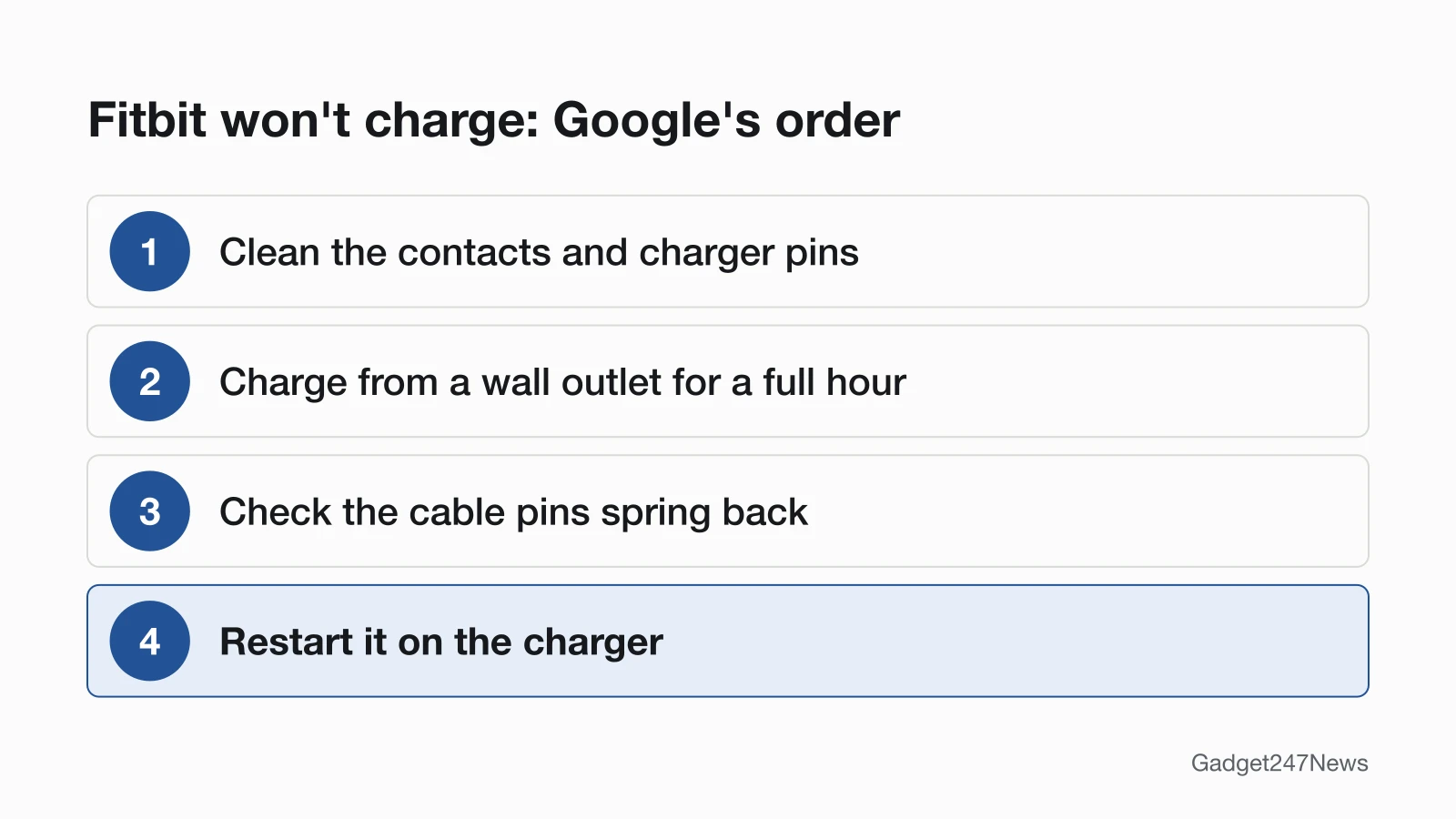
Fixes 1, 2, 3 and 6 follow Google's troubleshooting order, with the restart last; Fixes 4 and 5 come from its charging and battery pages.
Fix 1: Clean the Charging Contacts and Pins
- Gently clean the gold dots on the back of the Fitbit and the pins on the charger with a cotton swab and rubbing alcohol.
- If it still won't charge, rub the gold dots firmly with a pencil eraser. Google says this "safely scrubs away the buildup that alcohol can't reach."
- Brush away every eraser bit before you plug the Fitbit back in.
Never scrape the contacts with anything metal; Google says metal "can damage the plating and cause corrosion."
Fix 2: Charge From a Wall Outlet for a Full Hour
- Plug the cable into a standard wall outlet; Google says not to use a computer.
- Leave the Fitbit on the charger for a full hour.
- If Fitbit shows "insufficient power source," take other gadgets off the USB hub or switch to a different wall plug.
At 0%, the screen might stay black for several minutes, so give it the whole hour. Google's general charging page also lists a safety-certified USB wall charger as a power source.
Fix 3: Check the Cable Pins, and Use Your Model's Cable
- Unplug the cable.
- Gently push each gold pin on the charging cable with your finger.
- Check that the pins spring back up at once. If a pin stays pushed in or feels stuck, Google says the cable likely needs to be replaced.
Use the cable made for your model. Charge 5, Charge 6 and Luxe share one cable. The Charge 3 cable doesn't work with Charge 4, whose cable has a gray connector on the base of the clip, and the Versa 2 cable doesn't work with Versa or Versa Lite Edition.
Fix 4: Seat It on the Charger the Right Way
Each charger attaches its own way. On magnetic chargers (Charge 5, Charge 6, Luxe, Sense 2, Versa 4), hold the cable near the port on the back until it attaches, with the pins lined up. On Inspire 2, Inspire 3 and Ace 3, line up the pins with the gold contacts and press gently until the Fitbit snaps into place. On the Charge 3 and Charge 4 clip, the pins must lock securely onto the gold contacts. A charger that won't stay attached needs its little gold pins checked for dirt or sticking. Keep metal objects, such as jewelry, away while it charges.
Fix 5: Charge Within Google's Temperature Range
Move the Fitbit somewhere warmer or cooler before you try again. Google says not to charge it in extreme temperatures below 32° F (0° C) or above 113° F (45° C).
Fix 6 (Last): Restart It on the Charger
Google says a restart reboots the hardware but "won't delete any of your fitness data."
- Charge 5, Charge 6, Luxe and Luxe Special Edition: with the Fitbit on its cable, find the small button on the flat end of the cable, press it 3 times with exactly 1 second between presses, and wait roughly 10 seconds for the Fitbit logo.
- Sense and Versa series: with the watch on the charger, press and hold the side button for 10 seconds, then release once the Fitbit logo appears.
Other models restart their own way; see How to Restart or Factory Reset a Fitbit.
Charging Problems by Model
Chargers, charging signs and screen errors differ from one Fitbit model to the next.
How to Tell It's Charging: Chargers and Signs by Model
The table shows each model's charger, the sign Google gives that charging has started, and how a full charge shows:
| Model | Charger | Sign it's charging | Full charge, or how to check |
|---|---|---|---|
| Charge 5, Charge 6, Luxe | Magnetic, one shared cable | Charge percentage on screen | Solid battery icon |
| Inspire 3, Inspire 2, Ace 3 | Press in until it snaps into place | Google doesn't say | Solid battery icon (Inspire 2: with a smile) |
| Sense 2, Versa 4 | Magnetic | Charge percentage on screen | Swipe down from the clock face to see the level |
| Sense, Versa 3 | Magnetic | Charge percentage on screen | Tap the screen twice or press the button to see the level |
| Versa, Versa Lite Edition, Versa 2 | Pinch-clip cradle | Charge percentage on screen | Tap the screen twice to check the level |
| Charge 3, Charge 4 | Clip | Vibrates and shows a battery icon | Solid battery icon with a smile |
| Google Fitbit Air | Magnetic | Vibrates and the status light lights up | Solid white light |
To use it while it charges, press the button on a Charge 6 or double-tap the screen on an Inspire 3, Charge 5 or Luxe, then swipe right on the battery screen.
A Red X on the Screen
A red "X" is a sync or software error, according to Google: the Fitbit's software "has frozen during a data transfer." The fix is to remove the Fitbit and set it up again:
- Open the Google Health app and, at the top right, tap your Profile picture or Initial.
- Tap Remove this device.
- In your phone's Bluetooth settings, find the Fitbit and tap Forget or Unpair.
- Back in the Google Health app, tap Set Up a Device.
- Follow the on-screen instructions to pair the Fitbit back to your account.
Those are the labels on Google's charging page as read on September 27, 2026. Google's setup page removes a Fitbit another way: Connections, your device, then System › Disconnect device. For sync problems once it's set up again, see Fitbit not syncing with the Google Health app.
Google Fitbit Air Status Light
Google Fitbit Air has no screen, so double-tap it and read the status light. White means more than 20% and red means less than 20%; a slowly blinking red light also means less than 20% is left. A solid red light means the battery has run out, and a fully empty Fitbit Air can show no light at all.
Still not working?
If your Fitbit still won't charge after all six fixes, work down this list:
- Try the next fix: Fitbit won't turn on (if it stays dark after an hour on a wall outlet).
- Reset your Fitbit: How to Restart or Factory Reset a Fitbit (you'll need to set it up again afterwards).
- Contact Google Health Support: Google Health Help. Google's charging page ends by sending you to Customer Support.
- Check repair or warranty options: File a warranty claim for your Fitbit device. Google says accidental damage isn't covered under warranty.
Started after an update? Check the Update Tracker for known issues.
Related Problems
Two problems look like a charging fault but have their own fixes.
It Charges but Dies Quickly
When the battery dies in less than a day, Google's fix is to turn off Always On in your watch settings. Other causes and fixes are in Fitbit battery draining fast.
It Won't Charge or Turn On
Give it a full hour on a wall outlet first, since a Fitbit at 0% can stay black for several minutes. If the screen is still dark after that hour, use the Fitbit won't turn on guide in the list above.
What is the lifespan of a Fitbit?
Google doesn't publish a Fitbit lifespan in years. It says that after several hundred charge cycles, a Fitbit may need to be charged more often. For storage, Google says to charge trackers to 100% at least once every 6 months and watches at least once per year.
How long does a Fitbit take to charge?
Charging a Fitbit to 100% may take one to two hours, according to Google, and a Google Fitbit Air charges from 0 to 100% in about 90 minutes. For best results, Google says not to leave a Fitbit on the charger longer than overnight.
Sources
We checked this page against the pages below, most recently on . How we verify fixes
- Google Health Help: Why isn't my Fitbit device's battery charging? (Google, support.google.com)Official
- Google Health Help: Charge your Fitbit device (Google, support.google.com)Official
- Google Health Help: Extend your Fitbit device's battery life (Google, support.google.com)Official
- Google Health Help: How to fix a blank, unresponsive, rebooting, or flickering Fitbit device screen (Google, support.google.com)Official
- Google Health Help: How do I set up my Fitbit device? (Google, support.google.com)Official
- Google Health Help: File a warranty claim for your Fitbit device (Google, support.google.com)Official
- Google Health Help: What is new with the redesigned Google Health app (Google, support.google.com)Official