How to Connect Skullcandy Earbuds to Android

By Suraj Giri, Founder & Publisher. Reviewed by Suraj Giri on .
Published · 4 min read
How this page was made
- Sources. Checked against 11 official pages from Google, Skullcandy and Samsung, most recently on . See the sources.
- No device testing. We don't test fixes on physical devices, so nothing on this page is a hands-on result. A fact counts as verified only when it matches an official source page.
- AI use. As with every page on Gadget247News, AI tools helped research, outline, draft and edit this page, and re-read the official pages to flag facts that didn't match. The illustration at the top was generated with Runway and is labelled under the image.
- Human sign-off. Suraj Giri, Founder & Publisher, read this page and signed it off on . The site won't publish a page without that sign-off.
- Changes. The published and updated dates move only when the content changes, and every change gets a dated note. Spot an error or a fix that didn't work? Email info@gadget247news.com.
Read our AI use policy, editorial policy and corrections policy.
Android pairs Skullcandy earbuds like any Bluetooth audio device: take them out of the case until they say "Ready to pair", then tap Pair new device in the phone's Bluetooth settings. The one trap is a second entry ending in "-LE", which you skip. For other faults, see Skullcandy earbuds not working; to pair Bluetooth earbuds with a tablet from another brand, use the cross-brand guide.
How to Pair Skullcandy Earbuds With an Android Phone
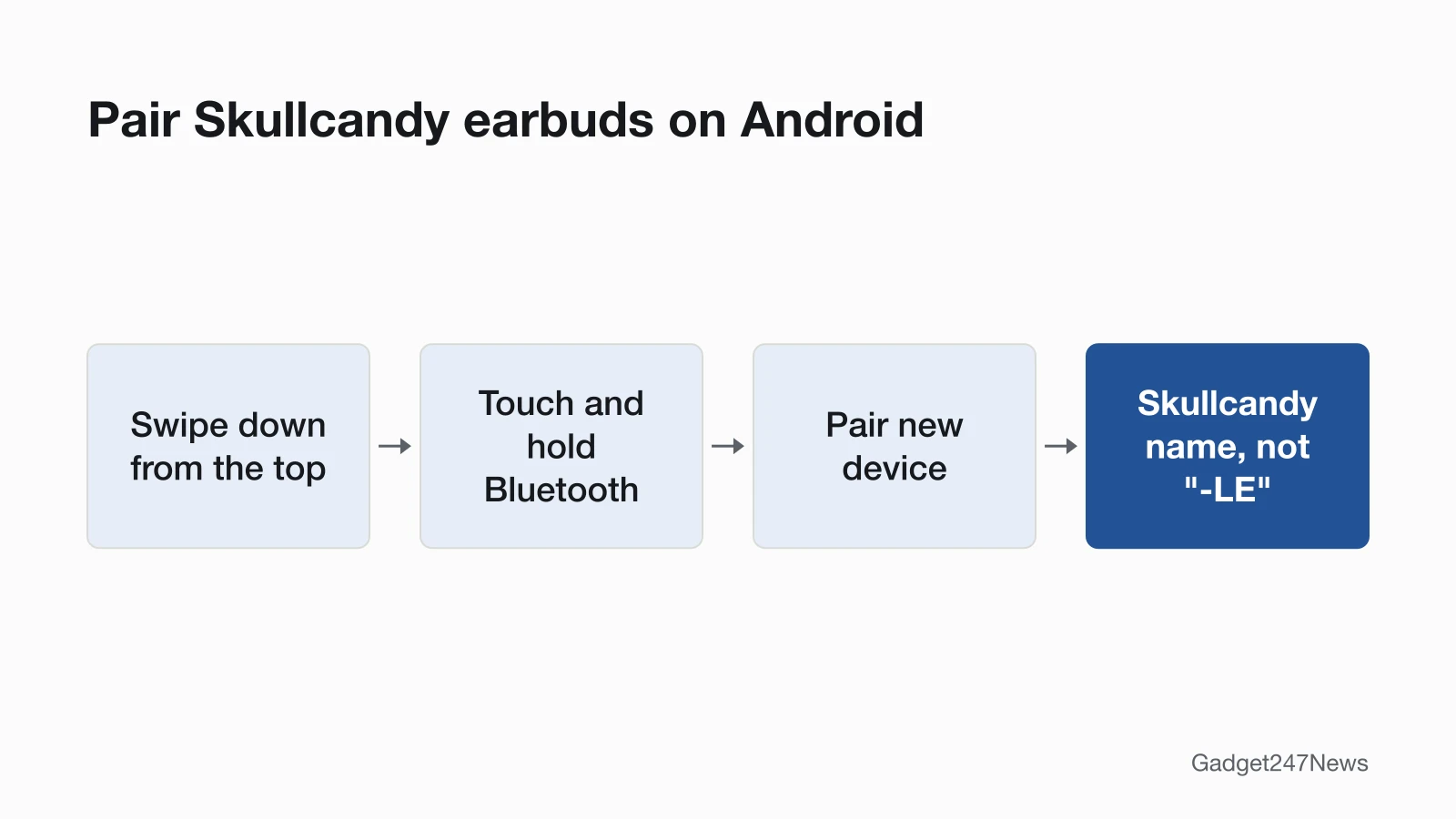
To pair Skullcandy earbuds with an Android phone, put them in pairing mode, then tap Pair new device and the plain product name:
- Take both earbuds out of the case and wait for "Ready to pair" as the lights pulse red and blue (Dime 3, Rail ANC; other models in the table below).
- On the phone, swipe down from the top of the screen, then touch and hold Bluetooth.
- Tap Pair new device. Skullcandy's pages write this step as "+ Pair New Device".
- Tap the plain product name, such as "Rail ANC", not an entry ending in "-LE".
- Follow the on-screen instructions and accept the "Pair" or "OK" prompt. The earbuds say "Connected."
Google notes that some of these steps work only on Android 15 and up, and some only on devices with supporting hardware. With no Pair new device option, check under Available devices or tap More, then Refresh.
Pairing Mode for Each Skullcandy Model
Earbuds already paired with another phone need their model's pairing press before Android can find them:
| Model | Pairing mode | What you hear or see |
|---|---|---|
| Dime 3 | Hold either earbud's button for 3 seconds | "Ready to Pair", lights pulse red/blue |
| Rail ANC | Hold either earbud's touch sensor for 3 seconds | "Ready to pair", lights pulse red/blue |
| Method 360 ANC | Hold either earbud for 3 seconds | "Ready to pair", both earbuds pulse blue |
| Indy Evo, Sesh Evo | In the case until both lights show red, then out | Only the left earbud flashes red/blue |
Push Active, the headphones and other models are covered in How to connect and pair Skullcandy earbuds with any device.
The Skullcandy App on Android
Pair in Bluetooth settings first, then get the Skullcandy App from the Google Play Store and link the earbuds. Skullcandy explains that "Android requires that any app that uses Bluetooth also be granted location access", so allow both permissions; it adds that the app "does not track your location or store your data". Rail ANC, Method 360 ANC, Push Active and Indy Evo work with the app; Dime 3 and Sesh Evo don't.
On a Samsung Galaxy Phone
Samsung's path to the same screen is Settings, then Connections, then Bluetooth; from the Bluetooth settings menu, tap Scan and select the earbuds from the available devices. Pick the plain Skullcandy name with the headphone icon, not the "-LE" entry, as on any Android phone.
How to Check Skullcandy Earbuds Are Connected on Android
Three checks confirm the connection on Android:
- The earbuds say "Connected" (Dime 3, Rail ANC).
- In Bluetooth settings, the earbuds show as "Connected". Indy Evo appears twice in the paired devices list, which is part of a successful pairing on its page.
- On a supported model, the Skullcandy App links only once the earbuds are "on and paired with your phone".
If Skullcandy Earbuds Won't Connect to Android
Put the earbuds in pairing mode again and retry Pair new device. If that fails, remove them from the phone: touch and hold Bluetooth, tap Settings next to the earbuds' name, tap Forget, then pair them again. If only one earbud joins, re-sync the two earbuds first; the full order is in Skullcandy earbuds won't connect.
What Works Differently on Android
Two Android-only points come from Skullcandy's own help pages:
- App versions 3.3.0 and 3.3.1. After those Skullcandy App updates, some Android users couldn't connect products they had linked before. Skullcandy's fix: clear the app's storage in the phone's Settings app, uninstall and reinstall the app from the Google Play Store, then accept the Bluetooth, Location and Media permissions.
- Crusher Evo on Android 13. Skullcandy names a bug in "Android 13 TQ1A.221205.011 and earlier" that blocks the app connection, and says "Upgrading your operating system may solve this issue."
Skullcandy Earbuds and Android: Quick Answers
Why does my Android phone say "An app is needed to use this device"?
You selected the "-LE" entry. Skullcandy's Sesh Evo answer says "Sesh Evo-LE" is the Tile™ app Bluetooth signal. Select only "Sesh Evo", shown with a small headphone icon on Android, and no app download request appears.
Do I need the Skullcandy App on Android?
No. Android pairs Skullcandy earbuds from Bluetooth settings, and Skullcandy says to pair an app-compatible product with your phone before using the app. The app adds features such as custom button functions and firmware updates on supported models only.
Why do I see my Skullcandy earbuds twice on Android?
One entry is the "-LE" Tile connection, which "will not allow for audio and calls". Pair the entry without "-LE".
Sources
We checked this page against the pages below, most recently on . How we verify fixes
- Find & set up Bluetooth devices near your Android device (Android Help) (Google, support.google.com)Official
- SKULLCANDY APP (Skullcandy Product Help) (Skullcandy, skullcandy.com)Official
- Pair Bluetooth with your Samsung devices (Samsung US) (Samsung, samsung.com)Official
- Bluetooth device won't reconnect or stay connected to Galaxy phone or tablet (Samsung US) (Samsung, samsung.com)Official
- DIME® 3 (Skullcandy Product Help) (Skullcandy, skullcandy.com)Official
- RAIL® ANC (Skullcandy Product Help) (Skullcandy, skullcandy.com)Official
- METHOD 360 ANC (Skullcandy Product Help) (Skullcandy, skullcandy.com)Official
- INDY™ EVO (Skullcandy Product Help) (Skullcandy, skullcandy.com)Official
- SESH® EVO (Skullcandy Product Help) (Skullcandy, skullcandy.com)Official
- PUSH® ACTIVE (Skullcandy Product Help) (Skullcandy, skullcandy.com)Official
- CRUSHER® EVO (Skullcandy Product Help) (Skullcandy, skullcandy.com)Official