How to Rename AirPods

By Suraj Giri, Founder & Publisher. Reviewed by Suraj Giri on .
Published · 3 min read
How this page was made
- Sources. Checked against 6 official pages from Apple, Google and Microsoft, most recently on . See the sources.
- No device testing. We don't test fixes on physical devices, so nothing on this page is a hands-on result. A fact counts as verified only when it matches an official source page.
- AI use. As with every page on Gadget247News, AI tools helped research, outline, draft and edit this page, and re-read the official pages to flag facts that didn't match. The illustration at the top was generated with Runway and is labelled under the image.
- Human sign-off. Suraj Giri, Founder & Publisher, read this page and signed it off on . The site won't publish a page without that sign-off.
- Changes. The published and updated dates move only when the content changes, and every change gets a dated note. Spot an error or a fix that didn't work? Email info@gadget247news.com.
Read our AI use policy, editorial policy and corrections policy.
Wear your AirPods and connect them, then open Settings, tap your AirPods' name near the top, tap the current name and type a new one. On a Mac, use System Settings. If they won't connect, start with How to Connect AirPods to iPhone.
Renaming changes the name your iPhone, iPad and Mac show for the AirPods, which helps when a household has more than one pair. Apple gives one set of rename steps, with no model differences. If you're trying to track down a missing pair instead, see How to Find Lost AirPods.
How to Rename AirPods on iPhone or iPad
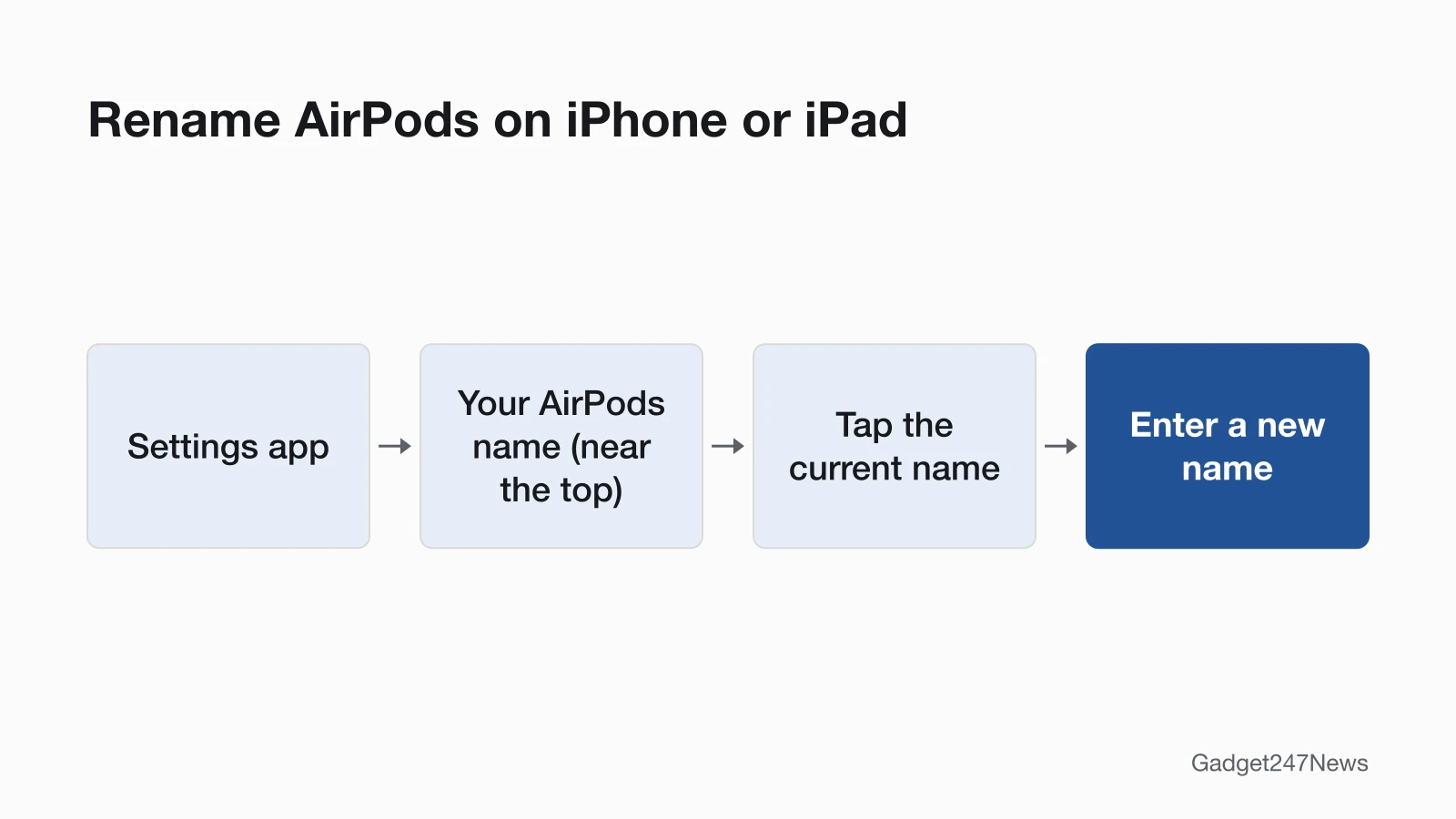
To rename AirPods on iPhone or iPad, change the name on their page in Settings:
- Wear your AirPods, and make sure they're connected to your device.
- Go to the Settings app, then tap the name of your AirPods near the top of the screen.
- Tap the current name, then enter a new name.
The AirPods' name shows near the top of Settings when the case is open or you're wearing them. If you don't see it there, tap Bluetooth, tap the More Info button next to your AirPods, then tap the name and enter a new one. Apple's settings article finishes that route with Done.
How to Rename AirPods on a Mac
To rename AirPods on a Mac, wear them, make sure they're connected, then use System Settings:
- Go to the System Settings app, then click the name of your AirPods in the sidebar (you may need to scroll down).
- Enter a new name.
If they aren't connected yet, open System Settings, click Menu Bar in the sidebar, then select Bluetooth below Menu Bar Controls. Then click the Bluetooth status menu in the menu bar and choose the AirPods you want to connect.
Does the New Name Sync to Your Other Devices?
Yes. When you're signed in to the same Apple Account on multiple devices, the new name is updated across devices, so you only change the name of your AirPods once. Apple's statement covers devices on that same Apple Account.
How to Check It Worked
The rename worked when the new name appears near the top of the Settings app on your iPhone or iPad, with the case open or the AirPods in your ears. On a Mac, it's the name listed in the System Settings sidebar.
If You Can't Rename Your AirPods
When AirPods won't take a new name, check three things: the connection, where you're looking, and the Apple Account on your other devices.
Why Can't I Rename My AirPods?
- They aren't connected. Apple's steps start with the AirPods in your ears and connected. On iPhone or iPad, go to Settings, tap Bluetooth, and if your AirPods aren't connected, tap Not Connected.
- The name isn't near the top of Settings. It shows there when the case is open or you're wearing them. Otherwise, tap Bluetooth, then the More Info button next to your AirPods.
- Another device still shows the old name. The name updates across devices signed in to the same Apple Account, so check which account that device uses.
If they still won't connect, work through AirPods Not Connecting? Causes and Fixes.
Related Guides
For other devices in the same household, see how to find Samsung earbuds, or find which Apple Watch series you have before you look up watch steps.
Can I rename AirPods on Android or Windows?
Apple's rename guide covers iPhone, iPad and Mac only. On Android, Google's Bluetooth help lists a rename option: swipe down from the top of the screen, touch and hold Bluetooth, tap Settings next to your device's name, then at the top tap Edit. Google doesn't say whether that name reaches other devices, and Microsoft's Windows Bluetooth pairing guide has no rename steps.
Sources
We checked this page against the pages below, most recently on . How we verify fixes
- Rename your AirPods (AirPods User Guide) (Apple, support.apple.com)Official
- Change the settings of your AirPods and AirPods Pro (Apple, support.apple.com)Official
- Connect your AirPods (AirPods User Guide) (Apple, support.apple.com)Official
- Tap the name of your AirPods (AirPods User Guide) (Apple, support.apple.com)Official
- Find & set up Bluetooth devices near your Android device (Android Help) (Google, support.google.com)Official
- Pair a Bluetooth device in Windows (Microsoft Support) (Microsoft, support.microsoft.com)Official